Home
» WINDOWS
»
pViewer: A Minimal Image Viewer and Manga & Comic Reader
pViewer: A Minimal Image Viewer and Manga & Comic Reader
pViewer is a Windows image viewer designed to keep the picture prominent while still offering keyboard controls, basic editing, photo information, and a reader for comic and manga archives. There are two editions to distinguish before downloading: the original SourceForge line tops out at pViewer 1.7, while a GitHub project for pViewer describes version 2 as a complete rewrite for modern Windows. If you want the newest edition, start at the author's GitHub releases page; use the SourceForge download only when you specifically need the legacy 1.x build.
A conceptual illustration of a photo-first viewing workspace, not a screenshot of pViewer.
Which pViewer version should you choose?
Edition
What the project documents
Best fit
pViewer 2
The GitHub project describes a .NET 10 and WPF rewrite for 64-bit Windows 10 or 11. Its release page offers Full and Light installers; Full bundles the .NET runtime, while Light requires the .NET 10 Desktop Runtime.
People installing pViewer on a supported current Windows PC.
pViewer 1.x
SourceForge lists pViewer-1.7.zip as its latest downloadable archive, dated August 24, 2013. The original project page says the app uses .NET Framework 4 and is portable.
People who need the original release or are following an older guide.
The release histories are separate. Legacy pViewer lists ZIP, RAR, CBZ, and CBR; pViewer 2 adds 7z/CB7 and documents current Windows requirements.
Choose Full if you need the bundled .NET runtime; Light requires the .NET 10 Desktop Runtime (x64). Setup can add pViewer to Windows' “Open with” menu. Get the installer and its notes from the project's GitHub releases page.
Viewing photos without a crowded screen
Open an image or an image folder in pViewer, then move through neighboring files with the keyboard or mouse. The original version puts many commands in a right-click menu and relies heavily on shortcuts, so the image can occupy most of the window. The author's pViewer 2 description says the rewrite keeps that shortcut-driven approach, but the exact controls may vary by release. In pViewer 2, press F1 for the built-in help; keyboard shortcuts can be changed in Settings > Keyboard shortcuts.
The original 1.x guide lists Right or Spacebar for the next image, the mouse wheel or plus/minus for zoom, and F11 for full screen. Check in-app Help if a shortcut differs. A slideshow and fit-to-window or actual-size views are also documented.
Reading manga and comic archives
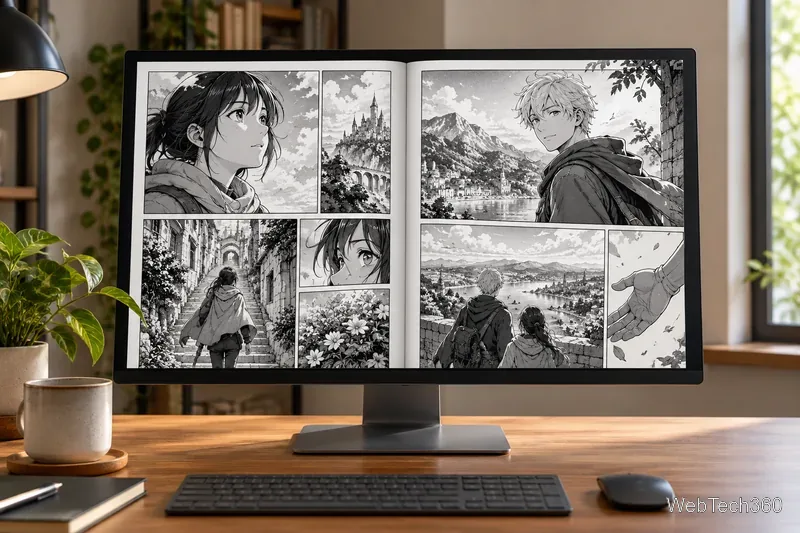
A conceptual two-page manga reading view; it does not show the pViewer interface.
pViewer can read image pages directly from supported archives, so you do not have to extract a chapter into a separate folder first. The current pViewer 2 project lists ZIP/CBZ, RAR/CBR, and 7z/CB7, including nested archives. The original pViewer guide documents two-page Comic and Manga modes: Comic reads left to right, while Manga reads right to left. The rewritten pViewer retains these reading directions and can advance to the next archive in a folder when you reach the end of a volume. Its project notes also document F12 for realigning page pairs.
Keep a series' chapters together and name files so they sort in reading order. If pages appear reversed, switch Manga and Comic direction. If a cover pairs awkwardly, in pViewer 2, use F12 to realign page pairs; the original 1.x guide says F12 advances one page.
Checking EXIF and making quick edits
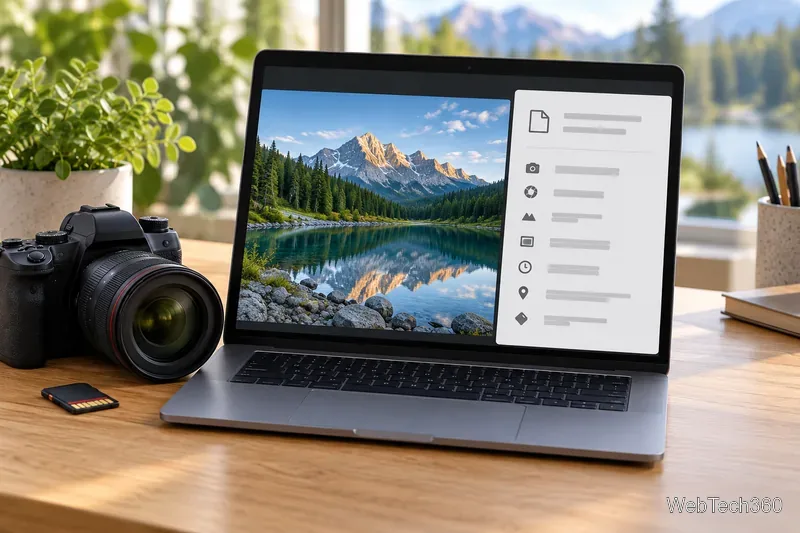
A conceptual illustration of photo metadata; the symbols are not a pViewer screenshot or real EXIF values.
For photos that contain EXIF metadata, pViewer can show camera and capture details such as make and model, orientation, dimensions, exposure settings, and date information when those fields exist in the file. Missing fields are normal: a screenshot, edited export, or social-media download may contain little or no camera metadata. The metadata panel can help you inspect a file, but it cannot restore information that has been removed.
Documented edits include rotate, flip, resize, crop, grayscale, invert, and borders; pViewer 2 adds more adjustments and undo/redo. Keep an untouched copy of important originals, and check a small sample before batch-processing a folder.
Limitations and safe download checks
pViewer 2 is documented for 64-bit Windows 10 and 11, not macOS or Linux. Its feature list covers images and image archives, so verify PDF or EPUB support before relying on it. The SourceForge 1.7 package dates to 2013; check its requirements and compatibility before installing it on a current PC.