Home
» WINDOWS
»
How to Switch to the Next Desktop Background With a Hotkey in Windows 7 and 8
How to Switch to the Next Desktop Background With a Hotkey in Windows 7 and 8
Yes, on Windows 7 and 8 you can make a keyboard shortcut advance a desktop slideshow. The workaround below creates a small VBScript file that sends the desktop menu keystrokes, then assigns a hotkey to a shortcut to that script. It is a legacy trick, not a built-in wallpaper hotkey, so test it before relying on it. For the most dependable one-time change, right-click an empty area of the desktop and choose Next desktop background.
A slideshow advances through a folder of wallpapers.
Set up a desktop slideshow first
The next-background command needs a slideshow with more than one selected image. In Windows 7, open Start, search for desktop background, and choose Change desktop background. Select a folder, check at least two pictures, choose how often the image should change, and save. Windows 7 Starter and Home Basic do not include the desktop slideshow feature. Microsoft’s Windows 7 slideshow guide lists the edition limits and settings.
In Windows 8, right-click the desktop, choose Personalize, then open Desktop Background. Select multiple pictures and save the change. Menu labels can vary slightly by edition or display language. Leave the desktop slideshow enabled; if the wallpaper stops changing on a laptop, check whether its power settings pause slideshows on battery.
The sequence sends Ctrl+Space, Shift+F10, then the letter N. On an English desktop, that last key selects the “Next desktop background” menu item. The Microsoft SendKeys reference explains the Ctrl (^) and Shift (+) notation used here. Because this script types into the active window, use it from the desktop and test it before assigning a hotkey. The menu letter may differ in another language, and keystroke timing can vary.
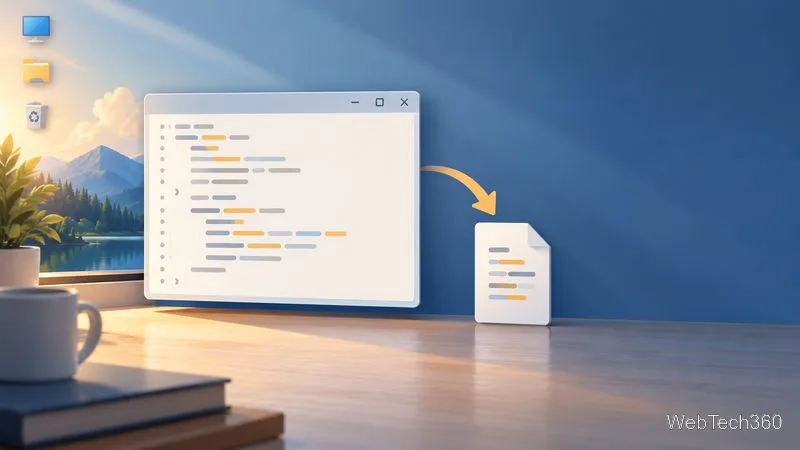
The small script automates the desktop menu keystrokes.
In Notepad, choose File > Save As. Enter NextDesktopBG.vbs as the file name and set Save as type to All Files. Save it on the desktop for easy access. If Windows hides file extensions, open Folder Options and clear Hide extensions for known file types before checking the name. Make sure the file did not become NextDesktopBG.vbs.txt.
Click an empty part of the desktop, then double-click the new .vbs file to test it. The wallpaper should advance once. If another application reacts to the keys, close or minimize it and run the test with the desktop active.
Assign a keyboard shortcut
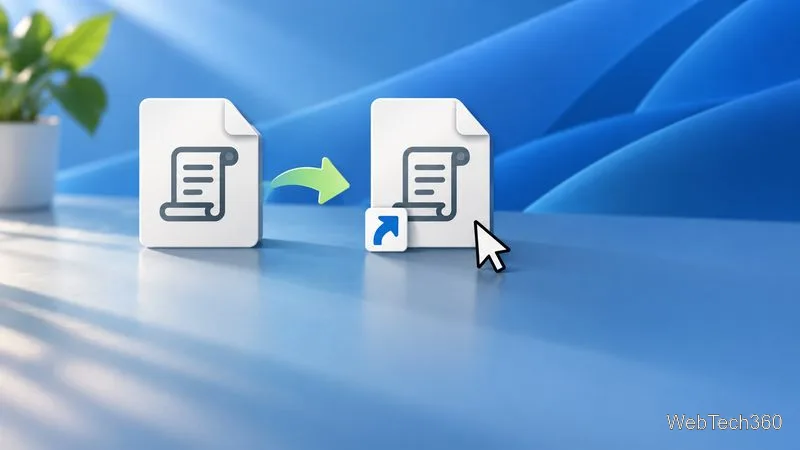
Right-click NextDesktopBG.vbs and choose Create shortcut. Keep the shortcut on the desktop.
Create a separate shortcut so you can assign a key combination.
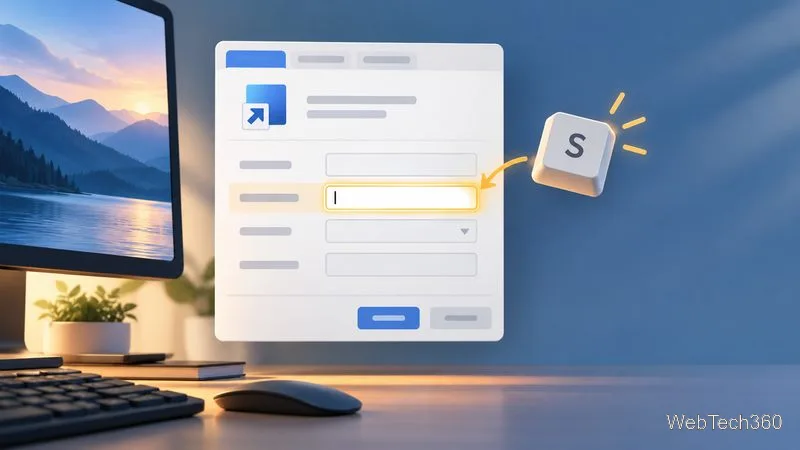
Right-click the shortcut, choose Properties, and open the Shortcut tab.
Click the Shortcut key field and press an unused key combination, such as Ctrl+Alt+S. Windows fills in the modifier keys as you type. Avoid a combination already used by another app, then click OK.
Choose a key combination that does not conflict with another shortcut.
Click a blank area of the desktop and press the combination you assigned. If it works, the wallpaper advances to another selected image. Keep the original .vbs file where it is; the desktop shortcut points to that file.
If the hotkey does not change the wallpaper
No slideshow: Select at least two background images. On Windows 7 Starter or Home Basic, this feature is unavailable.
The wrong window responds: The script sends keystrokes to the active window. Return to the desktop, click an empty area, and test again. Do not run it while typing into a document or message.
The menu does not advance: Try the desktop context menu directly. If your display language is not English, the menu access key may not be N; the script’s last line may need to match the underlined letter shown in that menu.
The hotkey does nothing: Check that the shortcut still sits on the desktop, that its Shortcut key field shows your combination, and that no other program owns the same keys.
Security and support note: A .vbs file can run commands, so use only the code you understand and do not open an unknown script. Windows 7 support ended January 14, 2020; Windows 8 support ended January 13, 2016; Windows 8.1 support ended January 10, 2023. See Microsoft’s lifecycle pages for Windows 7, Windows 8, and Windows 8.1.