Add a Date and Time Stamp to Photos on Your Android Phone

Learn how to add a visible date and time to new or existing Android photos with your camera's watermark setting or Google Photos Markup.
You can add a date and time stamp to an Android photo in two ways: turn on a watermark in a camera app that supports it, or add text to a photo after taking it. The first method can stamp new pictures automatically; the second works for existing pictures. Android does not have one universal camera setting, and a photo’s saved date metadata is different from text printed visibly on the image.
Check the Camera app that came with your phone before installing another app. Search its settings for Watermark, Date stamp, or a similar option. The menu and availability depend on the phone model and software version.
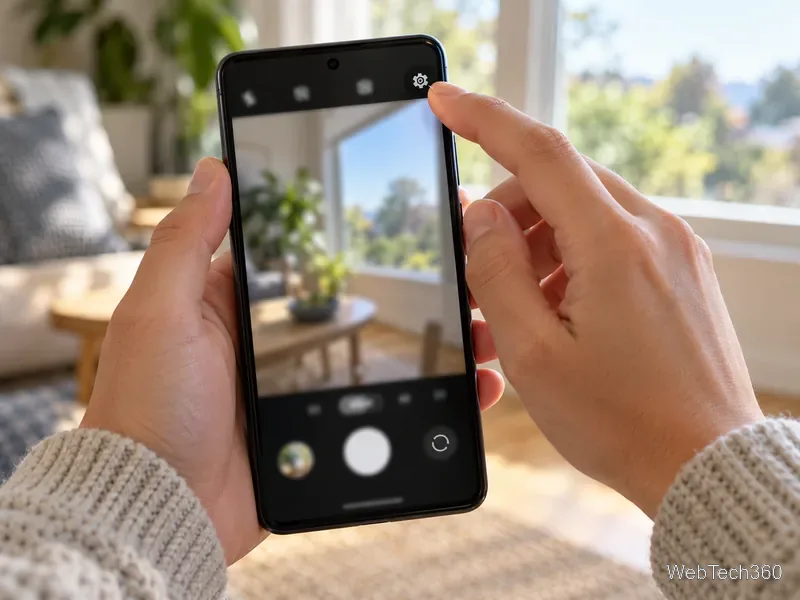
A camera watermark is part of the image pixels, so it will remain visible when you share or print the photo. It usually applies only to pictures taken after you enable it. Samsung says its applied watermark cannot be removed from the photo, so take a test shot first and keep an unstamped original if you may need one. If you cannot find a watermark setting, your phone may not offer it in its stock camera.
Google Photos’ Markup tool can place text on a photo. Use this method when the picture is already in your library or your camera app has no timestamp option:
Google’s Google Photos editing guide documents Markup, text placement, and the option to save a copy. Tool availability and labels can vary by device or app version. If Markup or Text is missing, update Google Photos or use an image editor already available on your phone.
For an accurate caption, check the recorded capture time before typing. In Google Photos, open the image and tap More > About, or swipe up, to view its date and time. Photos also lets you edit the date and time for backed-up images in that panel. That changes the time Photos displays for organization; it does not itself add visible text to the picture, and Google notes that a shared or downloaded photo may still show the original camera time.
Often, yes. Some Samsung and Xiaomi camera apps have a built-in timestamp option, and Google Photos can add text to existing images. Other Android camera apps may not have either feature, so check the tools available on your device.
No. A phone clock can be set incorrectly, and both photo metadata and visible text can be changed. Treat a stamp as a convenient label, not tamper-proof evidence.
When editing an existing image, save a copy so the original stays intact. A camera watermark is baked into the captured image; whether you can restore an original depends on the phone and Gallery app, so do not rely on being able to erase it later.
Learn how to add a visible date and time to new or existing Android photos with your camera's watermark setting or Google Photos Markup.
Learn how to screenshot on Android with button shortcuts, scrolling captures, and Pixel, Samsung, and Motorola gestures, plus where to find and share images.
Learn how Framaroot rooted compatible older Android phones, what to check before installing its APK, and why it rarely works on newer devices.
See how the classic Search Now app used a floating search button for on-device and web searches, why its Play Store listing is gone, and what works today.
Learn how to turn Facebook profile picture login on or off, remove saved sign-ins on iPhone or Android, and find the current Saved login settings.
Learn how to identify plants, products, books, and other objects in photos with Google Lens on Android, iPhone, or a computer—and improve uncertain matches.
Remove your Pokémon GO avatar’s hat, gloves, and backpack using the Style menu. Follow the steps and fix missing no-item options without spending PokéCoins.
Understand what firmware and ROM mean on Android, how stock and custom ROMs differ, what flashing changes, and which risks to check before installing an image.
Learn what you need to install CyanogenMod 7.1 RC1 on the Motorola CLIQ XT, back up the MB501, flash the matching ZIPs, and avoid unverified files.
See what Android 2.3 Gingerbread keyboard language packs supported, how to verify a compatible ZIP, back up your phone, and avoid unsafe recovery flashes.








