Add a Date and Time Stamp to Photos on Your Android Phone

Learn how to add a visible date and time to new or existing Android photos with your camera's watermark setting or Google Photos Markup.
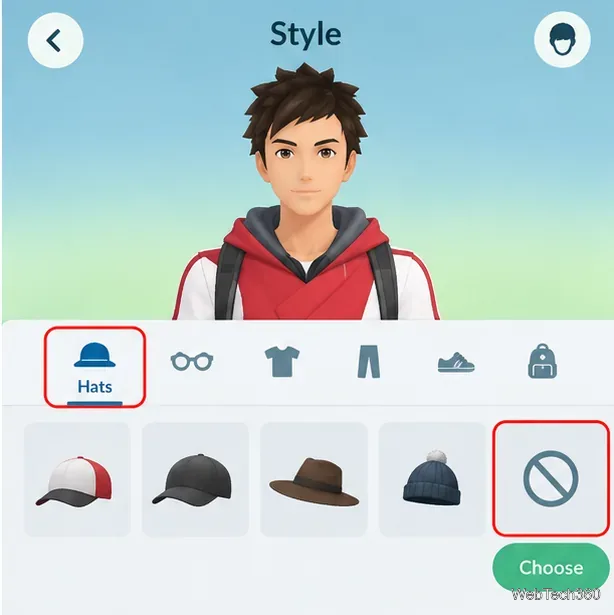
Want to remove the hat, gloves, and backpack from your Pokémon GO avatar? Open your Trainer profile, tap Style, and choose the no-item option in each accessory category. You can give your Trainer a simpler look without buying new clothing or changing how the game works. The key is to edit Hats, Gloves, and Bags/Backpacks separately.
Older tutorials may show an extra circular menu before Style or tell you to swipe to the very last item. Pokémon GO's avatar editor has changed over time, so follow the category names and look for an empty or crossed-out selection rather than relying on an exact position.
The Style editor lets you preview clothing and accessories on your avatar. If you see an Appearance option, that is for features such as hair and body settings; stay in the clothing categories for this task.

You do not have to replace a hat with another hat. The no-item choice is different from an ordinary cap or hairstyle option. Don't tap Exchange for a paid item when your goal is simply to remove headwear.
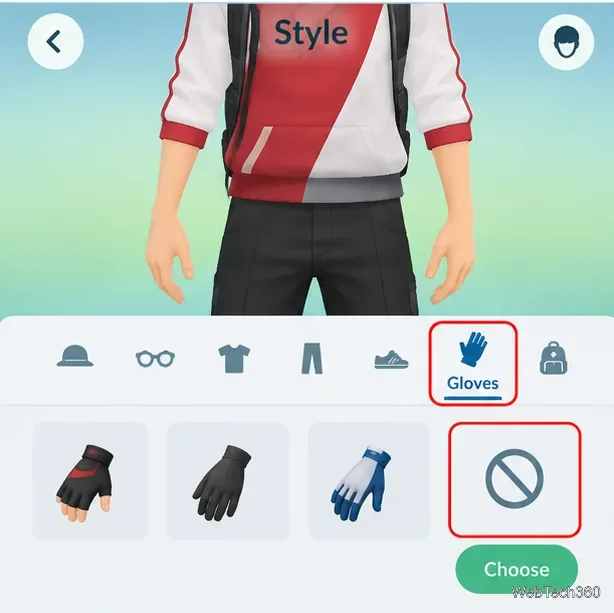
Return to the list of clothing categories and open Gloves. This category may be grouped with other accessories, so scroll the category strip if it isn't immediately visible. Choose the empty or crossed-out glove tile, then tap Choose if prompted.
Check the character preview: both hands should appear without the previously equipped gloves. If you selected a different pair by mistake, reopen Gloves and choose the removal tile. You can always equip a pair again later.
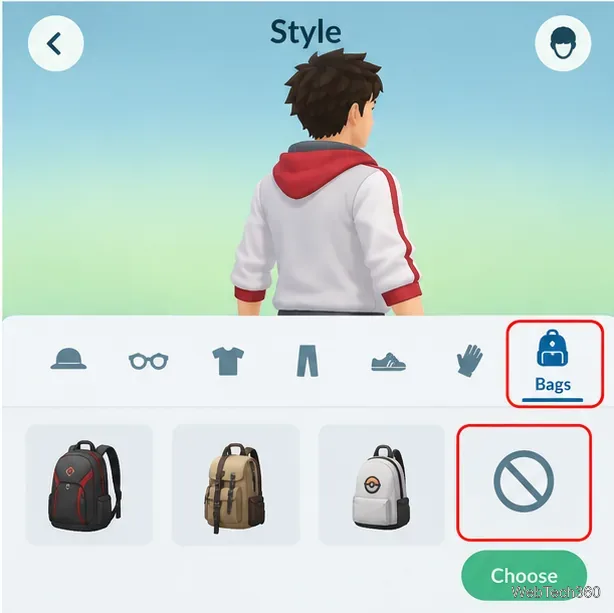
From Style, open Bags or Backpacks, depending on the category label shown in your version. Select the no-item tile and apply it with Choose when available. Rotate the avatar or switch to the full-body preview to check the back of the character; this is especially helpful if the front view doesn't show the bag clearly.
Once the hat, gloves, and backpack are gone, close the editor with the X or back control. Check your Trainer profile to confirm the new outfit is showing. Removing the backpack from the avatar changes only its appearance: it does not reduce your Pokémon storage or Item Bag capacity.
Try these checks before assuming an accessory is permanent:
Menu layouts can change with app updates. The official Pokémon GO avatar customization guide documents the current path through Trainer portrait and Style, the clothing categories, and the Choose/Exchange controls. It does not list the exact placement of every no-item tile, so use your app's preview as the final check.
No purchase is needed just to select a free, unequipped look. Pokémon GO offers a mixture of free styles, styles that cost PokéCoins, and styles unlocked through achievements. Choose applies free items; Exchange is the purchase action for premium items. Removing an accessory does not delete an item you previously unlocked or bought, so you can put it back on later.
You can also simplify other optional accessories, where the game provides a no-item choice. Tops and pants are different: you generally need to wear a clothing option in those categories rather than leave your avatar without either piece. For context on changes to the avatar editor and Style Shop, see the official Rediscover Pokémon GO overview.
Bottom line: Open Trainer portrait → Style, clear Hats, Gloves, and Bags/Backpacks one at a time, and apply each selection. You'll keep the same gameplay options while giving your avatar a cleaner, more minimal outfit.
Learn how to add a visible date and time to new or existing Android photos with your camera's watermark setting or Google Photos Markup.
Learn how to screenshot on Android with button shortcuts, scrolling captures, and Pixel, Samsung, and Motorola gestures, plus where to find and share images.
Learn how Framaroot rooted compatible older Android phones, what to check before installing its APK, and why it rarely works on newer devices.
See how the classic Search Now app used a floating search button for on-device and web searches, why its Play Store listing is gone, and what works today.
Learn how to turn Facebook profile picture login on or off, remove saved sign-ins on iPhone or Android, and find the current Saved login settings.
Learn how to identify plants, products, books, and other objects in photos with Google Lens on Android, iPhone, or a computer—and improve uncertain matches.
Remove your Pokémon GO avatar’s hat, gloves, and backpack using the Style menu. Follow the steps and fix missing no-item options without spending PokéCoins.
Understand what firmware and ROM mean on Android, how stock and custom ROMs differ, what flashing changes, and which risks to check before installing an image.
Learn what you need to install CyanogenMod 7.1 RC1 on the Motorola CLIQ XT, back up the MB501, flash the matching ZIPs, and avoid unverified files.
See what Android 2.3 Gingerbread keyboard language packs supported, how to verify a compatible ZIP, back up your phone, and avoid unsafe recovery flashes.







