Add a Date and Time Stamp to Photos on Your Android Phone

Learn how to add a visible date and time to new or existing Android photos with your camera's watermark setting or Google Photos Markup.
Framaroot was a popular one-click rooting app that could grant root access on certain older Android phones and tablets without a computer. If you have a compatible device, the basic process is to install the Framaroot APK, choose a superuser option, tap an available exploit, and reboot after a successful result. It is a legacy tool, not a reliable way to root modern Android devices.
Framaroot uses security vulnerabilities in particular devices and firmware versions. Those vulnerabilities have often been patched. The last widely documented release, Framaroot 1.9.3, dates to 2014, so treat this as a guide for older hardware rather than a current universal rooting solution.
Developed by XDA community member alephzain, Framaroot packaged several device-specific exploits into a single Android app. Historically, its support lists included selected phones and tablets using Qualcomm, MediaTek, Samsung Exynos, OMAP, and Huawei chipsets. Examples discussed in the original community documentation included the Nexus 4, some LG Optimus models, and selected Samsung, ASUS, Motorola, and Huawei devices.
Those names are historical examples, not a current compatibility guarantee. Two phones with the same model name may run different firmware, and an update may close the vulnerability Framaroot depended on. Check your exact model number, Android version, and build number before doing anything. The original Framaroot discussion on XDA is the primary historical reference for supported devices and reported outcomes, although the older thread may not always load reliably.

Rooting changes the device's security model. An unsuccessful exploit can cause instability, data loss, or a phone that will not boot. Root access can also let malicious apps reach sensitive information. Google's guidance on modified Android devices describes the loss of important protections.
A public archive listing for Framaroot 1.9.3 identifies its October 2, 2014 upload and package name com.alephzain.framaroot. That historical listing does not establish that an APK from an unrelated download site is trustworthy or compatible with your phone.
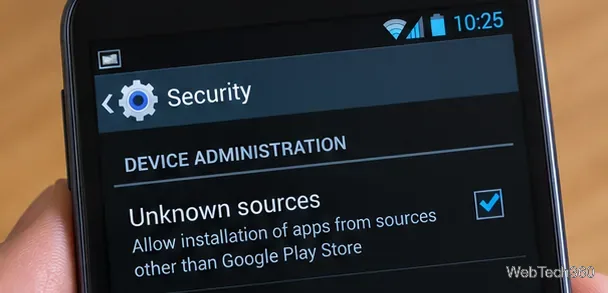
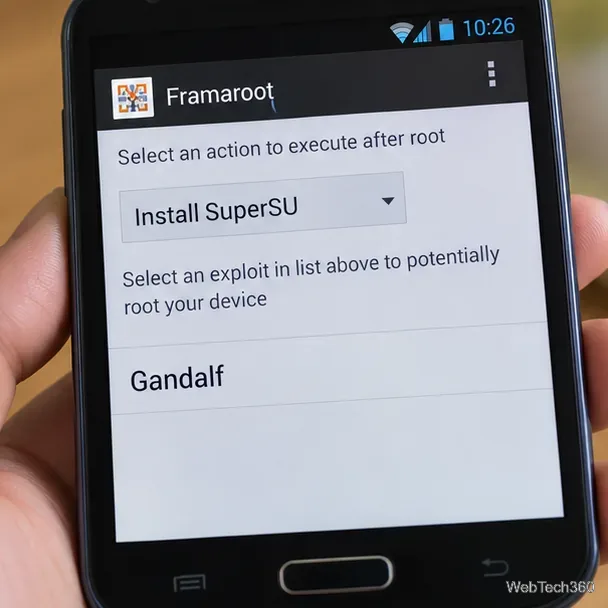
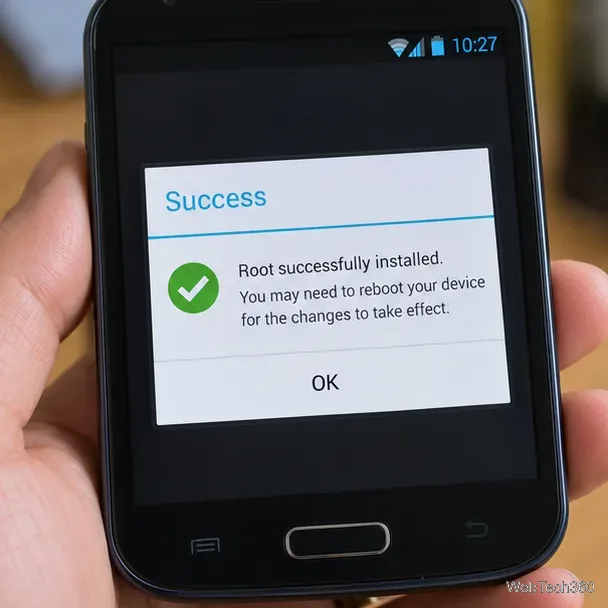
After the reboot, look for the root-management app selected during setup. Its icon alone does not prove root access. A trusted diagnostic or terminal app can make a root request; on supported configurations, the command su -c id should return an identity containing uid=0 after you explicitly approve the request. If no root permission can be granted, treat the attempt as unsuccessful.
Do not grant superuser requests to apps you do not recognize. The SuperSU and Superuser versions bundled with old Framaroot releases are themselves outdated and should not be considered suitable security software for a phone in active daily use.
Framaroot also historically offered an Unroot action on some installations, but it is not a guaranteed recovery or full security restoration method. If you want to return the phone to its original state, use verified stock firmware and restoration instructions for that exact model. For newer Android devices, look for the manufacturer's documented bootloader-unlock or developer process instead of relying on a decade-old exploit.
Learn how to add a visible date and time to new or existing Android photos with your camera's watermark setting or Google Photos Markup.
Learn how to screenshot on Android with button shortcuts, scrolling captures, and Pixel, Samsung, and Motorola gestures, plus where to find and share images.
Learn how Framaroot rooted compatible older Android phones, what to check before installing its APK, and why it rarely works on newer devices.
See how the classic Search Now app used a floating search button for on-device and web searches, why its Play Store listing is gone, and what works today.
Learn how to turn Facebook profile picture login on or off, remove saved sign-ins on iPhone or Android, and find the current Saved login settings.
Learn how to identify plants, products, books, and other objects in photos with Google Lens on Android, iPhone, or a computer—and improve uncertain matches.
Remove your Pokémon GO avatar’s hat, gloves, and backpack using the Style menu. Follow the steps and fix missing no-item options without spending PokéCoins.
Understand what firmware and ROM mean on Android, how stock and custom ROMs differ, what flashing changes, and which risks to check before installing an image.
Learn what you need to install CyanogenMod 7.1 RC1 on the Motorola CLIQ XT, back up the MB501, flash the matching ZIPs, and avoid unverified files.
See what Android 2.3 Gingerbread keyboard language packs supported, how to verify a compatible ZIP, back up your phone, and avoid unsafe recovery flashes.







