Install Android 2.3 Gingerbread Keyboard Language Packs Safely

Android 2.3 Gingerbread introduced an updated LatinIME soft keyboard, and community developers later shared ZIP packages for additional keyboard languages. Those files were made for legacy ROMs and installed through a custom recovery; they are not ordinary apps. The original 2010 download links can no longer be treated as verified, device-safe files. Use a language pack only if you can confirm its maintainer, integrity, and exact compatibility with your phone and ROM. If you cannot verify all three, stop before flashing.

A Gingerbread-era About phone screen with model and Android-version fields; menus and model details vary by device.
Use the About phone screen to record the exact model and Android build before looking for a compatible package. This is a schematic example, not a screenshot from a particular phone.

What the Gingerbread keyboard packs included

The archived guide listed English, Spanish, French, German, Italian, and Swedish packs. It also noted that the releases did not support switching among multiple languages at once and that copy-and-paste was not working in that early port. Treat those details as historical notes, not a promise that a surviving ZIP still works. A filename alone cannot confirm a pack’s language, keyboard layout, or target ROM.

Google’s Android 2.3 documentation describes the redesigned keyboard, dictionary suggestions, correction, voice input, and accented-character popups. The corresponding Android 2.3 LatinIME source shows that this keyboard was part of a specific platform release. A later phone, a different Gingerbread ROM, or a device running a newer Android version may use different system files and recovery behavior.

Check compatibility and make a recoverable backup

Before downloading anything, identify the phone’s full model number, Android version, ROM name and build, and the recovery installed on it. Compare those details with the original developer’s thread, not a repost or a search-result filename. The XDA thread linked by the original guide is an archival starting point, but its age does not make its attachments safe or universally compatible. Do not install a Gingerbread keyboard ZIP on a current Android phone.

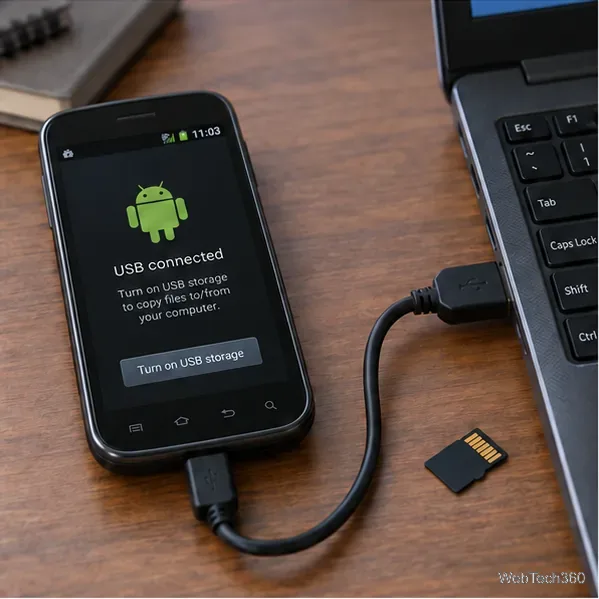
A period-style Android phone connected to a computer by USB, with a microSD card beside it.
Copy personal files and keep a separate, restorable backup before modifying system software. USB-storage steps vary by phone and ROM.
  • Back up personal files to a computer or other storage you control.
  • If your recovery supports a full system or Nandroid backup, create one and confirm that you know how to restore it. A backup that remains only on the phone’s SD card can be lost with the card.
  • Keep the original keyboard or ROM package available. Charge the phone and avoid starting if recovery or restore instructions are unclear.
  • Use a checksum only when the original maintainer published one, and verify that it matches the file. If the source gives no trustworthy file or compatibility details, do not proceed.

Install only a verified, matching ZIP

  1. Get the package from its original maintainer. Confirm the exact language and supported device/ROM in the maintainer’s post. The original article’s direct ZIP links are omitted here because their present integrity and compatibility have not been verified.
  2. Copy the ZIP to the SD card without extracting it. If the maintainer’s instructions specify the card’s root directory, place the archive there. Confirm that the copied file is complete and that its name matches the verified package.
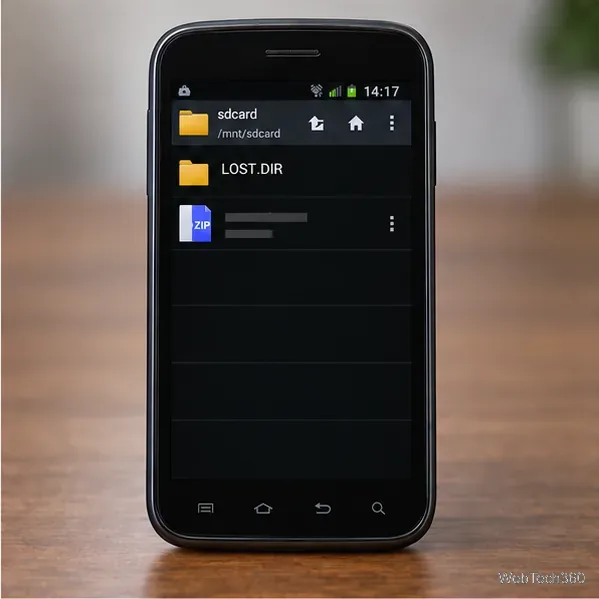
A Gingerbread-style file manager showing a ZIP archive in the SD-card root, still compressed.
The archive stays as a ZIP when the recovery instructions call for a flashable package; do not unpack it or rename it.
  1. Enter recovery using instructions for the exact phone. Button combinations and menus differ by manufacturer and recovery version, so do not assume a generic Power-and-Volume shortcut applies.
  2. Make the recovery backup before installing. Follow the recovery and maintainer’s device-specific instructions. Select an install-from-SD-card option only if the package is explicitly made for your model and ROM. Keep signature verification enabled; if verification fails, the recovery rejects the ZIP, or the instructions ask you to bypass a check, stop rather than force the installation.
  3. Reboot and check the keyboard. After a successful install, open a text field and use the ROM’s input-method settings to enable or select the keyboard. The path and label vary across Gingerbread builds. Test the intended characters in a harmless text field before relying on the keyboard.
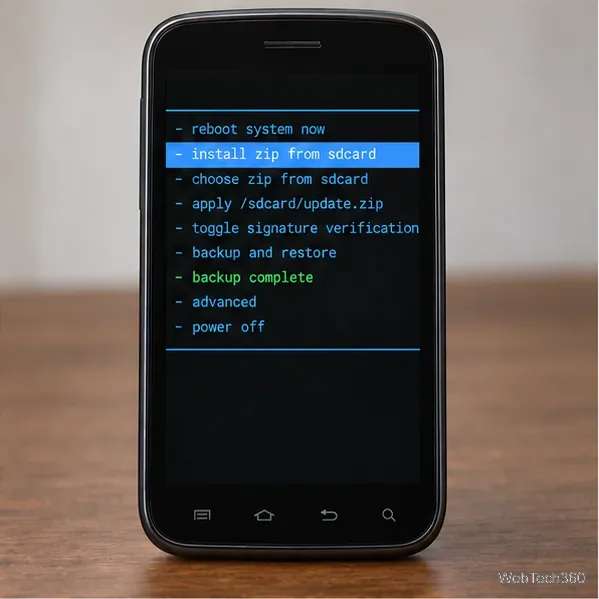
A schematic Gingerbread-era recovery menu with a ZIP-install row and a backup option; recovery menus differ and signature checks should remain enabled.
Recovery screens are not interchangeable. The menu shown is illustrative; follow only instructions written for the specific device, ROM, and recovery.

If the language is wrong or the phone has a problem

If the keyboard does not appear, force-closes, or offers the wrong layout, do not keep flashing other language ZIPs over it. Disable the added input method if Android still starts, then restore the backup or the original keyboard using the maintainer’s model-specific recovery steps. If the phone will not boot, use the recovery plan you confirmed before installation. A mislabeled or repackaged archive is not worth risking the device to troubleshoot.

For reference, see Google’s Android 2.3 keyboard feature notes, the AOSP LatinIME source for Android 2.3, and the original XDA language-pack thread. These sources explain the historical keyboard and project context; they do not certify that an old download remains safe to flash.

Leave a Comment

Add a Date and Time Stamp to Photos on Your Android Phone

Add a Date and Time Stamp to Photos on Your Android Phone

Learn how to add a visible date and time to new or existing Android photos with your camera's watermark setting or Google Photos Markup.

How to Screenshot on Android Devices: Buttons and Gestures

How to Screenshot on Android Devices: Buttons and Gestures

Learn how to screenshot on Android with button shortcuts, scrolling captures, and Pixel, Samsung, and Motorola gestures, plus where to find and share images.

How to Root Older Android Devices With Framaroot in a Few Taps

How to Root Older Android Devices With Framaroot in a Few Taps

Learn how Framaroot rooted compatible older Android phones, what to check before installing its APK, and why it rarely works on newer devices.

Search Now for Android: Search Your Phone or the Web From Anywhere

Search Now for Android: Search Your Phone or the Web From Anywhere

See how the classic Search Now app used a floating search button for on-device and web searches, why its Play Store listing is gone, and what works today.

How to Enable or Disable Facebook Profile Picture Login

How to Enable or Disable Facebook Profile Picture Login

Learn how to turn Facebook profile picture login on or off, remove saved sign-ins on iPhone or Android, and find the current Saved login settings.

How to Use Google Lens to Identify Objects in Photos

How to Use Google Lens to Identify Objects in Photos

Learn how to identify plants, products, books, and other objects in photos with Google Lens on Android, iPhone, or a computer—and improve uncertain matches.

How to Remove a Hat, Gloves, and Backpack From Your Pokémon GO Avatar

How to Remove a Hat, Gloves, and Backpack From Your Pokémon GO Avatar

Remove your Pokémon GO avatar’s hat, gloves, and backpack using the Style menu. Follow the steps and fix missing no-item options without spending PokéCoins.

Firmware, Stock ROMs, Custom ROMs, and Flashing Explained

Firmware, Stock ROMs, Custom ROMs, and Flashing Explained

Understand what firmware and ROM mean on Android, how stock and custom ROMs differ, what flashing changes, and which risks to check before installing an image.

How to Install CyanogenMod 7.1 RC1 on the Motorola CLIQ XT

How to Install CyanogenMod 7.1 RC1 on the Motorola CLIQ XT

Learn what you need to install CyanogenMod 7.1 RC1 on the Motorola CLIQ XT, back up the MB501, flash the matching ZIPs, and avoid unverified files.

Install Android 2.3 Gingerbread Keyboard Language Packs Safely

Install Android 2.3 Gingerbread Keyboard Language Packs Safely

See what Android 2.3 Gingerbread keyboard language packs supported, how to verify a compatible ZIP, back up your phone, and avoid unsafe recovery flashes.