How to Install CyanogenMod 7.1 RC1 on the Motorola CLIQ XT

Short answer: Installing CyanogenMod 7.1 RC1 on a Motorola CLIQ XT requires the exact CLIQ XT ROM ZIP, a matching Gingerbread Google Apps package, root access, and a working ClockworkMod recovery. This is a legacy 2011 release; the old download links are not a verifiable current source. Do not flash packages whose origin and integrity you cannot confirm.

CM7.1 RC1 is a Gingerbread release candidate, distinct from final CM 7.1.0; the archived changelog snapshot lists Android 2.3.7 for the final release. Motorola warns that unofficial software can damage a device or make it less secure in its software modification guidance. Do not treat this legacy ROM as a modern daily-driver upgrade.

What you need before flashing

  • A Motorola CLIQ XT, model MB501. Do not use a package for the Motorola CLIQ/Dext or another phone, even if the names look similar. The ROM filename used by the historic guide is update-cm-7.1.0-RC1-CLIQXT-signed.zip.
  • A compatible ClockworkMod recovery already installed and tested on this exact model. The old suggestion to install it through ROM Manager from Android Market is obsolete; do not install a recovery image from a random mirror.
  • The matching Gingerbread Google Apps ZIP. The historic guide names gapps-gb-20110613-signed.zip. It is a separate, optional package and must match the ROM’s Android version.
  • A charged battery, a readable microSD card, and a separate copy of photos, contacts, and any other files you cannot replace. A recovery backup does not protect files stored on the card itself.

A matching filename does not prove a ZIP is genuine. Never substitute a CLIQ/Dext or other device build, and do not disable signature checks to force an unknown package. If you cannot verify the files, stop.

A Motorola touchscreen phone beside a microSD card and a computer showing the CLIQ XT ROM and Gingerbread Google Apps ZIP filenames.
Illustrative file-preparation view. The old recovery and file-manager screens can differ by build.

Install CyanogenMod 7.1 RC1

  1. Confirm the phone model. Check the model printed on the phone or its label and confirm it is the CLIQ XT/MB501. The package must explicitly target CLIQ XT; a similar product name is not enough.
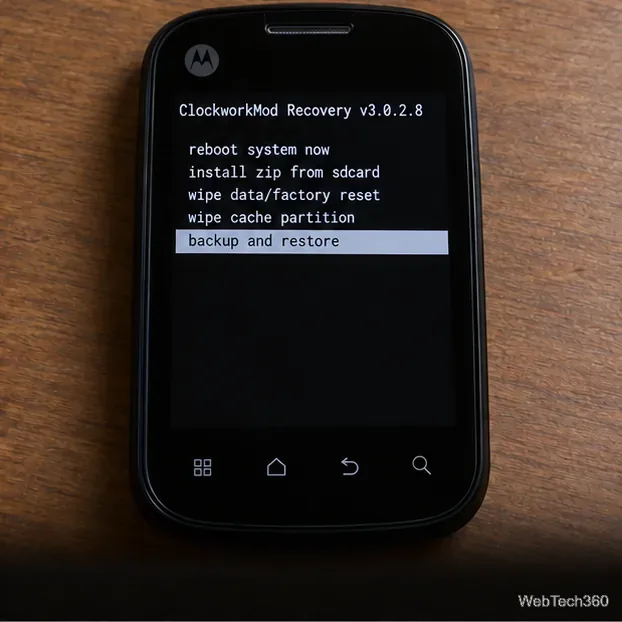
  2. Back up your data. Copy personal files off the phone. In ClockworkMod, open backup and restore, choose backup, and wait for the recovery to report completion. Make sure the SD card has room for the backup. Do not continue if backup fails or the card is unreliable.
ClockworkMod Recovery on a black screen with “backup and restore” highlighted in the menu.
The backup menu is shown as an example; the exact ClockworkMod version and wording may vary.
  1. Copy both ZIP files to the SD card. Keep each archive compressed; do not extract it. Place the ROM and Google Apps ZIPs in the card’s top-level folder so they are easy to find. Compare every character in each filename with the package instructions before ejecting the card.
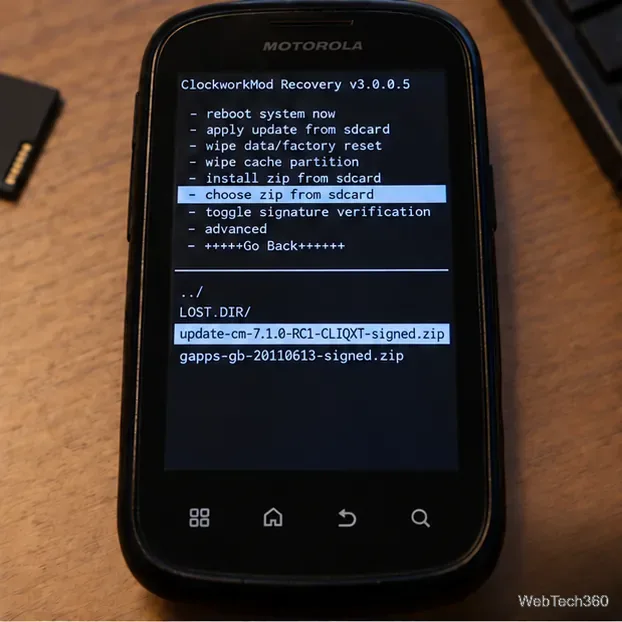
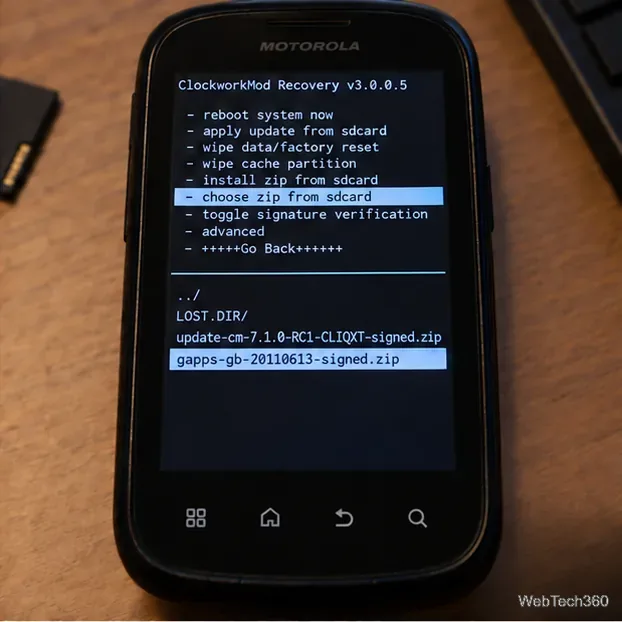
  2. Boot into the installed recovery. Use the recovery-entry method documented for the CLIQ XT and your installed recovery build. Once the ClockworkMod menu appears, use its navigation controls to open install zip from sdcard, then choose zip from sdcard or the equivalent menu item. Menu labels vary across recovery releases.
A ClockworkMod Recovery menu with “choose zip from sdcard” highlighted and the ROM and Google Apps ZIPs listed below.
Illustrative recovery menu. Follow the labels shown by the recovery installed on your phone.
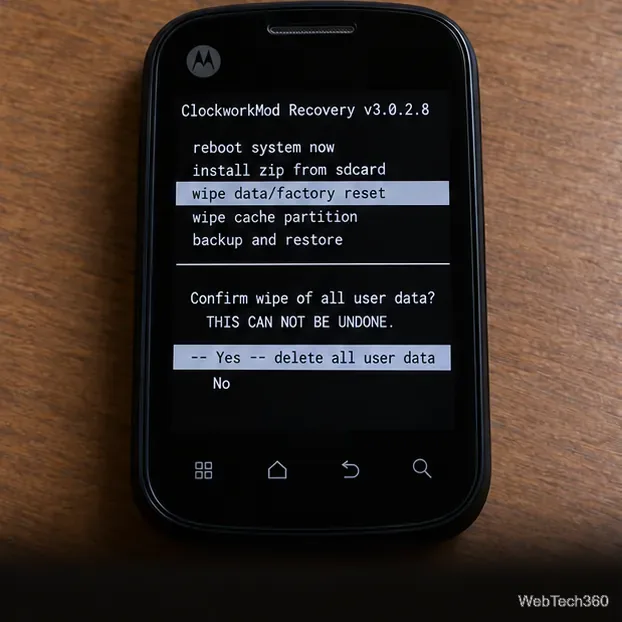
  1. Wipe the old system data. For a clean change from another ROM, choose wipe data/factory reset and confirm only if you are ready to erase user data. Then choose wipe cache partition. If your recovery has an Advanced menu and the ROM instructions call for it, select wipe Dalvik cache there. Do not format the SD card.
ClockworkMod Recovery showing “wipe data/factory reset” and a confirmation prompt warning that user data will be erased.
Factory reset erases user data. Confirm only after you have a separate backup.
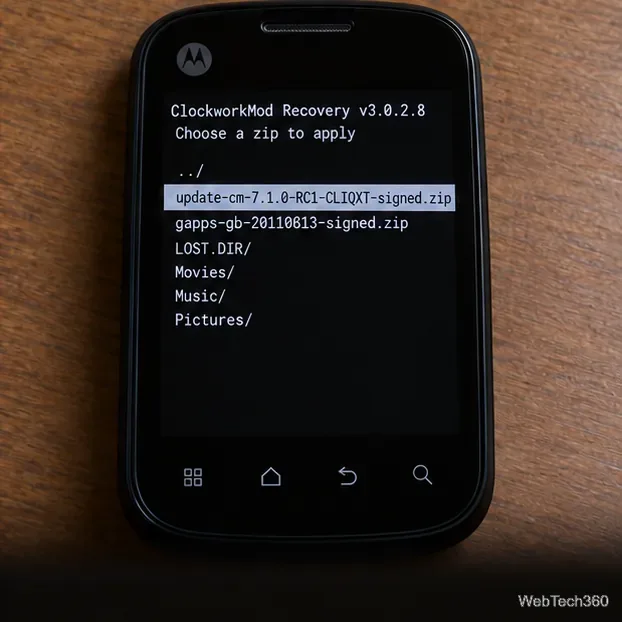
  1. Flash the CLIQ XT ROM ZIP. Return to the ZIP picker, select update-cm-7.1.0-RC1-CLIQXT-signed.zip, and confirm the installation. Wait for recovery to report completion. The original requirements did not list a separate kernel ZIP, so do not flash an extra kernel unless a verified, device-specific instruction explicitly requires one.
  2. Flash Google Apps before rebooting. Without starting Android, choose the install-ZIP option again and select gapps-gb-20110613-signed.zip. Confirm only if the package is verified and intended for this Gingerbread ROM. Wait for the recovery completion message.
ClockworkMod’s ZIP picker with update-cm-7.1.0-RC1-CLIQXT-signed.zip highlighted.
Select the exact CLIQ XT release candidate ZIP; do not choose a similarly named build.
ClockworkMod’s ZIP picker with gapps-gb-20110613-signed.zip highlighted.
Install the matching Gingerbread Google Apps package after the ROM and before the first reboot.
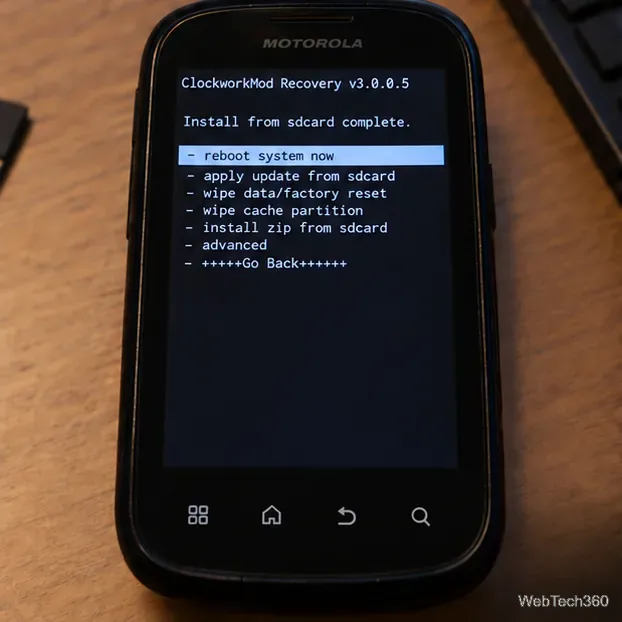
ClockworkMod Recovery displaying “Install from sdcard complete” with “reboot system now” highlighted.
A generic completion screen; confirm both ZIP installations have finished before rebooting.
  1. Reboot and check the first start. Select reboot system now and allow the phone extra time to start. A first boot can take longer than a normal restart. If it repeatedly returns to recovery, freezes at startup, or shows an installation error, do not keep trying unrelated ZIPs; return to recovery and restore the backup you made, or seek help from a CLIQ XT-specific archive that documents the exact build.
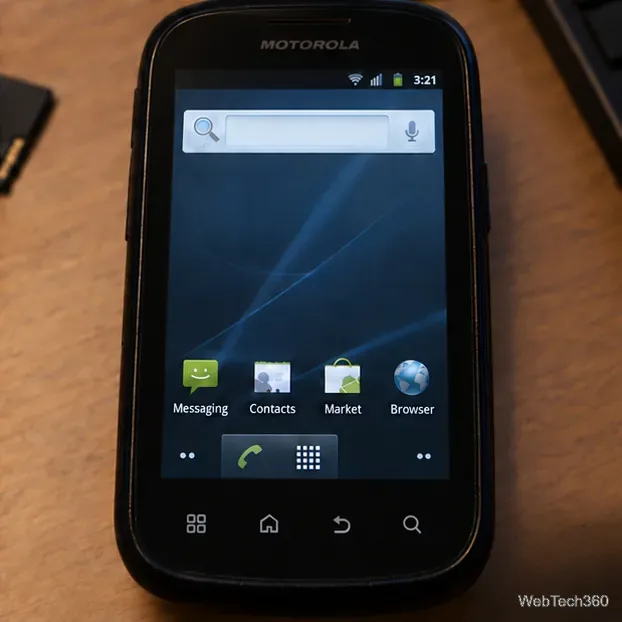
A Motorola touchscreen phone displaying a simple Android Gingerbread-era home screen after startup.
An illustrative old Android home screen, not a verified capture from a flashed CLIQ XT.

Before you rely on the result

ClockworkMod labels vary by build, and a matching filename does not establish package authenticity. This legacy release has no modern security guarantees; avoid sensitive accounts and keep stock firmware and model-specific recovery instructions available. Stop if any device or package detail does not match.

The recovery and phone images are explanatory illustrations; they are not screenshots captured from an actual CLIQ XT installation.

Leave a Comment

Add a Date and Time Stamp to Photos on Your Android Phone

Add a Date and Time Stamp to Photos on Your Android Phone

Learn how to add a visible date and time to new or existing Android photos with your camera's watermark setting or Google Photos Markup.

How to Screenshot on Android Devices: Buttons and Gestures

How to Screenshot on Android Devices: Buttons and Gestures

Learn how to screenshot on Android with button shortcuts, scrolling captures, and Pixel, Samsung, and Motorola gestures, plus where to find and share images.

How to Root Older Android Devices With Framaroot in a Few Taps

How to Root Older Android Devices With Framaroot in a Few Taps

Learn how Framaroot rooted compatible older Android phones, what to check before installing its APK, and why it rarely works on newer devices.

Search Now for Android: Search Your Phone or the Web From Anywhere

Search Now for Android: Search Your Phone or the Web From Anywhere

See how the classic Search Now app used a floating search button for on-device and web searches, why its Play Store listing is gone, and what works today.

How to Enable or Disable Facebook Profile Picture Login

How to Enable or Disable Facebook Profile Picture Login

Learn how to turn Facebook profile picture login on or off, remove saved sign-ins on iPhone or Android, and find the current Saved login settings.

How to Use Google Lens to Identify Objects in Photos

How to Use Google Lens to Identify Objects in Photos

Learn how to identify plants, products, books, and other objects in photos with Google Lens on Android, iPhone, or a computer—and improve uncertain matches.

How to Remove a Hat, Gloves, and Backpack From Your Pokémon GO Avatar

How to Remove a Hat, Gloves, and Backpack From Your Pokémon GO Avatar

Remove your Pokémon GO avatar’s hat, gloves, and backpack using the Style menu. Follow the steps and fix missing no-item options without spending PokéCoins.

Firmware, Stock ROMs, Custom ROMs, and Flashing Explained

Firmware, Stock ROMs, Custom ROMs, and Flashing Explained

Understand what firmware and ROM mean on Android, how stock and custom ROMs differ, what flashing changes, and which risks to check before installing an image.

How to Install CyanogenMod 7.1 RC1 on the Motorola CLIQ XT

How to Install CyanogenMod 7.1 RC1 on the Motorola CLIQ XT

Learn what you need to install CyanogenMod 7.1 RC1 on the Motorola CLIQ XT, back up the MB501, flash the matching ZIPs, and avoid unverified files.

Install Android 2.3 Gingerbread Keyboard Language Packs Safely

Install Android 2.3 Gingerbread Keyboard Language Packs Safely

See what Android 2.3 Gingerbread keyboard language packs supported, how to verify a compatible ZIP, back up your phone, and avoid unsafe recovery flashes.