Add a Date and Time Stamp to Photos on Your Android Phone

Learn how to add a visible date and time to new or existing Android photos with your camera's watermark setting or Google Photos Markup.
Search Now was an Android utility designed to let you search your phone or the web without first leaving the app you were using. Its standout feature was a movable, floating magnifying-glass button: tap it, enter a query, and search across supported sources. The idea was useful for anyone who regularly switched between an app, a browser, and their phone’s contacts or calendar. However, Search Now is a legacy app, and its original Google Play page is no longer available.
Developed by Digital Life International, Search Now combined a floating shortcut with both on-device and online searches. Instead of returning to your home screen whenever you needed to look something up, you could keep a search button accessible while doing something else. The button could be dragged out of the way and tapped when needed.
This was different from a standard home-screen search widget, which you typically reach by returning to the launcher. The floating approach made the search entry point available over other apps, although the search panel itself still occupied part of the screen.

In its original release, the basic workflow was straightforward:
The original description also mentioned suggestions appearing as you typed. These steps describe the historical feature set, not an installation guide for a current Android release.
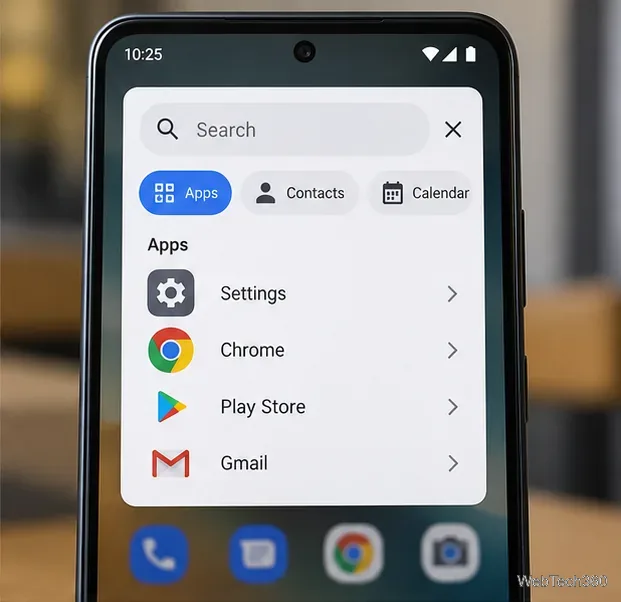
The developer’s original feature list covered two broad groups:
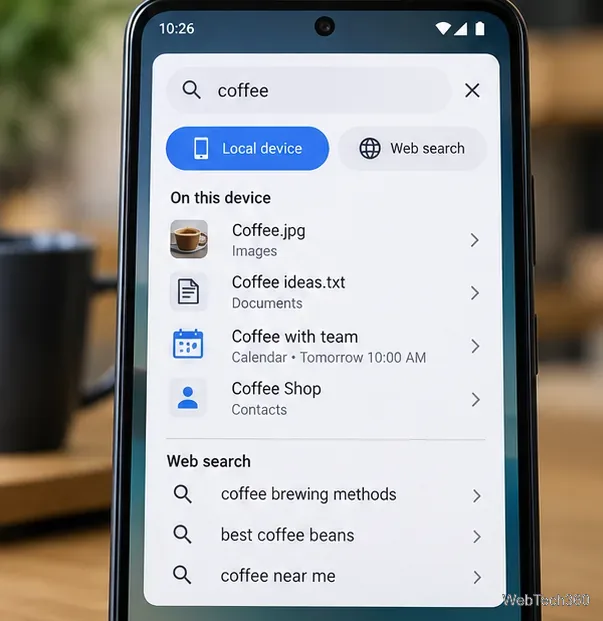
The usefulness of any local result depends on the data available to the app and the permissions granted. Being able to search for a contact or calendar event does not mean a utility can search every private file or read content from every other app. Current Android versions have different data-access restrictions from the versions for which Search Now was originally built.
Search Now also offered a home-screen widget for people who preferred a traditional search bar. The original article described lock-screen widget support as well, but lock-screen widget behavior varies by Android version and device; that old claim should not be treated as a feature of modern phones.
Its settings were described as allowing you to choose a default web search engine, decide which local categories to include, and adjust the floating button’s size and transparency. Those controls mattered because a persistent button is only convenient when it does not cover controls in your other apps.
Voice search and Google Translate were mentioned as planned additions in the original coverage. There is no verified basis for presenting either feature as having shipped in Search Now.
Do not assume so. As checked in October 2026, the original Search Now Google Play listing returns a not-found response. Third-party records identify the last listed version as 1.1 from 2014, but there is no current official Play Store release to recommend.
Downloading an old APK from an unfamiliar mirror is not a dependable substitute. Even if the package installs, it might not run correctly under newer Android security rules, and a download outside the Play Store brings additional authenticity and safety concerns. If you still have Search Now installed, treat it as unsupported software and be cautious about granting it access to contacts, calendar information, or other personal data.
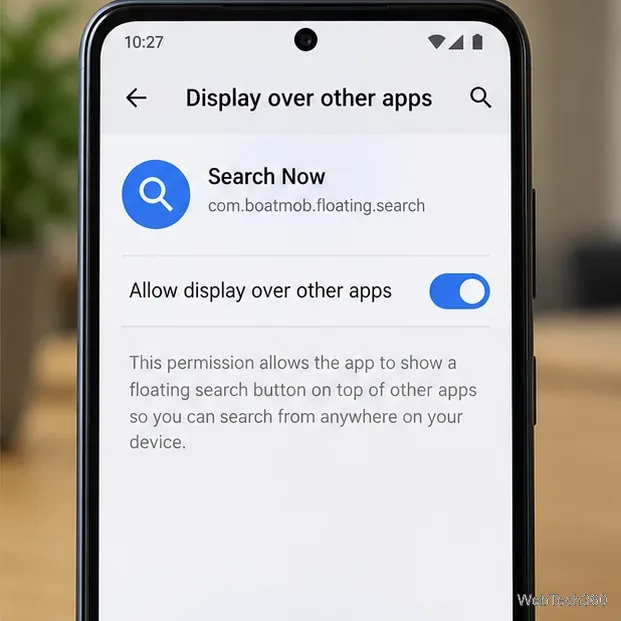
Floating utilities commonly need Android’s special Display over other apps permission. On many phones, related controls are under Settings > Apps > Special app access > Display over other apps, although wording and placement vary by manufacturer and Android version. The permission is powerful: an app displaying content over another app may interfere with sensitive screens or create opportunities for deceptive prompts.
Android also allows sensitive apps to block overlays. For that reason, even an otherwise functioning floating search utility may not appear over a banking, payment, or permission screen. Review permissions carefully, and switch off overlay access when a utility no longer needs it. For technical background, see Android’s overlay security guidance.
If you want the same practical benefit today, start with the search tools already supported by your phone. On Pixel devices, opening the app drawer and typing into its search bar can find items within apps, as documented in Google’s Pixel navigation guide. Other Android launchers may offer similar device search, with different coverage.
For looking up something visible on the screen without opening a browser first, compatible devices offer Circle to Search. That feature searches highlighted screen content; it is not a one-to-one replacement for Search Now’s floating shortcut or its historic local-source list. The best choice depends on whether you need to find a contact, launch an app, or research something you are viewing.
Learn how to add a visible date and time to new or existing Android photos with your camera's watermark setting or Google Photos Markup.
Learn how to screenshot on Android with button shortcuts, scrolling captures, and Pixel, Samsung, and Motorola gestures, plus where to find and share images.
Learn how Framaroot rooted compatible older Android phones, what to check before installing its APK, and why it rarely works on newer devices.
See how the classic Search Now app used a floating search button for on-device and web searches, why its Play Store listing is gone, and what works today.
Learn how to turn Facebook profile picture login on or off, remove saved sign-ins on iPhone or Android, and find the current Saved login settings.
Learn how to identify plants, products, books, and other objects in photos with Google Lens on Android, iPhone, or a computer—and improve uncertain matches.
Remove your Pokémon GO avatar’s hat, gloves, and backpack using the Style menu. Follow the steps and fix missing no-item options without spending PokéCoins.
Understand what firmware and ROM mean on Android, how stock and custom ROMs differ, what flashing changes, and which risks to check before installing an image.
Learn what you need to install CyanogenMod 7.1 RC1 on the Motorola CLIQ XT, back up the MB501, flash the matching ZIPs, and avoid unverified files.
See what Android 2.3 Gingerbread keyboard language packs supported, how to verify a compatible ZIP, back up your phone, and avoid unsafe recovery flashes.







