10 Best Free Software Tools for Gaming PCs
The best free software for gaming PCs covers game libraries, chat, recording, monitoring, and practical utilities, with clear notes on what each can and can’t improve.
If EA.com, the EA app, or an EA game says it is unable to connect, first check whether EA or your platform is having an outage. If services are online, work through the fixes below in order. Most failures come down to a service outage, account restriction, local network problem, or EA app cache issue.
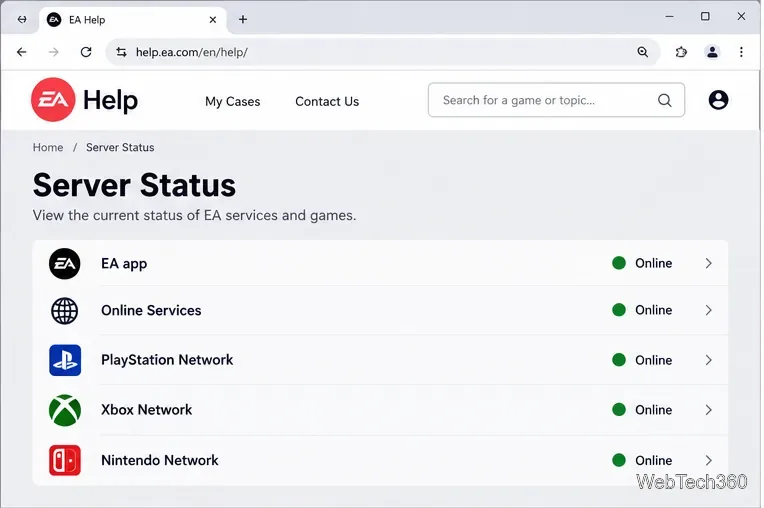
Open the official EA Server Status page. It shows the status of the EA app, EA Play, supported games, and platform services such as Xbox, PlayStation, Nintendo, and Steam. If your game or platform is down, wait for service to return instead of changing local settings.
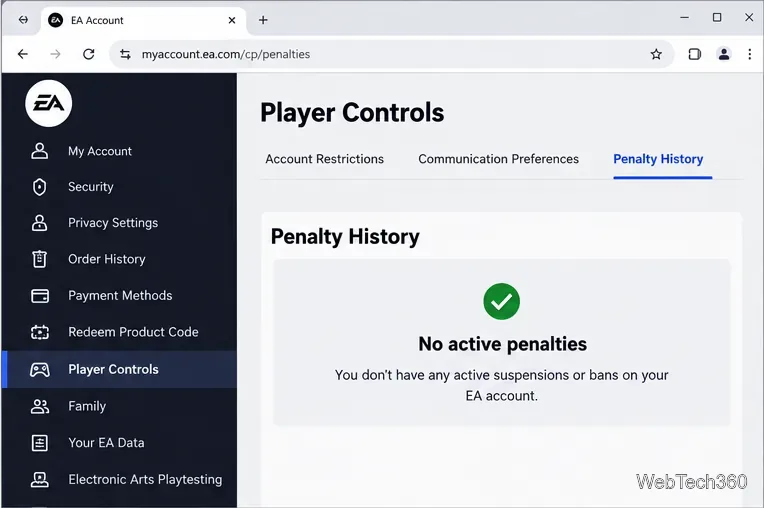
Sign in to your EA Account and confirm the correct account is linked to your platform. If EA says the account is already in use, sign out on other devices and sign in again. A locked, suspended, banned, deactivated, or deleted account can also block online access.
EA directs players to its Penalty History and appeal guidance for account penalties. Child accounts can have age- and region-based limits on online play, communication, and purchases. Use EA's official review or recovery process rather than creating another account to bypass a restriction.
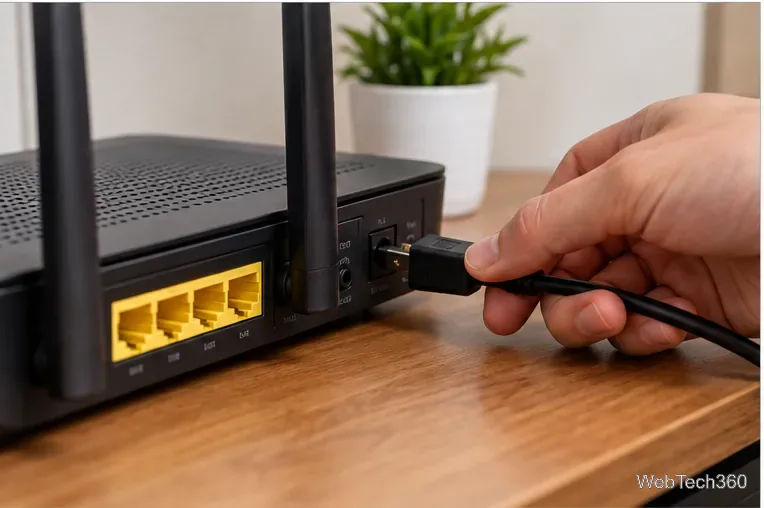
Fully close the game and restart your PC or console. Then power-cycle your router: turn it off, unplug it, wait about one minute, reconnect it, and let the connection return before launching the game again. EA currently recommends this basic network reset.
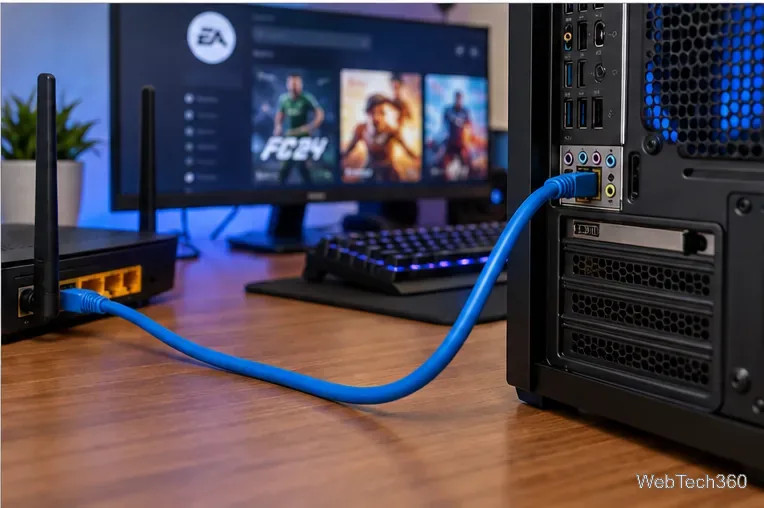
If possible, connect the gaming device directly to the router with Ethernet. EA notes that wired broadband is generally more reliable than Wi-Fi, mobile, or satellite connections. If Ethernet is not practical, move closer to the router and pause large downloads, cloud backups, and streaming while you test.
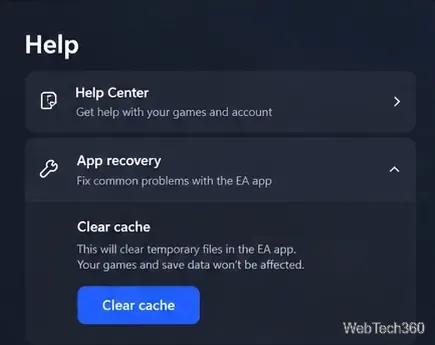
A stale app cache can leave the EA app stuck offline or unable to update correctly. EA's current path is Help > App recovery > Clear cache. On Windows 10 or 11, you can also open Start > All Apps > EA > App Recovery and choose Clear Cache. On macOS, use Help > App Recovery.
See EA's current cache-clearing instructions for details.
Disconnect any VPN or manual proxy while testing, then close background software that may filter traffic or consume bandwidth. On PC, also confirm that your firewall or security suite is not blocking the EA app or game. Avoid disabling security software permanently; create an allow rule instead.
EA's current guidance recommends checking background applications and allowing the EA app through antivirus and firewall controls.
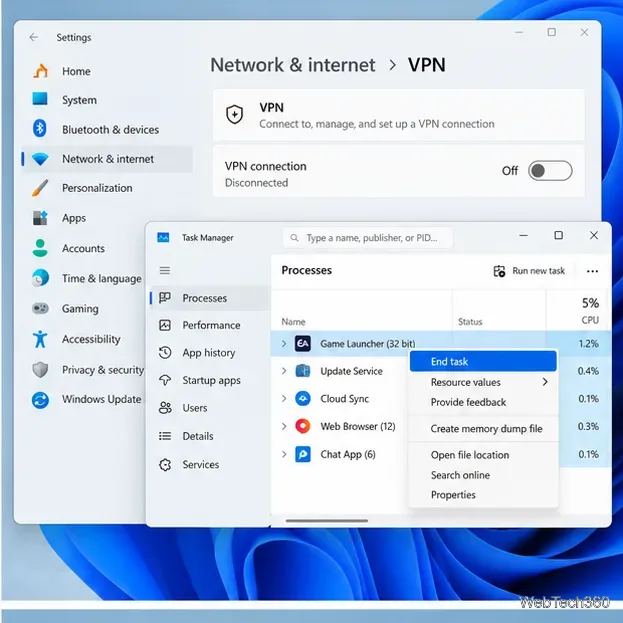
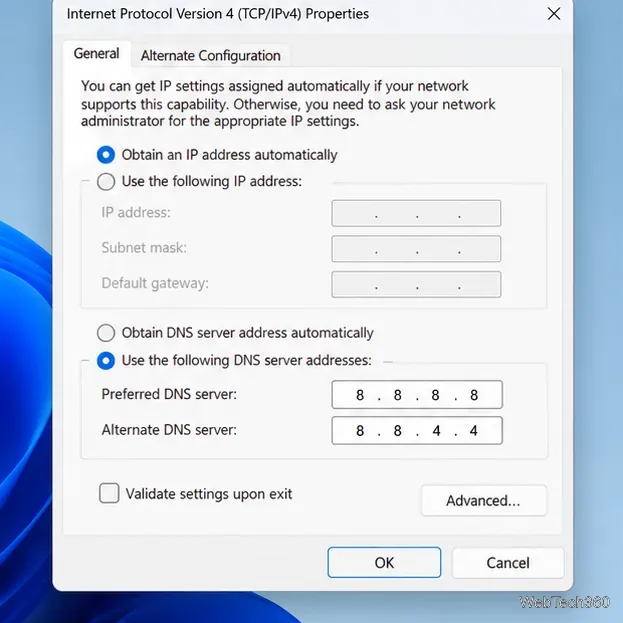
EA recommends trying another DNS service when your current DNS is unreliable. Record your existing values first. One option is Google Public DNS, which uses 8.8.8.8 and 8.8.4.4 for IPv4.
DNS menus vary by Windows version, console, router, and network configuration, so follow the device maker's instructions. Do not change IP address or gateway settings unless required.
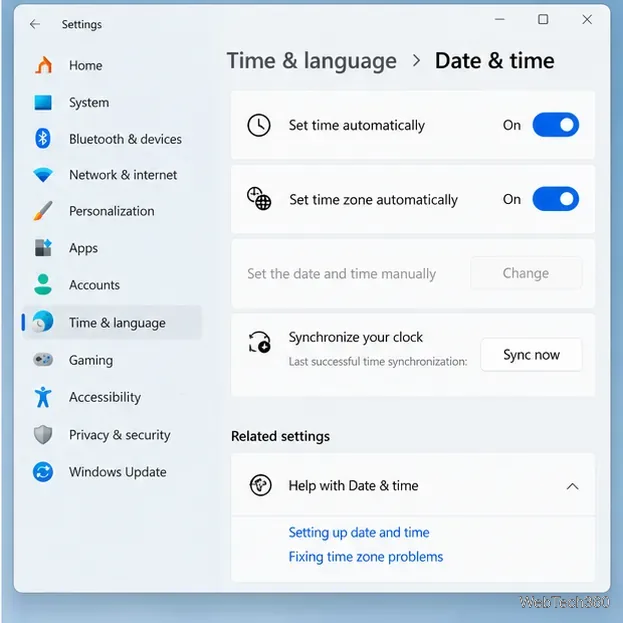
An incorrect device date or time can sometimes cause connection problems. Turn on automatic time synchronization and verify the correct time zone. Install pending system and EA app updates, then restart once more.
If the EA app shows an authentication or network code, use EA's EA app error-code guide instead of applying unrelated system tweaks.
If the error occurs only on a console, check that console's online service, restart the console, and confirm the correct EA Account is linked. Some paid online modes require the platform's multiplayer subscription, while free-to-play rules vary by game and platform. EA Play is not a universal requirement just to connect to EA servers.
If EA's servers and your platform are online, your account has no restriction, and the error remains, use the official EA connection troubleshooting page or contact EA Support with the exact game, platform, error message, and error code. Avoid registry cleaners, third-party driver updaters, and manual registry replacement; they are unnecessary for normal EA server connection problems.
The best free software for gaming PCs covers game libraries, chat, recording, monitoring, and practical utilities, with clear notes on what each can and can’t improve.
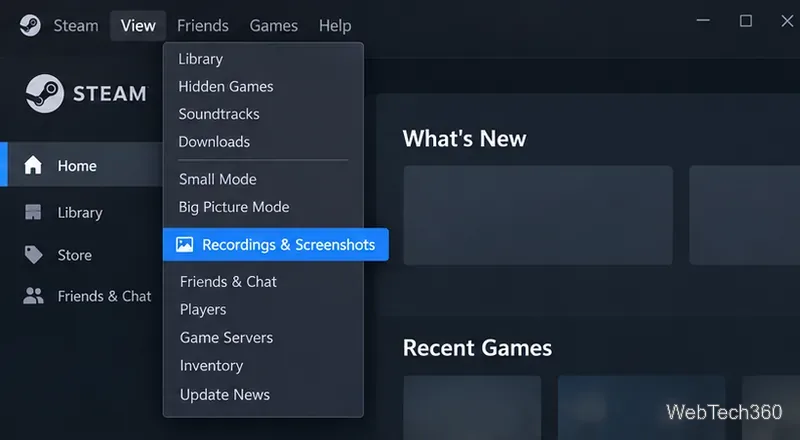
Find your Steam screenshot folder quickly with the current Steam client, Show on Disk, or the Windows userdata path, plus tips for missing screenshots.
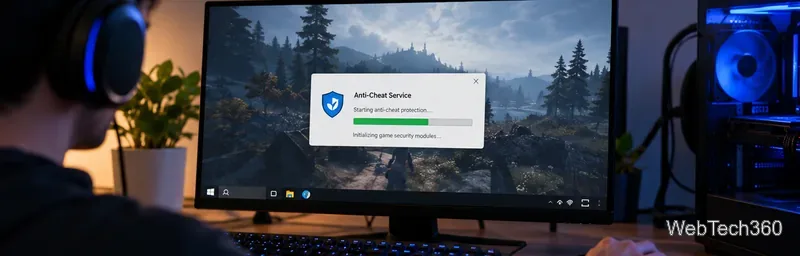
Learn what BattlEye anti-cheat does, how its Windows service and kernel-level protection work, what data it processes, and what bans mean for players.
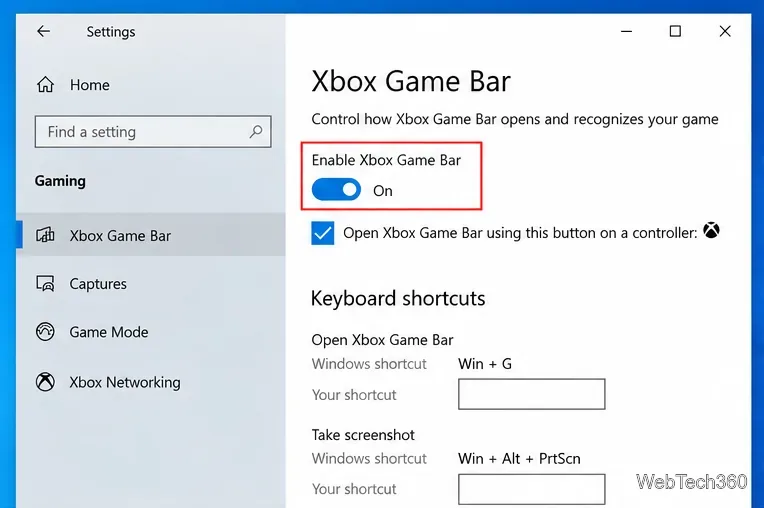
Learn how to enable and open Xbox Game Bar on Windows 10 with Win + G, use capture shortcuts, find saved clips, and fix common launch problems.
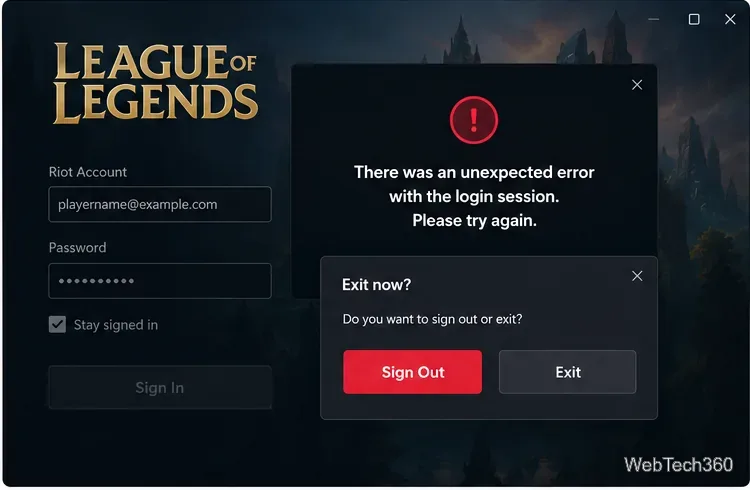
Fix League of Legends login errors such as an invalid or unexpected session by signing out fully, closing Riot processes, repairing the client, and checking your connection.
EA.com says it’s unable to connect? Check EA server status, your account, router, EA app cache, VPN, DNS, and device time with current troubleshooting steps.
Our Eldorado review explains how sellers earn from game currency, items, accounts, and boosting, plus current fees, payouts, TradeShield, and key risks.
Change your Epic Games display name for Fortnite on PC, Switch, and mobile. Follow the current steps and check email, console, and cooldown limits.