How to Change Your Xbox Gamertag on Console, PC, or Mobile

You can change your Xbox gamertag from your Xbox console or through the official Xbox profile page in a PC or phone browser. Sign in with the Microsoft account connected to your profile and check the name and any fee before confirming. Your Gamerscore, achievements, and friends list stay with your account.

Know the rules before choosing a new gamertag

Xbox Support currently says a gamertag can be up to 15 characters, including spaces, and cannot begin with a number. Names of 13 characters or longer must be unique. Xbox announced the expanded 15-character option for Xbox Insiders in June 2026, so the limit you see can depend on the rollout and the options available to your account. If a longer name is rejected, try a shorter one or follow the checker on your screen. The system may add a number suffix when a shorter name is already in use.

Your first gamertag change is free; Xbox charges for later changes. The amount can vary by region, so check any price shown before you approve. Keep the name within the Xbox Community Standards.

Change your gamertag on an Xbox console

On Xbox Series X|S or Xbox One, use the guide and profile settings:

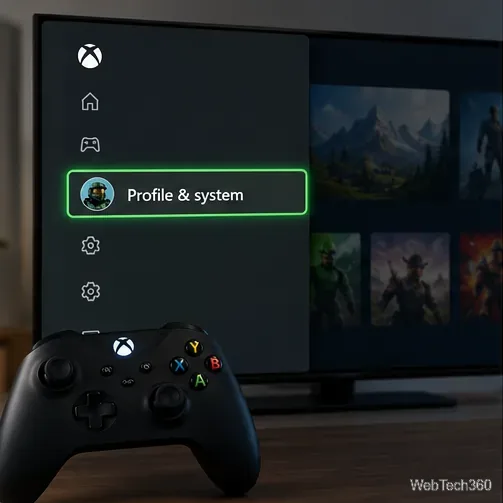
  1. Press the Xbox button on your controller to open the guide, then select Profile & system.
  2. Select your profile. If the console asks you to choose a profile, sign in to the account whose gamertag you want to change.
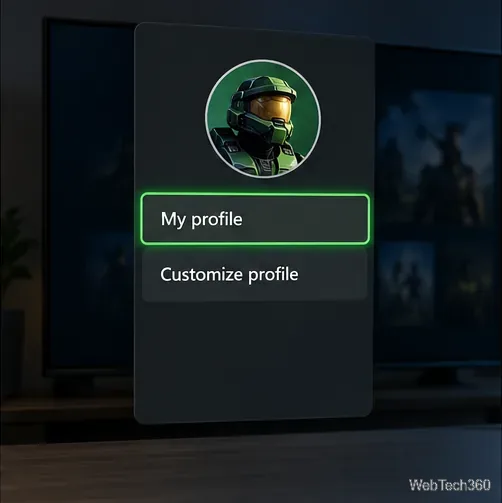
  3. Open My profile, then choose Customize profile.
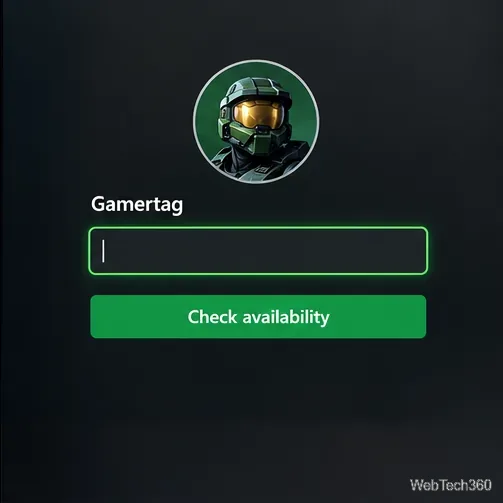
  4. Select your current gamertag, enter a new one or choose a suggestion, and check the availability result.
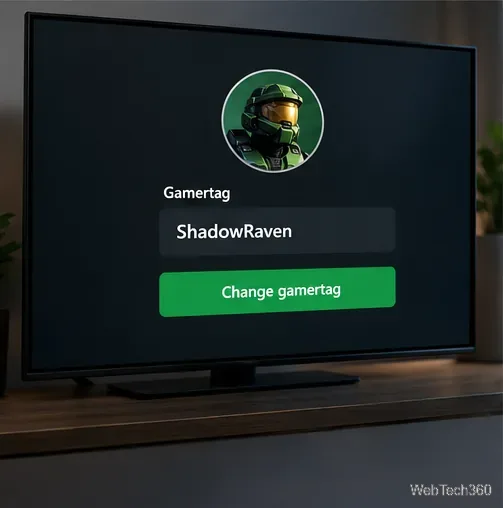
  5. Review the preview, including any suffix, and select Change gamertag to finish.
Xbox console guide with Profile & system selected.
Open the console guide and go to Profile & system.
Console profile menu showing My profile and Customize profile.
The profile menu leads to Customize profile.
Gamertag entry field with a Check availability control.
Enter a candidate and check whether Xbox allows it.
Console preview of a proposed gamertag before confirmation.
Review the on-screen preview before confirming the change.

The labels can shift slightly with console updates. Xbox’s current gamertag instructions are the reference if your menu looks different. If you use an Xbox 360, menus differ; use the web method for current gamertag options.

Change your gamertag on a PC

The browser route works on Windows and other desktop systems, and it avoids differences between Xbox app versions:

  1. Open the official Xbox gamertag change page.
  2. Sign in with the Microsoft account linked to your Xbox profile. If asked to choose a profile, select the Xbox profile you want to update.
  3. On your profile, select the edit icon beside your gamertag. Enter the new name and run the availability check if it appears.
  4. Read the preview carefully. If Xbox shows a suffix or a charge, decide whether you want to proceed, then select Change gamertag to confirm.
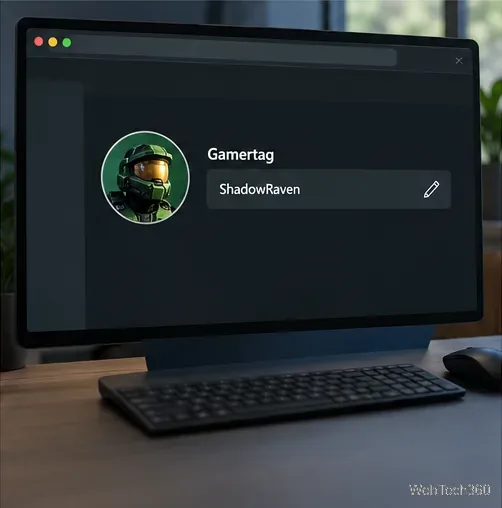
Desktop Xbox profile page with a gamertag row and edit pencil.
Select the edit control beside the gamertag on your profile.
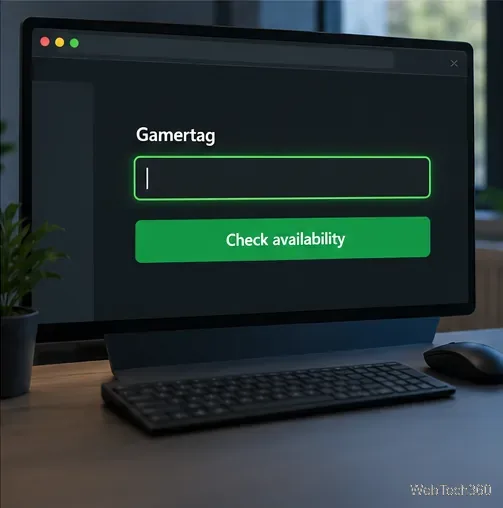
Desktop gamertag form with an entry field and availability check.
Enter the name and check the result before moving on.
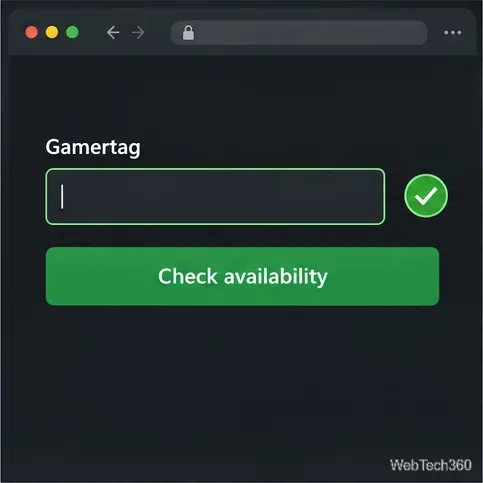
Desktop gamertag form showing an available-name check indicator.
The availability result tells you whether the name can be claimed.
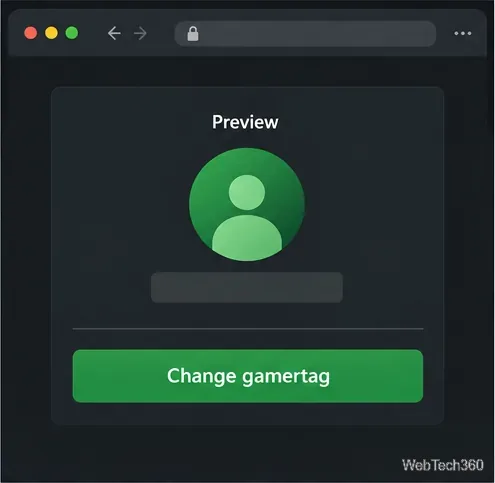
Desktop preview screen with a Change gamertag confirmation button.
Confirm only after checking the final preview and any displayed fee.

Change your gamertag on a phone

You can use the same official page from a mobile browser; you do not need to find a particular Xbox app menu. Open Safari, Chrome, or another trusted browser and visit the Xbox gamertag change page linked above.

  1. Sign in with the Microsoft account that owns the Xbox profile. Check the profile name or picture so you do not change a different account on the phone.
  2. Open the Xbox profile and tap the edit icon beside the gamertag. If the page opens a sign-in prompt again, complete it in the browser.
  3. Type the new gamertag and check availability. The phone keyboard may cover part of the form, so scroll to the result before continuing.
  4. Review the final preview and any suffix or price. Tap Change gamertag only if you are happy with what Xbox will apply.
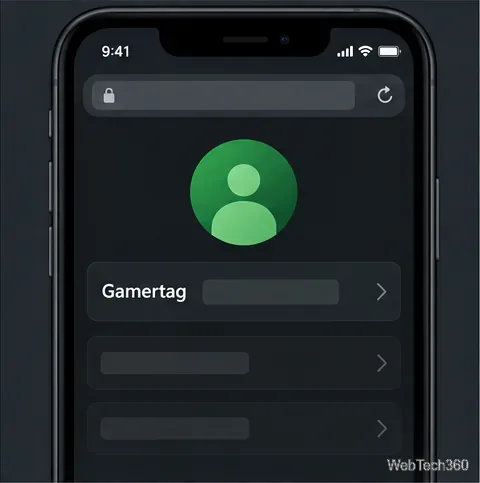
Phone browser showing an Xbox profile with a Gamertag row.
Use the phone browser to open the Xbox profile page.
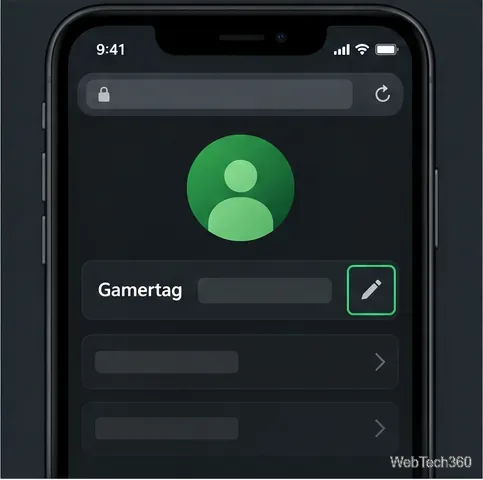
Phone browser profile with the gamertag edit pencil highlighted.
Tap the edit control beside the current gamertag.
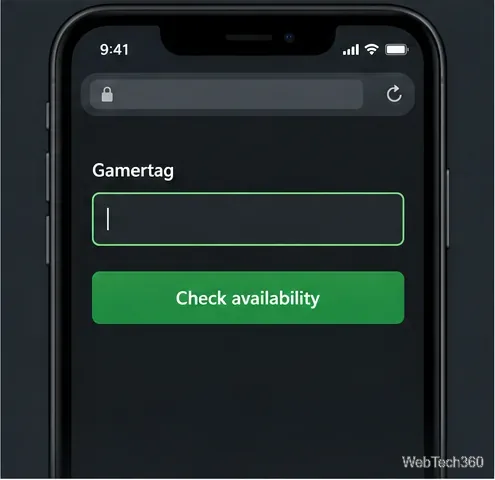
Phone browser gamertag field and Check availability button.
Enter a name and check it from the mobile form.
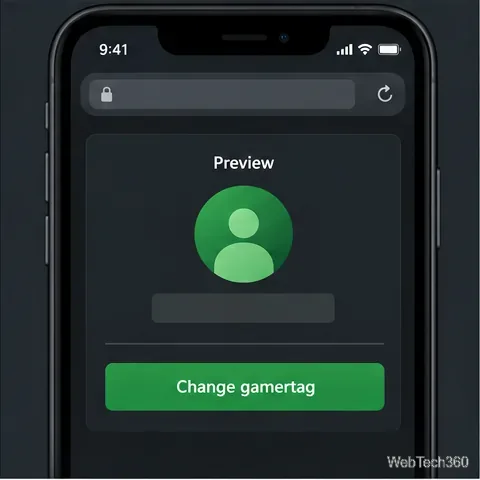
Phone browser preview with the Change gamertag confirmation control.
Review the preview and confirm only when it is correct.

What changes after you confirm?

The change is attached to your Xbox profile, so your friends, Gamerscore, and achievements remain associated with the same account. Your displayed name updates as Xbox services and games refresh their profile data; an older game or app may continue showing cached information briefly. If that happens, close and reopen the game or sign out and back in to the Xbox app, then check the profile again.

If the name is rejected or the change is blocked

  • The name is unavailable: Try a different spelling or a more distinctive word. Xbox may assign a suffix to distinguish a name that is already used.
  • The character limit is lower than expected: The 15-character option is being rolled out. Follow the limit displayed for your profile; a shorter name is the quickest workaround.
  • A fee appears: The first change is free, but subsequent changes are paid. Back out if you do not want to accept the amount shown.
  • You do not see the right profile: Sign out and choose the Microsoft account that owns the Xbox gamertag before editing.
  • The name is not accepted: Remove terms that could violate Xbox’s community rules and try another option. Review the official Community Standards if needed.

For more details about current naming and fee rules, see the official Xbox gamertag FAQ.

Leave a Comment

DirectX 11 vs. DirectX 12: Which Is Better for Gaming?

DirectX 11 vs. DirectX 12: Which Is Better for Gaming?

Learn how DirectX 11 and DirectX 12 differ in CPU overhead, compatibility, and gaming performance, plus a fair way to test both in a game.

7 Best PlayStation Emulators for PC: PS1 to PS Vita Picks

7 Best PlayStation Emulators for PC: PS1 to PS Vita Picks

Compare seven PC PlayStation emulators by console, compatibility, and setup, with official downloads and game lists to help you choose.

How to Change Your Xbox Gamertag on Console, PC, or Mobile

How to Change Your Xbox Gamertag on Console, PC, or Mobile

Change your Xbox gamertag from a console or any PC or phone browser. Follow the current steps, check name limits and fees, and confirm the right profile.

Is Elden Ring Cross-Platform? What Cross-Gen Play Actually Supports

Is Elden Ring Cross-Platform? What Cross-Gen Play Actually Supports

Elden Ring has cross-generation play but no cross-platform matchmaking. See which PS4, PS5, Xbox, Steam, and Switch 2 players can join the same session.

How to Connect a PS4 Controller to Your PS4: Step by Step

How to Connect a PS4 Controller to Your PS4: Step by Step

Pair a DUALSHOCK 4 with your PS4 using a USB cable, connect additional controllers, and troubleshoot charging or pairing problems with Sony-verified steps.

Fortnite New Season: Expected Start Date, Theme, and What We Know

Fortnite New Season: Expected Start Date, Theme, and What We Know

Get the latest on the Fortnite new season: the official Battle Pass end date, the current theme, and what Epic has—and has not—announced.

How to Make a Dog Bed in Minecraft: A Simple Build Guide

How to Make a Dog Bed in Minecraft: A Simple Build Guide

Make a cozy decorative dog bed in Minecraft with wool and trapdoors. Follow a compact four-step build and learn how to keep a tamed wolf beside it.

How to Plant Mushrooms in Minecraft and Grow Giant Mushrooms

How to Plant Mushrooms in Minecraft and Grow Giant Mushrooms

Learn how to plant red and brown mushrooms in Minecraft, choose a growing block, manage light, use bone meal, and harvest giant mushrooms.

Underground Farm in Minecraft: How to Build One That Works

Underground Farm in Minecraft: How to Build One That Works

Build an underground farm in Minecraft with a water-fed layout, crop-friendly lighting, planting tips, and fixes for stalled growth.

How to Make a Bell in Minecraft: 3 Ways to Get One

How to Make a Bell in Minecraft: 3 Ways to Get One

You can’t craft a bell in Minecraft, but you can get one by mining a village bell, trading with a smith villager, or checking a ruined portal chest.