Home
» GAMING
»
How to Delete Your Animal Crossing Island and Start Over
How to Delete Your Animal Crossing Island and Start Over
To delete your Animal Crossing: New Horizons island, remove the game’s shared save data from the Nintendo Switch. From the HOME Menu, open System Settings > Data Management > Delete Save Data, choose Animal Crossing: New Horizons, select the option to delete all save data for the software, and confirm. This erases the island and the residents who share it; deleting the game software alone does not reset your island.
Nintendo warns that deleted save data cannot be recovered. Make sure every player who uses the island agrees before you continue. Also, choose Delete Save Data, not Manage Software or Delete Software: removing the installed game does not erase its save, and you can redownload the game later. See Nintendo’s save-data deletion instructions.
Moving consoles or trying to keep a backup?
If your goal is to move the island to another Switch, use Nintendo’s Island Transfer Tool instructions before deleting anything. The island backup feature is a separate recovery option for a lost, stolen, or repaired console; it must have been enabled on the original console. Animal Crossing: New Horizons does not use the standard Nintendo Switch Online Save Data Cloud service. Read Nintendo’s island backup and restore guide and its save-data FAQ if you are unsure. Don’t treat island backup as a routine undo button for a reset.
How to delete an Animal Crossing island
Menu wording can vary slightly between Nintendo Switch and Nintendo Switch 2, but the save-data controls are in System Settings. Follow these steps in order and stop before the last confirmation if you are unsure.
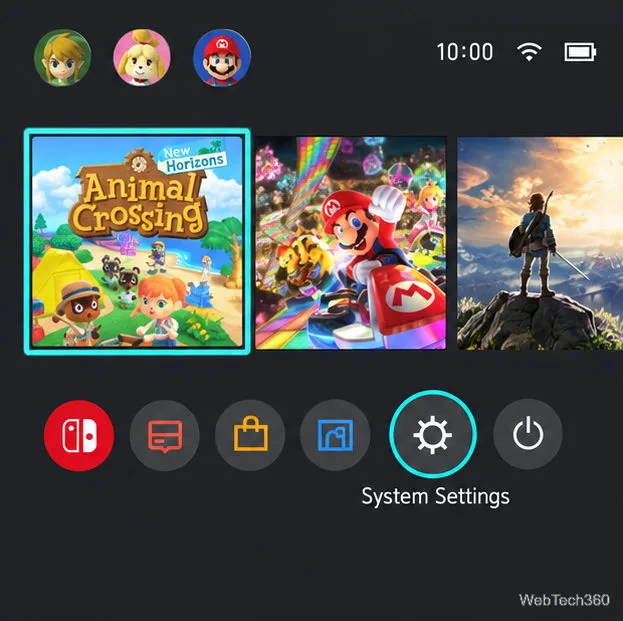
Close Animal Crossing. If the game is open, press HOME, highlight Animal Crossing: New Horizons, press X, and choose Close. Do not choose Delete Software; that only removes the installed game.
Close the running game from HOME before opening its save-data settings.
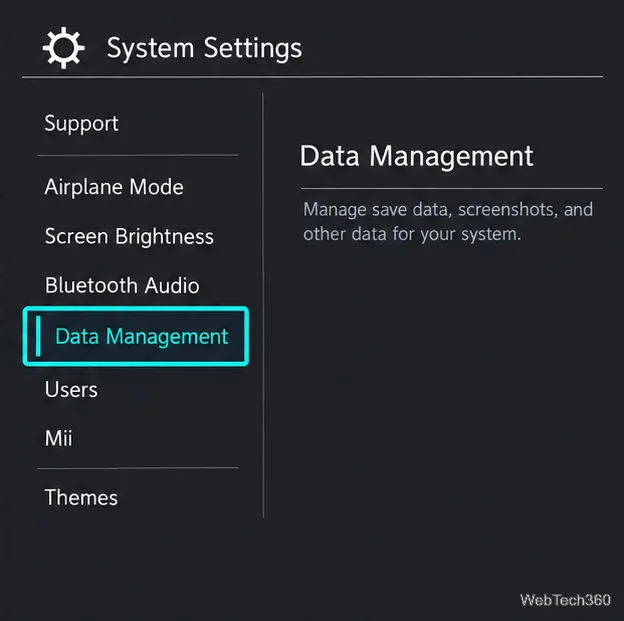
Open System Settings and Data Management. Select the gear-shaped System Settings icon, scroll the left menu, and choose Data Management.
Select Data Management in the System Settings sidebar.
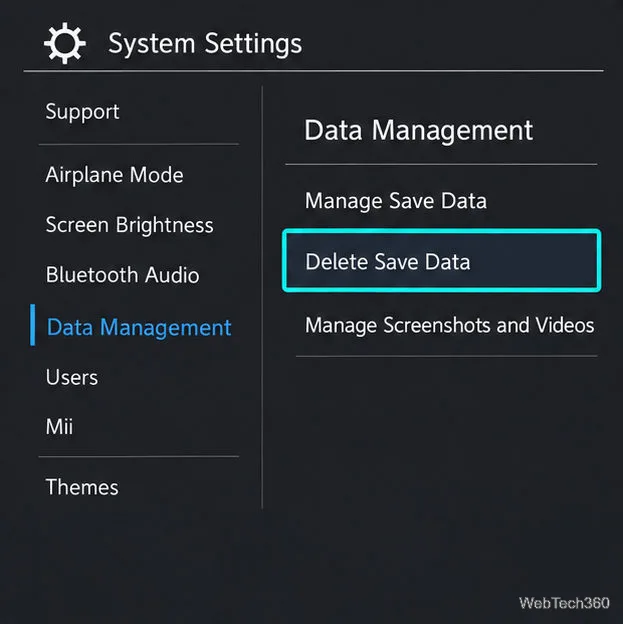
Choose Delete Save Data. Select Delete Save Data from the Data Management options. If the console asks for a parental-controls PIN, enter it to continue.
Choose Delete Save Data from the Data Management options.
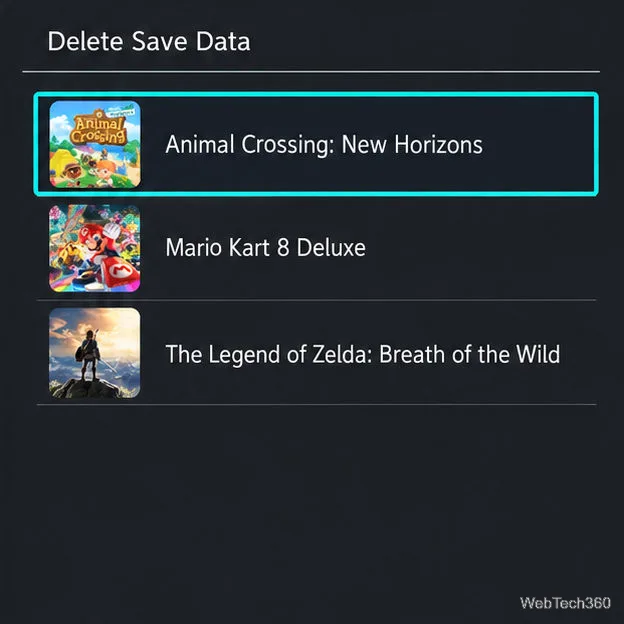
Select Animal Crossing: New Horizons. Check the game title in the software list before moving on.
Choose Animal Crossing: New Horizons from the software list.
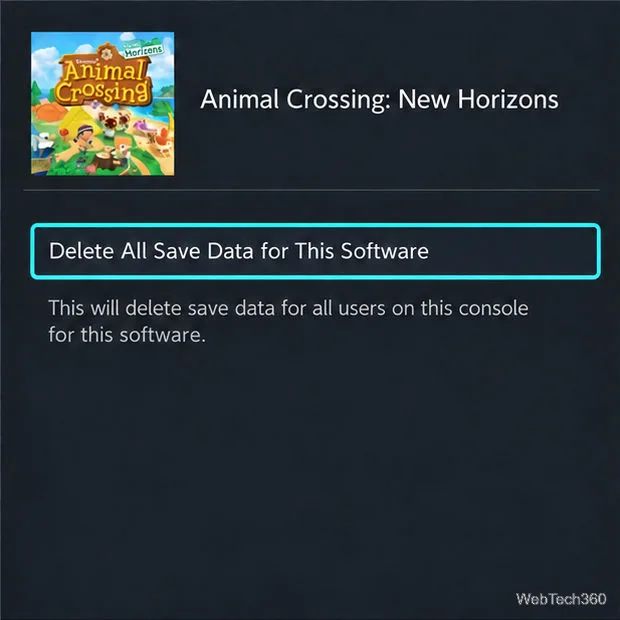
Choose the all-save-data option. If the console shows a choice between one user and all save data for the software, select Delete All Save Data for This Software (or the equivalent wording on screen). The island save is shared, so a single-user choice is not the full island reset described here.
Choose the all-software save-data option to reset the shared island.
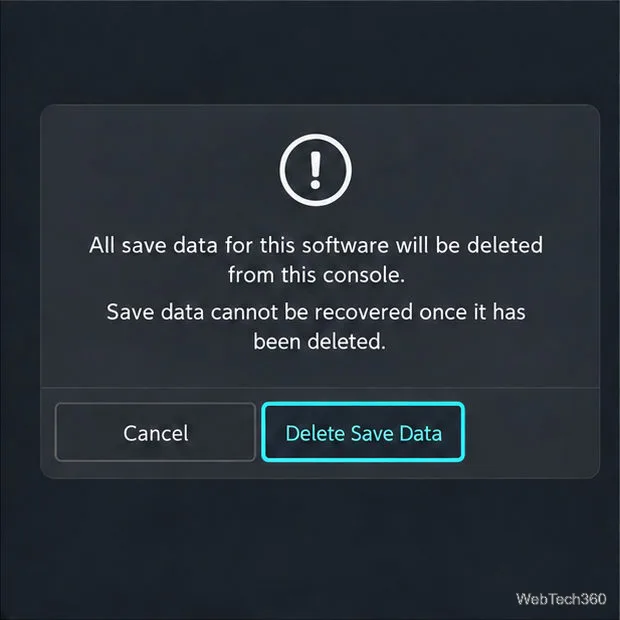
Review the warning and confirm. Read the final notice. When you are certain, choose Delete Save Data. Nintendo says the deleted save cannot be recovered, so cancel if you have any doubt or still need to transfer the island.
Read the final warning carefully before selecting Delete Save Data.
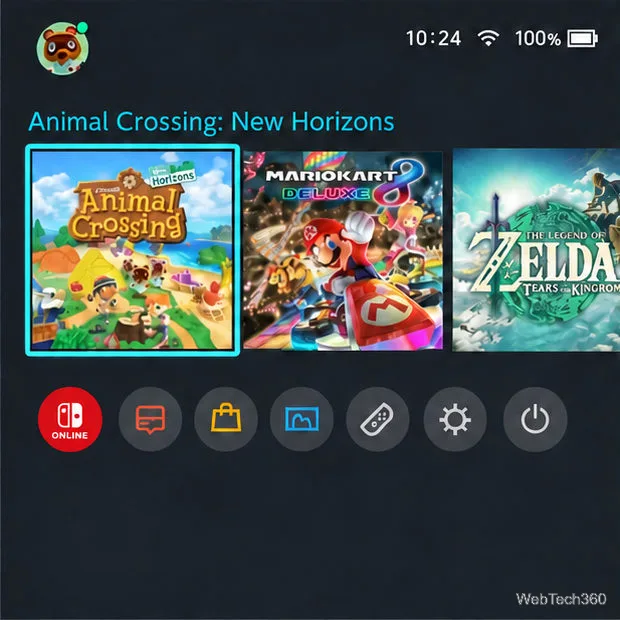
Launch the game again. After the system returns to HOME, open Animal Crossing: New Horizons.
After the reset, launch Animal Crossing: New Horizons from the HOME Menu.
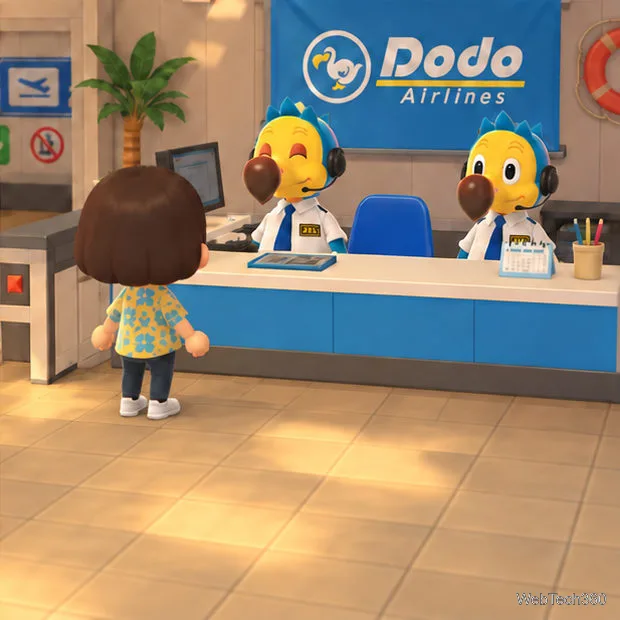
Begin a new island. Follow the opening sequence to create a new resident and start a new island. The old island and its residents will not load from the console’s deleted save.
The opening airport sequence begins the new island setup.
If you only wanted a smaller change
A full save reset is unnecessary if you only want to move buildings, redesign the island, or change the mix of villagers. Those goals do not require deleting the island. If you are trying to remove just one player resident, stop before selecting the all-save-data option and check the game’s resident settings first; this guide’s final step erases the shared island save for all residents.
Once you confirm the deletion, there is no in-game restore button for the old island. If preserving any part of the current save matters, cancel now and use Nintendo’s transfer or recovery guidance before making changes.