Home
» GAMING
»
How to Fix a PS5 Blinking Blue Light and Black Screen
How to Fix a PS5 Blinking Blue Light and Black Screen
If your PS5 blinks blue while the screen stays black, check the HDMI path and power-cycle the console, then use Safe Mode if needed. Sony says a blue light that turns white is normal startup; a light that remains blue indicates a frozen console. “Blue Light of Death” is an informal label, not a specific Sony diagnosis. Try the steps that preserve data before considering a reset.
1. Check what the power light does
During startup, blue should turn solid white. Persistent blue is a console error; solid white with no picture points more toward display output. Because the symptoms can overlap, check both the console and screen before assuming a hardware failure.
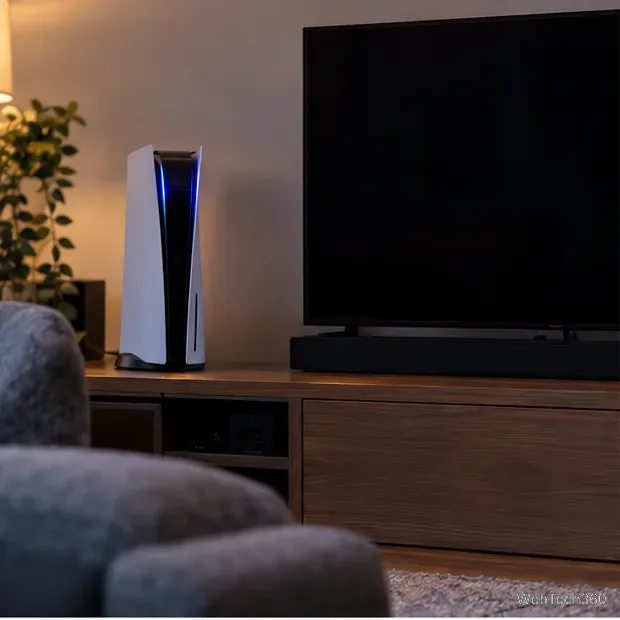
A blue indicator should turn white during normal startup; if it stays blue, Sony classifies it as a console error.
2. Check the HDMI path
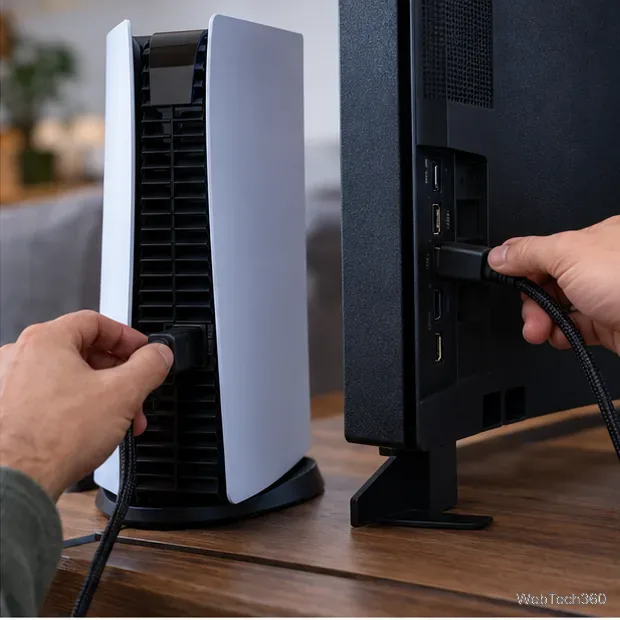
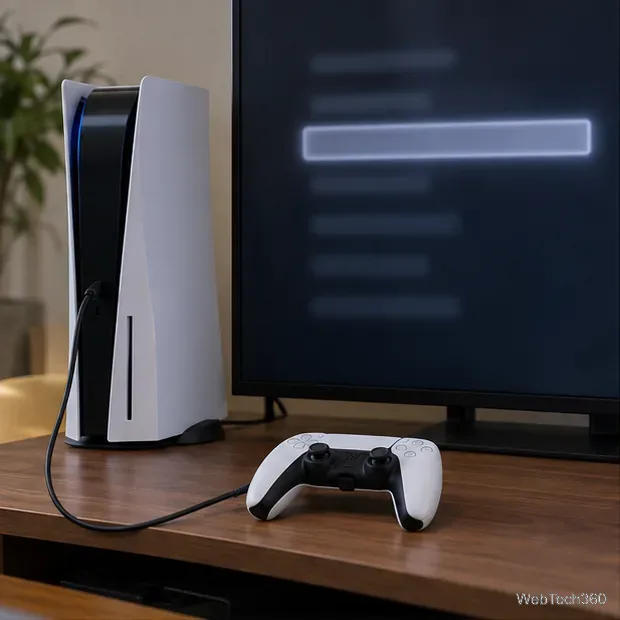
Turn off the console and screen, reseat the HDMI cable at both ends, and select the correct input on the TV or monitor. Try another HDMI port or cable if available. Connect the PS5 directly to the screen, temporarily bypassing a receiver, soundbar, switch, or capture card. Sony recommends the included HDMI cable for high-bandwidth features, though compatible older cables can work.
Check both ends of the HDMI connection and bypass receivers or capture devices while testing.
3. Power-cycle the console
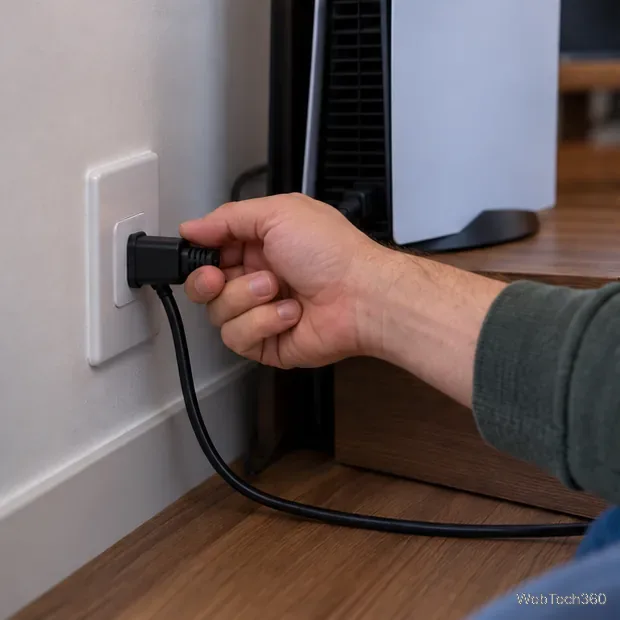
For a blue light that stays stuck, Sony’s power-indicator guide says to unplug the console, wait three minutes, reconnect it, and turn it on. Use this for the frozen-light condition; for normal shutdowns, turn off the PS5 through its Power menu first.
For a no-picture issue, Sony separately recommends turning off both the screen and PS5, unplugging both power cables, waiting 20 minutes, then reconnecting and testing again.
For a frozen blue-light error, follow Sony’s power-cycle instruction and wait before reconnecting the console.
4. Start the PS5 in Safe Mode
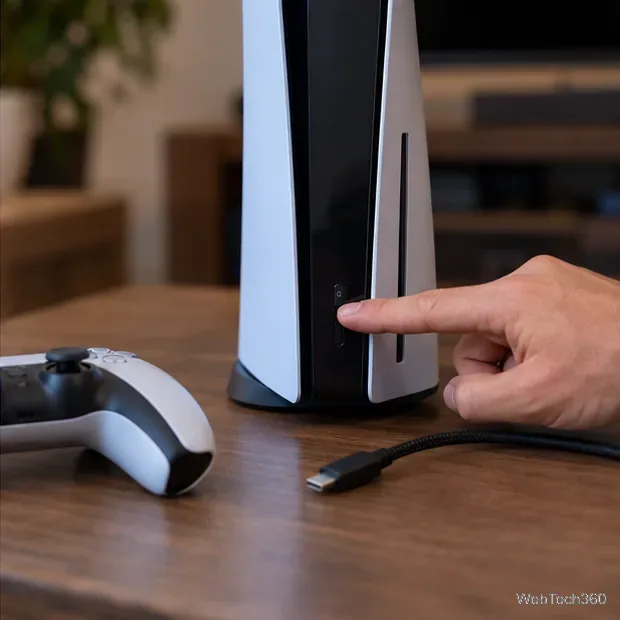
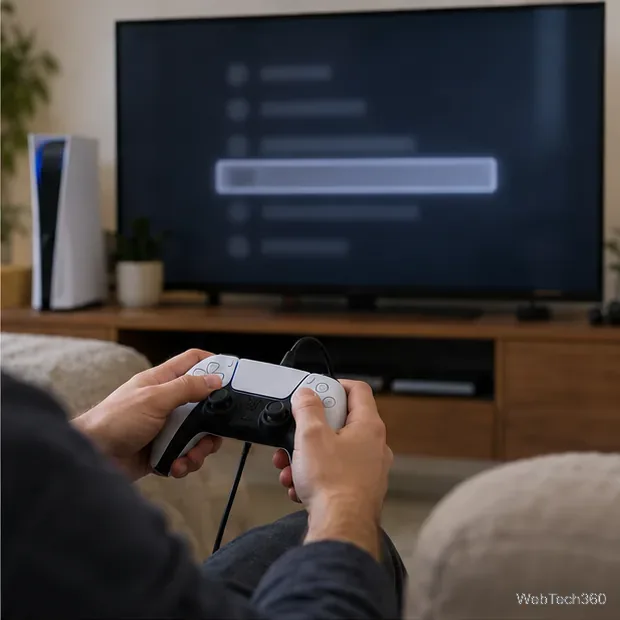
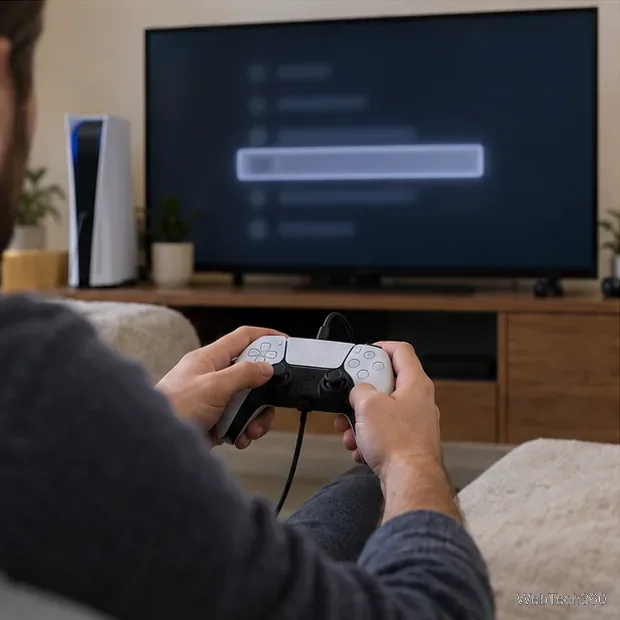
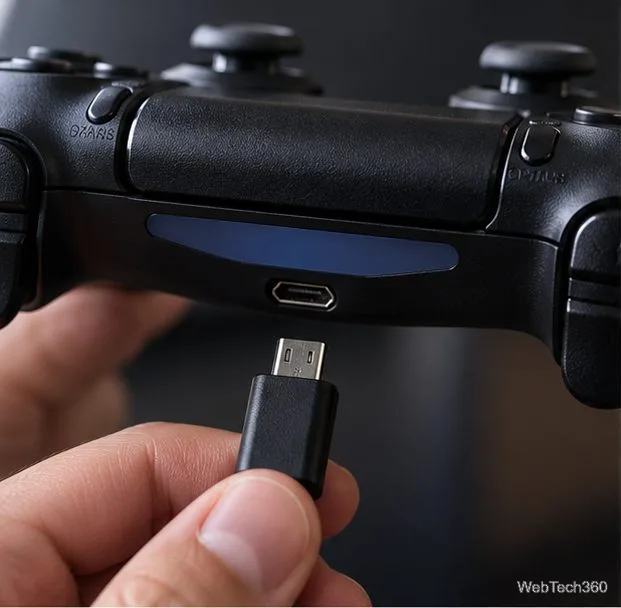
Turn the console off by holding its power button for about three seconds. Press and hold it again; release after the second beep, about seven seconds after the first. Connect the controller with a USB cable and press its PS button. Sony’s Safe Mode guide lists the available recovery options.
If Safe Mode does not appear, check HDMI again and try a known-good USB, HDMI, or power cable. Sony notes that a cable issue can prevent Safe Mode from displaying or starting.
Hold the console’s power button until the second beep to start Safe Mode.
5. Change the video output
Choose Change Video Output (option 2), then try Change Resolution or Change HDCP Mode. Sony lists these for blank-screen problems. If the image returns, keep a resolution your display supports. For 4K/120 Hz, verify that the screen supports it, the PS5 uses the right HDMI port, and the cable is suitable; see Sony’s PS5 resolution guide.
Connect the controller by USB, press the PS button, and select the display option for a blank-screen problem.
6. Repair console storage
Select Repair Console Storage (option 3) if Safe Mode opens but the PS5 still will not start normally. Sony says this option does not erase data and can help with startup or storage issues. Let it finish without turning off the console.
Repair Console Storage is for startup or storage problems and does not erase data.
7. Clear the cache, then rebuild the database
Open Clear Cache and Rebuild Database (option 6). Choose Clear System Software Cache first. If startup trouble continues, return and select Rebuild Database, which scans the drive and creates a new content database. These choices are separate from the reset options.
Clear the system software cache first, then rebuild the database if startup trouble continues.
8. Update software; reset only as a last resort
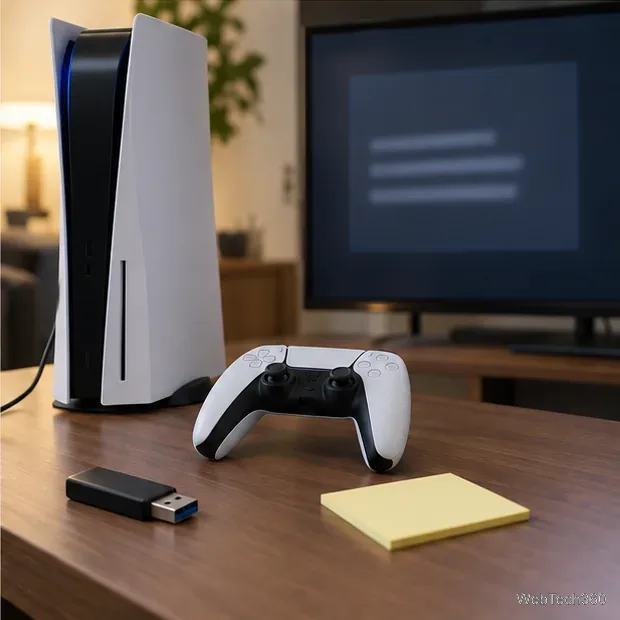
Choose Update System Software (option 4) and follow the prompts. If you need a USB update, use Sony’s official PS5 system software instructions. Do not interrupt an update or use files from unofficial sites.
Reset PS5 and Reset PS5 (Reinstall System Software) both delete user data; reinstallation also removes the existing system software. Back up what you can and follow Sony’s reinstallation procedure only after other steps fail.
Use only Sony’s official update files; resetting or reinstalling system software deletes console data.
When to contact PlayStation support
Use PlayStation Repairs if the light remains blue, Safe Mode will not start after you check the cables, or the console reaches solid white but still has no picture. The light alone cannot identify a failed component. Sony’s repair flow provides next steps and checks repair eligibility.