Home
» GAMING
»
How to Fix FIFA 22 Stuck on the Loading Screen on PC
How to Fix FIFA 22 Stuck on the Loading Screen on PC
If FIFA 22 freezes on its loading screen on a Windows PC, start by closing the stuck game and restarting the computer. Then repair the game through its launcher, clear the EA app cache, and temporarily disable overlays. This sequence checks local files, the EA client, and background conflicts.
Online-mode caveat: EA retired FIFA 22’s online services and features on November 4, 2024. If offline play works but an online mode stalls, local PC repairs cannot restore that service. Read EA’s service notice.
1. Close FIFA 22 completely and restart
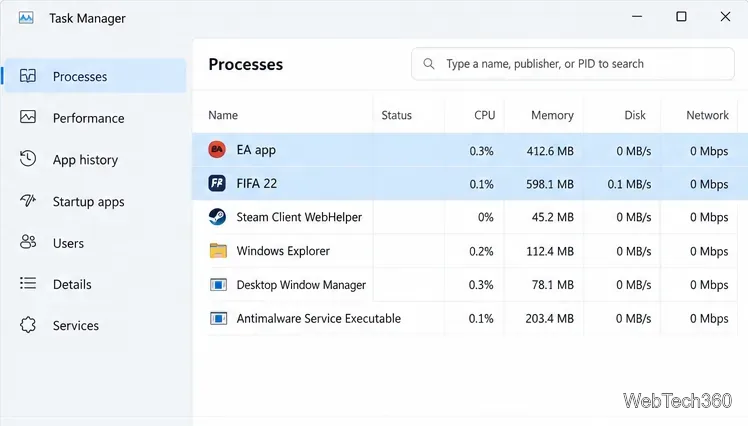
A failed launch may leave the game running in the background. Press Ctrl + Shift + Esc, open Processes, and end FIFA 22 if it is listed. Exit EA app or Steam from its menu or system tray, restart Windows, reopen the launcher, and try again. End only game or launcher processes you recognize.
Illustrative Task Manager view: check whether FIFA 22 is still running after a failed launch.
2. Check that the PC meets FIFA 22’s minimum requirements
Compare your hardware with the game’s listed baseline before changing advanced Windows settings. The Steam FIFA 22 support page lists these minimum PC requirements:
Component
Minimum
Operating system
Windows 10 64-bit (latest update)
Processor
Intel Core i3-6100 at 3.7 GHz or AMD Athlon X4 880K at 4 GHz
Memory
8 GB RAM
Graphics
NVIDIA GTX 660 2 GB or AMD Radeon HD 7850 2 GB
Storage
50 GB available space
Minimum specs are a baseline, not a guarantee. A PC below them may struggle to start reliably. Free up space if the drive is nearly full; reseating RAM or storage is not a routine game fix.
3. Repair the installed game files
Damaged or incomplete files can prevent FIFA 22 from getting past startup. Use the launcher where you installed the game:
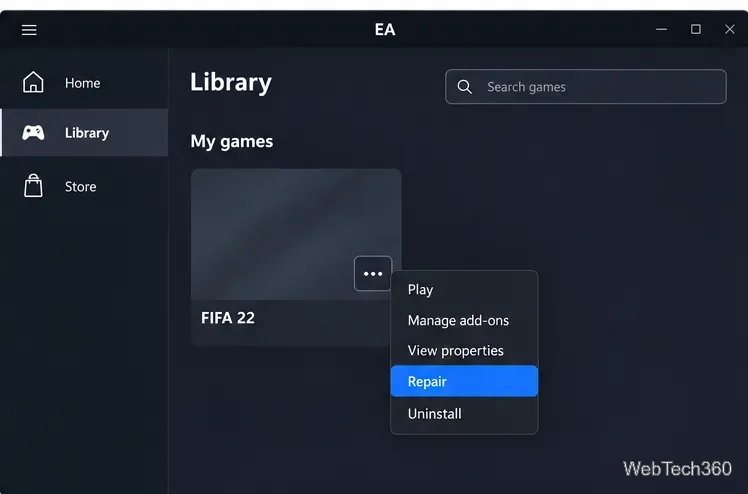
EA app: Open Library, select the three-dot menu on the FIFA 22 tile, choose Repair, and wait for the check to finish.
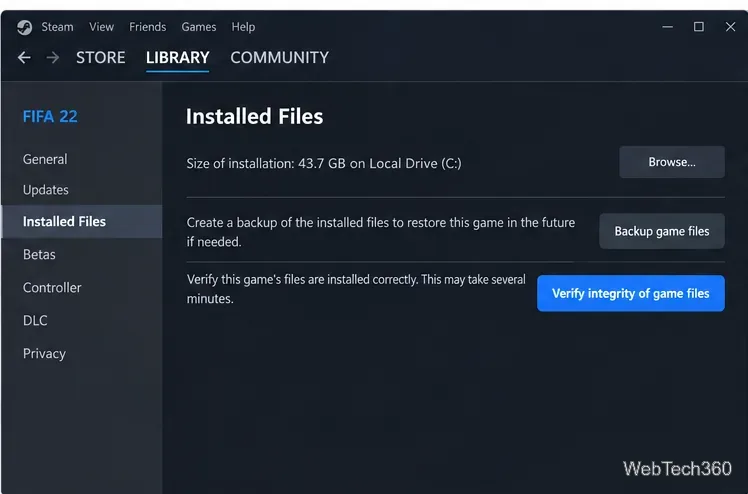
Steam: Open Library, right-click FIFA 22, choose Properties > Installed Files, then select Verify integrity of game files.
Illustrative Steam Installed Files view with the verification control.Illustrative EA app game menu with Repair selected.
4. Clear the EA app cache
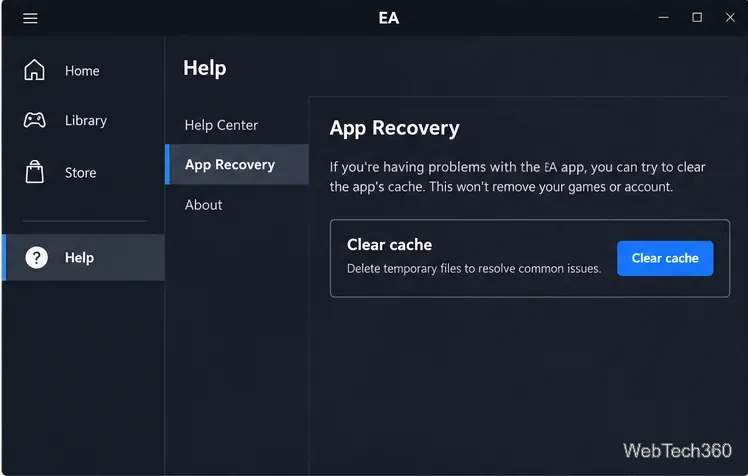
In the EA app, open the three-line menu, choose Help > App Recovery > Clear Cache. If the app will not open, launch App Recovery from Windows Start > All Apps > EA. This clears temporary client data, not the game installation. Check EA’s cache guide if the menu differs.
Illustrative EA app App Recovery view with Clear cache visible.
5. Temporarily disable overlays and close background apps
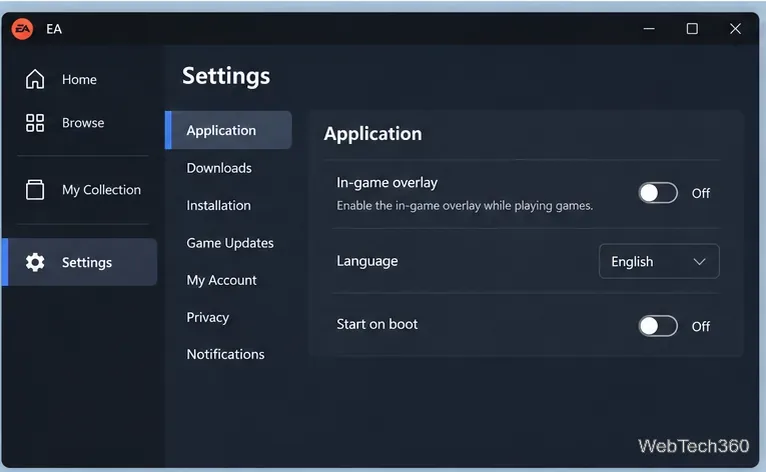
Temporarily close screen recorders, FPS monitors, chat overlays, and other nonessential apps. In the EA app, select your profile thumbnail, then Settings > Application; turn In-game overlay off and test FIFA 22. If it loads, re-enable overlays one at a time to identify the conflict. Turn the EA overlay back on afterward if you use it. See EA’s background-app guidance.
Illustrative EA app Application settings with the overlay switched off.
6. Install Windows and graphics-driver updates
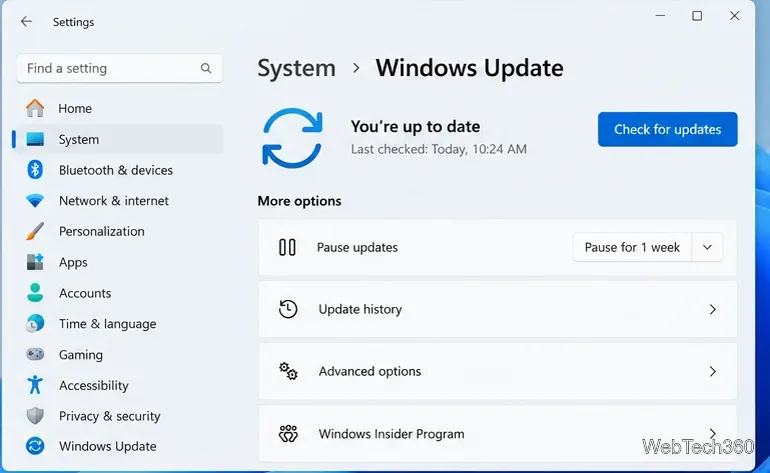
Open Start > Settings > Windows Update and select Check for updates. Install available updates and restart. On Windows 10, use Settings > Update & Security > Windows Update. See Microsoft’s update instructions.
Illustrative Windows Update settings with Check for updates visible.
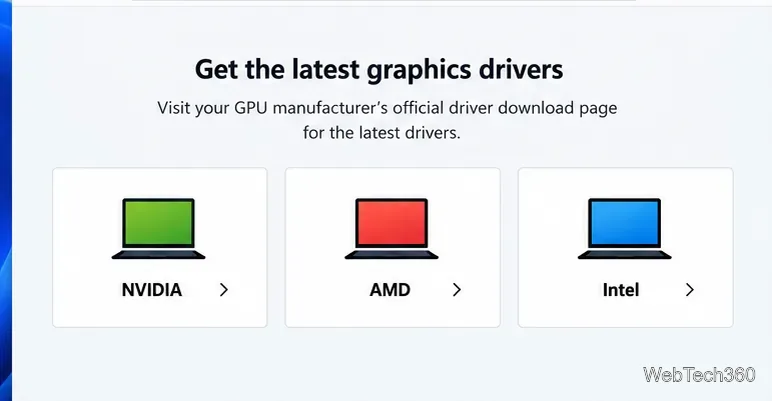
Download a compatible graphics driver only from the official NVIDIA, AMD, or Intel site. Laptop owners can check the PC maker’s support page for customized drivers. Restart and try the game.
Illustrative driver-source panel for NVIDIA, AMD, and Intel graphics.
7. Use a clean boot to look for software conflicts
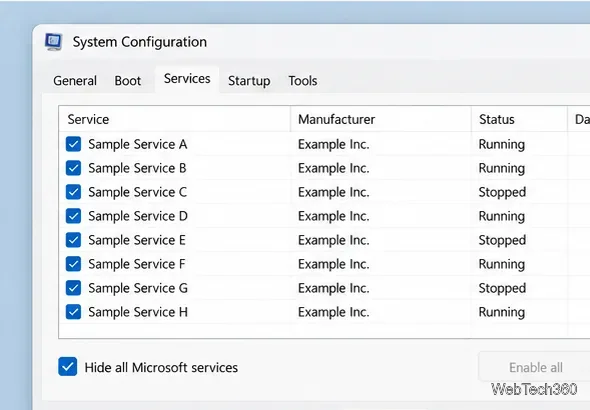
If FIFA 22 still hangs, a clean boot can show whether a third-party service or startup app is interfering. Use Microsoft’s clean-boot procedure: search Windows for System Configuration, open Services, check Hide all Microsoft services, and disable the remaining services. On Startup, open Task Manager and disable startup apps for this test. Microsoft warns that changing System Configuration options can affect startup; follow its instructions in order, and check with an administrator before doing this on a managed PC.
Illustrative System Configuration Services tab with Microsoft services hidden.
Restart and try the game once. If it loads, re-enable services and startup apps in small groups to find the conflict. When you finish testing, restore normal startup using Microsoft’s reset steps. Clean boot is temporary and may disable some functions. Restore normal startup when the test is complete.
If FIFA 22 still will not load
Record where it freezes and any error message. If offline play still fails after these checks, use EA’s loading troubleshooting page or contact EA Help with your Windows version, GPU model, and launcher. Reinstall only if repair fails and you can download the full game again.