Home
» GAMING
»
How to Fix Minecraft Error Code 0x803F8001: 5 Easy Fixes
How to Fix Minecraft Error Code 0x803F8001: 5 Easy Fixes
Minecraft error code 0x803F8001 is listed by Minecraft Help as a Launcher license error. Start by checking which Microsoft account is signed in and whether that account owns or redeemed the Minecraft edition you are trying to play. The Launcher, Microsoft Store, and Xbox app should use the same licensed account. If that is already correct, refresh Store data, repair the Launcher, and reinstall it only as a last step.
1. Sign in with the Microsoft account that has the license
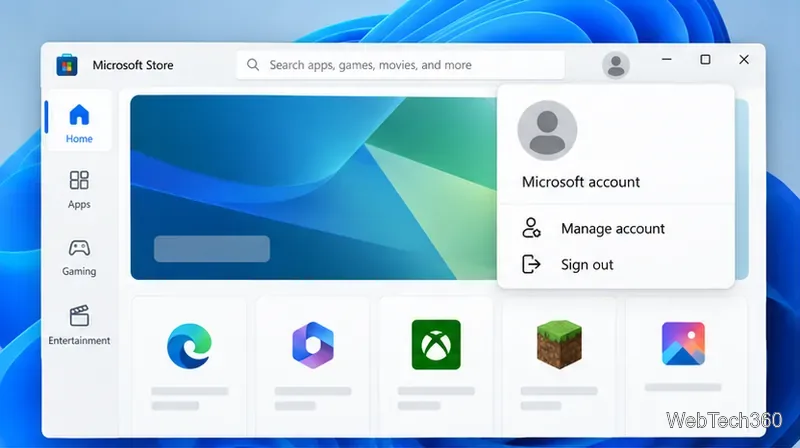
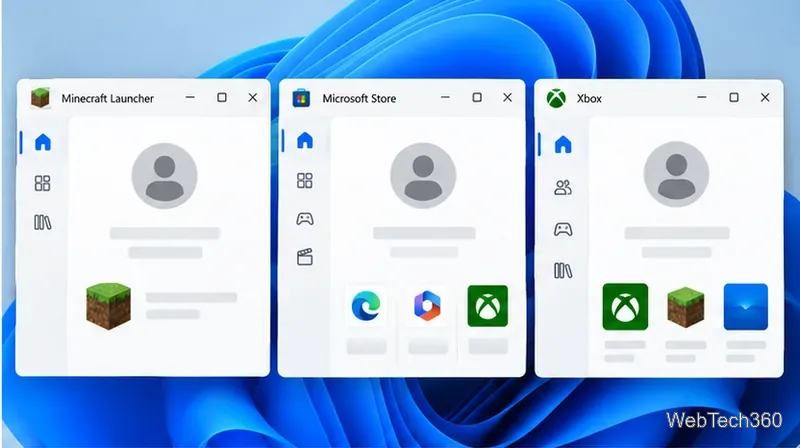
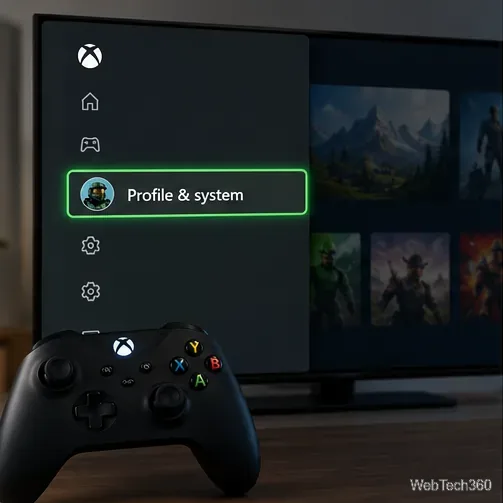
Open Microsoft Store and select the profile icon. Check which account is active. Then open the Minecraft Launcher and Xbox app and make sure each is signed in to that same Microsoft account. If one app shows another account, sign out of that app and sign in with the account used to buy or redeem Minecraft.
Check the account shown in the Microsoft Store profile menu.Use the account with the Minecraft license in all three apps.
Check your Microsoft Store Library or order history for the relevant edition. Downloading the Launcher by itself does not grant a game license. If the Store still shows a purchase option, verify the account before buying Minecraft again.
2. Update Windows, Microsoft Store, and the Launcher
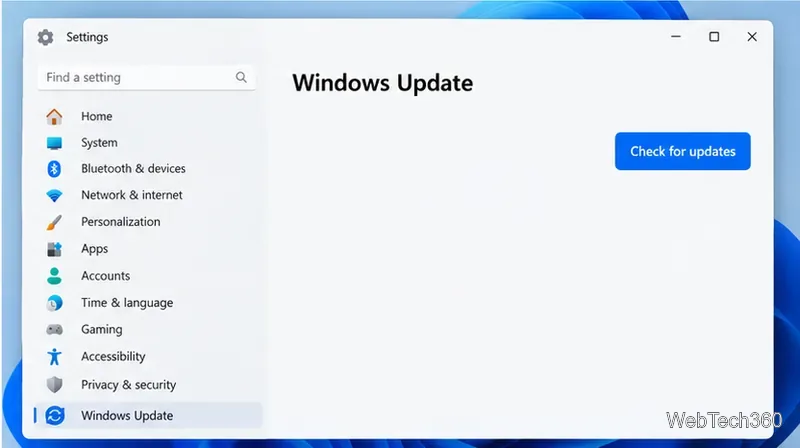
Close Minecraft Launcher, then check for pending Windows updates. In Windows 11, open Start > Settings > Windows Update and select Check for updates. In Windows 10, open Start > Settings > Update & Security > Windows Update and check for updates. Install available updates and restart if Windows asks.
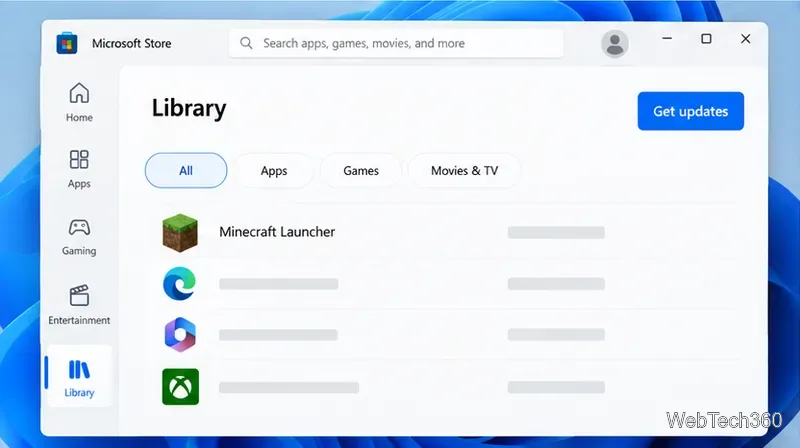
Use Library and Get updates to refresh Store apps, including the Launcher.Check Windows Update and restart after installing anything offered.
Next, open Microsoft Store, select Library > Get updates, and let updates finish. Microsoft recommends signing in, updating Windows and Store apps, and restarting when required for Store app problems. Windows 10 reached the end of free support on October 14, 2025; the Windows 10 menu path is included for existing PCs, but Microsoft recommends moving to Windows 11.
3. Reset the Microsoft Store cache
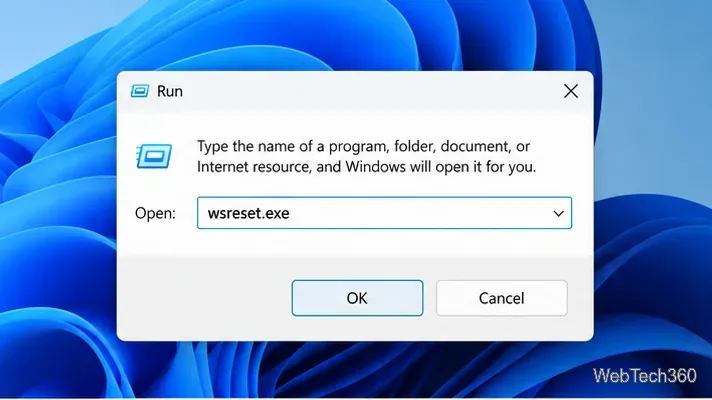
A stale Store cache can interfere with app downloads or license checks. Press Windows key + R, type wsreset.exe, and select OK. A blank Command Prompt window may appear; wait for it to close and for Microsoft Store to reopen automatically. Then launch Minecraft again. This resets the Store cache; it does not prove that the account owns the game.
Run wsreset.exe to clear the Microsoft Store cache.
4. Repair the Minecraft Launcher
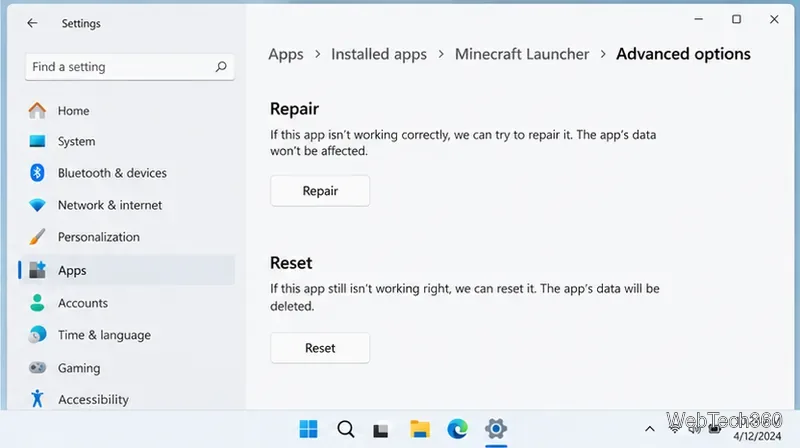
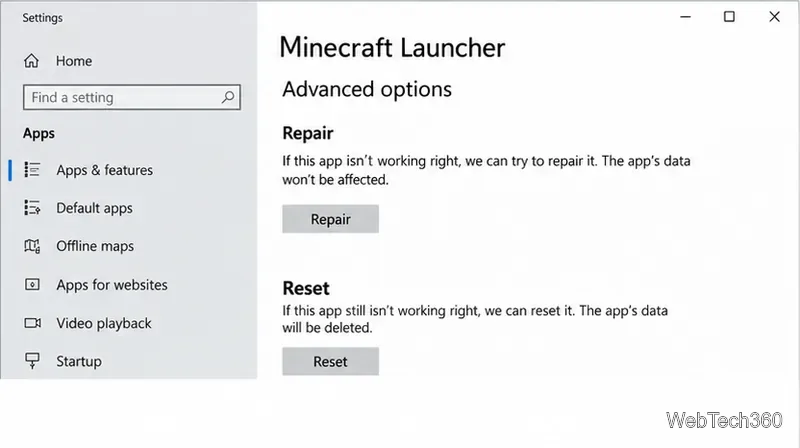
Use Windows’ built-in Repair option before Reset. In Windows 11, go to Start > Settings > Apps > Installed apps, select the three-dot menu beside Minecraft Launcher, choose Advanced options, then select Repair. In Windows 10, go to Settings > Apps > Apps & features, select Minecraft Launcher, choose Advanced options, and select Repair. If Microsoft Store or Xbox app is the one failing, repair that app too when the option is available.
On Windows 11, try Repair before using Reset.Windows 10 places the Launcher’s recovery options under Apps & features.
If Repair is unavailable or does not help, Reset is a stronger option. Microsoft notes that Reset deletes that app’s data. Use it only for the Launcher, Store, or Xbox app; do not reset the Minecraft game app or remove local worlds as part of a license check. Back up worlds before changing the game installation itself.
5. Reinstall only the Minecraft Launcher
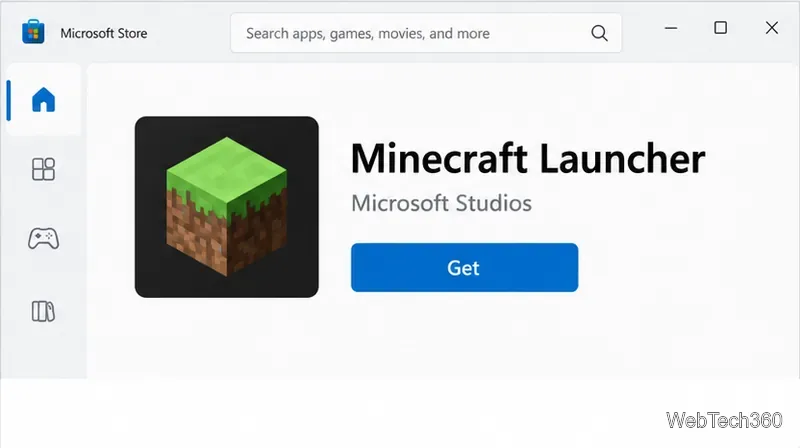
If the license and account are correct but the Launcher still fails, uninstall Minecraft Launcher from Windows Settings, restart the PC, then reinstall it from Microsoft Store Library or the official Minecraft download page. Minecraft’s current installation guidance lists Microsoft Store and Minecraft.net as official routes. Open the fresh Launcher and sign in with the licensed account again.
Reinstall the Launcher from its official Microsoft Store listing.
Remove the Launcher only; this error does not call for deleting Minecraft worlds or reinstalling Windows. If the code remains, confirm the edition and Microsoft account that hold the purchase or redemption, then contact Minecraft Support with the exact error message and the steps already tried.