Home
» GAMING
»
How to Install and Use Among Us Proximity Chat on Windows
How to Install and Use Among Us Proximity Chat on Windows
Among Us proximity chat lets players hear nearby crewmates and impostors instead of talking only during meetings. On Windows, one community option is CrewLink, a third-party voice-chat mod. You install the app separately, launch it alongside Among Us, and configure your microphone and voice settings. It is not an official Among Us feature, and compatibility can change when the game updates.
Before you begin: this guide covers the original CrewLink project for Windows PC. Check its release page and recent project notes before downloading; if the latest build does not support your installed Among Us version, do not assume that reinstalling will fix it. Innersloth says it does not provide technical support for mods and cannot guarantee they will continue working after game updates. Read Innersloth’s Among Us Mod Policy.
How proximity chat works
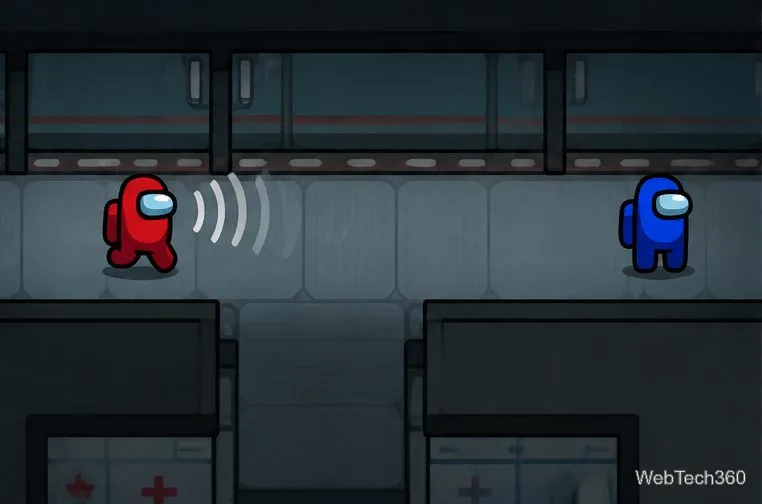
CrewLink uses spatial voice chat: you can hear participating players when they are close enough in the game, and their voices fade or become inaudible as they move away. This makes hallway conversations and sneaky impostor encounters feel different from standard meeting-based discussion. Everyone should agree on the voice-chat setup before the round starts, and players generally need compatible setups for the feature to work as intended.
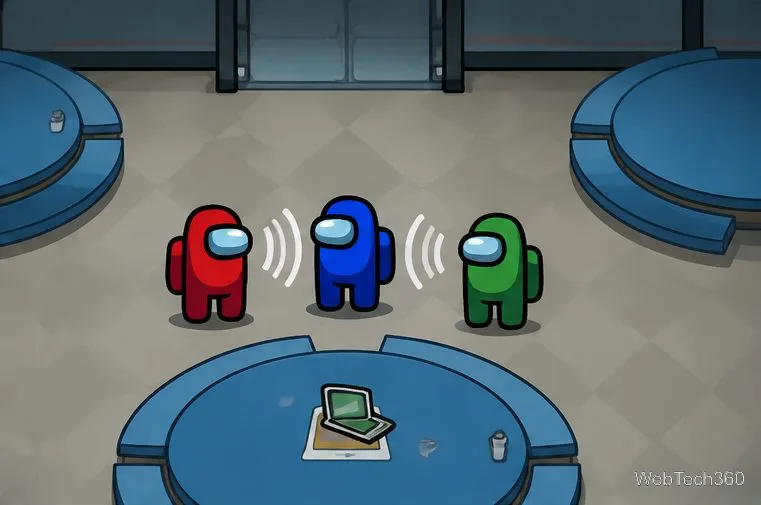
Among Us crewmates standing close together with sound-wave symbols indicating nearby voice chat.
How to install CrewLink on Windows
1. Check your game and Windows setup
Install and update the official PC version of Among Us first. Close the game before starting the mod installer. CrewLink is a Windows desktop tool; this guide does not apply to the console or mobile editions. If you play with friends, tell them you plan to use proximity voice chat and confirm everyone can join a compatible lobby.
2. Download CrewLink from its project page
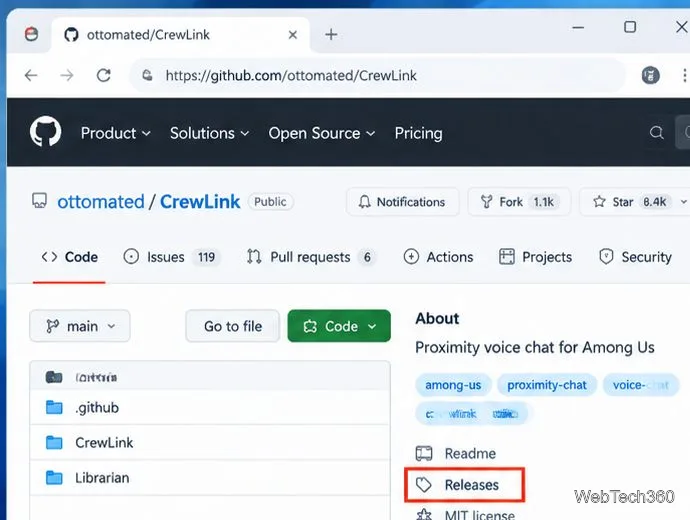
Open the CrewLink GitHub repository, then follow its link to Releases. Read the release notes and download the installer asset provided by the project, typically named similar to CrewLink-Setup-X.X.X.exe. Avoid third-party download mirrors and repackaged installers.
GitHub CrewLink repository page with the Releases link highlighted for locating the installer.
3. Review the downloaded installer
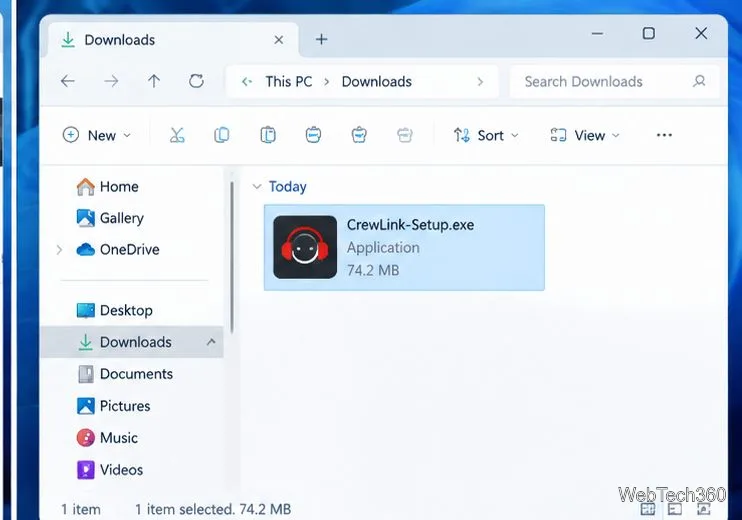
Find the downloaded setup file in your Downloads folder. Before opening it, confirm the file came from the project’s release page and scan it with Windows Security or your organization’s approved security tool. The CrewLink project notes that antivirus software may warn because the app hooks into the Among Us process to read game data. A warning is not proof that a file is safe: if the publisher or source looks unexpected, do not run it or disable antivirus protection just to proceed.
Windows Downloads folder showing the CrewLink Setup executable selected.
4. Run setup and complete installation
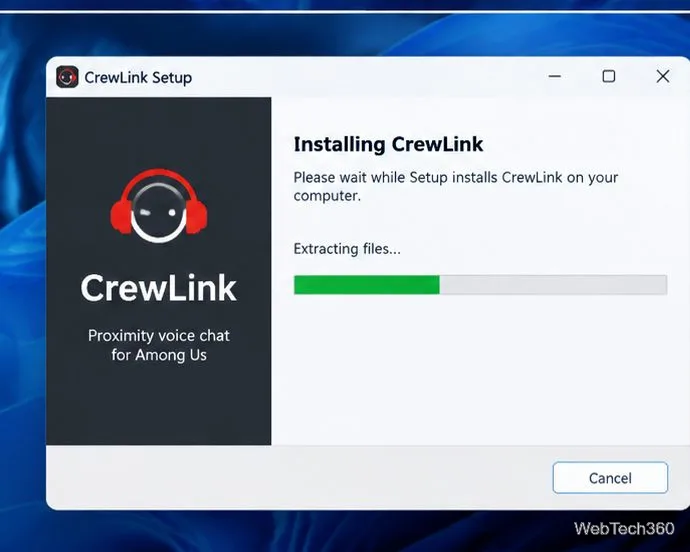
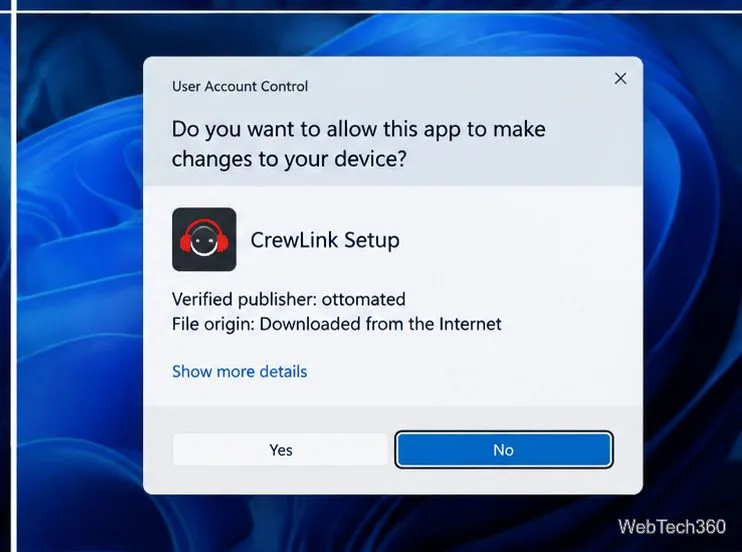
Open the installer and review any Windows permission prompt. Continue only if you trust the file and its source. Follow the installer’s instructions to finish, then close the setup window. The exact wording and appearance of Windows prompts may differ by Windows version and installer release.
CrewLink Setup window displaying an installation progress bar.Windows User Account Control prompt for CrewLink Setup, illustrating the publisher and permission check.
5. Start CrewLink and Among Us
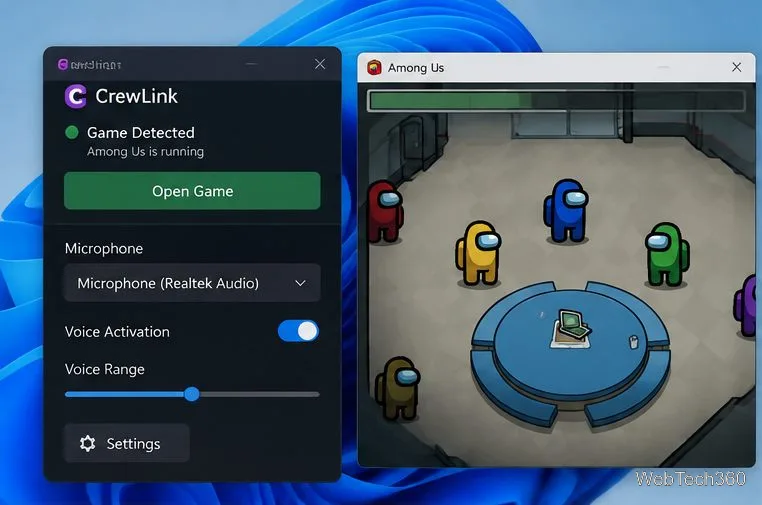
Launch CrewLink and leave it running. Start Among Us from Steam or your normal game launcher. Return to CrewLink and, if the app displays a waiting message or an Open Game button, follow the prompt to connect it to the running game. Button labels and detection behavior may vary across builds, so use the instructions shipped with the release you installed if the window looks different.
6. Select your microphone and adjust voice settings
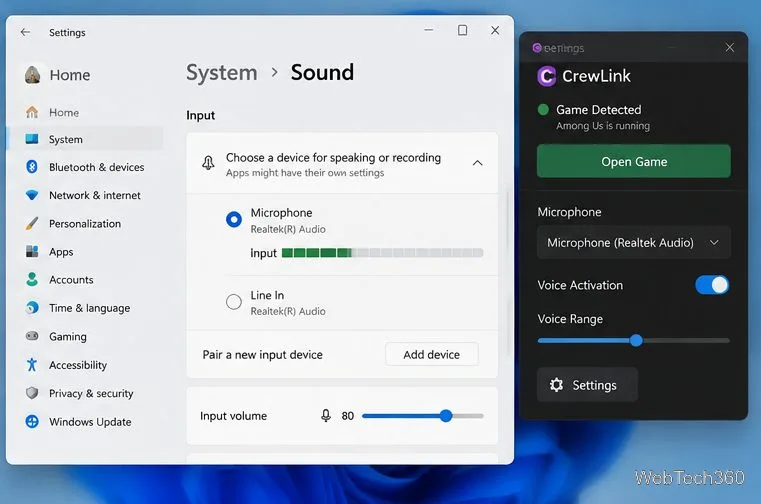
In CrewLink, open its settings and choose the microphone you actually use. In Windows, you can also open Settings > System > Sound > Input to select an input device and check that its input meter responds when you speak. Make sure microphone access is enabled for desktop apps if Windows privacy settings block it. Start with a moderate voice range and test with friends; adjust voice activation or push-to-talk options only if your build offers them.
Illustrative CrewLink window beside Among Us, showing game detection and microphone and voice-range controls.Windows Sound input settings beside CrewLink controls, illustrating microphone selection and input-level adjustment.
7. Test proximity chat in a lobby
Join a game with friends who have confirmed that their setups are compatible. Have one player stand nearby and speak, then walk farther away to check whether the voice fades as expected. Keep CrewLink open while playing, and use its player list or status indicators if the version you have provides them. Indicators, colors, and available controls are version-dependent; do not rely on a particular icon as a universal sign that another player has installed the mod.
Among Us corridor illustrating that voice communication is distance-based and fades as players move apart.
Troubleshooting common problems
CrewLink does not detect the game: start Among Us first, keep CrewLink open, and restart both apps. Check the project’s release notes for compatibility with the current game version.
No one can hear you: verify the selected microphone in CrewLink and Windows Sound settings, check the input meter, and ensure the microphone is not muted in Windows or on the headset.
You cannot hear nearby players: ask friends to verify their microphone and compatible mod setup. Check voice range and activation settings, then test again in a quiet lobby.
The app crashes or shows a connection error: close and reopen the game and CrewLink, then check the project’s issue tracker and release notes. Busy or unavailable community services may also prevent a connection; repeated retries are not guaranteed to solve it.
The game updated recently: a game patch may break the mod until its maintainers release a compatible version. Do not downgrade game files or download unofficial “fixes” from unknown sites unless you understand and trust the source.
Important safety and compatibility notes
CrewLink is community software, not an Innersloth product. Download it only from the project’s official repository and review the code, releases, and issue history if you need additional assurance. Innersloth’s policy explains that mods are not officially supported and may stop working after updates. For details, see the official mod policy and the CrewLink project documentation.
When you finish playing, exit CrewLink from its own window or system-tray menu if available. Closing the game alone may leave the voice-chat app running. If the original CrewLink build is no longer compatible with your game, stop there and consult current project documentation rather than assuming an old tutorial still applies.