Home
» GAMING
»
How to Update Among Us on PC, Console, Android, and iOS
How to Update Among Us on PC, Console, Android, and iOS
Update Among Us through the same store or launcher you used to install it. Close the game, connect your device to the internet, then check its library or app-update page and install the available patch. Steam, Epic Games, consoles, Google Play, and Apple each deliver their own copy, so an update on one device does not update your other devices.
Avoid third-party download sites. If you do not see an update button, the game may already be current; check the store again and compare the version with Innersloth’s official Among Us update notes.
Update Among Us on a Windows PC
Steam
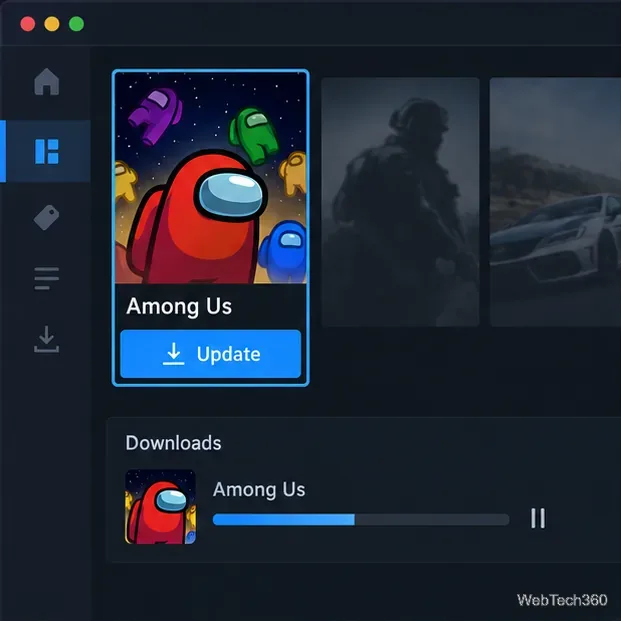
Open Steam and select Library, then open Among Us. If Steam displays an Update action, select it. Open Downloads to see whether the patch is queued, paused, or installing. Leave the game closed until the download and installation finish.
If no download starts, open the game’s Manage > Properties > Updates settings and review its automatic-update choice. Steam’s download and update guide explains these controls.
Illustrative PC library view showing Among Us, an Update action, and download progress.
Epic Games Launcher
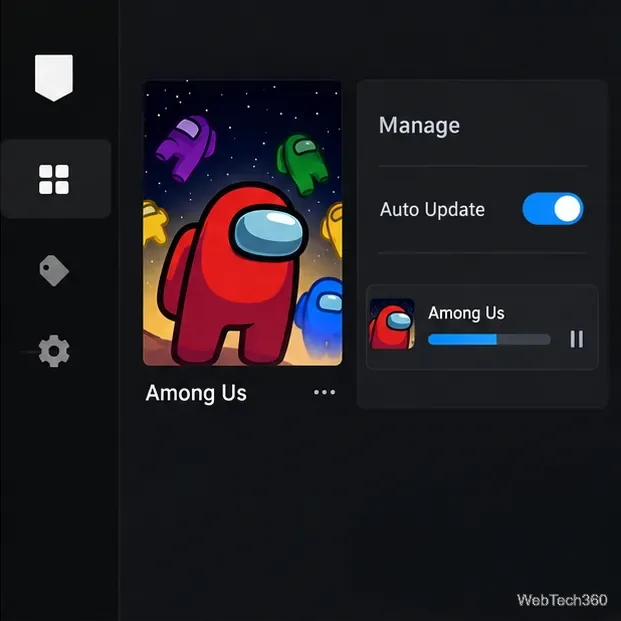
In the Epic Games Launcher, open Library, select the three-dot menu beside Among Us, and choose Manage. Turn on Auto Update. Check Downloads to follow an update that has started. The launcher’s layout can vary by view, but Epic’s Auto Update instructions use the same Library, three-dot menu, and Manage controls.
Illustrative Epic Games Launcher-style Manage panel with Auto Update enabled.
Update on Xbox, PlayStation, or Nintendo Switch
Xbox One and Xbox Series X|S
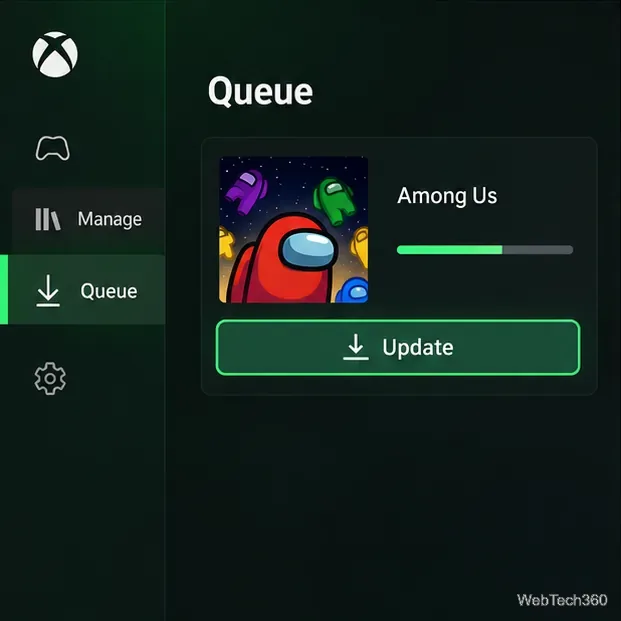
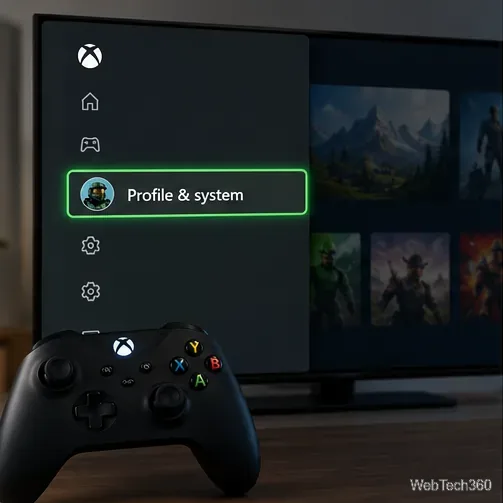
To check an update already downloading, press the Xbox button and open My games & apps > See all > Manage > Queue. Check its status if its item is paused. To allow game patches to install automatically, open Profile & system > Settings > System > Updates and turn on Keep my games & apps up to date. See Xbox’s update settings and queue instructions.
An Xbox-style queue view lists Among Us with an Update control and progress bar.
PlayStation 5 and PlayStation 4
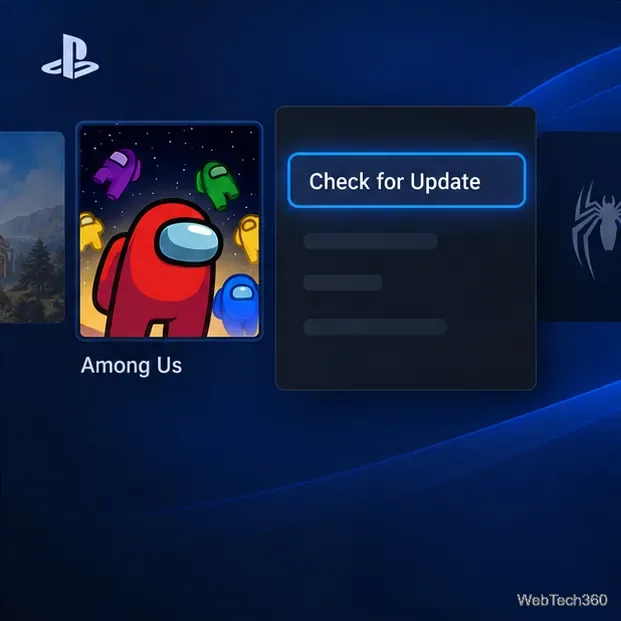
Highlight Among Us on the home screen or in your Library, press the controller’s Options button, and choose Check for Update. Follow the on-screen instructions if a patch is available. Sony documents this method for both PS5 and PS4 in its game and app update guide.
A PlayStation-style game menu highlights Check for Update.
Nintendo Switch
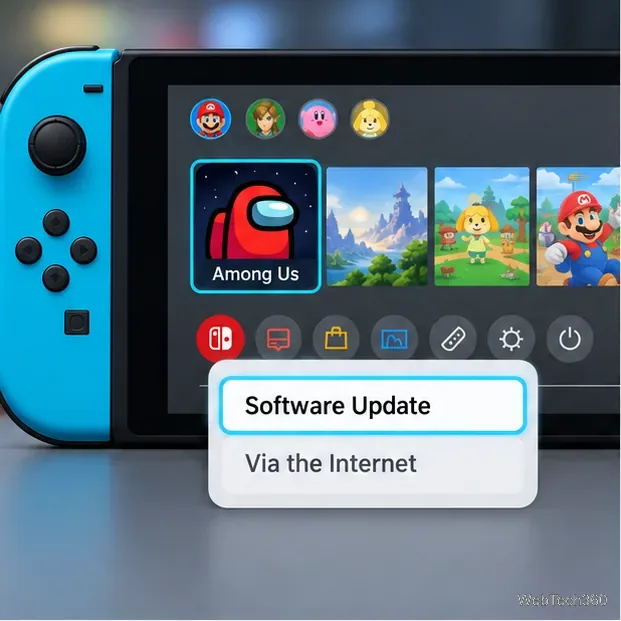
Connect the console to the internet. On the HOME Menu, highlight Among Us without launching it, press the + or − button, then select Software Update > Via the Internet. You can enable automatic software downloads under System Settings > System > Auto-Update Software. Nintendo’s Switch software update instructions cover both methods.
A Switch-style menu highlights Software Update and Via the Internet.
Update Among Us on Android or iPhone
Android
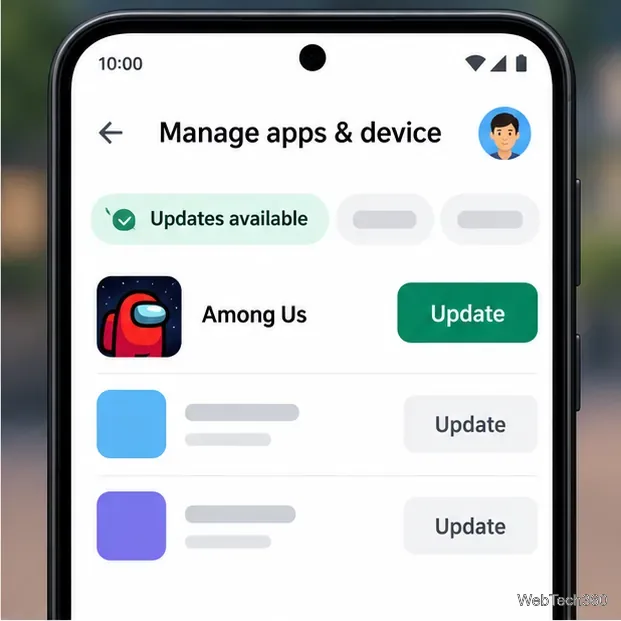
Open the Google Play Store, tap your profile picture, and select Manage apps & device. Under Updates available, tap See details, then choose Update beside Among Us. Google also lets you enable automatic updates from the game’s store page: open its details, tap the three-dot menu, and turn on Enable auto update. Follow Google’s Android app update steps if the menus look different on your device.
A Google Play-style update list shows Among Us with an Update button.
iPhone and iPad
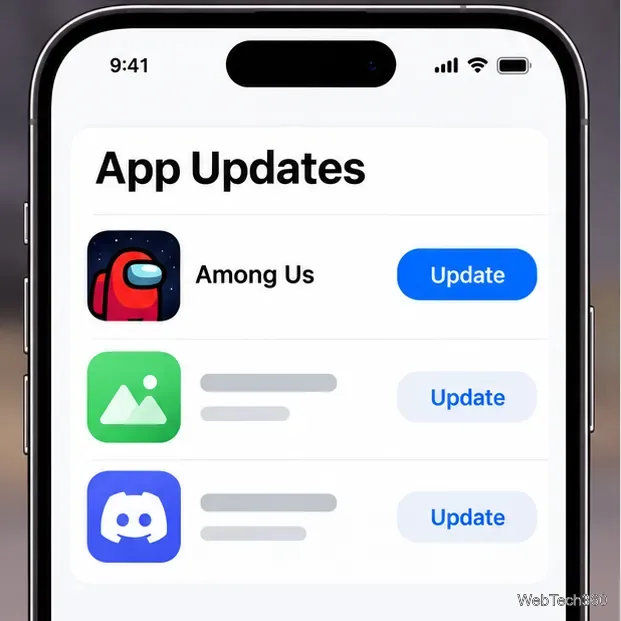
Open the App Store, tap your account photo or My Account button, and scroll to App Updates. Tap Update next to Among Us. For automatic updates, open Settings > Apps > App Store and turn on App Updates. Apple’s manual app update instructions reflect its current iPhone and iPad menus.
An App Store-style App Updates list shows Among Us with an Update button.
If the update will not download
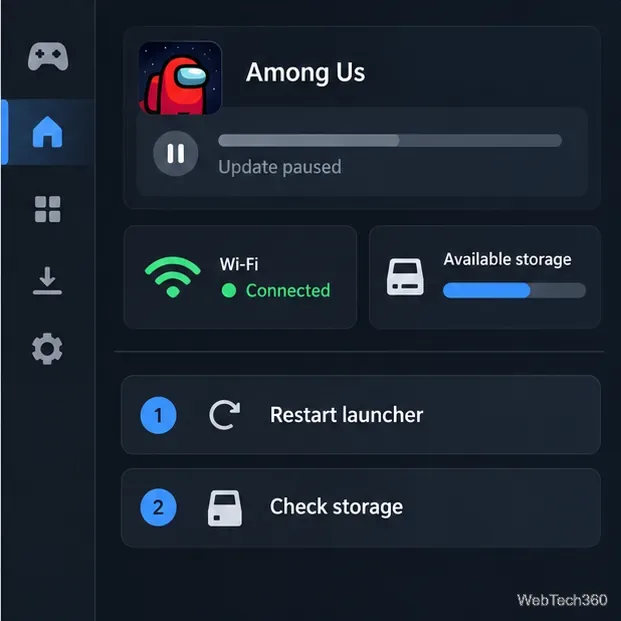
Start with the update queue or app store page for the device where Among Us is installed. Check that the internet connection is working, the download is not paused, and enough storage is available. Then close and reopen the launcher or store; if the queue remains stuck, restart the device and check again. On mobile, make sure you are signed in to the store account that installed the game.
If a friend sees a different game version, compare your installed version with Innersloth’s latest patch notes and install the update offered by your own platform. Do not uninstall the game or download an installer from an unofficial site as a first troubleshooting step.
A launcher-style screen shows an update queue, Wi-Fi status, storage space, and troubleshooting checks.