10 Best Free Software Tools for Gaming PCs
The best free software for gaming PCs covers game libraries, chat, recording, monitoring, and practical utilities, with clear notes on what each can and can’t improve.
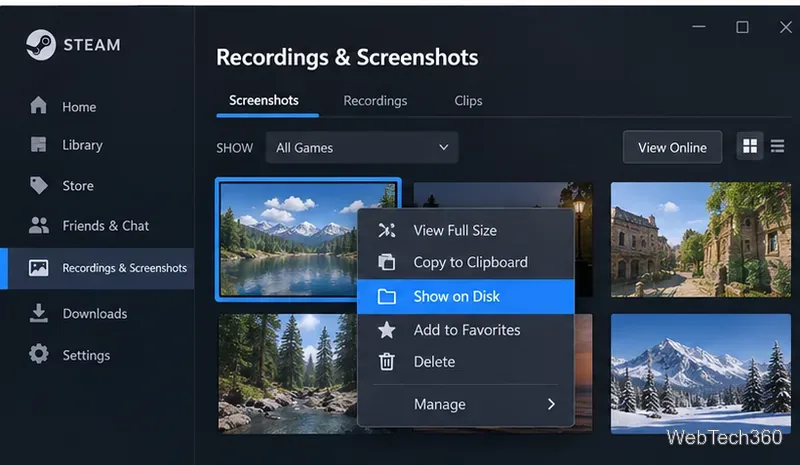
Steam saves screenshots to its own data folders rather than your Windows Pictures folder by default. The fastest way to find the exact Steam screenshot folder for a game is to open Steam, go to View > Recordings & Screenshots, select a screenshot, then use Show on Disk. Steam opens the correct folder in File Explorer, so you do not need to guess your account ID or the game's App ID.
Valve says Steam's screenshot system works through the Steam Overlay, with F12 as the default screenshot hotkey. You can change that key under Steam > Settings > In Game. See Valve's Steam Screenshots documentation for the official behavior.
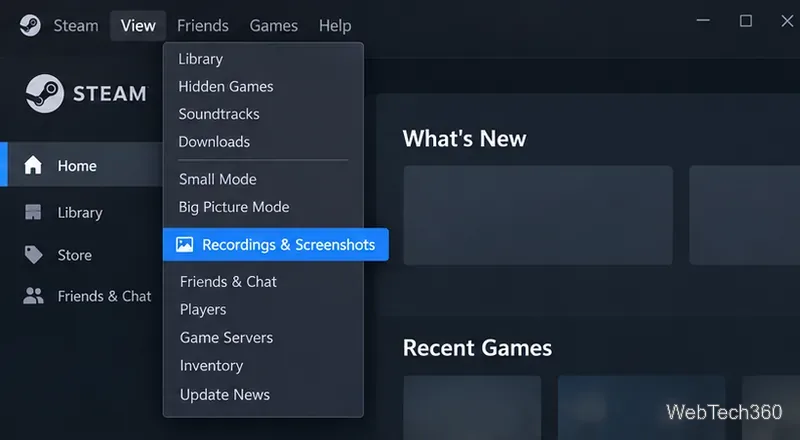
Steam's current media viewer also contains game recordings and clips. Valve's Steam Game Recording support page identifies View > Recordings & Screenshots as the desktop location for this media viewer.
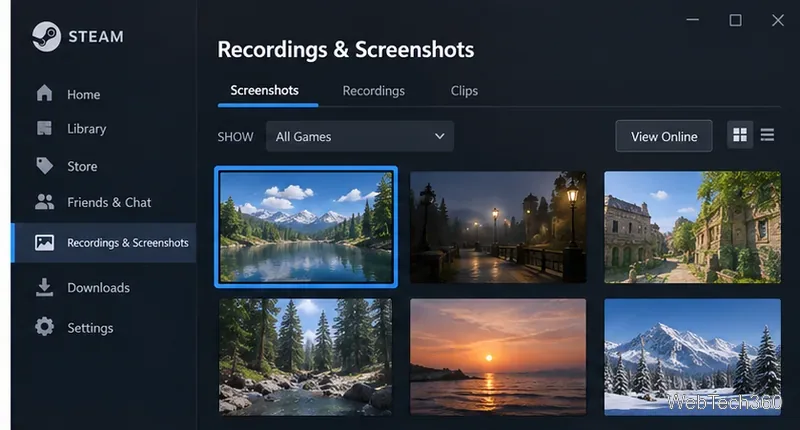
The Show on Disk command is the best method because Steam's storage structure uses numeric folders. A Windows path commonly looks like this:
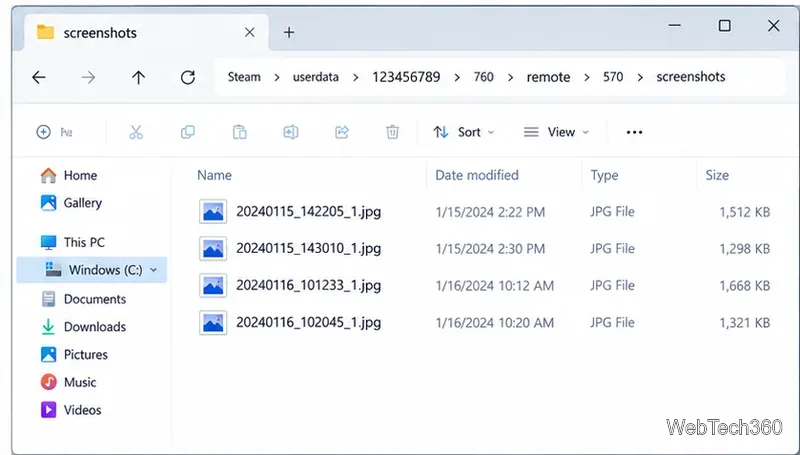
Steam\userdata\<account-id>\760\remote\<app-id>\screenshots
The account-id folder identifies the Steam account stored in that installation, while the app-id folder identifies the game. If more than one Steam account has used the PC, the userdata directory can contain several numbered account folders. That is why older instructions that tell you to manually match a profile URL to a folder are unnecessarily complicated.
If Steam is installed in the usual Windows location, the full path is commonly similar to:
C:\Program Files (x86)\Steam\userdata\<account-id>\760\remote\<app-id>\screenshots
If you installed Steam on another drive or in a custom folder, the beginning of the path will be different. The screenshot folder still sits under Steam's userdata directory. You can paste the path into File Explorer after replacing the placeholder IDs, but using Show on Disk is faster and less error-prone.
If nothing appears in the Steam screenshot viewer, check these points before searching the drive manually:
userdata directory.Steam lets you adjust screenshot behavior and the hotkey in Settings > In Game, but the safest way to work with existing local screenshots is to let Steam open their actual folder. If your goal is simply to copy images into Pictures, OneDrive, or another backup location, open the folder with Show on Disk and copy the JPG files from there instead of moving Steam's internal folders.
To find Steam screenshots, open Steam > View > Recordings & Screenshots, select a screenshot, right-click it, and choose Show on Disk. On Windows, Steam screenshots are typically stored under Steam\userdata\<account-id>\760\remote\<app-id>\screenshots. Using Steam's own viewer is the quickest way to reach the correct folder without decoding the numbered directories.
The best free software for gaming PCs covers game libraries, chat, recording, monitoring, and practical utilities, with clear notes on what each can and can’t improve.
Find your Steam screenshot folder quickly with the current Steam client, Show on Disk, or the Windows userdata path, plus tips for missing screenshots.
Learn what BattlEye anti-cheat does, how its Windows service and kernel-level protection work, what data it processes, and what bans mean for players.
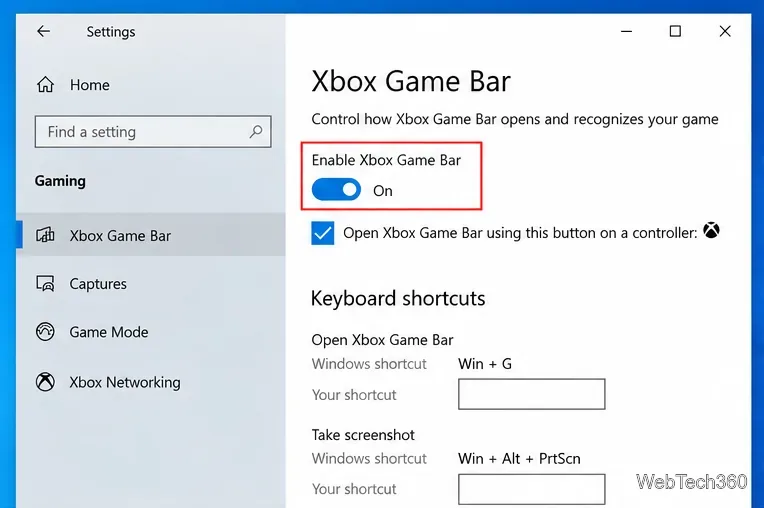
Learn how to enable and open Xbox Game Bar on Windows 10 with Win + G, use capture shortcuts, find saved clips, and fix common launch problems.
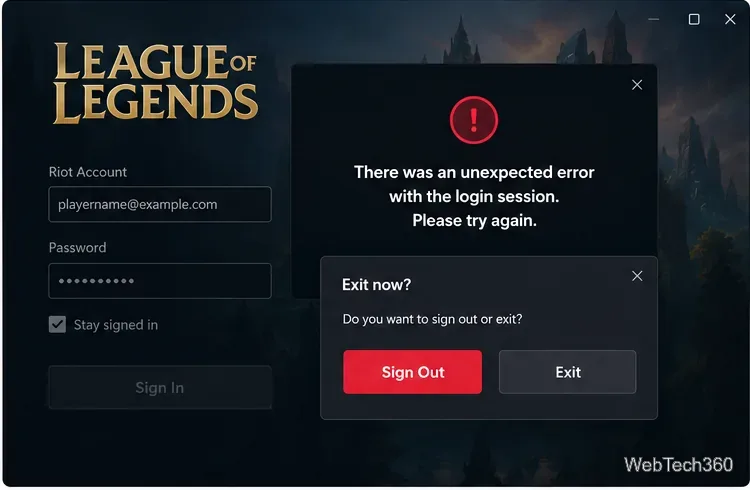
Fix League of Legends login errors such as an invalid or unexpected session by signing out fully, closing Riot processes, repairing the client, and checking your connection.
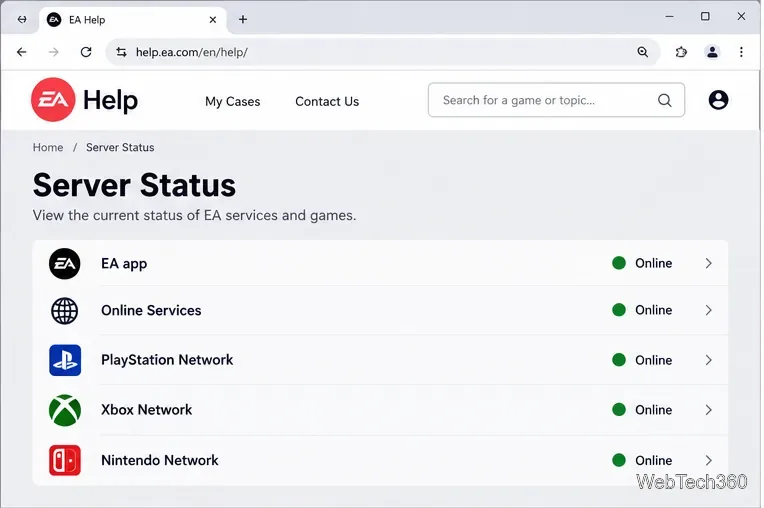
EA.com says it’s unable to connect? Check EA server status, your account, router, EA app cache, VPN, DNS, and device time with current troubleshooting steps.
Our Eldorado review explains how sellers earn from game currency, items, accounts, and boosting, plus current fees, payouts, TradeShield, and key risks.
Change your Epic Games display name for Fortnite on PC, Switch, and mobile. Follow the current steps and check email, console, and cooldown limits.