10 Best Free Software Tools for Gaming PCs
The best free software for gaming PCs covers game libraries, chat, recording, monitoring, and practical utilities, with clear notes on what each can and can’t improve.
To open Xbox Game Bar on Windows 10, press Windows key + G. If nothing appears, make sure Game Bar is enabled in Windows Settings first. Once it opens, you can use its widgets to capture screenshots, record a game or app, manage audio, and view performance information without leaving what you are doing.
One important update for Windows 10 users: Microsoft ended standard support for Windows 10 on October 14, 2025. The operating system can still run, and Xbox Game Bar may continue to work, but Microsoft recommends moving to Windows 11 or using an eligible Extended Security Updates option while you transition. See Microsoft's Windows 10 end-of-support guidance.
Xbox Game Bar is a Windows gaming overlay. Its most useful functions are quick access to capture controls, audio controls, performance information, and Xbox-related widgets. Microsoft still documents Game Bar for both Windows 10 and Windows 11, including its built-in recording shortcuts.
It is not a full video editor, and it should not be treated as a replacement for dedicated streaming or production software. For quickly recording a game or supported app, however, it is already integrated with Windows and requires no separate recording suite.
If Windows + G does not open anything, check whether Game Bar is turned off.
Microsoft's current accessibility instructions also use the Settings search method to locate and enable Game Bar. See Microsoft's Xbox Game Bar recording instructions.
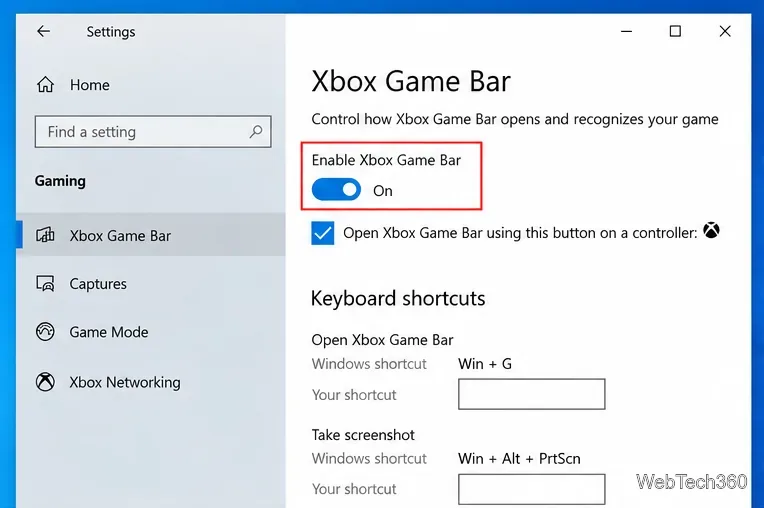
After Game Bar is enabled, the fastest method is simple:
Microsoft lists Windows + G as the standard Game Bar shortcut in its Windows keyboard shortcuts reference.
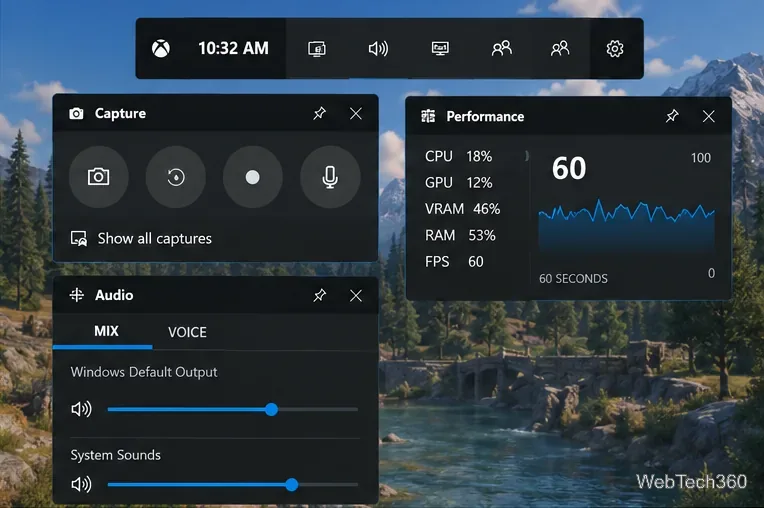
The exact widgets and layout can vary with your installed Game Bar version. Common widgets include Capture, Audio, Performance, and Xbox social features. You can pin some widgets so they remain visible after you close the main overlay.
You do not have to open the full overlay every time you want to record. Microsoft documents these shortcuts:
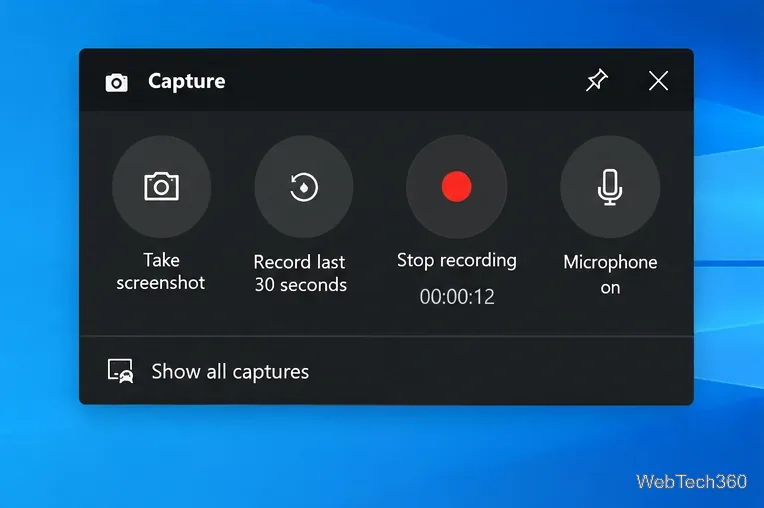
Game Bar recording is designed around games and apps, so it is not the best choice for every desktop-recording task. If you need to record arbitrary regions or edit a recording afterward, a different Windows capture tool may be more suitable.
By default, Game Bar stores recorded clips in Videos\Captures. Microsoft says recordings are saved as MP4 files, while screenshots are saved in the Captures folder as PNG files.
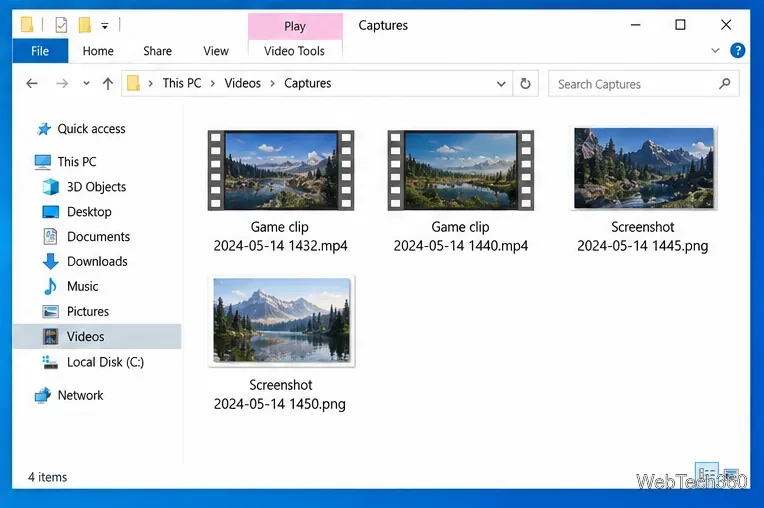
If you change capture-related options, open Settings > Gaming > Captures. Windows Gaming settings include controls for Game Bar and capture behavior, although the exact options can differ by Windows build and Game Bar version.
Start with the simple checks before changing anything advanced:
For most Windows 10 PCs, Windows + G is all you need to open Xbox Game Bar. If it does not open, enable Game Bar from Windows Settings, update the app, and use the built-in repair options if necessary. For recording, remember Windows + Alt + R; finished clips are normally saved under Videos\Captures.
The best free software for gaming PCs covers game libraries, chat, recording, monitoring, and practical utilities, with clear notes on what each can and can’t improve.
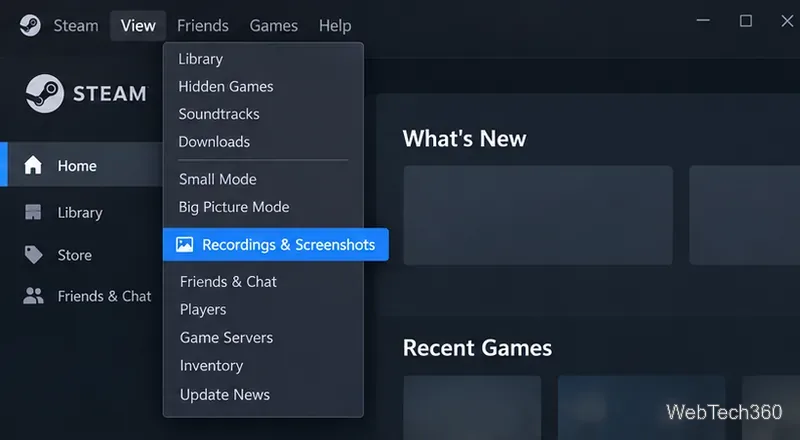
Find your Steam screenshot folder quickly with the current Steam client, Show on Disk, or the Windows userdata path, plus tips for missing screenshots.
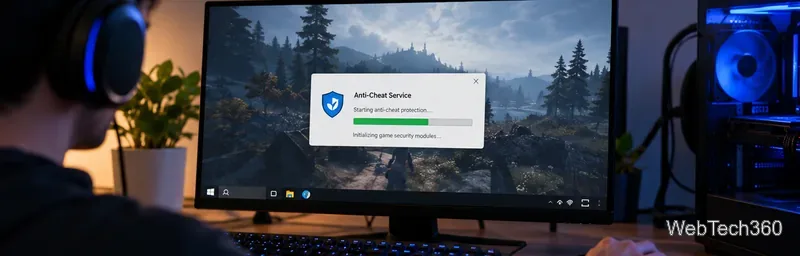
Learn what BattlEye anti-cheat does, how its Windows service and kernel-level protection work, what data it processes, and what bans mean for players.
Learn how to enable and open Xbox Game Bar on Windows 10 with Win + G, use capture shortcuts, find saved clips, and fix common launch problems.
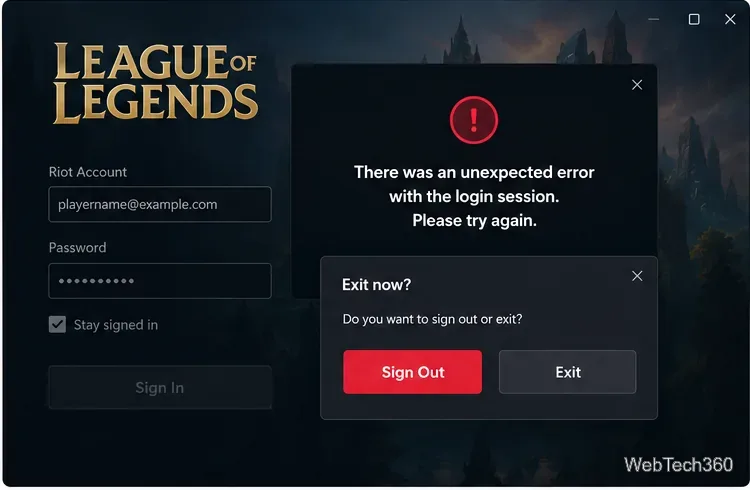
Fix League of Legends login errors such as an invalid or unexpected session by signing out fully, closing Riot processes, repairing the client, and checking your connection.
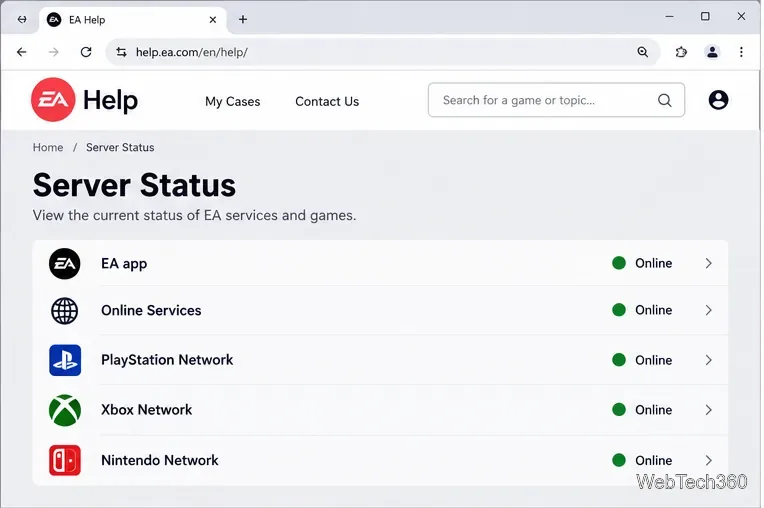
EA.com says it’s unable to connect? Check EA server status, your account, router, EA app cache, VPN, DNS, and device time with current troubleshooting steps.
Our Eldorado review explains how sellers earn from game currency, items, accounts, and boosting, plus current fees, payouts, TradeShield, and key risks.
Change your Epic Games display name for Fortnite on PC, Switch, and mobile. Follow the current steps and check email, console, and cooldown limits.