How to Uninstall Kodi Repositories the Right Way

Learn how to uninstall a Kodi repository safely, remove its saved source URL separately, and check which installed add-ons or dependencies you still need.
Can you still install the 1Channel add-on for Kodi? There is no verified, current installation path we can recommend. 1Channel, also called PrimeWire, was an unofficial video add-on that organized movie and TV links from external websites. Older instructions reference repositories and domain settings that may no longer work. Before downloading a ZIP file with that name, check its source, compatibility, and maintenance status.
1Channel historically offered movie browsing, TV-series directories, search, and user-curated playlists through a PrimeWire-linked interface. Those features depended on third-party websites and link resolvers, so availability could change without notice. The original guide pointed to a K313vra/k3l3vra repository, but we could not confirm a maintained release from that path that is suitable for current Kodi installations. That is different from saying every copy has disappeared; an old ZIP may still be posted online, but its presence does not establish that it is safe or functional.
Compatibility is another issue. Kodi moved its Python-based add-ons to Python 3 beginning with Kodi 19, which broke some older extensions that were not updated. Team Kodi explains the change in its add-on compatibility overview. A 1Channel package written for older Kodi releases should not be assumed to run on Kodi 21 or later.
Use this short checklist instead of following an unverified download link:
If your goal is to watch video through Kodi rather than recover one specific legacy add-on, the built-in repository is the practical route. The example below uses the YouTube video add-on, which has a published listing for Kodi Omega (version 21). Available add-ons vary by Kodi version, device, region, and service rules. The menu examples below use Kodi’s standard layout; your skin may look different.
Launch Kodi and select Add-ons from the home menu. If the add-on browser is not visible, select the open-box icon.

In the add-on browser, choose Install from repository. This uses the repositories already registered with Kodi. The official Kodi repository is included by default; you do not need to enable Unknown sources for this method.
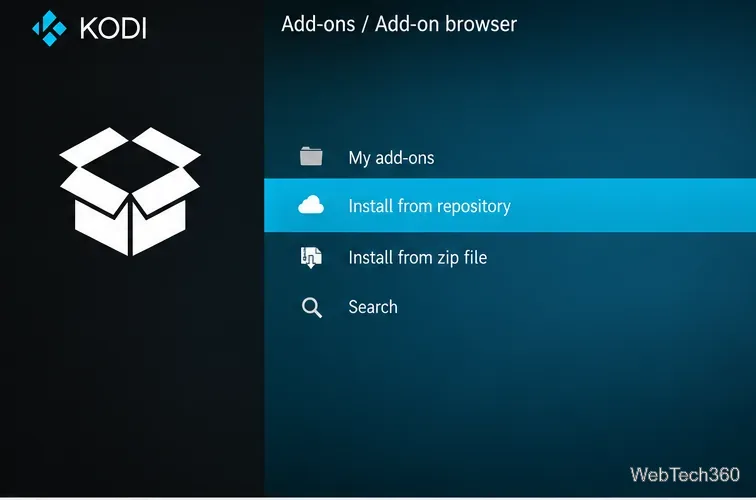
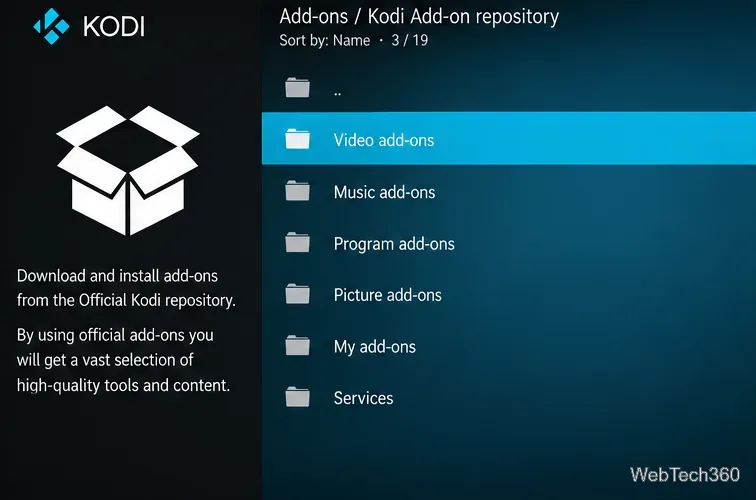
If Kodi asks you to select a repository, choose Kodi Add-on repository. Then open Video add-ons and find a service you recognize. You can also browse the version-specific catalog on Kodi’s website before opening Kodi.
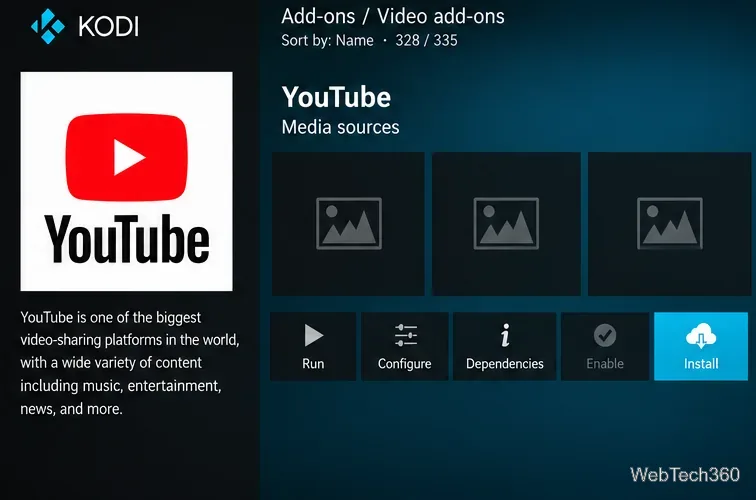
Open the add-on information page, read its description and requirements, then select Install. Accept any required dependencies only after reviewing them. When installation finishes, return to Add-ons > Video add-ons to launch it. Some services may require a separate account, subscription, or authorization.
“Dependency not satisfied” or “Add-on is incompatible”: The package may require an obsolete Python runtime or unavailable modules. Installing random dependency ZIPs is not a reliable fix. Repository unavailable: The host or repository metadata may be gone; changing to an unrelated mirror increases risk. Empty lists or playback errors: Even if the interface opens, its external content sources may have moved, changed their access rules, or stopped responding.
To investigate a supported add-on, check Kodi’s Event Log or official log-file instructions. Remove credentials and other personal details before sharing logs. For a broken third-party add-on, its maintainer—not Team Kodi—is generally the appropriate support contact.
Kodi itself is a legitimate open-source media center, but Kodi does not certify arbitrary third-party ZIP files or grant streaming rights to their content. An add-on that finds a movie does not establish that the stream is authorized. The legal status depends on the material and your location. Use sources licensed to distribute the videos you watch.
The Unknown sources switch, described in Kodi’s official settings documentation, allows third-party ZIP installations and expands the trust you place in outside code. Leave it disabled unless you have independently verified a specific developer and package. A VPN can offer privacy benefits on some networks, but it cannot verify an add-on’s code, repair a dead repository, or make unauthorized streams lawful.
Bottom line: 1Channel remains a recognizable name from Kodi’s earlier streaming ecosystem, but there is no confirmed modern installation route to present as working. For movies and TV from authorized sources, choose a maintained add-on compatible with your Kodi release rather than relying on the old K313vra instructions, PrimeWire proxies, or pairing sites.
Learn how to uninstall a Kodi repository safely, remove its saved source URL separately, and check which installed add-ons or dependencies you still need.
Find the safest way to watch live tennis with Kodi: learn what iPlayer WWW can stream, how to find licensed coverage, and which add-ons to avoid.
Learn how to watch movies on Kodi from your computer, USB drive, or NAS, add online video services, and fix missing titles with clear setup steps.
Set a Kodi Master Lock PIN, protect selected menus, and create a separate kids’ profile with media sources you choose.
Find the authorized stream for your country, check whether its provider supports Kodi, and watch a boxing PPV on your TV without relying on outdated add-ons.
Compare five Kodi skins in the official Omega catalog, then follow the current Settings path to install one, customize it, or switch back.
Looking for the 1Channel Kodi add-on? Learn why old PrimeWire installation guides are unreliable and how to install a supported video add-on safely.
Enable Kodi’s Chorus2 web interface, control your media from any browser, and learn how to connect remotely without exposing Kodi to the Internet.
Follow the original Nemesis Kodi installation process, learn what changed with Stream Army, and avoid outdated repository and PIN instructions.
Download Kodi safely on Windows using the official installer or Microsoft Store, then add your media library and set up trusted add-ons.







