How to Uninstall Kodi Repositories the Right Way

Learn how to uninstall a Kodi repository safely, remove its saved source URL separately, and check which installed add-ons or dependencies you still need.
Can you still install the Nemesis Kodi add-on? Nemesis was a third-party, all-in-one add-on distributed through the Stream Army repository. Its original installation method is documented below, but a working download for that original Nemesis add-on could not be independently confirmed as of October 30, 2026. The Stream Army-related instructions now refer to Nemesis AIO, a similarly named listing that should not be assumed to be identical to the earlier add-on.
If you are restoring an older Kodi setup, use this guide to understand the repository process and identify where it may fail. Do not install a ZIP from an unrelated mirror merely because it carries the Nemesis name.
Get Kodi from the official Kodi download page. Kodi 21.3 “Omega” is the published stable 21.x release; Kodi 22 “Piers” reached release-candidate status in October 2026. The legacy Nemesis instructions came from a much older Kodi era, so compatibility with either current version is not established.
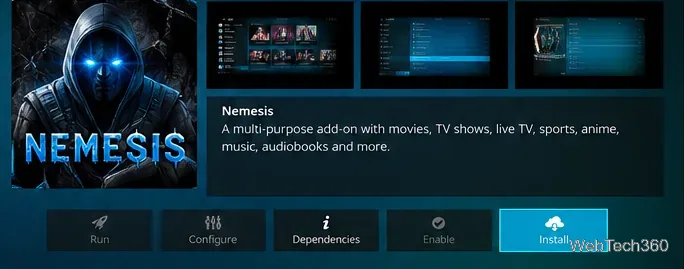
The Kodi Foundation does not maintain Stream Army or Nemesis. Historically, Nemesis grouped movies, television, sports, live TV, music, audiobooks, and cartoons; current availability is unverified.
These steps use Kodi’s standard menus and label the older Stream Army details. Verify the publisher before installing any third-party ZIP.
Select the home-screen gear icon to access Kodi settings.

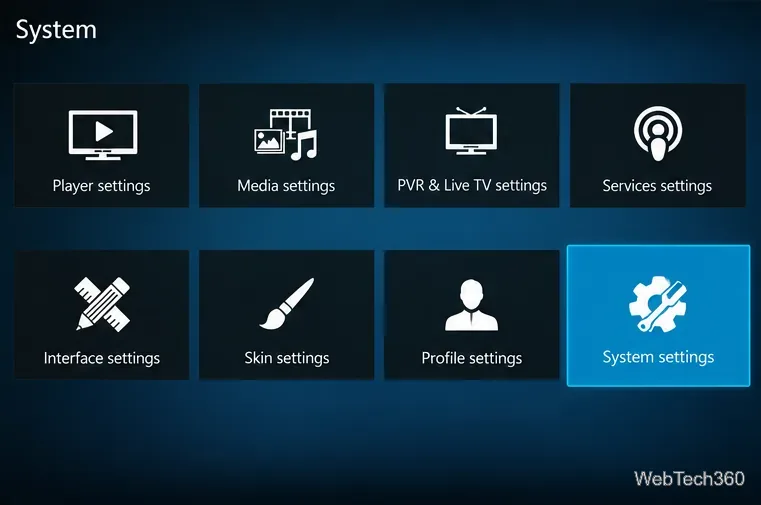
Select System (called System settings in some layouts). This opens the add-on installation settings.
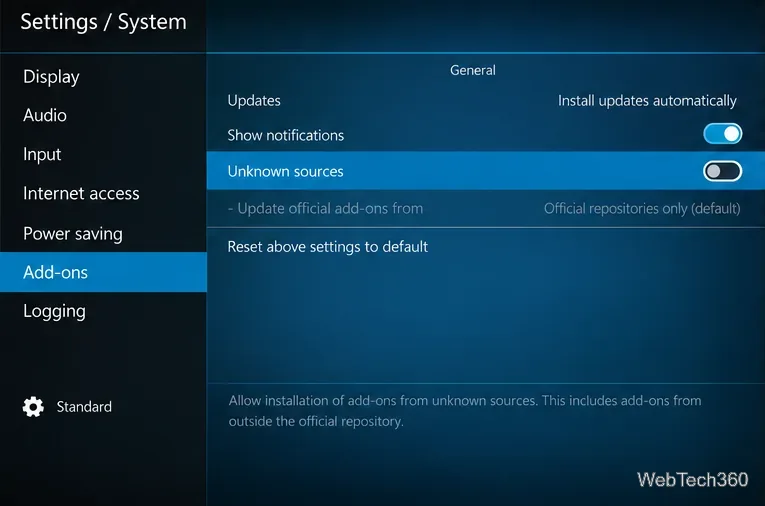
Open Add-ons and locate Unknown sources. Kodi requires this setting for ZIP installations outside its official repository. Read Kodi’s warning before enabling it: third-party add-ons can access device data. Turn the option off afterward.
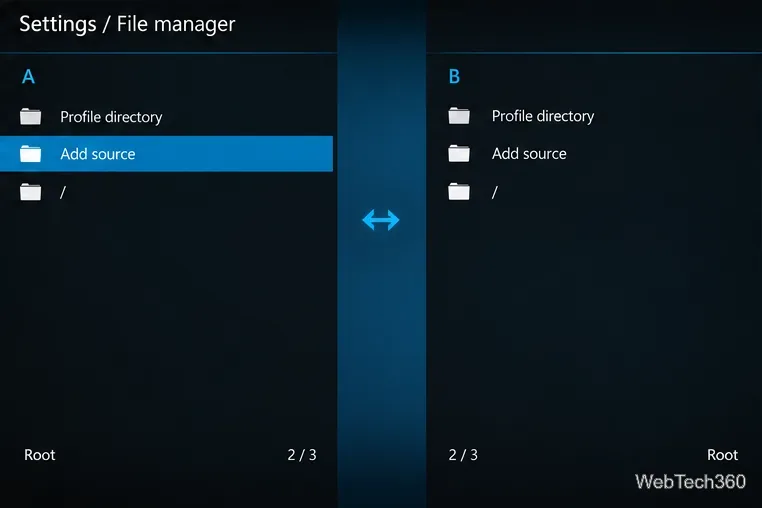
Return to Settings, choose File manager, and select Add source. Kodi accepts repository locations here without verifying their trustworthiness.
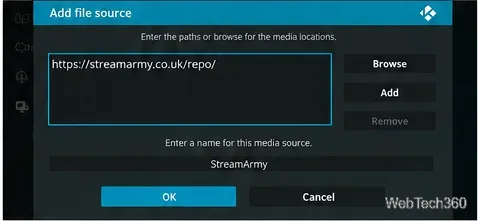
The original guide used https://streamarmy.co.uk/repo/. A Stream Army-related PIN service currently documents http://streamarmy.co.uk/repo/ instead. The HTTPS source did not respond during verification, and the HTTP address lacks transport encryption. Neither fact confirms a working, safe source for the original Nemesis. Treat both addresses as historical references, not a guaranteed install link. Do not enter an unverified replacement URL.
If you have obtained a trustworthy repository package directly from its publisher, open Add-ons → Add-on browser → Install from zip file. The old package name followed the pattern repository.StreamArmy-…zip. Confirm the package’s source and version, then wait for the installation notification. Avoid random archived ZIPs.
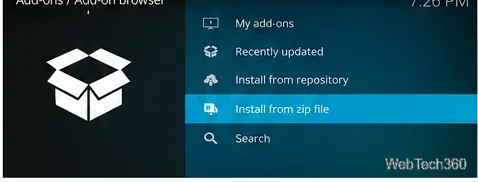
Choose Install from repository, select the verified Stream Army repository if present, and open Video add-ons. Current Stream Army-related documentation mentions NemesisAIO; the old article refers to Nemesis. Check the name, author, version, and dependencies; do not assume they are interchangeable.
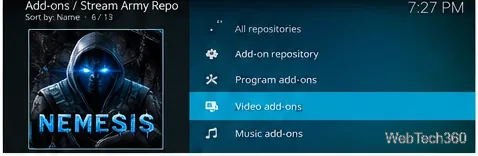
Open the intended add-on information page and inspect its details. Click Install only if the publisher, package, dependencies, and supported Kodi version all make sense. No verified universal fix exists if the original add-on is missing or incompatible.
Older Nemesis builds required a Stream Army PIN entered in Kodi, reportedly expiring after four hours. This process is unverified for current builds.
A PIN site at PinSystem's Stream Army instructions still describes the repository and NemesisAIO, but its page alone does not prove that the original Nemesis install or authorization service is operational. Never supply payment details, Kodi credentials, or personal data to an unfamiliar pairing page.
Bottom line: The Kodi menus for adding a trusted repository still work, but the older Nemesis-specific download, feature list, and PIN instructions cannot be presented as a currently tested installation. For dependable playback, start with add-ons in Kodi's official repository and media you are authorized to access. Kodi itself provides no bundled movies or TV channels.
Learn how to uninstall a Kodi repository safely, remove its saved source URL separately, and check which installed add-ons or dependencies you still need.
Find the safest way to watch live tennis with Kodi: learn what iPlayer WWW can stream, how to find licensed coverage, and which add-ons to avoid.
Learn how to watch movies on Kodi from your computer, USB drive, or NAS, add online video services, and fix missing titles with clear setup steps.
Set a Kodi Master Lock PIN, protect selected menus, and create a separate kids’ profile with media sources you choose.
Find the authorized stream for your country, check whether its provider supports Kodi, and watch a boxing PPV on your TV without relying on outdated add-ons.
Compare five Kodi skins in the official Omega catalog, then follow the current Settings path to install one, customize it, or switch back.
Looking for the 1Channel Kodi add-on? Learn why old PrimeWire installation guides are unreliable and how to install a supported video add-on safely.
Enable Kodi’s Chorus2 web interface, control your media from any browser, and learn how to connect remotely without exposing Kodi to the Internet.
Follow the original Nemesis Kodi installation process, learn what changed with Stream Army, and avoid outdated repository and PIN instructions.
Download Kodi safely on Windows using the official installer or Microsoft Store, then add your media library and set up trusted add-ons.







