How to Uninstall Kodi Repositories the Right Way

Learn how to uninstall a Kodi repository safely, remove its saved source URL separately, and check which installed add-ons or dependencies you still need.
A Kodi skin changes the menus, artwork layout, colors, and navigation you see; it does not add video services or install media add-ons. For Kodi 21 “Omega,” start with the five options below, all listed in Kodi’s official Omega skin catalog. If you run Kodi 22 “Piers” Release Candidate, check the catalog for that version instead: add-on availability can differ, and a prerelease may have compatibility issues.
To switch skins, open Settings (gear) > Interface > Skin, select Get more…, install a skin, then confirm that you want to keep it. You can return to Estuary from the same setting if you prefer the original layout.
There is no universal “best” skin. A simple menu can suit a small library, while a panel-heavy or highly configurable layout may work better on a big-screen media center. These five are useful starting points because they appear in Kodi’s official Omega repository; compare the screenshots and descriptions in the add-on browser before installing.
Amber’s official description emphasizes an easy-to-navigate interface without extra clutter. Try it if you want your media to be the focus and would rather keep the home screen uncomplicated. It is a good first alternative when you want a noticeable change without starting with a feature-dense setup. See Amber in Kodi’s Omega catalog.
This skin is described by Kodi as a redesign that retains the classic Aeon feel. Choose it if you want a more visual home screen and are comfortable exploring skin-specific settings after installation. Its options and navigation will not match Estuary one-for-one. See Aeon Nox: SiLVO in the Omega catalog.
The project describes this skin as clean, minimal, elegant, simple, and light. That makes it a sensible pick if you want less visual clutter. Check its version notes and compatibility details before installing, especially if you use a Kodi release newer than the one listed by the skin author. Read the skin project’s description and release notes.
Confluence combines ideas from other skins and aims to be approachable for first-time Kodi users. It remains available in the Omega add-on catalog, even though Estuary is the default skin in modern Kodi releases. Pick it if you prefer its menu arrangement or simply want to try a long-running alternative. See Confluence in the Omega catalog.
Xperience1080 is described as a clean, modern, panel-based skin, with a focus on graphical quality, smooth animations, and integrated functions and add-ons. It is worth previewing if you want the home screen to feel more like a set of visual panels than a basic list. See Xperience1080 in the Omega catalog.

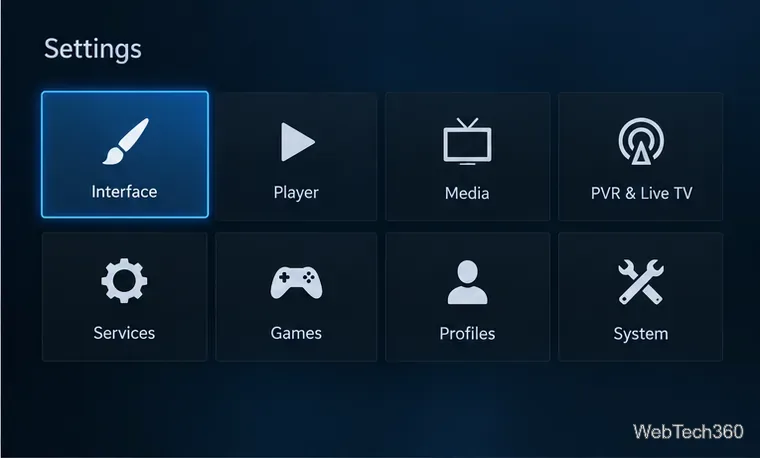
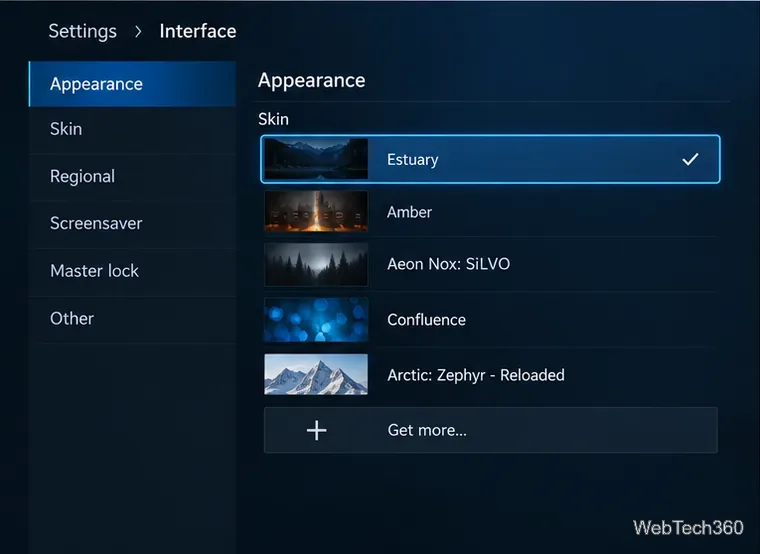
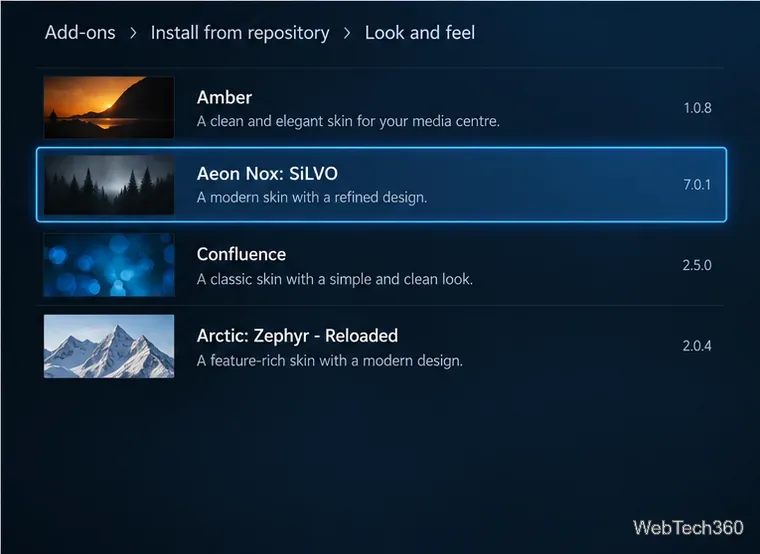
After switching, return to Settings > Interface > Skin. The Configure skin option opens controls specific to the active skin; its options vary. Kodi also lists common appearance controls such as theme, colors, fonts, and interface zoom, but not every skin supports every option. Change one setting at a time so it is easy to undo a layout you do not like.
If navigation becomes confusing, use the same Skin selector and choose Estuary. Kodi warns that Estouchy is designed for touchscreens and may be difficult to use without one. If a skin is missing from Get more…, check the Kodi version’s catalog, your repository connection, and the skin’s compatibility notes. Do not assume an old skin package will work with a newer Kodi release.
For a safe starting point, use Kodi’s built-in add-on browser instead of downloading a skin ZIP from an unfamiliar site. The official Kodi add-on pages recommend installing through the app and show which version-specific catalog contains each add-on. See the Kodi skin settings guide, the Omega skin catalog, and Kodi’s Piers RC 1 release notes for version details.
Learn how to uninstall a Kodi repository safely, remove its saved source URL separately, and check which installed add-ons or dependencies you still need.
Find the safest way to watch live tennis with Kodi: learn what iPlayer WWW can stream, how to find licensed coverage, and which add-ons to avoid.
Learn how to watch movies on Kodi from your computer, USB drive, or NAS, add online video services, and fix missing titles with clear setup steps.
Set a Kodi Master Lock PIN, protect selected menus, and create a separate kids’ profile with media sources you choose.
Find the authorized stream for your country, check whether its provider supports Kodi, and watch a boxing PPV on your TV without relying on outdated add-ons.
Compare five Kodi skins in the official Omega catalog, then follow the current Settings path to install one, customize it, or switch back.
Looking for the 1Channel Kodi add-on? Learn why old PrimeWire installation guides are unreliable and how to install a supported video add-on safely.
Enable Kodi’s Chorus2 web interface, control your media from any browser, and learn how to connect remotely without exposing Kodi to the Internet.
Follow the original Nemesis Kodi installation process, learn what changed with Stream Army, and avoid outdated repository and PIN instructions.
Download Kodi safely on Windows using the official installer or Microsoft Store, then add your media library and set up trusted add-ons.







