How to Uninstall Kodi Repositories the Right Way

Learn how to uninstall a Kodi repository safely, remove its saved source URL separately, and check which installed add-ons or dependencies you still need.
To control Kodi from a web browser, enable its built-in HTTP web server, select the Chorus2 web interface, and open the Kodi device’s local IP address and port in a browser. You can pause playback, browse your library, and use an on-screen remote without installing a separate controller app. For access from outside your home, connect through a private VPN first—never expose Kodi’s web server directly to the public Internet.
These steps apply to Kodi installations that include the Chorus2 interface. Menu wording can vary slightly by Kodi version or device skin.
On the device running Kodi, open Settings (the gear icon). Select Services, then Control. If you cannot see the relevant options, change the settings level at the bottom of the screen to Standard or higher.

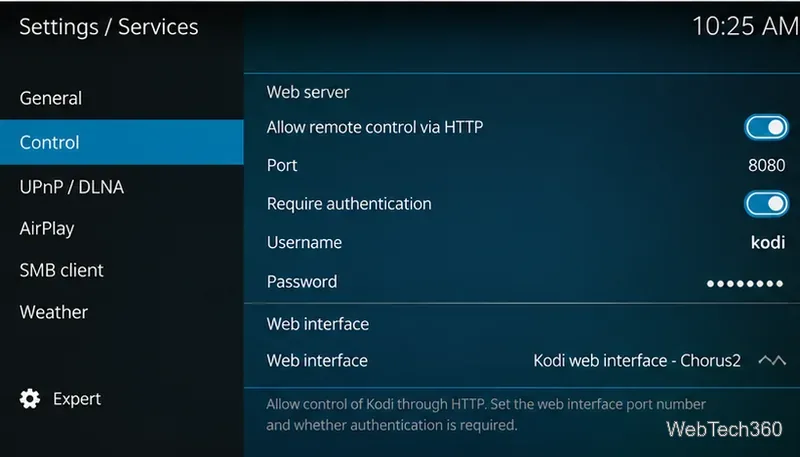
In the Web server section, enable Allow remote control via HTTP. Note the Port number; 8080 is the usual default. Under Web interface, choose Kodi web interface – Chorus2 if it is not already selected. You generally do not need to enable the separate, unauthenticated application-control interfaces for browser access.
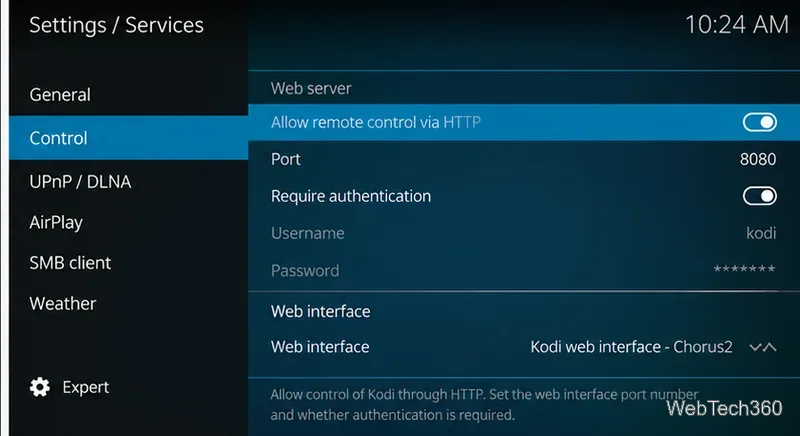
Switch on Require authentication, choose a username, and set a unique, strong password. Do not leave the server open without authentication, even on a home network. Kodi’s HTTP login does not itself make an ordinary http:// connection encrypted, so use it only on a trusted local network or through an encrypted private VPN.
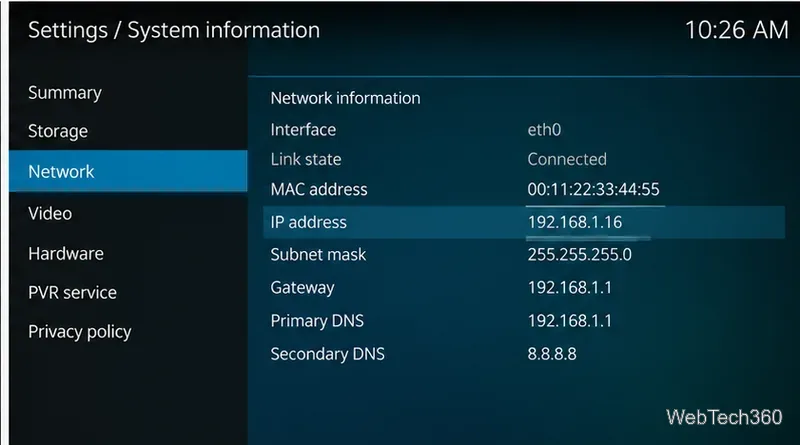
In Kodi, open Settings → System information → Network. Write down the IP address shown for the active network connection. It may look like 192.168.1.16. The IP address can change if your router assigns addresses dynamically; a DHCP reservation can keep it consistent.
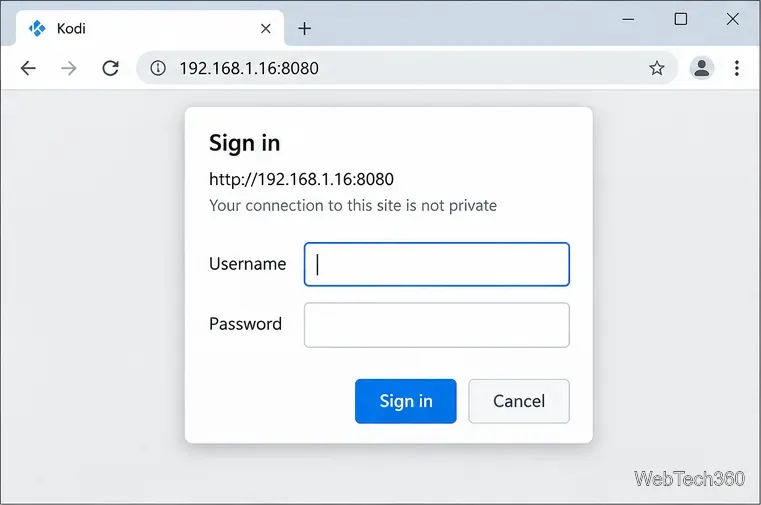
Connect your phone, tablet, or computer to the same home network as Kodi. Enter the address using the form http://IP-address:port; for example, http://192.168.1.16:8080. On the machine running Kodi, http://localhost:8080 may also work. Sign in with the credentials you configured, then bookmark the address for later use.
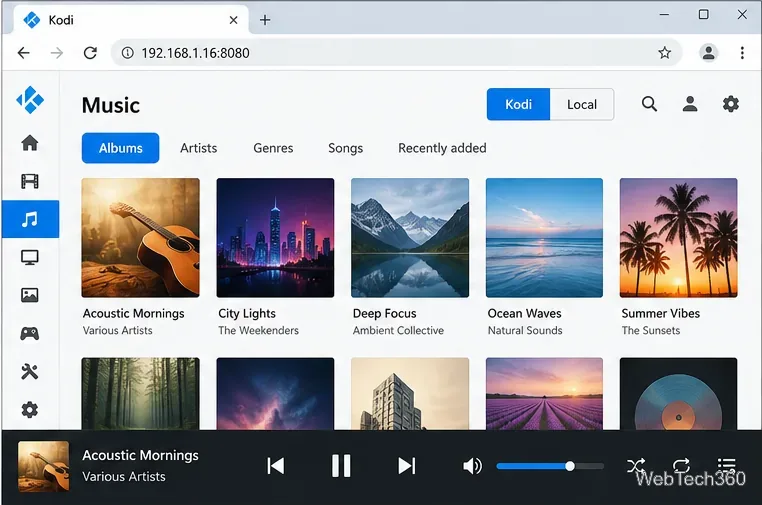
Once connected, open Movies, TV shows, or Music from the navigation sidebar. Select an item to see details and start playback on the Kodi device. The playback bar offers familiar actions such as play, pause, skip, volume, and queue control. Available library sections depend on the media you have added to Kodi.
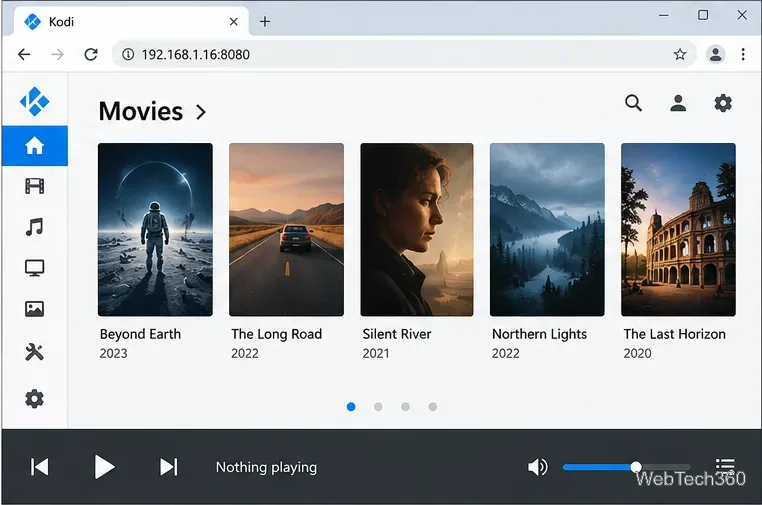
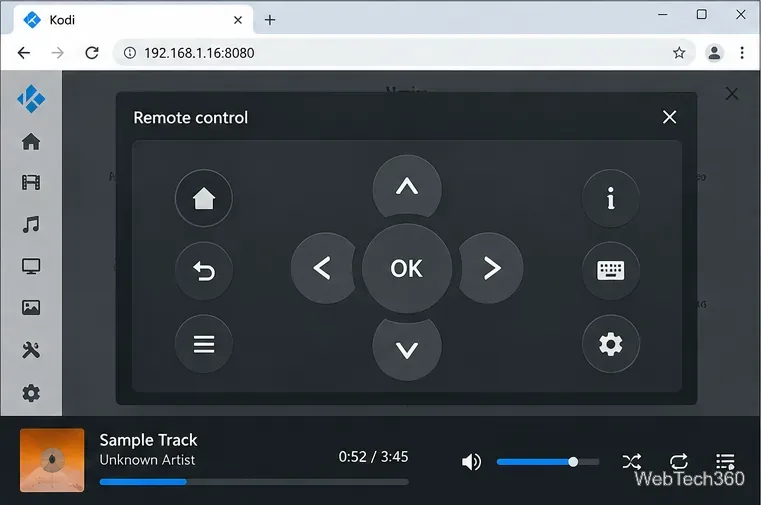
For navigation that feels more like a handheld remote, open Chorus2’s remote control panel. Use its direction keys, select button, back/home controls, and on-screen keyboard where available. Search and playlists can help you find titles or prepare what plays next. Add-on browsing varies: not every add-on exposes all its functions through a browser.
Chorus2 also offers a Local playback mode for some media. When available, switch from Kodi to Local and play a compatible item in your browser rather than on the TV or Kodi computer. This is not a general-purpose transcoding service: browser codec support, file accessibility, and media format determine whether a video or song will work. If a file fails, switch back to Kodi playback rather than assuming the entire library can be streamed to the browser.
A home-network address such as 192.168.1.16 is not directly reachable while you are away. Do not set up router port forwarding to expose port 8080, and do not publish Kodi’s JSON-RPC or other remote-control services. Team Kodi specifically warns that these interfaces can provide very powerful access to the device.
Instead, set up a private VPN that securely connects your remote device to the Kodi device or home LAN, such as a properly configured WireGuard or Tailscale network. Connect to that VPN first, then open Kodi using its reachable private VPN address or LAN address. If Kodi runs on a TV or box that cannot run the VPN client, access may require a VPN-capable router or subnet router on your home network. A generic commercial VPN subscription does not automatically provide access back to your home Kodi installation.
See Team Kodi’s remote-access security recommendations and Tailscale’s private IP addressing documentation for background.
Kodi’s official Services → Control reference and web interface guide are useful if your menu layout differs.
Learn how to uninstall a Kodi repository safely, remove its saved source URL separately, and check which installed add-ons or dependencies you still need.
Find the safest way to watch live tennis with Kodi: learn what iPlayer WWW can stream, how to find licensed coverage, and which add-ons to avoid.
Learn how to watch movies on Kodi from your computer, USB drive, or NAS, add online video services, and fix missing titles with clear setup steps.
Set a Kodi Master Lock PIN, protect selected menus, and create a separate kids’ profile with media sources you choose.
Find the authorized stream for your country, check whether its provider supports Kodi, and watch a boxing PPV on your TV without relying on outdated add-ons.
Compare five Kodi skins in the official Omega catalog, then follow the current Settings path to install one, customize it, or switch back.
Looking for the 1Channel Kodi add-on? Learn why old PrimeWire installation guides are unreliable and how to install a supported video add-on safely.
Enable Kodi’s Chorus2 web interface, control your media from any browser, and learn how to connect remotely without exposing Kodi to the Internet.
Follow the original Nemesis Kodi installation process, learn what changed with Stream Army, and avoid outdated repository and PIN instructions.
Download Kodi safely on Windows using the official installer or Microsoft Store, then add your media library and set up trusted add-ons.







