How to Uninstall Kodi Repositories the Right Way

Learn how to uninstall a Kodi repository safely, remove its saved source URL separately, and check which installed add-ons or dependencies you still need.
To watch movies on Kodi, add a folder of movie files, identify it as Movies, scan it into your library, and select a title to play. You can also connect a NAS or install a video add-on for an online service.
Install the stable version for your device from the official Kodi download page. Kodi does not include movies; you supply files or connect an appropriate content service. Use media you have permission to play.
These instructions use the default Estuary skin. Menus and storage locations can vary by device; the images show example paths. Connect your USB drive first, if applicable.
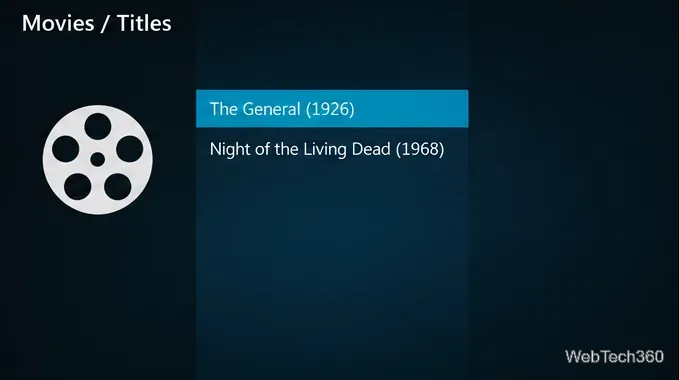
For reliable matching, follow Kodi’s movie naming guidance: put each film in its own folder and include its title and year, such as Movies/The General (1926)/The General (1926).mkv. Keep TV shows in a separate source.
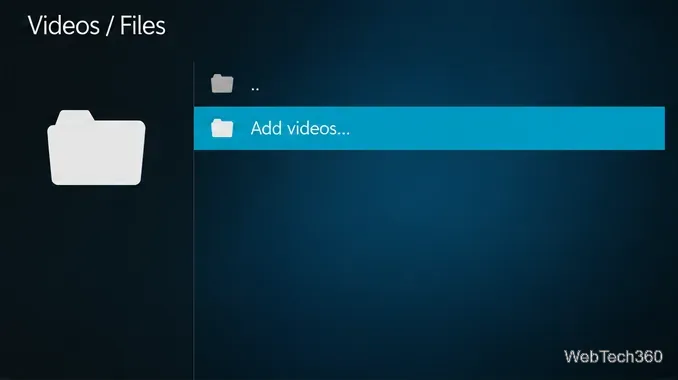
From the home screen, select Videos > Files. On an empty installation, you may see Enter files section instead.

Select Add videos.... In the source dialog, choose Browse.
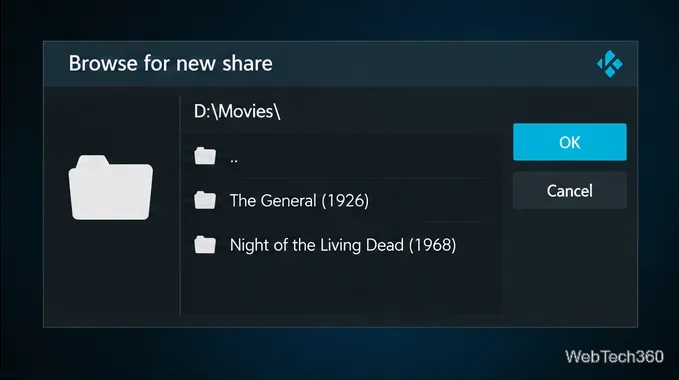
Navigate to your drive, open the parent folder containing your movie folders, and select OK.
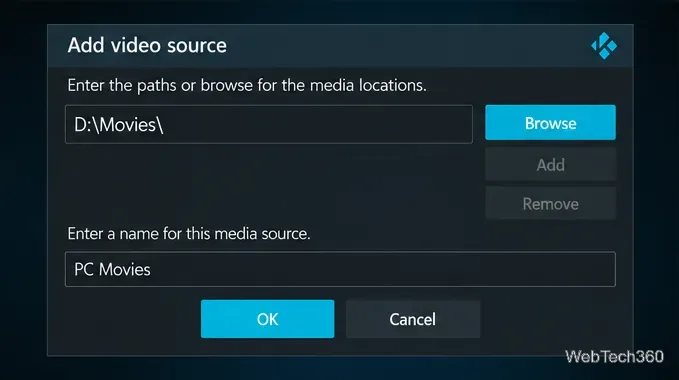
Use a recognizable label, such as PC Movies, then select OK.
Set This directory contains to Movies. Choose an information provider. Enable Movies are in separate folders that match the movie title only if your folder layout matches that description.
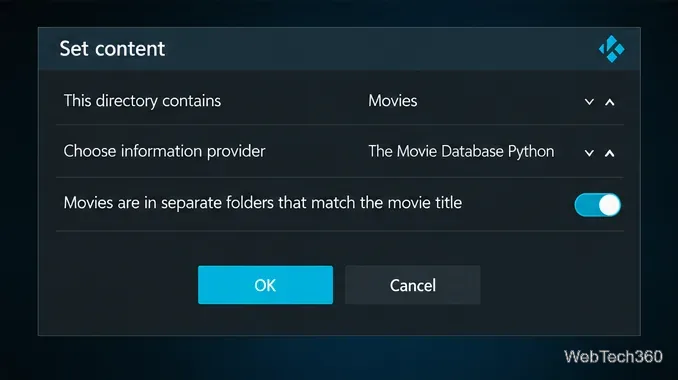
Select OK, then Yes when asked to refresh information. Kodi retrieves matching metadata and artwork; see its source setup guide for additional options.
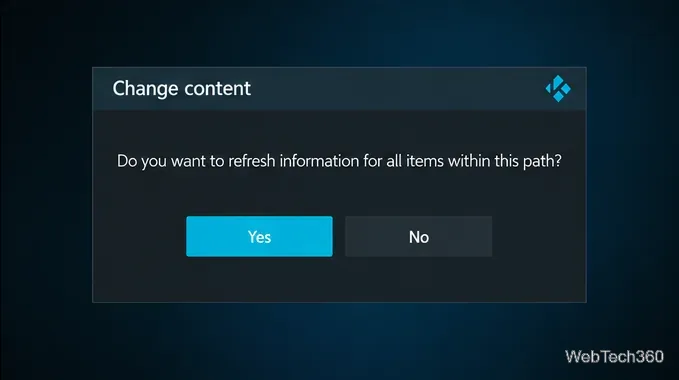
Return home, open Movies, and select a film. Press Enter/OK to play, or choose Play from its information page. Available resume options let you continue an unfinished movie.
During playback, use the controls for pausing and seeking. Kodi’s playback settings also let you select available subtitle and audio tracks.
Enable file sharing on your NAS and connect both devices to your home network. Repeat the source setup, but under Browse choose Add network location....
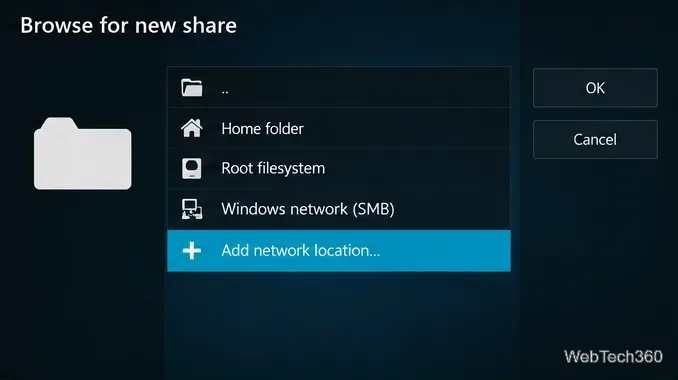
Choose Windows network (SMB), enter the server name or IP address, shared folder, and required credentials. Use your own details, not the example values shown. Follow Kodi’s SMB connection guide and use SMBv2 or newer.
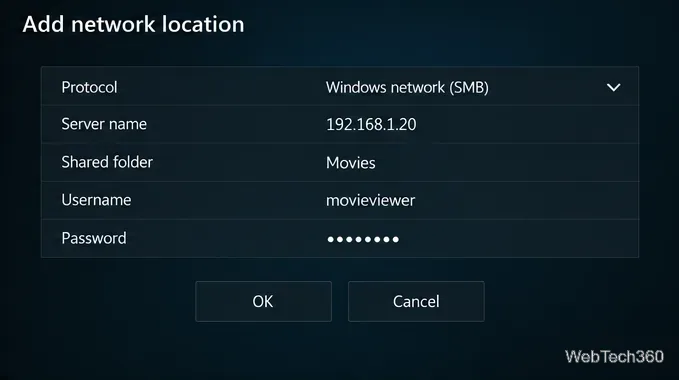
Confirm the location, select the shared movie folder, then complete steps 4–6. Use SMB rather than UPnP when building a scanned movie library.
Select Add-ons, then Enter add-on browser or the open-box icon. Kodi’s add-on manager guide explains these entry points.
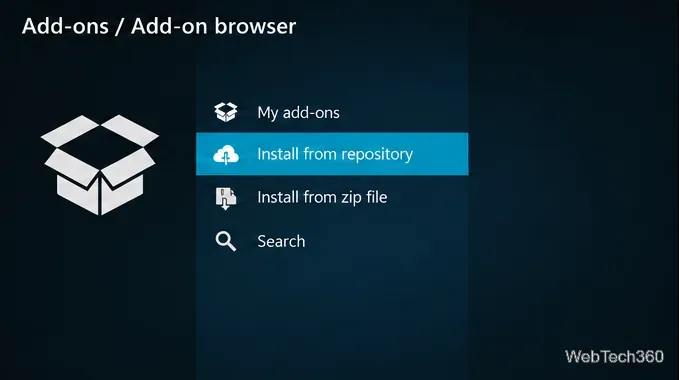
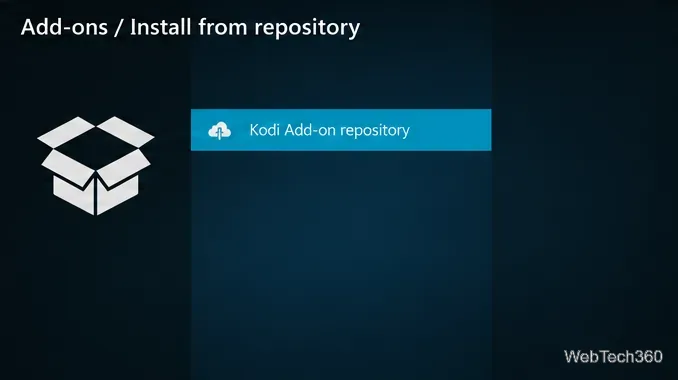
Select Install from repository, then Kodi Add-on repository if a repository list appears. This route does not require enabling Unknown sources.
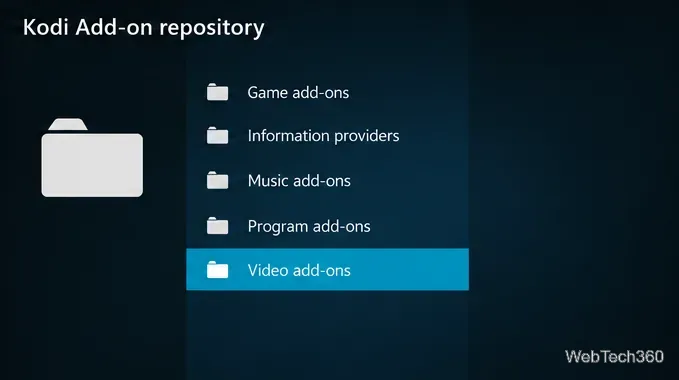
Open Video add-ons, select a service, and choose Install. For example, Kodi lists Arte +7, an add-on for ARTE videos. After installation, launch it under Add-ons > Video add-ons and follow its setup instructions.
Check the provider’s catalog, account requirements, and regional restrictions. Installing an add-on does not guarantee access to a particular movie. If no compatible add-on is available, use the provider’s supported app or website.
A straightforward option is to download your movie files through your cloud provider to a local folder, then add that folder to Kodi. Confirm that the files are fully downloaded. Treat cloud add-ons as separate integrations: check current compatibility and permissions before granting account access.
Restarting alone does not guarantee a scan: automatic scanning requires Update library on startup. Kodi’s library maintenance guide covers scans, refreshes, and missing-title checks.
Learn how to uninstall a Kodi repository safely, remove its saved source URL separately, and check which installed add-ons or dependencies you still need.
Find the safest way to watch live tennis with Kodi: learn what iPlayer WWW can stream, how to find licensed coverage, and which add-ons to avoid.
Learn how to watch movies on Kodi from your computer, USB drive, or NAS, add online video services, and fix missing titles with clear setup steps.
Set a Kodi Master Lock PIN, protect selected menus, and create a separate kids’ profile with media sources you choose.
Find the authorized stream for your country, check whether its provider supports Kodi, and watch a boxing PPV on your TV without relying on outdated add-ons.
Compare five Kodi skins in the official Omega catalog, then follow the current Settings path to install one, customize it, or switch back.
Looking for the 1Channel Kodi add-on? Learn why old PrimeWire installation guides are unreliable and how to install a supported video add-on safely.
Enable Kodi’s Chorus2 web interface, control your media from any browser, and learn how to connect remotely without exposing Kodi to the Internet.
Follow the original Nemesis Kodi installation process, learn what changed with Stream Army, and avoid outdated repository and PIN instructions.
Download Kodi safely on Windows using the official installer or Microsoft Store, then add your media library and set up trusted add-ons.







