How to Uninstall Kodi Repositories the Right Way

Learn how to uninstall a Kodi repository safely, remove its saved source URL separately, and check which installed add-ons or dependencies you still need.
To download and set up Kodi on Windows, visit the official Kodi download page, select the recommended Windows installer, run the setup wizard, and launch the app. You can also install Kodi through the Microsoft Store. Once it opens, add your own media folders to build a library; you do not need a streaming add-on to play files you already have.
Kodi is a free, open-source media center for watching videos, listening to music, and organizing pictures. This walkthrough focuses on Windows PCs, with both official installation methods and the first settings worth changing.
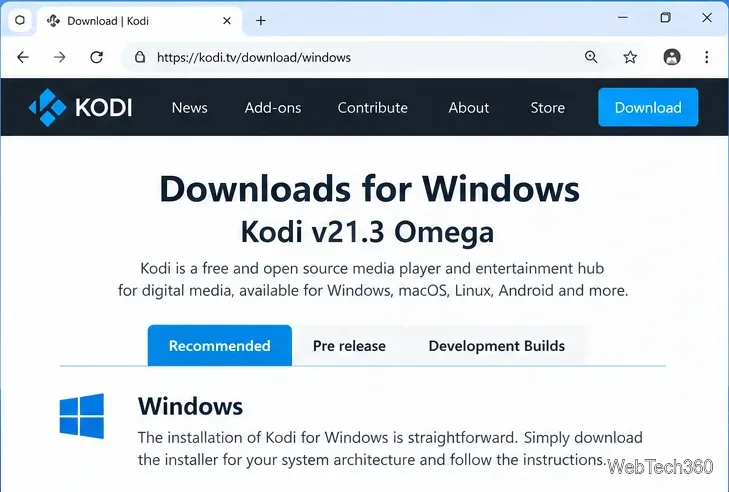
Get Kodi from the official Windows download page or its Microsoft Store link, rather than from an unofficial installer site. The Kodi download page currently identifies Kodi 21.3 Omega as its recommended stable Windows release; prerelease and development builds are intended for users who specifically want to try newer software.
Kodi’s current supported-hardware guidance lists Windows 10 as the minimum and Windows 11 as recommended. Playback quality also depends on your graphics hardware, drivers, and the video formats you use.
Open Windows Settings > System > About and find System type. Most modern PCs use 64-bit Windows, but checking avoids downloading the wrong installer. You can skip this check if you plan to install Kodi through Microsoft Store.

Go directly to Kodi’s Windows downloads. Keep the Recommended release selected unless you intentionally need a test version. If you start from Kodi’s main site, choose Download, then Windows.
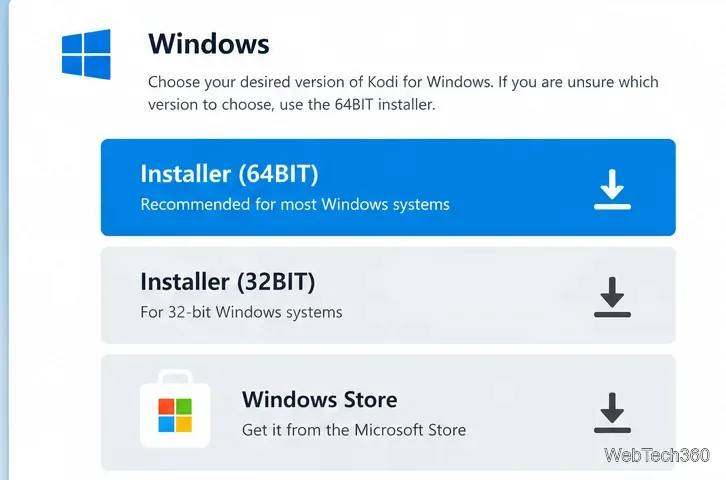
Select Installer (64BIT) for 64-bit Windows or Installer (32BIT) for 32-bit Windows. Save the executable file to your Downloads folder. If the site displays a different stable version when you visit, use the current recommended release shown there.
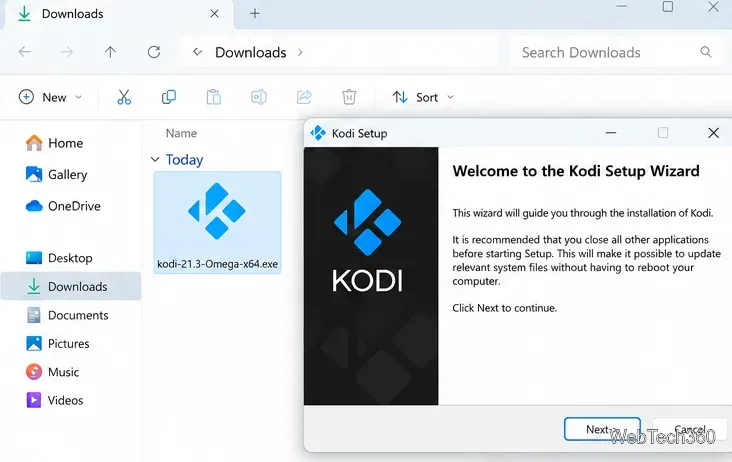
Open the downloaded .exe file. Review the publisher and Windows security prompt, then follow the installer’s on-screen instructions. Accept the license terms if you agree, keep the default destination unless you have a reason to change it, and finish installation. Launch Kodi from the Start menu.
If Windows SmartScreen warns about the installer, first verify that you downloaded it from kodi.tv. Do not disable Windows security protections just to get around an unexpected warning. For more details, see Kodi’s official Windows installation guide.
Open Microsoft Store, search for Kodi, and check that the app is published by XBMC Foundation. Select Get or Install, depending on what the Store displays. When installation finishes, choose Open or launch Kodi from Start.
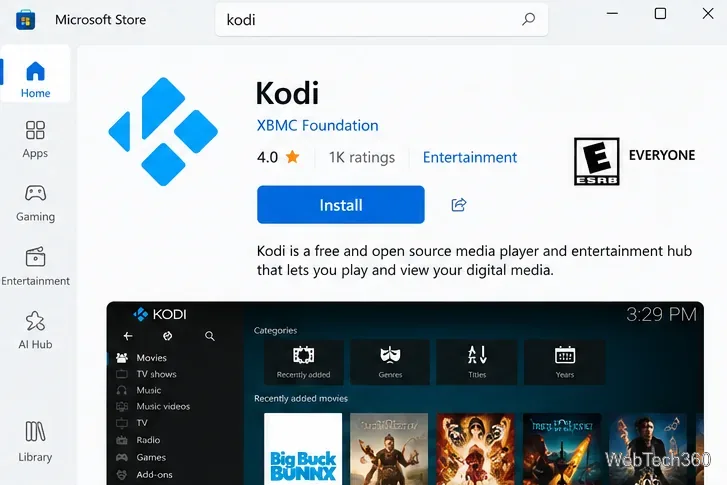
The Store version receives automatic updates through Microsoft Store. The downloadable installer is better if you prefer to decide when Kodi gets updated. You do not need to install both versions.
Kodi normally starts with an empty library. That is expected: Kodi does not include movies, TV shows, or live channels. On the home screen, select Videos > Files, or use Enter files section when it appears on an empty movie library screen.
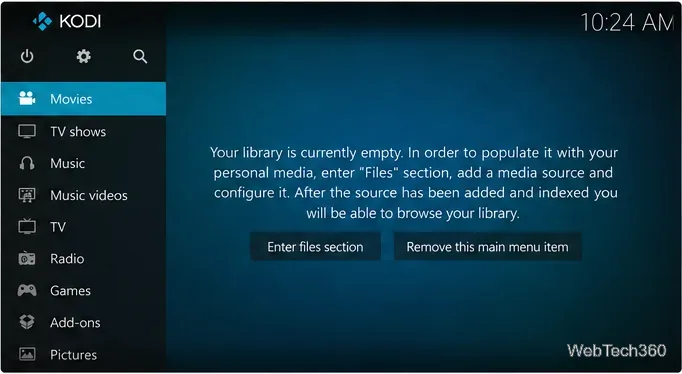
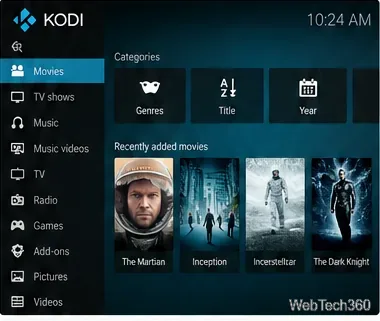
For reliable matching, organize titles into clearly named folders. If you only want to play a file without adding artwork or metadata, navigate through Videos > Files instead. Kodi documents the exact source and library workflow in Adding video sources.
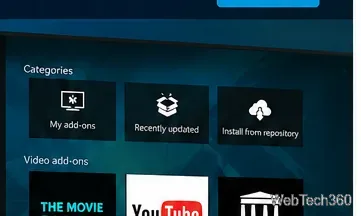
To browse supported add-ons, open Add-ons, select the package/box icon if necessary, and choose Install from repository. Then choose the official Kodi repository, an add-on category, and the add-on you want. This can add features such as subtitles, information providers, or connections to legitimate online services.
Read Kodi’s add-on manager guide before installing unfamiliar extensions. Kodi itself is legal software, but an add-on does not automatically make copyrighted content free to watch. A VPN is not required to install Kodi and does not grant streaming rights.
Once Kodi is installed and your media source is configured, you can browse and play your collection from the home screen. Keep Kodi and any installed add-ons updated, and use only content and services you are authorized to access.
Learn how to uninstall a Kodi repository safely, remove its saved source URL separately, and check which installed add-ons or dependencies you still need.
Find the safest way to watch live tennis with Kodi: learn what iPlayer WWW can stream, how to find licensed coverage, and which add-ons to avoid.
Learn how to watch movies on Kodi from your computer, USB drive, or NAS, add online video services, and fix missing titles with clear setup steps.
Set a Kodi Master Lock PIN, protect selected menus, and create a separate kids’ profile with media sources you choose.
Find the authorized stream for your country, check whether its provider supports Kodi, and watch a boxing PPV on your TV without relying on outdated add-ons.
Compare five Kodi skins in the official Omega catalog, then follow the current Settings path to install one, customize it, or switch back.
Looking for the 1Channel Kodi add-on? Learn why old PrimeWire installation guides are unreliable and how to install a supported video add-on safely.
Enable Kodi’s Chorus2 web interface, control your media from any browser, and learn how to connect remotely without exposing Kodi to the Internet.
Follow the original Nemesis Kodi installation process, learn what changed with Stream Army, and avoid outdated repository and PIN instructions.
Download Kodi safely on Windows using the official installer or Microsoft Store, then add your media library and set up trusted add-ons.







