How to Turn On Kodi Parental Controls and Lock a Kids’ Profile

To turn on parental controls in Kodi, set a Master Lock PIN and choose which Kodi sections it protects. For a family setup, create a separate profile for children as well, then limit that profile to media sources you have chosen. Kodi’s built-in lock protects parts of its interface; it is not an age-rating filter or a substitute for your device’s account security.

The menu labels can vary slightly by Kodi skin and device. The current official path for the built-in lock is Settings > Interface > Master lock. The steps below cover the lock, a kids’ profile, and a quick check that the settings behave as expected.

Turn on Kodi’s Master Lock

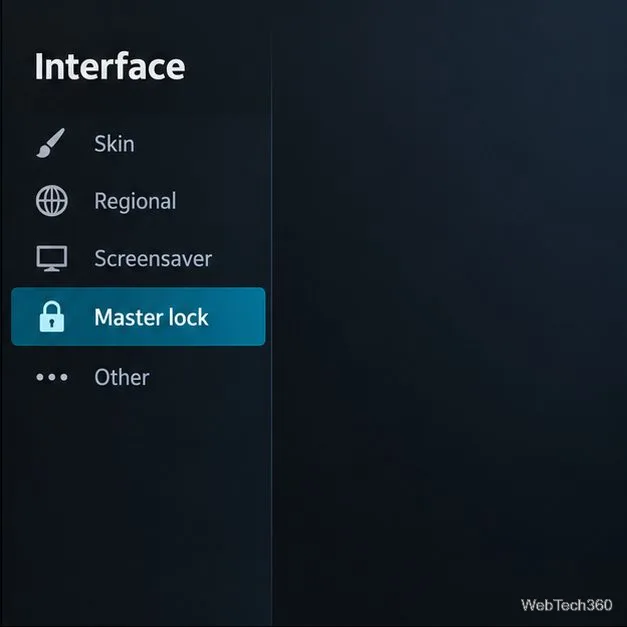
  1. Open Master Lock. From Kodi’s home screen, select the gear-shaped Settings icon, choose Interface, then open Master lock. Kodi’s Master Lock documentation
Kodi’s Settings menu with Interface selected, the first stop on the way to Kodi’s Master Lock controls.
Kodi-style interface illustration; labels and placement can vary with the skin.
  1. Open the lock code settings. Select Master lock code and settings. If the Master Lock control is disabled, open it and choose a password type offered by your Kodi build.
Kodi’s Interface settings with the Master lock option highlighted.
Open Master lock from Settings > Interface.
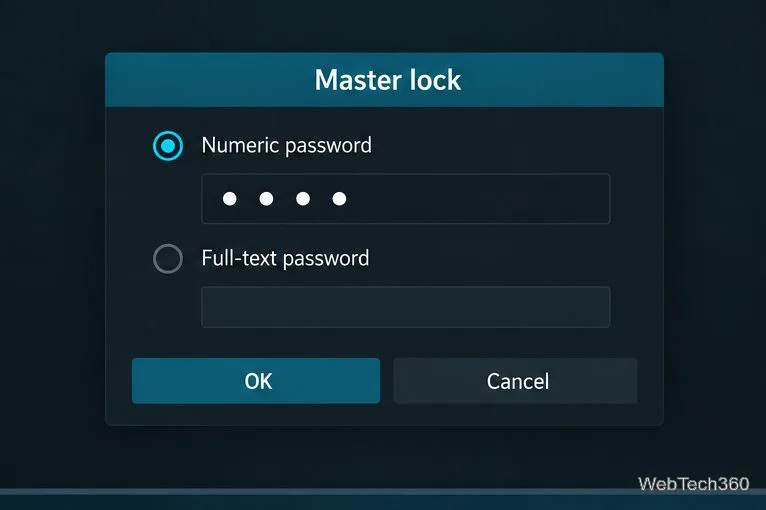
  1. Create and confirm a code. Enter a PIN or password only you know, then re-enter it when Kodi asks. A numeric PIN is convenient with a remote; a longer text password may be harder to guess when entering it is practical. Do not use a code your child already knows.
A Master Lock dialog with numeric and full-text password choices and a masked PIN field.
Keep the code private and avoid an easy-to-guess PIN.
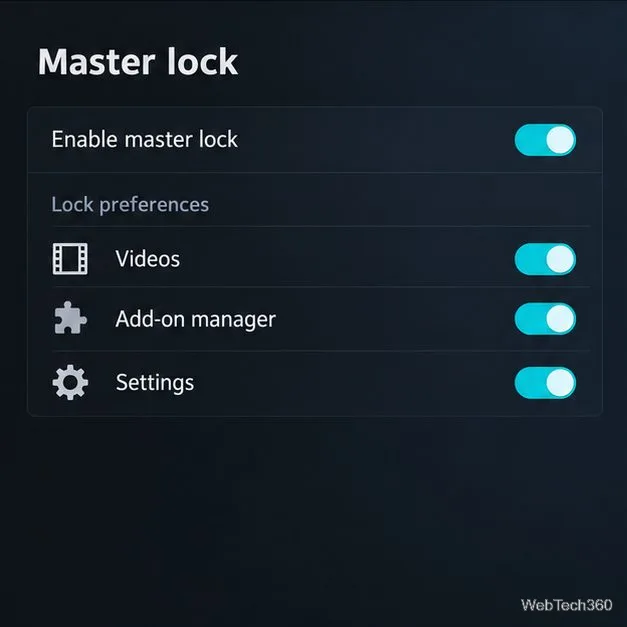
  1. Choose what to lock. In Lock preferences, enable only the sections you want to protect. Depending on your Kodi version, choices can include the video, music, pictures, programs or scripts, file manager, settings, and add-on manager areas. Kodi asks for the code when someone opens a locked section.
Master Lock preferences with Videos, Add-on manager, and Settings protected by toggles.
Locking Videos blocks the whole video section; it does not filter by rating.

These are section locks, not content ratings. If you lock Videos, Kodi blocks access to that whole section, including appropriate titles. It does not automatically sort films or shows into child-safe and adult categories. If children should be able to watch selected videos, leave that section available in their profile and control which media sources that profile can use.

Create a separate profile for children

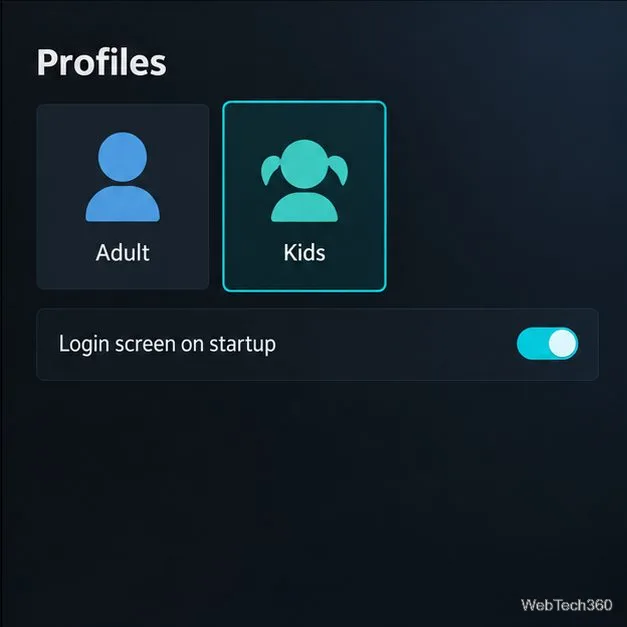
  1. Add a kids’ profile. Open Settings > Profiles > Profiles, choose Add profile, and give it a clear name such as Kids. In the Profiles settings, turn on Show login screen on startup if you want to choose a profile each time Kodi opens. Kodi’s Profile settings reference describes the login-screen option.
Kodi’s profile selector showing separate Adult and Kids profiles and a startup login option.
Create a separate profile for children and show the profile screen at startup.
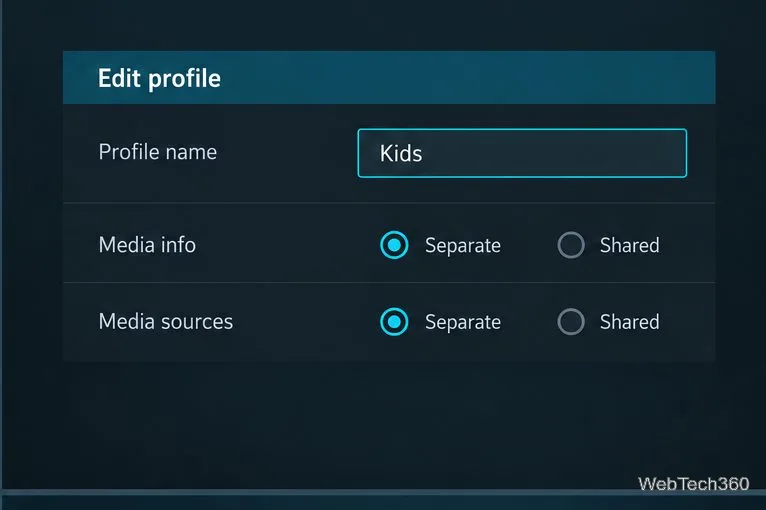
  1. Set up the child profile’s media separately. During profile setup, choose whether its media information and media sources are separate from or shared with the default profile. For a child account, separate sources can make it easier to add only folders and libraries you have reviewed. Set up those sources from the child profile or its profile settings; the exact controls depend on your platform and skin. See Kodi’s Profiles guide for the available sharing modes.
A Kids profile editor with separate media information and media sources selected.
Separate profile data and sources so the child profile has its own library setup.

You can also use that profile’s Lock preferences to protect settings, the add-on manager, or other areas you do not want changed. A profile is a convenience and organization feature, not a protected operating-system account.

Require the code at startup and test the setup

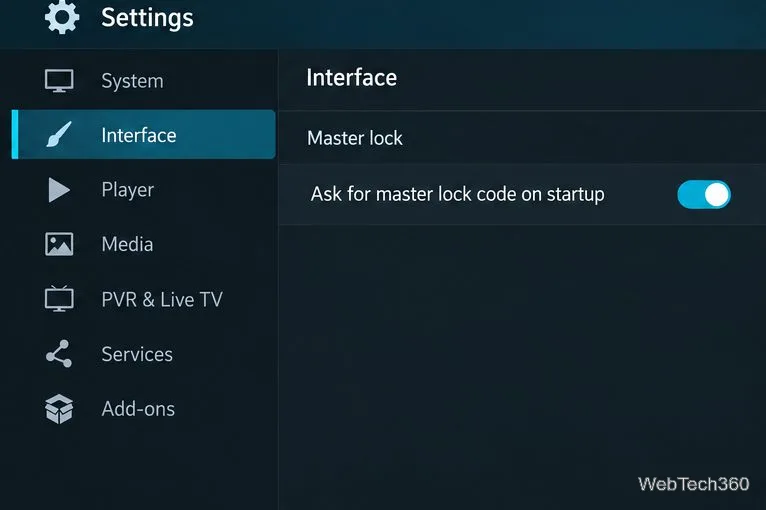
  1. Decide whether startup should require the Master Lock code. Return to the Master lock settings and enable Ask for master lock code on startup if you want that extra prompt. Kodi notes that this option affects all profiles, so it may add a code prompt even when opening the kids’ profile. To change it, exit to the main menu and re-enter the Master Lock settings if the option is not available yet.
The Ask for master lock code on startup option enabled under Kodi’s Interface settings.
Kodi’s documentation says this startup setting affects all profiles.
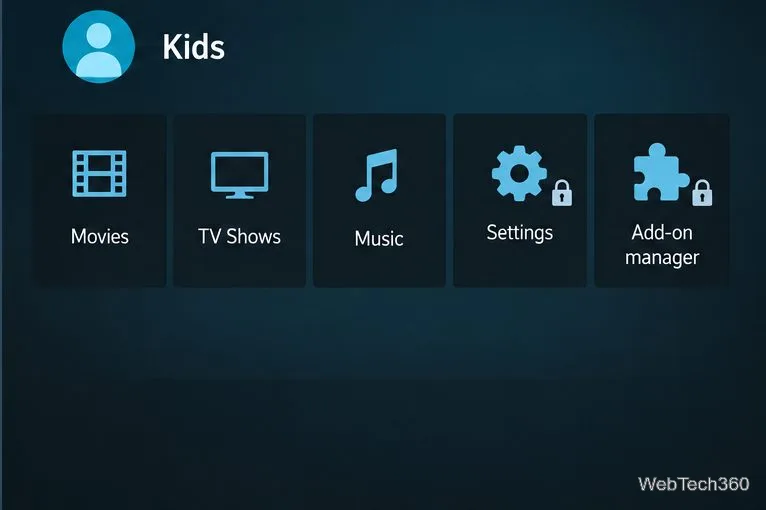
  1. Test both profiles. Return to the profile screen and open Kids. Confirm the intended library is available and that protected sections such as Settings or Add-on manager request the code. Switch back to the adult profile and verify its own lock settings. Kodi’s Master Lock applies to the profile in which it is configured, so set it separately on other profiles you want to protect.
A Kids profile home screen with Movies, TV Shows, and Music visible and locks beside Settings and Add-on manager.
Test the child profile and confirm protected menu sections ask for the code.

What Kodi’s parental controls do not protect

Kodi’s Master Lock helps prevent casual access through Kodi’s menus. The official documentation warns that it does not protect Kodi’s configuration and media files from someone using the operating system, and that some advanced features, add-ons, or the web interface may bypass interface restrictions. The Profiles guide also cautions that profile lock information is stored in Kodi’s profile files, so anyone with access to those files may be able to get around the lock.

For stronger household controls, use a separate, password-protected account on the computer or streaming device, keep administrator access private, and limit access to shared folders and Kodi’s web interface. Back up Kodi’s data before troubleshooting profile problems, and avoid editing profile files unless you are following current guidance from Kodi support. These steps make Kodi harder to browse accidentally, while device-level controls provide the boundary Kodi itself cannot.

Leave a Comment

How to Uninstall Kodi Repositories the Right Way

How to Uninstall Kodi Repositories the Right Way

Learn how to uninstall a Kodi repository safely, remove its saved source URL separately, and check which installed add-ons or dependencies you still need.

Live Tennis on Kodi: Best Add-Ons and Legal Ways to Watch

Live Tennis on Kodi: Best Add-Ons and Legal Ways to Watch

Find the safest way to watch live tennis with Kodi: learn what iPlayer WWW can stream, how to find licensed coverage, and which add-ons to avoid.

How to Watch Movies on Kodi: A Complete Beginner’s Tutorial

How to Watch Movies on Kodi: A Complete Beginner’s Tutorial

Learn how to watch movies on Kodi from your computer, USB drive, or NAS, add online video services, and fix missing titles with clear setup steps.

How to Turn On Kodi Parental Controls and Lock a Kids’ Profile

How to Turn On Kodi Parental Controls and Lock a Kids’ Profile

Set a Kodi Master Lock PIN, protect selected menus, and create a separate kids’ profile with media sources you choose.

How to Watch Boxing PPV Streams on Kodi—Legally and Reliably

How to Watch Boxing PPV Streams on Kodi—Legally and Reliably

Find the authorized stream for your country, check whether its provider supports Kodi, and watch a boxing PPV on your TV without relying on outdated add-ons.

5 Best Kodi Skins and How to Change Kodi’s Look in Minutes

5 Best Kodi Skins and How to Change Kodi’s Look in Minutes

Compare five Kodi skins in the official Omega catalog, then follow the current Settings path to install one, customize it, or switch back.

1Channel Kodi Add-on: Can You Still Install It for Movies and TV Shows?

1Channel Kodi Add-on: Can You Still Install It for Movies and TV Shows?

Looking for the 1Channel Kodi add-on? Learn why old PrimeWire installation guides are unreliable and how to install a supported video add-on safely.

How to Control Kodi With the Web Interface, at Home or Away

How to Control Kodi With the Web Interface, at Home or Away

Enable Kodi’s Chorus2 web interface, control your media from any browser, and learn how to connect remotely without exposing Kodi to the Internet.

Nemesis Kodi Add-on: How to Install It and Check Availability

Nemesis Kodi Add-on: How to Install It and Check Availability

Follow the original Nemesis Kodi installation process, learn what changed with Stream Army, and avoid outdated repository and PIN instructions.

How to Download and Set Up Kodi on Windows

How to Download and Set Up Kodi on Windows

Download Kodi safely on Windows using the official installer or Microsoft Store, then add your media library and set up trusted add-ons.