MyIPTV Player for Windows 10: How to Set Up and Use It

Learn how to install MyIPTV Player on Windows 10, add an M3U playlist and EPG, refresh channels, and fix common setup or playback problems.
Acronis True Image 2021 is now a legacy release, but Acronis still keeps official support pages and documentation for it. If you already own a 2021 license and need that specific version, use Acronis’ support/account download path and install the final 2021 update rather than an old copy from a third-party download site. If you run a newer operating system, use the current Acronis True Image release instead.
Acronis called the product Cyber Protect Home Office for several years, then restored the Acronis True Image name in 2024. This guide is specifically about the 2021 edition.
Acronis tested the 2021 Windows release on Windows 10 through the October 2020 Update, Windows 8.1, Windows 8, Windows 7 SP1, and Windows Home Server 2011. Windows 11 is not listed. On Mac, the documented range is macOS Big Sur 11 through OS X El Capitan 10.11, with Intel and Apple silicon support.
| Platform | Officially listed for True Image 2021 |
|---|---|
| Windows | Windows 10, 8.1, 8, 7 SP1, Windows Home Server 2011 |
| Mac | macOS Big Sur 11 through OS X El Capitan 10.11 |
See the official Windows 2021 system requirements and Mac 2021 system requirements. Acronis published Update 6, build 39287, on January 27, 2022, and an Acronis security advisory identifies earlier 2021 Windows builds as affected by vulnerabilities fixed in that update.
Open Acronis’ True Image 2021 for PC support page or the True Image 2021 for Mac support page. Use the official latest-build/account link associated with your license. Do not rely on the old raw EXE links that circulated with early 2021 builds.
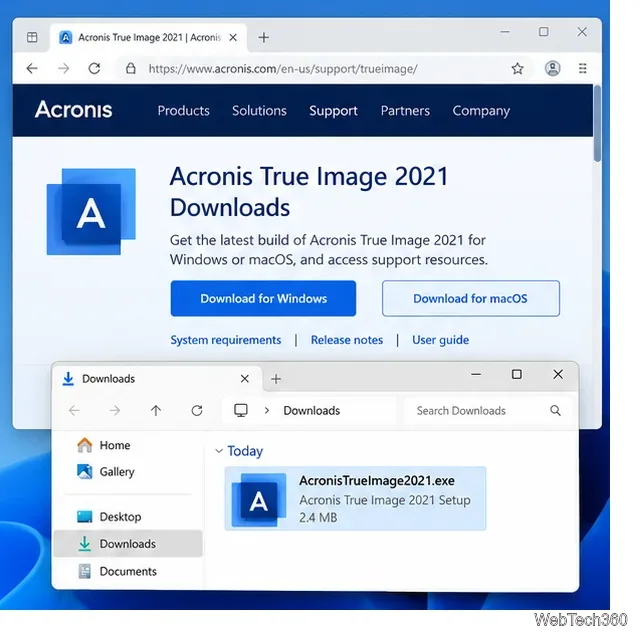
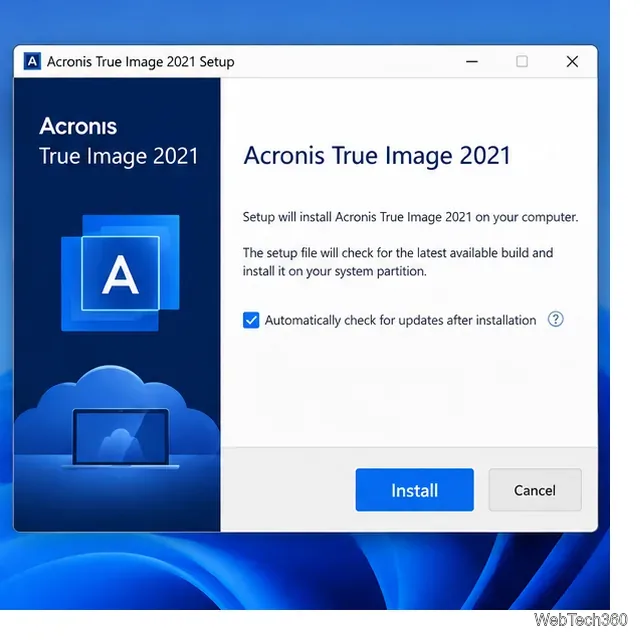
Run the setup file and choose Install. Acronis says the installer checks for a newer build before setup. When installation finishes, start the application, accept the license terms, then sign in to your Acronis account or enter your serial number. The official 2021 guide describes a 30-day fully functional period before activation, not 31 days. See Acronis’ Windows installation instructions.
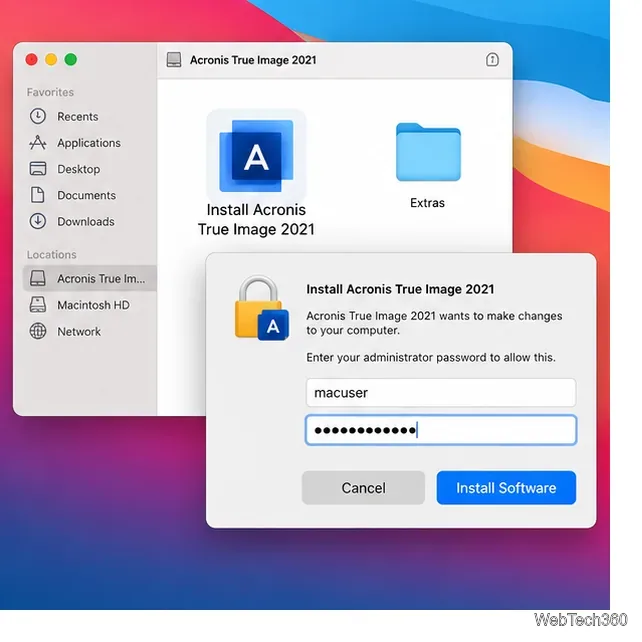
Open the downloaded .dmg, double-click Install Acronis True Image, and follow the installer prompts with an administrator account. On supported macOS releases, Acronis may also require approval and Full Disk Access for backup, cloning, and protection features. Complete activation by signing in or using your license.
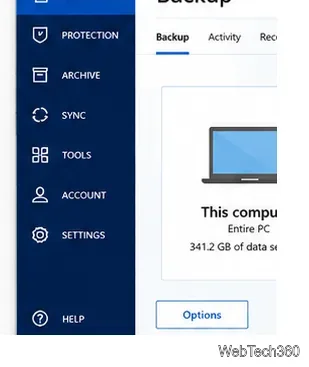
Launch True Image 2021 and select Backup in the sidebar. If you already have backup plans, add a new one before choosing what to protect.
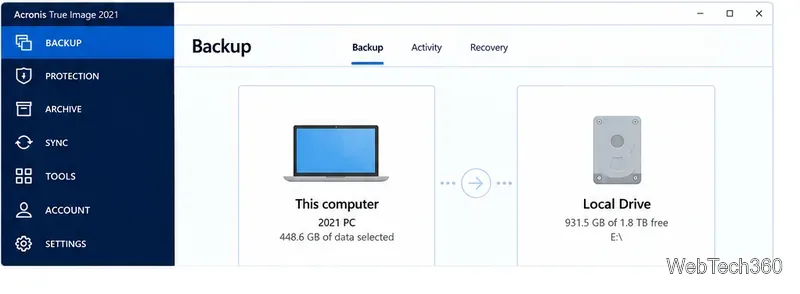
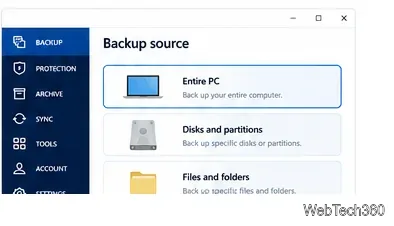
Select the source icon. For the broadest protection, choose Entire PC. You can also back up specific disks and partitions or only selected files and folders. An Entire PC backup includes the operating system, applications, settings, and personal files.
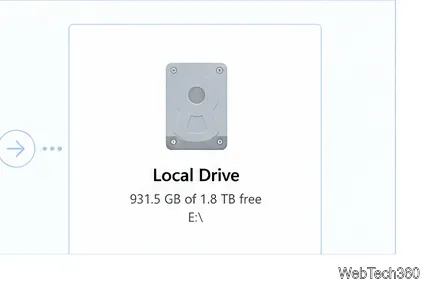
For a local backup, select an external HDD or SSD with enough free space. True Image 2021 also supports network storage such as a NAS or network share. Keeping the backup on a separate physical device is safer than storing the only backup on the same internal drive.
Acronis Cloud can be selected as a destination when it is available with your plan. Cloud storage provides an off-site copy, but capacity depends on the license. Acronis currently offers a 30-day True Image trial; that page is for today’s release, not a guarantee that a new 2021 trial can still be activated.
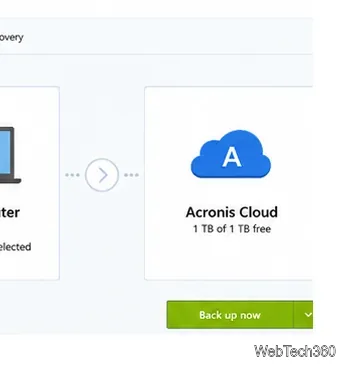
Before starting, open Options if you want to set a schedule, backup scheme, or password protection. Then choose Back up now. Acronis notes that the first cloud backup can take much longer than later incremental runs because subsequent backups normally transfer only changed data. The official Entire PC backup guide documents this workflow.
If you have a valid 2021 license on an operating system Acronis listed for that release, True Image 2021 can still be useful for legacy backup and recovery. Install build 39287 or later within the 2021 line when available and keep rescue media compatible with that installation. For Windows 11 or macOS versions newer than Big Sur, the safer choice is the current Acronis True Image release because those operating systems are outside the 2021 support matrix.
Finally, test a file restore. A completed backup is useful only if you can recover the data when needed.
Learn how to install MyIPTV Player on Windows 10, add an M3U playlist and EPG, refresh channels, and fix common setup or playback problems.
HP Print and Scan Doctor was retired by HP on May 27, 2025. Learn what replaced it, how to run Diagnose & Fix, and how to remove old copies safely.
Is Segurazo a virus? Learn how to remove Segurazo or SAntivirus safely, scan for leftovers, and avoid risky registry-cleanup advice.
Learn what Glarysoft Registry Repair does, how to use its scan and backup tools, and why Microsoft recommends caution with registry cleaners.
Download Wise Registry Cleaner safely from the official site, learn the safest scan settings, backup options, and whether this free Windows tool is worth using.
Download and install 7-Zip for Windows 10, then learn how to compress, extract, test, and password-protect archives safely.
Learn how to download and install Bandicam 2027, record your screen, find saved videos, adjust key settings, and understand the free version limits.
Download and install SharpKeys on Windows 10, then remap, disable, swap, or restore keyboard keys safely using the Windows Scancode Map.
Hextech Repair Tool is now Riot Repair Tool. Learn where to download it safely, collect League of Legends logs, run repairs, and contact Riot Support.
Download and install HD Tune Pro on Windows 10, choose the supported version, run benchmarks, check S.M.A.R.T. health, and scan drives for errors.








