MyIPTV Player for Windows 10: How to Set Up and Use It

Learn how to install MyIPTV Player on Windows 10, add an M3U playlist and EPG, refresh channels, and fix common setup or playback problems.
MyIPTV Player is a media player for loading IPTV playlists on Windows; it is not an IPTV service and it does not supply TV channels. To use it, you need a playlist or login from a provider you are authorized to access. The current Microsoft Store listing for MyIPTV Player describes support for M3U playlists, Xtream Code sources, EPG data, favorites, filtering, recording, VOD downloads, PIN protection, and optional VLC-based playback.
This guide focuses on the classic M3U setup on Windows 10. One important update: Microsoft ended normal Windows 10 support on October 14, 2025. The operating system still works, but Microsoft recommends moving to Windows 11 or using an eligible Extended Security Updates option if you must remain on Windows 10. See Microsoft's Windows 10 end-of-support guidance.
Do not rely on random public playlists for paid or copyrighted channels. Besides the legal issue, public lists are often unstable, outdated, or unsafe.
Open Microsoft Store, search for MyIPTV Player, confirm the publisher is Vbfnet Apps, and choose Get or Install. You can also open the official Store listing from the link above. Launch the app after installation.
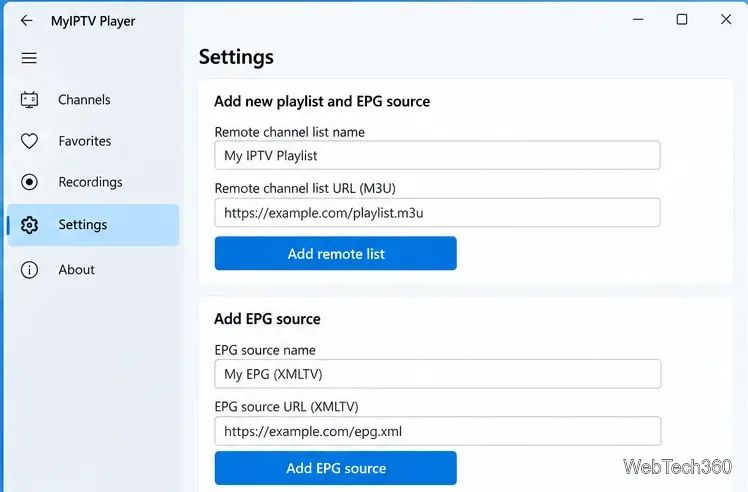
Open Settings, then choose the option to add a new playlist and EPG source. Under the remote channel list section, enter a recognizable name, paste the M3U URL supplied by your provider, and add the list. If you received an XMLTV EPG URL, add that under the program guide section as a separate source.
If your version of the app shows an Xtream Code option instead, you can use the server URL, username, and password provided by your service. Menu labels can differ slightly between app versions, but the principle is the same: add the source first, then select it in Settings.
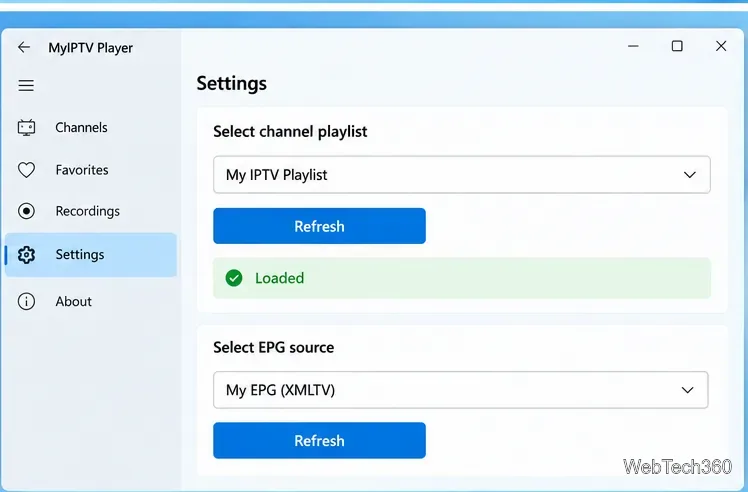
Return to the main Settings page. Choose the playlist you just created from Select channel playlist, then click Refresh. Do the same for the EPG source. Wait for the app to finish loading before opening the channel list.
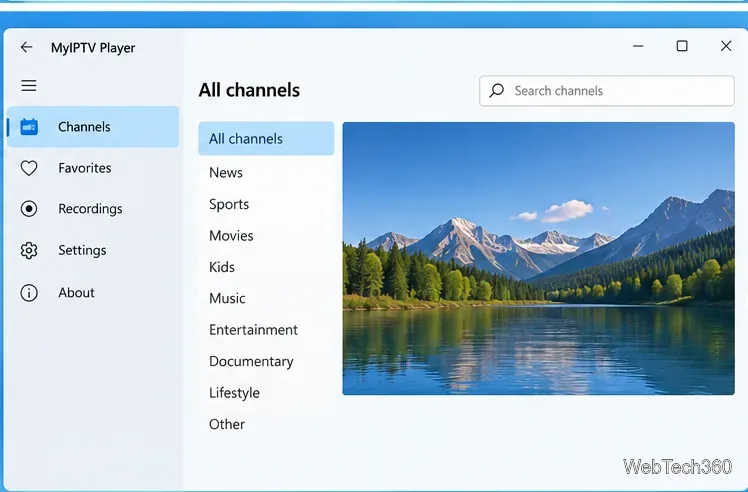
Open Channels. Depending on the playlist, channels may already be grouped into categories such as News, Sports, Movies, or Kids. Choose a group, select a channel, and start playback. You can use Favorites to keep frequently watched channels easier to find.
The Store listing currently advertises several extras beyond basic live playback. These include favorites, channel-group filtering, EPG support, recording, VOD downloads, PIN protection, catch-up with compatible Xtream Code sources, and an option to use a VLC playback library. Availability still depends on your playlist, provider, and the version of the app installed on your device.
If one channel fails while others work, the problem is more likely to be with that stream than with MyIPTV Player itself. If every channel fails, recheck the source URL or contact your IPTV provider before reinstalling the app.
MyIPTV Player remains a straightforward way to load your own IPTV source on Windows 10: install the player, add your M3U or Xtream source, add EPG data when available, refresh the source, and open Channels. The key limitation is also important: the player does not provide channels. You are responsible for supplying a legitimate source and making sure you have the right to watch or download its content.
Learn how to install MyIPTV Player on Windows 10, add an M3U playlist and EPG, refresh channels, and fix common setup or playback problems.
HP Print and Scan Doctor was retired by HP on May 27, 2025. Learn what replaced it, how to run Diagnose & Fix, and how to remove old copies safely.
Is Segurazo a virus? Learn how to remove Segurazo or SAntivirus safely, scan for leftovers, and avoid risky registry-cleanup advice.
Learn what Glarysoft Registry Repair does, how to use its scan and backup tools, and why Microsoft recommends caution with registry cleaners.
Download Wise Registry Cleaner safely from the official site, learn the safest scan settings, backup options, and whether this free Windows tool is worth using.
Download and install 7-Zip for Windows 10, then learn how to compress, extract, test, and password-protect archives safely.
Learn how to download and install Bandicam 2027, record your screen, find saved videos, adjust key settings, and understand the free version limits.
Download and install SharpKeys on Windows 10, then remap, disable, swap, or restore keyboard keys safely using the Windows Scancode Map.
Hextech Repair Tool is now Riot Repair Tool. Learn where to download it safely, collect League of Legends logs, run repairs, and contact Riot Support.
Download and install HD Tune Pro on Windows 10, choose the supported version, run benchmarks, check S.M.A.R.T. health, and scan drives for errors.








