MyIPTV Player for Windows 10: How to Set Up and Use It

Learn how to install MyIPTV Player on Windows 10, add an M3U playlist and EPG, refresh channels, and fix common setup or playback problems.
Bandicam Screen Recorder is a Windows-focused recording app for capturing a selected area, an entire display, a specific window, games, webcams, and audio. The current Windows release is Bandicam 2027, and the official download page lists version 27.0.7.2687, released October 15, 2026. This guide covers the safest download route, installation, a basic screen recording, and the settings most people need.
Download Bandicam from the official Bandicam download page. Bandicam 2027 is designed for 64-bit Windows 11 and Windows 10; Bandicam also keeps older releases for Windows 8 and 7. The company separately offers a macOS app, but the steps below describe the Windows desktop version.
The free version has changed from older releases. According to Bandicam's current free-versus-full comparison, free Bandicam 2027 recordings are limited to five minutes each, but the original recording does not receive a watermark. A watermark is added when you export an edited video or burned-in subtitles with the free version. Activating the full version removes the recording time limit and the export watermark.
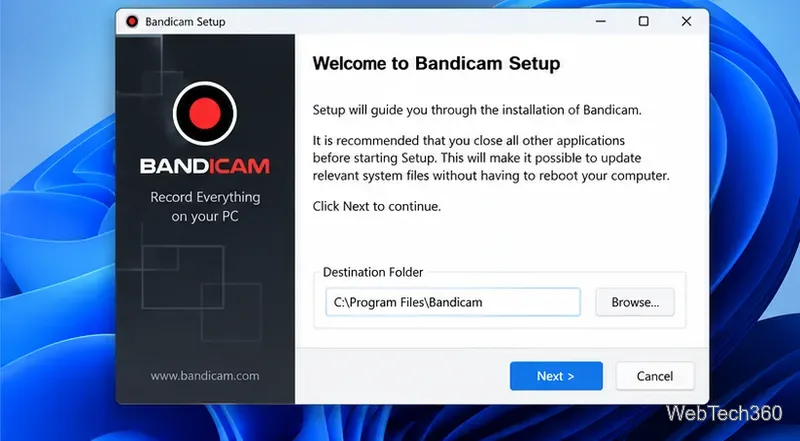
On the official download page, choose the latest Bandicam 2027 download and run bdcamsetup.exe. The official installation guide walks through the same sequence: choose the installer language, continue through setup, accept the license terms, select components, choose an installation folder, click Install, and then Finish.

The official download page is the best place to get the current Windows installer and avoid repackaged installers from third-party sites.
Open Bandicam and go to Home > Get Started. For a normal desktop tutorial, choose Rectangle area to capture only part of the screen, or Fullscreen to capture an entire display. Bandicam also provides Specific window, Game recording, Device recording, and Audio only modes for more specialized jobs.
If you choose Rectangle area, drag or resize the recording frame around the content you want to capture. The current Rectangle area guide also lets you control system sound, microphone input, webcam overlay, blur, and the capture size from the recording controls.
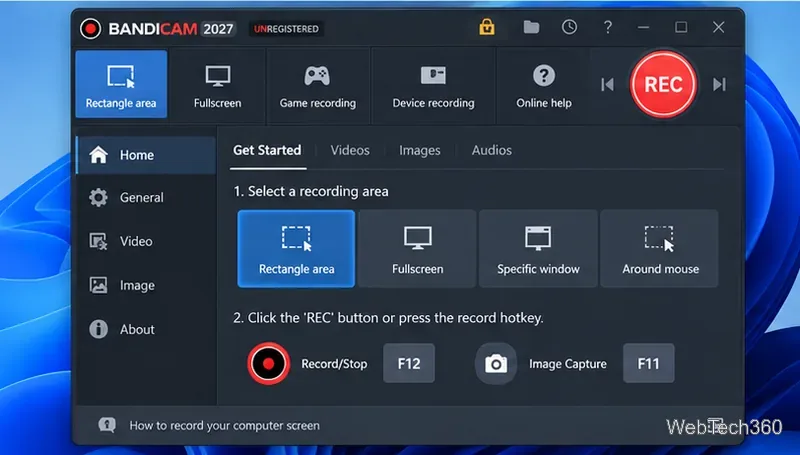
Click the red REC button or press F12 to start recording. Press F12 again to stop. The default pause shortcut is Shift+F12, and F11 captures a screenshot. You can change these shortcuts under Bandicam's hotkey settings; the current defaults are documented on the official hotkeys page.
During a screen recording, Bandicam can show the mouse cursor, add click effects, place a webcam feed over the video, and use on-screen drawing tools for arrows, boxes, text, numbers, or highlighting. Those features are useful for software tutorials because viewers can follow the pointer and see exactly what you are explaining.
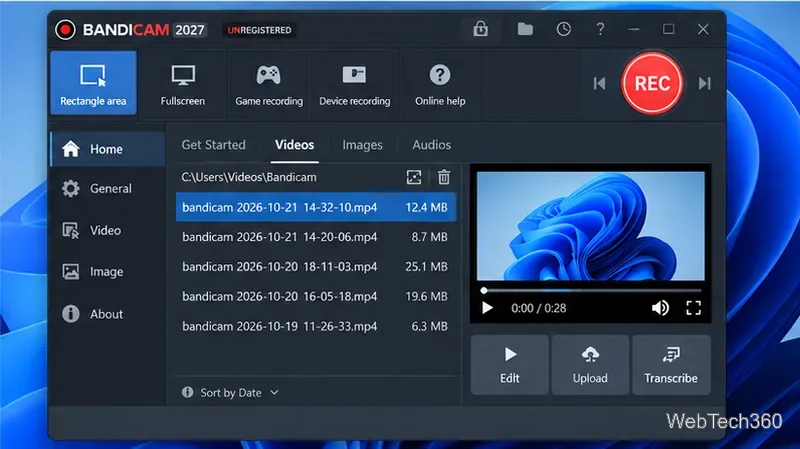
When a screen recording ends, Bandicam 2027 can open its built-in player automatically. You can also go to Home > Videos, select a recording, and play it from the list. Current versions provide options to edit, upload, or transcribe supported recordings from the video area.
For most users, the defaults are enough to start, but a few options are worth checking before a long capture:
Bandicam is legitimate software from Bandicam Company, and its official download page states that the installer contains no adware, spyware, or virus. For the lowest risk, download from Bandicam's own site instead of a mirror or software bundle, keep Windows security protections enabled, and verify that the installer you launch came from the official download.
If an older tutorial tells you that free Bandicam always adds a watermark to every recording or that Windows Vista is supported, that information is outdated. Bandicam 2027 changed the free-version limits, and the current release targets modern 64-bit Windows systems.
Learn how to install MyIPTV Player on Windows 10, add an M3U playlist and EPG, refresh channels, and fix common setup or playback problems.
HP Print and Scan Doctor was retired by HP on May 27, 2025. Learn what replaced it, how to run Diagnose & Fix, and how to remove old copies safely.
Is Segurazo a virus? Learn how to remove Segurazo or SAntivirus safely, scan for leftovers, and avoid risky registry-cleanup advice.
Learn what Glarysoft Registry Repair does, how to use its scan and backup tools, and why Microsoft recommends caution with registry cleaners.
Download Wise Registry Cleaner safely from the official site, learn the safest scan settings, backup options, and whether this free Windows tool is worth using.
Download and install 7-Zip for Windows 10, then learn how to compress, extract, test, and password-protect archives safely.
Learn how to download and install Bandicam 2027, record your screen, find saved videos, adjust key settings, and understand the free version limits.
Download and install SharpKeys on Windows 10, then remap, disable, swap, or restore keyboard keys safely using the Windows Scancode Map.
Hextech Repair Tool is now Riot Repair Tool. Learn where to download it safely, collect League of Legends logs, run repairs, and contact Riot Support.
Download and install HD Tune Pro on Windows 10, choose the supported version, run benchmarks, check S.M.A.R.T. health, and scan drives for errors.







