MyIPTV Player for Windows 10: How to Set Up and Use It

Learn how to install MyIPTV Player on Windows 10, add an M3U playlist and EPG, refresh channels, and fix common setup or playback problems.
Glarysoft Registry Repair is a free Windows utility that scans the Registry for invalid or obsolete entries and can remove selected findings. The current official release is version 6.0.1.21, dated July 20, 2026. It is legitimate software when you get it from Glarysoft, but that does not make registry cleaning risk-free. Microsoft does not support registry-cleaning utilities and warns that incorrect Registry changes can cause serious Windows problems. The safest approach is to use the tool only when you have a specific reason, review what it finds, and keep a recovery option ready.
Registry Repair is a focused cleaner rather than an all-in-one maintenance suite. According to the official Glarysoft product page, it scans multiple Registry areas for invalid entries, obsolete software references, file-association problems, startup-related records, and other stale data. Glarysoft lists it as freeware and says it supports both 32-bit and 64-bit Windows systems.
The vendor also says the program creates a backup whenever it repairs the Registry. That backup is important because a Registry change that looks harmless can affect an application, file association, Windows service, or startup behavior.
The program itself is a legitimate Glarysoft product, but using any registry cleaner has inherent risk. Downloading from the official vendor site reduces the risk of getting a modified installer. However, the more important safety question is what happens after the program starts changing Registry entries.
Microsoft's support policy for registry-cleaning utilities says Microsoft does not support their use, cannot guarantee that problems caused by them can be repaired, and recommends backing up the Registry and creating a restore point before making changes.

Before changing the Registry, open Start, search for Create a restore point, and use System Protection to create one. Microsoft's System Protection documentation explains how restore points can roll system files, Registry settings, and installed applications back to an earlier state without changing your personal files.
Launch Registry Repair. Glarysoft's official usage guide says the program begins scanning when it starts. Let the scan finish so the results can be grouped by Registry area.
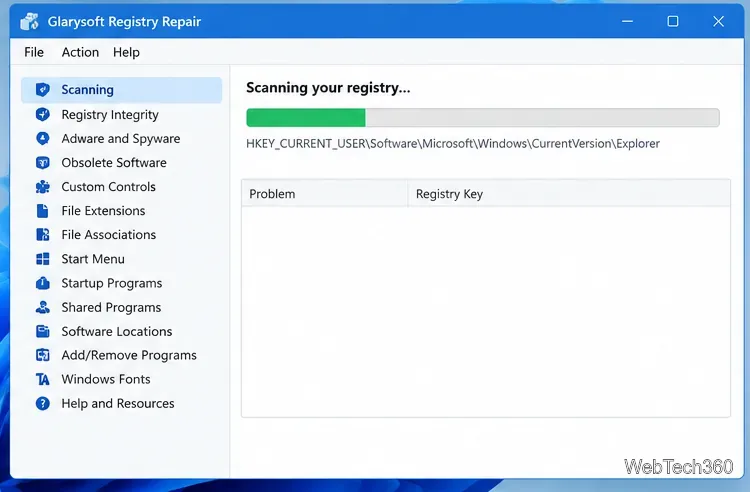
Do not treat the result count as a score you need to reduce to zero. Open the categories and review the selected items. Glarysoft's guide notes that findings can be left unchanged or excluded from future scans, and the Ignore List Manager is available for entries you do not want the cleaner to touch. If you are unsure about an entry, leave it alone.
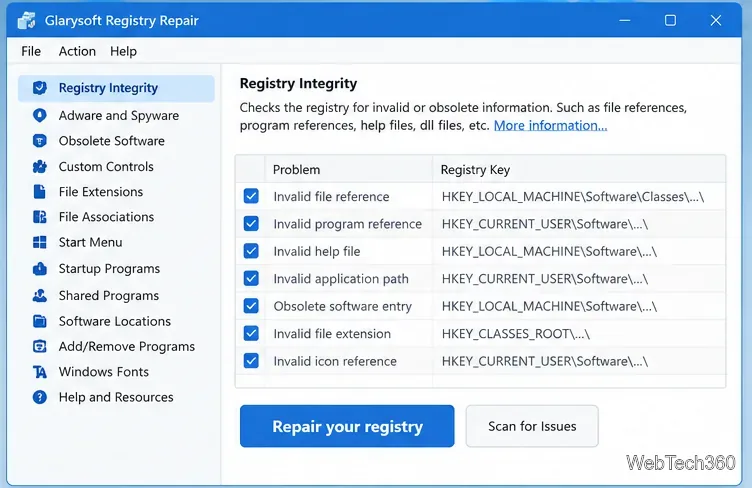
When you are satisfied with the selection, choose Repair your registry. Glarysoft says the program creates an undo file for repair operations. Afterward, restart or reopen the affected application and check that Windows behaves normally. If a problem appears, use Restore previous repairs to roll back the cleaner's changes. You can also export scan results to a text file before repairing if you want a record of what was found.
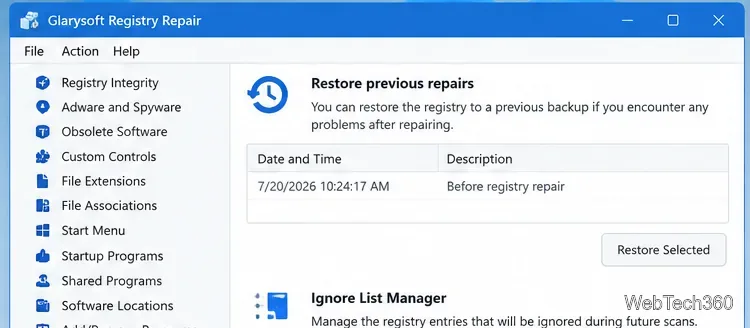
The main advantages are simplicity, a narrow feature set, automatic repair backups, an ignore list, and a free license. Those features make it easier to understand than a large optimization suite.
The limitation is more important: registry cleaning is not a Microsoft-recommended maintenance step. Glarysoft markets Registry Repair as a way to improve stability and performance, but Microsoft's own guidance is cautious about third-party registry cleaners. If your PC is slow or unstable, start with Windows Update, storage cleanup, startup-app management, malware scanning, driver troubleshooting, and Windows' built-in recovery tools before changing Registry data.
Verdict: Glarysoft Registry Repair is a legitimate, straightforward registry-cleaning utility with useful backup and restore controls. It is safest when used selectively by someone who understands that deleting Registry entries can have consequences. For general PC maintenance, it should be optional rather than the first tool you reach for.
Learn how to install MyIPTV Player on Windows 10, add an M3U playlist and EPG, refresh channels, and fix common setup or playback problems.
HP Print and Scan Doctor was retired by HP on May 27, 2025. Learn what replaced it, how to run Diagnose & Fix, and how to remove old copies safely.
Is Segurazo a virus? Learn how to remove Segurazo or SAntivirus safely, scan for leftovers, and avoid risky registry-cleanup advice.
Learn what Glarysoft Registry Repair does, how to use its scan and backup tools, and why Microsoft recommends caution with registry cleaners.
Download Wise Registry Cleaner safely from the official site, learn the safest scan settings, backup options, and whether this free Windows tool is worth using.
Download and install 7-Zip for Windows 10, then learn how to compress, extract, test, and password-protect archives safely.
Learn how to download and install Bandicam 2027, record your screen, find saved videos, adjust key settings, and understand the free version limits.
Download and install SharpKeys on Windows 10, then remap, disable, swap, or restore keyboard keys safely using the Windows Scancode Map.
Hextech Repair Tool is now Riot Repair Tool. Learn where to download it safely, collect League of Legends logs, run repairs, and contact Riot Support.
Download and install HD Tune Pro on Windows 10, choose the supported version, run benchmarks, check S.M.A.R.T. health, and scan drives for errors.







