MyIPTV Player for Windows 10: How to Set Up and Use It

Learn how to install MyIPTV Player on Windows 10, add an M3U playlist and EPG, refresh channels, and fix common setup or playback problems.
Short answer: Segurazo is not a security product you should keep on a Windows PC if it appeared unexpectedly. Calling it simply a “virus” is imprecise, but the concern is real: Microsoft Defender has a Segurazo-named detection classified as Trojan:Win32/Segurazo!MTB. If you find Segurazo Antivirus or SAntivirus on your system and you did not intentionally install and trust it, remove it and run a security scan.
A classic computer virus spreads by attaching itself to other files. Segurazo is better treated as unwanted or suspicious security software, while Microsoft separately documents a Segurazo-branded threat as a Trojan. Microsoft says Defender can detect and remove Trojan:Win32/Segurazo!MTB.
The Segurazo name has been used across different components and versions, so you should not assume every file with that name is the exact same malware sample. Still, an unexpected installation, repeated scare-style warnings, or software that resists normal removal is enough reason to treat it cautiously.
Start with Windows' supported uninstall tools. Older guides often recommend deleting many registry keys, DLL files, or system files by hand. That approach is risky because installation paths and components can differ, and deleting the wrong registry value can damage Windows.
Microsoft also documents removal through Control Panel if a desktop program does not appear correctly in Settings. See Microsoft's Windows uninstall instructions.

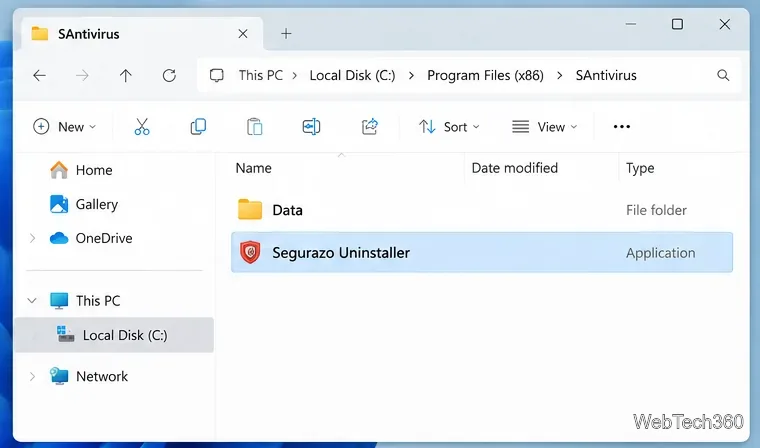
Some Segurazo/SAntivirus installations place their own removal program under C:\Program Files (x86)\SAntivirus. If that folder exists on your PC, open it and look for Segurazo Uninstaller. Right-click the uninstaller, choose Run as administrator, select the available protection/configuration removal options, complete the uninstall, and restart Windows when prompted.
If that folder is not present, do not create it and do not download a random “Segurazo uninstaller” from a file-sharing site. Return to Windows Settings or Control Panel instead.
After the restart, return to Settings > Apps > Installed apps and search again for Segurazo and SAntivirus. If an entry remains, try uninstalling it once more from Settings or Control Panel. Also review recently installed applications and browser extensions for software you do not recognize, especially if Segurazo arrived bundled with another download.
Do not manually erase registry entries just because they contain the word “Segurazo.” A supported uninstaller plus security scanning is safer than broad registry deletion.
Once the program is removed, scan for remaining files or other software that may have arrived with it:
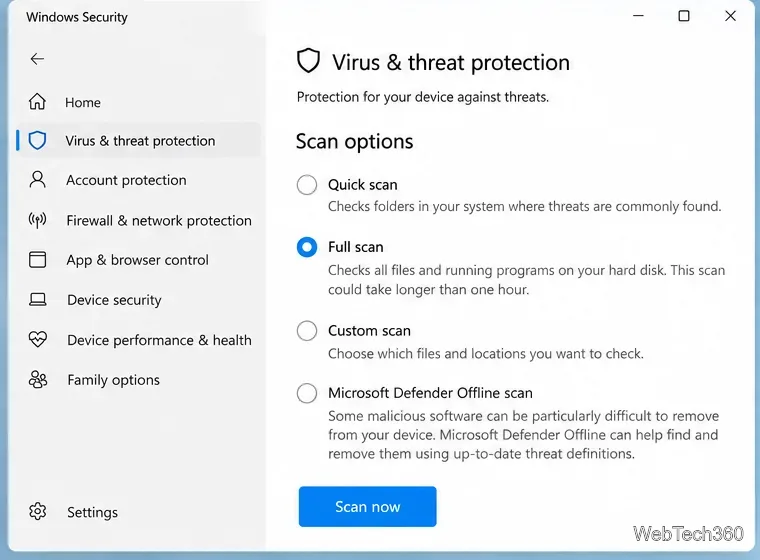
Microsoft recommends a full scan when unwanted software is suspected. Its guidance for dealing with unwanted software also recommends keeping Windows and security intelligence current; see Microsoft's unwanted-software protection guidance.
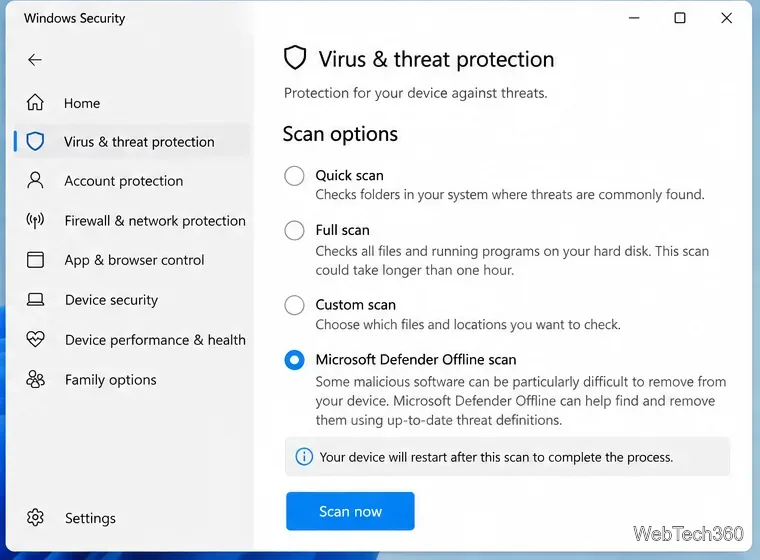
If Segurazo reappears, removal is blocked, or Defender keeps finding related files, use Microsoft Defender Offline scan from the same Scan options page. The PC restarts and scans outside the normal Windows environment, which can help with persistent malware. Save your work first.
Microsoft notes that Defender Offline has platform requirements and does not apply to ARM-based Windows 10 or Windows 11 devices. If BitLocker protects your system drive, review Microsoft's guidance before starting so you are prepared for recovery-key requirements. See the official Microsoft Defender Offline documentation.
Keep Microsoft Defender or another reputable real-time antivirus enabled, install software from the publisher's official site or a trusted app store, and pay attention to optional offers inside installers. If suspicious software keeps returning even after an Offline scan, back up important personal files and use Microsoft's recovery options rather than continuing to delete system files by hand.
If you still use Windows 10, note that Microsoft's free support for Windows 10 ended on October 14, 2025. Moving to a supported Windows version is an important part of maintaining security.
Learn how to install MyIPTV Player on Windows 10, add an M3U playlist and EPG, refresh channels, and fix common setup or playback problems.
HP Print and Scan Doctor was retired by HP on May 27, 2025. Learn what replaced it, how to run Diagnose & Fix, and how to remove old copies safely.
Is Segurazo a virus? Learn how to remove Segurazo or SAntivirus safely, scan for leftovers, and avoid risky registry-cleanup advice.
Learn what Glarysoft Registry Repair does, how to use its scan and backup tools, and why Microsoft recommends caution with registry cleaners.
Download Wise Registry Cleaner safely from the official site, learn the safest scan settings, backup options, and whether this free Windows tool is worth using.
Download and install 7-Zip for Windows 10, then learn how to compress, extract, test, and password-protect archives safely.
Learn how to download and install Bandicam 2027, record your screen, find saved videos, adjust key settings, and understand the free version limits.
Download and install SharpKeys on Windows 10, then remap, disable, swap, or restore keyboard keys safely using the Windows Scancode Map.
Hextech Repair Tool is now Riot Repair Tool. Learn where to download it safely, collect League of Legends logs, run repairs, and contact Riot Support.
Download and install HD Tune Pro on Windows 10, choose the supported version, run benchmarks, check S.M.A.R.T. health, and scan drives for errors.







