MyIPTV Player for Windows 10: How to Set Up and Use It

Learn how to install MyIPTV Player on Windows 10, add an M3U playlist and EPG, refresh channels, and fix common setup or playback problems.
HP Print and Scan Doctor is no longer available for download. HP retired the Windows utility on May 27, 2025, removed it from HP.com, and says existing copies should be removed because the software is no longer maintained and may present security risks. If you reached this guide looking for the old download, do not use a copy from a third-party download site. HP now directs printer owners to Diagnose & Fix in the HP app.

No. HP’s retirement notice states that HP Print and Scan Doctor was retired on May 27, 2025. HP also published a security advisory saying all versions are affected and should be removed, with users migrating to the HP app.
That makes older instructions telling you to download an EXE from HP outdated. If a website still offers an HP Print and Scan Doctor installer, it is not the current HP-supported path.
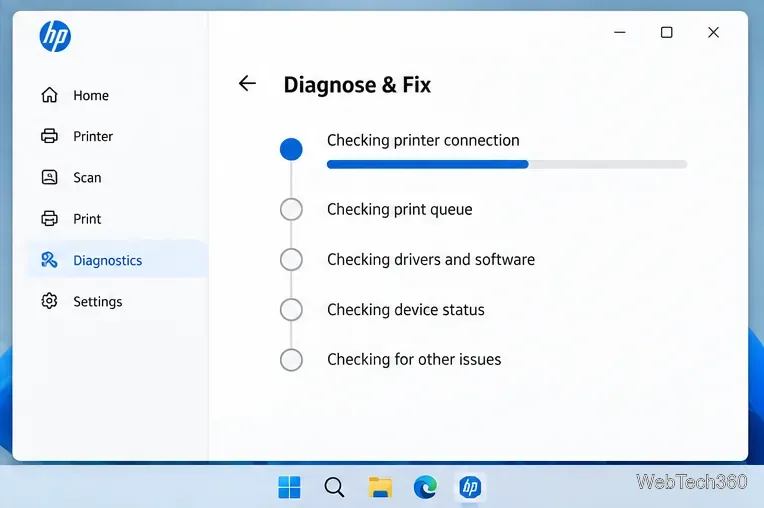
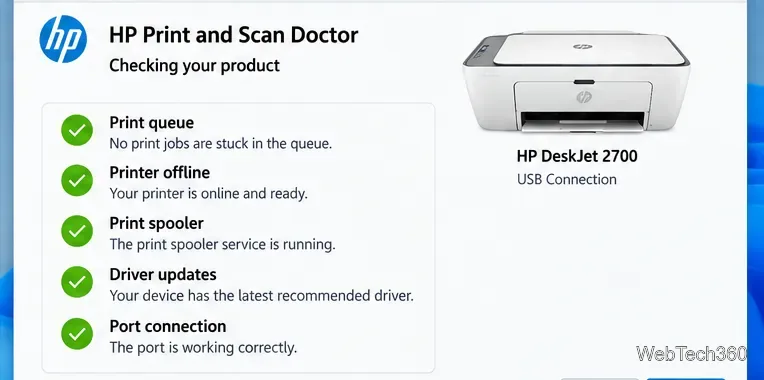
The replacement is Diagnose & Fix, a troubleshooting feature inside the HP app. HP says the tool can address common problems involving stuck or paused print jobs, an offline printer, the Windows print spooler, driver updates, and incorrect printer ports. Diagnose & Fix is available for supported HP printers on Windows and macOS.
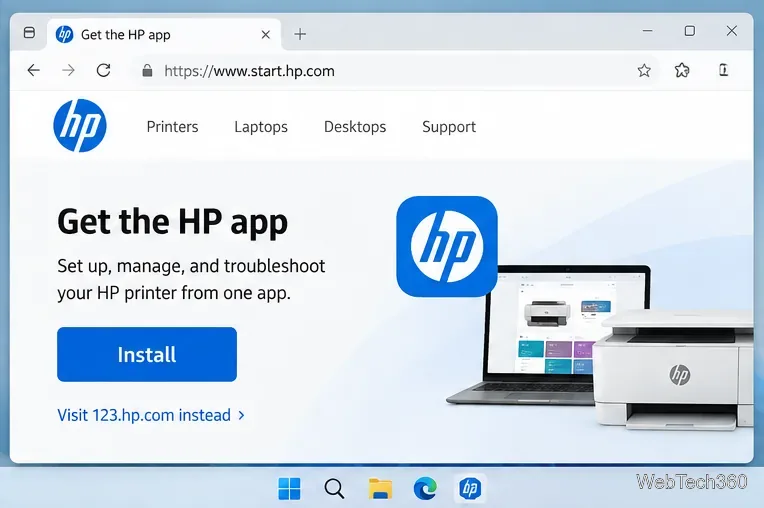
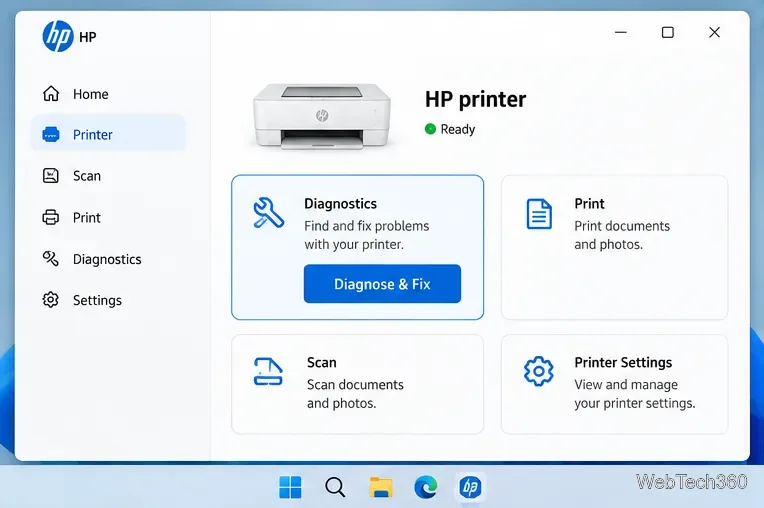
HP’s current Diagnose & Fix instructions are straightforward:
If the retired utility is still on your Windows PC, HP recommends removing it. These are the folders HP specifically identifies in its retirement guidance.
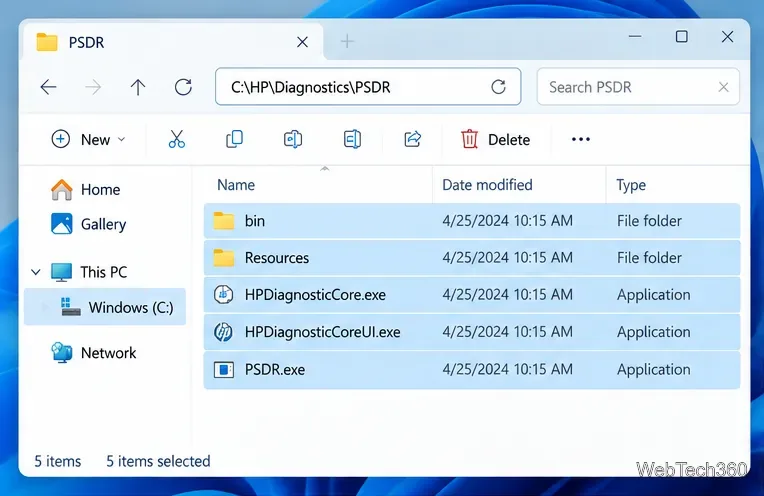
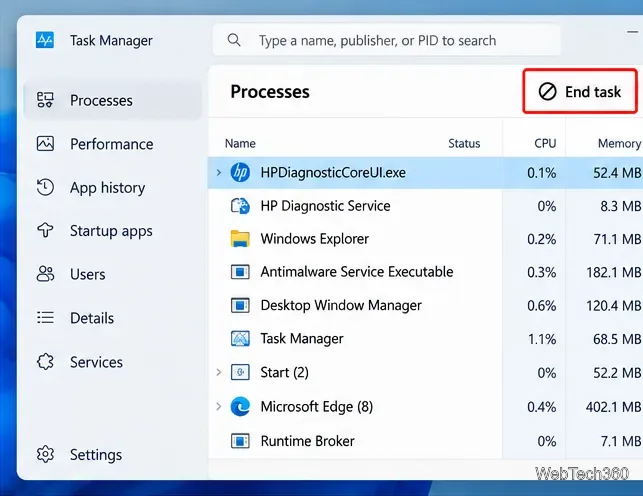
If Windows says files in that folder are in use, open Task Manager. HP says to locate HPDiagnosticCoreUI, end that task, and then try deleting the folder again.
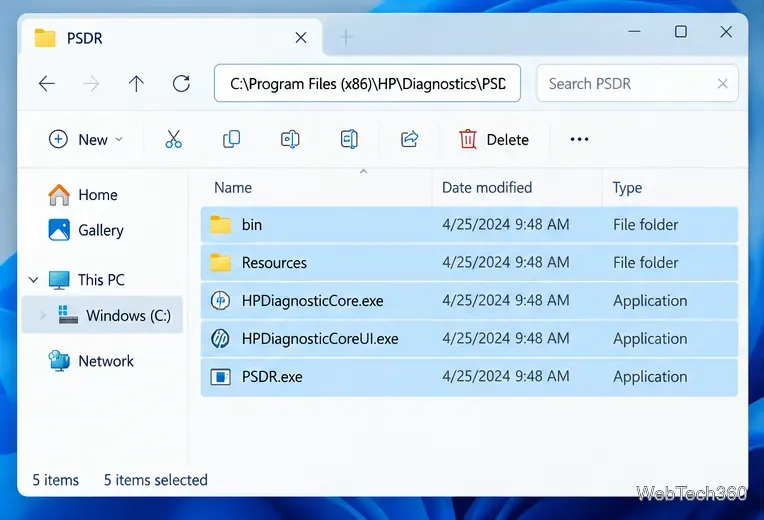
Finally, check C:\Program Files (x86)\HP\Diagnostics\PSDR. If that folder exists, delete it and its contents as well.
Start with the physical printer before making deeper Windows changes: clear paper jams, check the control panel for an error, verify power and cables, and confirm a Wi-Fi printer is on the same network as the computer. Restarting the printer, computer, and router can also clear temporary connection problems.
If the HP app still cannot resolve the issue, use HP Printer Support and search for your exact printer model and error. That is safer than reinstalling the retired Print and Scan Doctor or downloading an old copy from an unofficial source.
HP no longer recommends it. The company retired the utility, removed it from HP.com, and advises users to remove existing copies and move to the HP app.
Yes. HP documents Diagnose & Fix for both Windows and macOS on supported HP printers. Some checks, including Windows driver updates and port correction, are Windows-specific.
Learn how to install MyIPTV Player on Windows 10, add an M3U playlist and EPG, refresh channels, and fix common setup or playback problems.
HP Print and Scan Doctor was retired by HP on May 27, 2025. Learn what replaced it, how to run Diagnose & Fix, and how to remove old copies safely.
Is Segurazo a virus? Learn how to remove Segurazo or SAntivirus safely, scan for leftovers, and avoid risky registry-cleanup advice.
Learn what Glarysoft Registry Repair does, how to use its scan and backup tools, and why Microsoft recommends caution with registry cleaners.
Download Wise Registry Cleaner safely from the official site, learn the safest scan settings, backup options, and whether this free Windows tool is worth using.
Download and install 7-Zip for Windows 10, then learn how to compress, extract, test, and password-protect archives safely.
Learn how to download and install Bandicam 2027, record your screen, find saved videos, adjust key settings, and understand the free version limits.
Download and install SharpKeys on Windows 10, then remap, disable, swap, or restore keyboard keys safely using the Windows Scancode Map.
Hextech Repair Tool is now Riot Repair Tool. Learn where to download it safely, collect League of Legends logs, run repairs, and contact Riot Support.
Download and install HD Tune Pro on Windows 10, choose the supported version, run benchmarks, check S.M.A.R.T. health, and scan drives for errors.







