MyIPTV Player for Windows 10: How to Set Up and Use It

Learn how to install MyIPTV Player on Windows 10, add an M3U playlist and EPG, refresh channels, and fix common setup or playback problems.
SharpKeys is a free, open-source Windows utility for remapping one physical key to another. On Windows 10, the basic workflow is simple: download the official package, add a mapping, click Write to Registry, then sign out and back in or restart Windows. SharpKeys does not need to stay running after the mapping is saved.
The important limitation is that SharpKeys remaps whole keys. It is not a macro or shortcut manager, so it cannot turn a combination such as Ctrl+C into F5.
The official project currently lists SharpKeys 3.9.4 as its latest stable release. Download it from the official SharpKeys releases page on GitHub or use the Microsoft Store listing.
winget install -e RandyRants.SharpKeys.SharpKeys is a .NET Framework application. Microsoft includes .NET Framework 4.x with Windows 10, so a separate runtime installation normally is not needed on an up-to-date Windows 10 system. See Microsoft's .NET Framework and Windows guidance if the app fails to start because of a runtime problem.
Windows 10 note: Microsoft ended normal support for standard Windows 10 editions on October 14, 2025. SharpKeys still documents Windows 10 compatibility, but keeping the operating system itself supported and patched is a separate security consideration.
If you downloaded the MSI, open it and complete the installer. If you downloaded the ZIP version, extract the archive to a folder and run the SharpKeys executable from there. Launch SharpKeys from the Start menu or extracted folder.

Click Add. In the left column, choose the key you want to change. In the right column, choose what Windows should treat that key as. For example, you can map Caps Lock to Left Shift, or create two separate mappings to swap two keys.
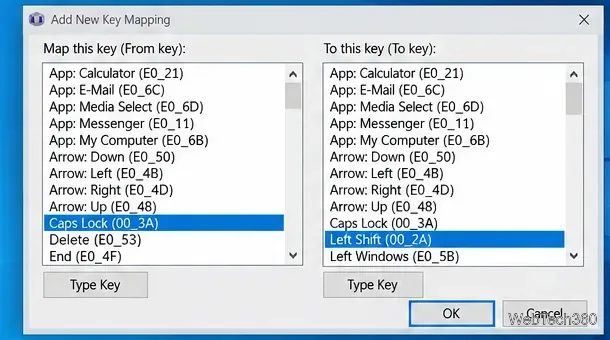
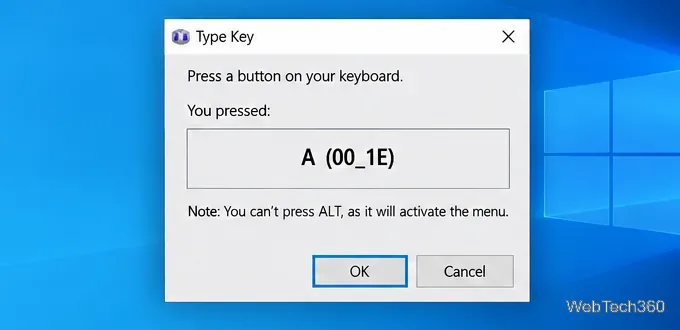
Instead of scrolling through a long key list, click Type Key and press the physical key you want SharpKeys to recognize. The official documentation notes one important exception: the Type Key function cannot scan the left or right Alt key, so choose Alt directly from the list.
After the mapping appears in the main list, review it carefully and click Write to Registry. SharpKeys stores the change in Windows' keyboard Scancode Map. Close the app, then sign out and back in or restart the PC before testing the remapped key.
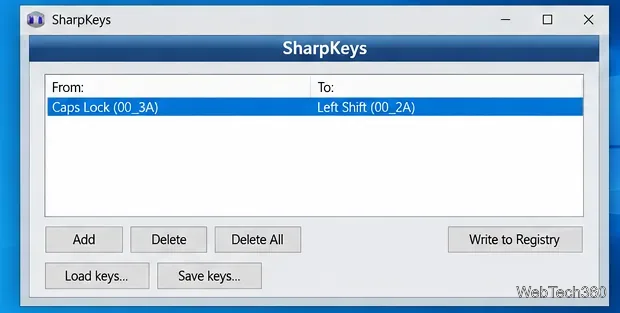
Open SharpKeys again, select a mapping and use Delete, or use Delete All to clear the list. Then click Write to Registry again and sign out or reboot. Simply deleting an item from the on-screen list does not change Windows until you write the revised list to the Registry.
The Save keys and Load keys buttons let you save or restore mapping lists as SKL files. Loading a list does not bypass the final step: write it to the Registry and sign out or restart to activate it.
If you need shortcut combinations, text output, or app-specific remaps, Microsoft's PowerToys Keyboard Manager is a better fit.
SharpKeys is open source and its source code is published in the official GitHub repository. Its purpose is narrow: it provides a graphical interface for the Windows keyboard-remapping registry setting at HKEY_LOCAL_MACHINE\SYSTEM\CurrentControlSet\Control\Keyboard Layout. It does not need to run in the background after the mapping is written.
The main risk is a bad configuration, not ongoing CPU or memory use. Avoid disabling a key that you need to sign in, unlock the computer, or enter a password. Download only from the official project or Microsoft Store rather than from third-party mirrors.
If a bad mapping prevents normal use but you can reach an administrator Command Prompt through Safe Mode or recovery tools, the project's FAQ documents removing the value with reg delete "HKEY_LOCAL_MACHINE\SYSTEM\CurrentControlSet\Control\Keyboard Layout" /v "Scancode Map", followed by a reboot. For ordinary changes, using SharpKeys' own Delete or Delete All controls is simpler and safer.
Learn how to install MyIPTV Player on Windows 10, add an M3U playlist and EPG, refresh channels, and fix common setup or playback problems.
HP Print and Scan Doctor was retired by HP on May 27, 2025. Learn what replaced it, how to run Diagnose & Fix, and how to remove old copies safely.
Is Segurazo a virus? Learn how to remove Segurazo or SAntivirus safely, scan for leftovers, and avoid risky registry-cleanup advice.
Learn what Glarysoft Registry Repair does, how to use its scan and backup tools, and why Microsoft recommends caution with registry cleaners.
Download Wise Registry Cleaner safely from the official site, learn the safest scan settings, backup options, and whether this free Windows tool is worth using.
Download and install 7-Zip for Windows 10, then learn how to compress, extract, test, and password-protect archives safely.
Learn how to download and install Bandicam 2027, record your screen, find saved videos, adjust key settings, and understand the free version limits.
Download and install SharpKeys on Windows 10, then remap, disable, swap, or restore keyboard keys safely using the Windows Scancode Map.
Hextech Repair Tool is now Riot Repair Tool. Learn where to download it safely, collect League of Legends logs, run repairs, and contact Riot Support.
Download and install HD Tune Pro on Windows 10, choose the supported version, run benchmarks, check S.M.A.R.T. health, and scan drives for errors.







