MyIPTV Player for Windows 10: How to Set Up and Use It

Learn how to install MyIPTV Player on Windows 10, add an M3U playlist and EPG, refresh channels, and fix common setup or playback problems.
Bandicut Video Cutter is a Windows video editor focused on cutting, splitting, joining, and converting video files. If you want to trim a clip without unnecessarily re-encoding the entire file, Bandicut's High-Speed mode is the feature to look at first. The safest way to get the program is from the developer's official website, then use Cut mode to mark the section you want to keep and choose an output method.
The official Bandicut download page currently lists Bandicut 2025 v4.2.5.2562 for 64-bit Windows 11, Windows 10, Windows 8, and Windows 7. The developer also provides an older Bandicut 3.1.5 build for 32-bit Windows. Bandicut remains a Windows-only application.
According to the official format and system-requirements page, Bandicut can open a broad range of video containers, including MP4, MOV, MKV, AVI, WebM, MPEG, WMV, TS, M2TS, VOB, FLV, and others. Output options include MP4, AVI, MKV, WebM, and MP3.
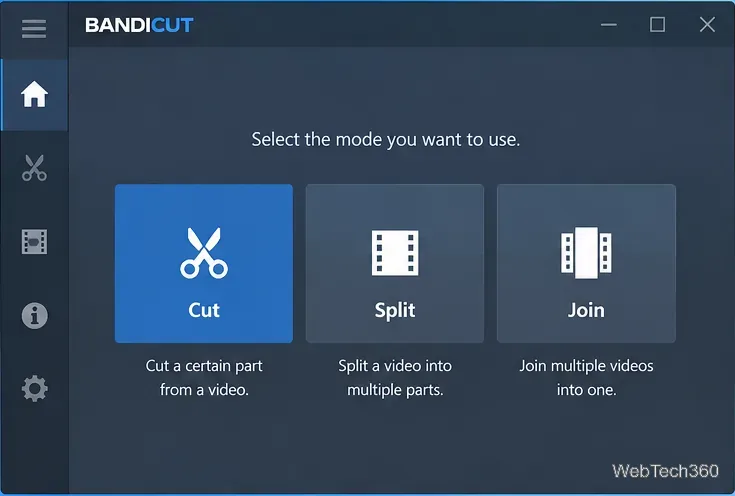
Download Bandicut only from the official download page. After the installer finishes downloading, run bandicut-setup.exe. The current installation guide directs you through the setup window, license agreement, optional components, installation folder, and final Finish screen.
If Windows blocks the installer because your app recommendation settings allow only Microsoft Store apps, the developer's guide explains how to change that Windows setting before retrying. Avoid third-party download sites, especially when an official installer is available directly from the publisher.
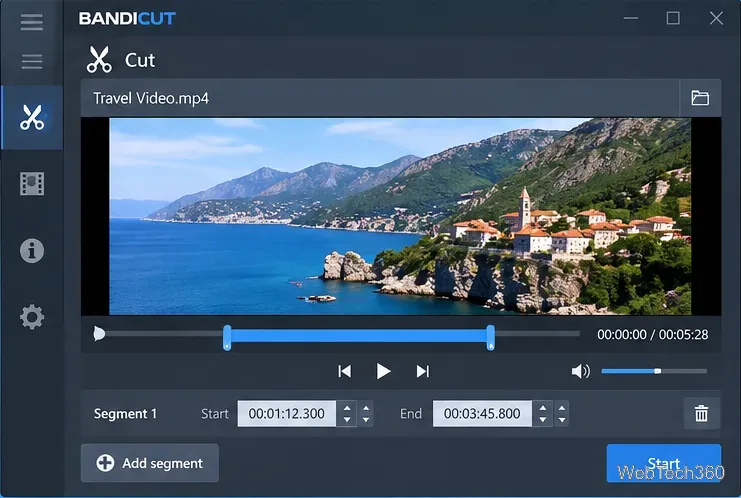
Launch Bandicut and choose Cut. Select the source video and open it. Bandicut 2025 can also add more files with the plus button, which is useful when you need to work with several clips in one session.
Use the timeline and playback controls to set the start and end of the segment you want to save. You can adjust the selection by time, frame, or keyframe, and add more segments when needed. The developer's current cutting tutorial uses this same workflow.
Click Start, then select an output method. High-Speed mode is intended for fast editing while preserving the original video quality as much as possible by minimizing re-encoding. Encoding mode is the better choice when you need to change the codec, output format, resolution, quality, frame rate, or other encoding settings.
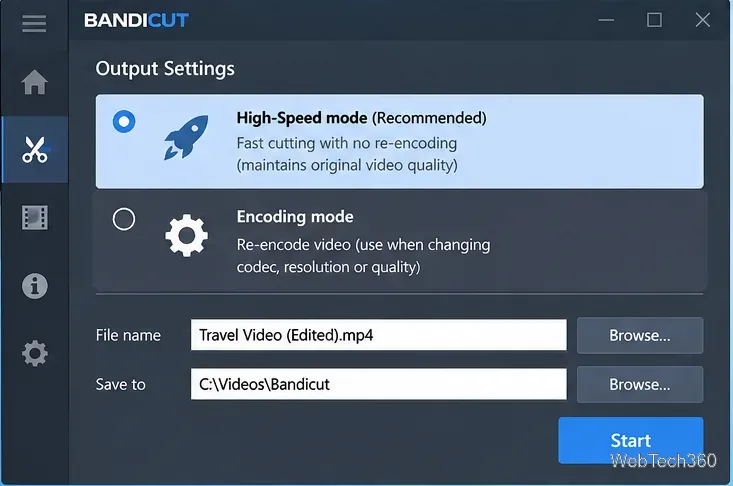
There are important limits. The High-Speed mode documentation notes that some codecs cannot use High-Speed mode, and precise start points may depend on keyframe information. If a file cannot be processed correctly in High-Speed mode, switch to Encoding mode.
| Mode | Best for | Main trade-off |
|---|---|---|
| High-Speed | Fast cuts or joins while retaining original video data where supported | Availability depends on the file format, codec, and keyframes |
| Encoding | Changing format, codec, size, quality, FPS, or playback settings | Requires re-encoding, so processing takes longer |
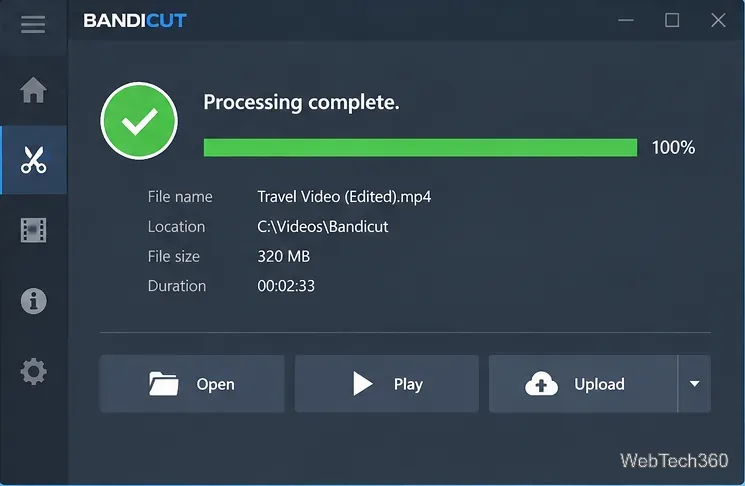
When processing completes, use Open to view the output folder or Play to check the edited video. Bandicut also exposes upload options after processing. Verify the first and last seconds of the clip so you know the cut starts and ends where expected.
The unregistered version is usable, but it has limits. The official comparison says High-Speed mode in the free version supports AVI, MP4, and MOV, while the registered version expands High-Speed support to additional formats such as MKV, WMV, TS, and DVD/VOB. The free version also adds a Bandicut watermark to newly created videos; registering a valid license removes that watermark for future outputs.
Bandicut is not limited to trimming. Split can divide one video by a chosen number of segments or by duration. Join combines multiple files and lets you reorder them before processing. For High-Speed joining, the source files need matching technical properties such as format, resolution, and codec; otherwise, use Encoding mode. The official split tutorial and join tutorial show the current controls.
For straightforward Windows video trimming, Bandicut is most useful when you want a simple interface and the option to cut supported files quickly without a full re-encode. Start with High-Speed mode for compatible source files, but use Encoding mode whenever you need format changes, stricter frame accuracy, or broader compatibility.
Learn how to install MyIPTV Player on Windows 10, add an M3U playlist and EPG, refresh channels, and fix common setup or playback problems.
HP Print and Scan Doctor was retired by HP on May 27, 2025. Learn what replaced it, how to run Diagnose & Fix, and how to remove old copies safely.
Is Segurazo a virus? Learn how to remove Segurazo or SAntivirus safely, scan for leftovers, and avoid risky registry-cleanup advice.
Learn what Glarysoft Registry Repair does, how to use its scan and backup tools, and why Microsoft recommends caution with registry cleaners.
Download Wise Registry Cleaner safely from the official site, learn the safest scan settings, backup options, and whether this free Windows tool is worth using.
Download and install 7-Zip for Windows 10, then learn how to compress, extract, test, and password-protect archives safely.
Learn how to download and install Bandicam 2027, record your screen, find saved videos, adjust key settings, and understand the free version limits.
Download and install SharpKeys on Windows 10, then remap, disable, swap, or restore keyboard keys safely using the Windows Scancode Map.
Hextech Repair Tool is now Riot Repair Tool. Learn where to download it safely, collect League of Legends logs, run repairs, and contact Riot Support.
Download and install HD Tune Pro on Windows 10, choose the supported version, run benchmarks, check S.M.A.R.T. health, and scan drives for errors.








