MyIPTV Player for Windows 10: How to Set Up and Use It

Learn how to install MyIPTV Player on Windows 10, add an M3U playlist and EPG, refresh channels, and fix common setup or playback problems.
If Thunderbird keeps asking for your “Master Password” several times at startup, the first thing to know is that the current name is Primary Password. Thunderbird changed the terminology beginning with version 91, but many users still search for the older phrase. Mozilla’s current documentation says a Primary Password protects saved authentication information and normally needs to be entered once per Thunderbird session.
Illustrative example: imagine a user named Alex who has four mail accounts in one Thunderbird profile. After launching Thunderbird, Alex sees two or more Primary Password dialogs instead of one. The mail accounts still work after the prompts are cleared, but the behavior is distracting and makes Alex wonder whether the password is wrong. This example is hypothetical; it is only used to show how to diagnose the issue systematically.
The most important point is not to assume that every repeated prompt has the same cause. Historical and current reports in Mozilla’s Bugzilla show that multiple-password-prompt behavior has appeared under different conditions, including several accounts trying to authenticate at startup, delayed responses to the first dialog, platform-specific startup behavior, and add-on interactions. That history confirms the symptom exists, but it does not prove that one old bug explains every current Thunderbird installation.
Start by verifying that the dialog is asking for Thunderbird’s Primary Password, not your email provider password, operating-system password, or an OAuth sign-in. These are different credentials and require different fixes.
Mozilla states that the Primary Password is used to unlock saved authentication data in Thunderbird’s Password Manager. It is not a password for your Gmail, Outlook, IMAP, POP, or SMTP account. It also does not encrypt or block access to locally stored mail. For the current behavior and security scope, see Mozilla’s Primary Password documentation.
Next, make sure Thunderbird is current. On a standard desktop installation, open Help > About Thunderbird. Thunderbird checks for updates there and can restart to apply them. Linux distribution packages may receive updates through the distribution’s package manager instead. Mozilla documents the process in Update Thunderbird to the latest version.
For Alex, this step answers two questions: is the dialog really the Primary Password prompt, and is the installation current enough that troubleshooting an already-fixed issue would be unnecessary?
Close Thunderbird completely, reopen it, and respond to the first Primary Password prompt normally. Note whether extra dialogs appear immediately, appear only after you wait, or appear only when specific accounts begin checking mail. That timing matters. Older Mozilla bug reports describe stacked prompts when several accounts request access to saved credentials or when a prompt is left unanswered. A longstanding public report is available in Bugzilla bug 584014. Treat that as evidence of a known symptom pattern, not proof that your installation has the identical defect.
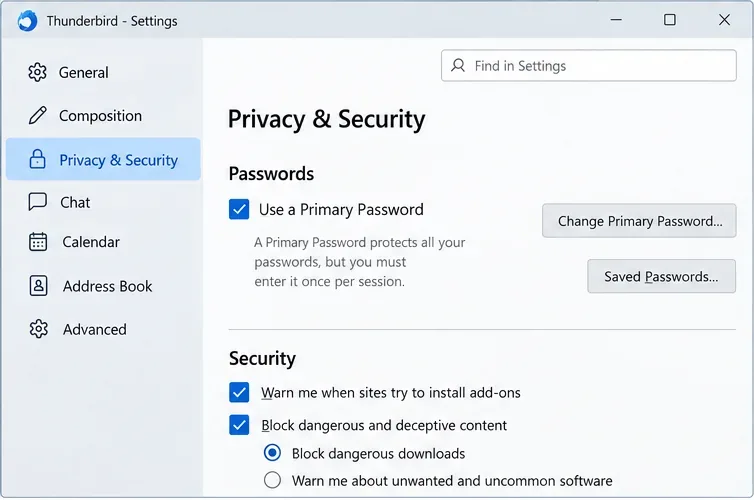
Open Settings > Privacy & Security and scroll to the Passwords section. If Use a Primary Password is enabled, Thunderbird should request that password when it first needs access to protected saved credentials in a session.
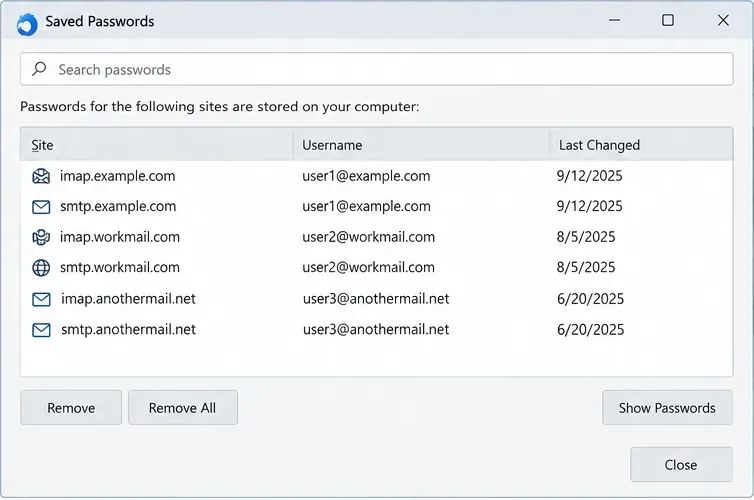
Then select Saved Passwords. Mozilla’s Password Manager documentation confirms that this window can display, edit, and remove stored usernames and passwords. Review the entries for accounts that are prompting repeatedly, especially their incoming-mail and outgoing-mail entries. A stale or obsolete saved credential can trigger authentication requests that may be mistaken for repeated Primary Password requests.
Do not click Remove All as a first troubleshooting step. Removing stored credentials can force you to re-enter account passwords, app passwords, or other login information. Before deleting anything, make sure you know the correct credentials and your mail provider’s current authentication method. Mozilla’s official instructions are in Password Manager - Remember, delete and change passwords in Thunderbird.
In Alex’s hypothetical case, suppose the Saved Passwords window contains six entries: IMAP and SMTP credentials for three accounts, plus another account using OAuth that is not represented by the same password pattern. Alex should not delete all six entries just because multiple prompts appear. The safer approach is to identify whether one account consistently triggers the behavior, then repair only the relevant saved login if there is evidence it is outdated.
If the Primary Password itself is forgotten, Mozilla provides a reset procedure, but its documentation warns that resetting it deletes saved credentials from Thunderbird. That is a recovery action, not a routine fix for duplicate prompts. If you still know the Primary Password, repeated dialogs alone are not a reason to reset it.
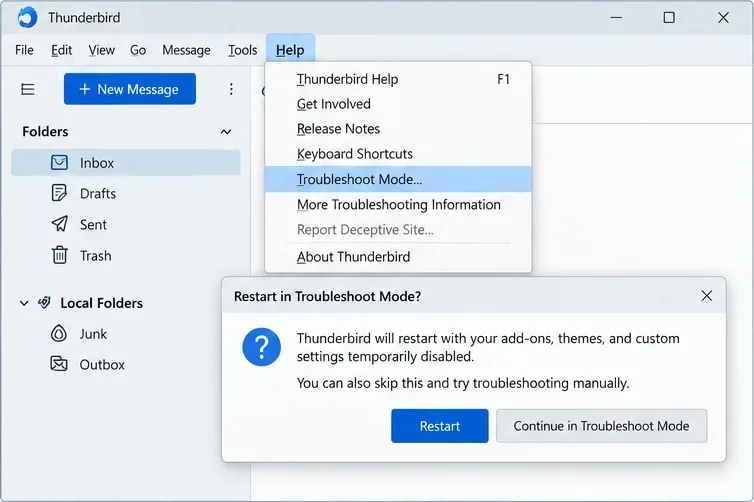
If Thunderbird is updated and the saved-login review does not reveal an obvious account problem, test the application in Troubleshoot Mode. Open the application menu, choose Help > Troubleshoot Mode, restart, and continue in that mode without making permanent changes.
Mozilla explains that Troubleshoot Mode temporarily disables extensions and themes, hardware acceleration, and certain customizations. If the repeated Primary Password prompts disappear in this mode, the most likely explanation is an extension, theme, hardware-acceleration interaction, or customization rather than the base profile data alone. The official procedure is documented in Troubleshoot Mode Thunderbird.
If the problem disappears, return to normal mode and disable extensions progressively until the repeated prompts stop. Update or remove the extension that reproduces the problem. Do not disable security features permanently just to suppress a dialog.
If the problem still occurs in Troubleshoot Mode, Mozilla says the cause is less likely to be an extension or theme. At that point, a new profile is a useful isolation test.
For Alex, this is the key decision point. If the extra prompts disappear in Troubleshoot Mode, Alex should investigate add-ons. If the prompts remain, Alex should move on instead of repeatedly changing unrelated settings.
A Thunderbird profile stores account configuration, messages, passwords, preferences, and related user data separately from the application files. If the problem persists in Troubleshoot Mode, testing with a fresh profile can show whether the existing profile is involved.
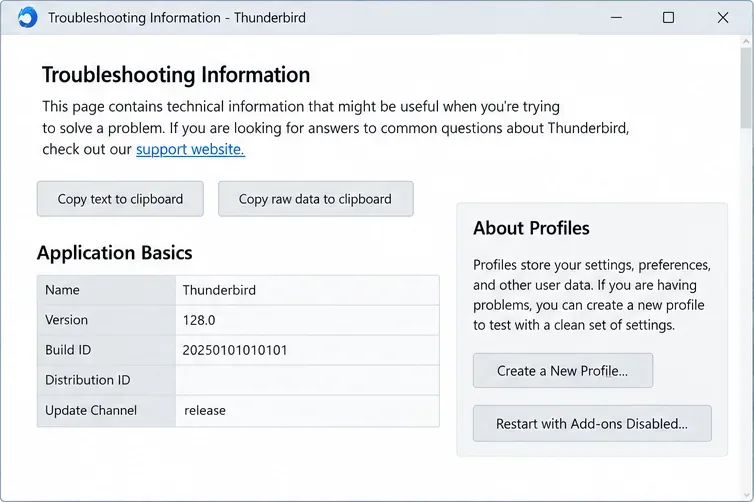
Open Help > Troubleshooting Information, then open about:profiles or use the profile-management controls described by Mozilla. Create a new test profile and add only one account at first. Do not delete the existing profile. Mozilla specifically documents profile creation, switching, and removal in Profile Manager - Create and remove Thunderbird profiles.
If the clean profile prompts only once while the old profile repeatedly prompts, you have strong evidence that the issue is profile-specific. You can then compare account settings, saved credentials, and extensions instead of reinstalling the operating system or randomly clearing data. If a clean profile shows the same behavior, the cause may be broader: a Thunderbird regression, platform-specific behavior, authentication timing, or an external integration.
Mozilla Bugzilla is useful at this stage. For example, bug 1772571 documents a case where a Primary Password prompt appeared for each account, while bug 1778725 documents work on startup-time Primary Password prompting on macOS. These reports help distinguish known patterns, but version, operating system, and reproduction steps still matter.
| What you observe | Most useful next action |
|---|---|
| Only one prompt after updating Thunderbird | Keep the update and monitor. The issue may have been version-specific. |
| Extra prompts appear only after the first dialog is left unanswered | Enter the Primary Password promptly and note which accounts initiate startup checks. Compare with relevant Bugzilla reports. |
| Prompts stop in Troubleshoot Mode | Disable or update extensions progressively in normal mode. |
| Prompts continue in Troubleshoot Mode but not in a new profile | Investigate the original profile’s saved logins, account settings, and customizations. |
| Prompts continue even in a clean profile | Check current Thunderbird release notes and Bugzilla, then report reproducible details if no matching issue exists. |
If the repeated prompts remain after an update, occur in Troubleshoot Mode, and reproduce in a clean profile, collect the exact Thunderbird version, operating system, number and type of accounts, authentication methods, and precise startup sequence. Note whether the extra dialogs appear immediately or only after a delay. Those details make a Bugzilla report much more useful than simply saying “Thunderbird asks for the password many times.”
The expected baseline remains simple: according to Mozilla’s current Primary Password documentation, Thunderbird should normally require the Primary Password once per session when it first needs to use protected saved credentials. When your installation behaves differently, the four-step path above helps separate an account/login problem, an extension issue, a profile issue, and a potential application bug without destroying useful data.
Learn how to install MyIPTV Player on Windows 10, add an M3U playlist and EPG, refresh channels, and fix common setup or playback problems.
HP Print and Scan Doctor was retired by HP on May 27, 2025. Learn what replaced it, how to run Diagnose & Fix, and how to remove old copies safely.
Is Segurazo a virus? Learn how to remove Segurazo or SAntivirus safely, scan for leftovers, and avoid risky registry-cleanup advice.
Learn what Glarysoft Registry Repair does, how to use its scan and backup tools, and why Microsoft recommends caution with registry cleaners.
Download Wise Registry Cleaner safely from the official site, learn the safest scan settings, backup options, and whether this free Windows tool is worth using.
Download and install 7-Zip for Windows 10, then learn how to compress, extract, test, and password-protect archives safely.
Learn how to download and install Bandicam 2027, record your screen, find saved videos, adjust key settings, and understand the free version limits.
Download and install SharpKeys on Windows 10, then remap, disable, swap, or restore keyboard keys safely using the Windows Scancode Map.
Hextech Repair Tool is now Riot Repair Tool. Learn where to download it safely, collect League of Legends logs, run repairs, and contact Riot Support.
Download and install HD Tune Pro on Windows 10, choose the supported version, run benchmarks, check S.M.A.R.T. health, and scan drives for errors.








