MyIPTV Player for Windows 10: How to Set Up and Use It

Learn how to install MyIPTV Player on Windows 10, add an M3U playlist and EPG, refresh channels, and fix common setup or playback problems.
If Thunderbird says it is already running but no window is open, the profile may still be held by a background Thunderbird process or by a leftover lock file after an unclean shutdown. First make sure Thunderbird is fully closed. Only remove a lock file after you have confirmed that no Thunderbird process is using that profile. Your mail, account settings, passwords, and other data live in the profile folder, so do not delete the profile or its contents.
The safest repair is: close every Thunderbird process, back up the correct profile, remove only a confirmed stale lock file if one exists, and start Thunderbird again. If the error remains, check that you are opening the intended profile and that it is stored somewhere Thunderbird can access.
Thunderbird uses a profile to hold account settings and user data. A lock helps prevent two Thunderbird sessions from changing the same profile at once. The message can therefore mean that another Thunderbird process is actually open, including one that is hidden in the background. It can also appear when an earlier crash, forced shutdown, interrupted update, or copied profile leaves a stale lock behind.
A profile lock protects data from simultaneous access. Do not try to bypass it by launching a second copy against the same profile. Mozilla says simultaneous access to a profile through cloud storage, a file share, or another method is unsupported and can risk profile corruption or permanent data loss. See Mozilla’s profile storage and backup guidance.
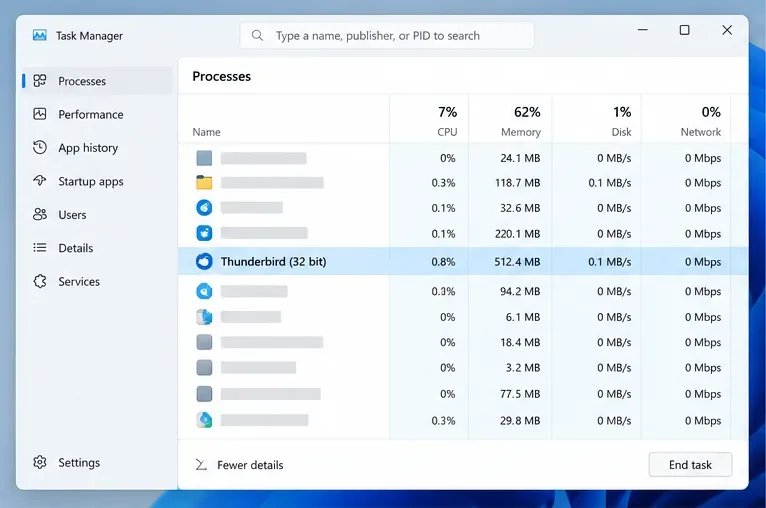
Try closing Thunderbird from its menu with File > Exit or the operating system’s normal quit command. Wait several seconds. If the warning continues, check whether Thunderbird is still running:
If you are unsure whether a process is stuck, save work in other applications and restart the computer. Mozilla’s Profile Manager help also recommends closing all Thunderbird instances or restarting when the manager will not open because Thunderbird may still be running in the background. Then try Thunderbird once, not repeatedly in quick succession.
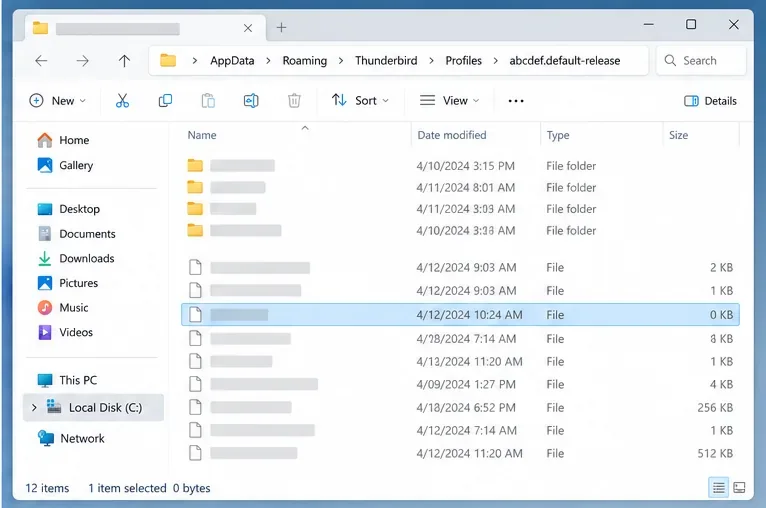
Use the profile that produced the error. Do not delete or rename the whole Thunderbird folder. If Thunderbird opens on another device or another profile, its Troubleshooting Information page can show the active profile location. When Thunderbird cannot open, Mozilla’s current profile article gives these default locations:
%APPDATA%\Thunderbird\Profiles\, and press Enter. Open the profile folder you actually use. The AppData folder is normally hidden, which is why this shortcut is useful.Thunderbird/Profiles.~/.thunderbird. Some package formats can use a different location, so use the profile path configured for your installation if it is not there.If the Profiles directory contains several folders, do not guess based only on the name. Check the profile path used by Thunderbird previously, or the matching profile entry in profiles.ini. Avoid editing that file as a first fix. If you copied a profile from another computer, make sure you are opening the copied profile you meant to use, not a newly created empty one.
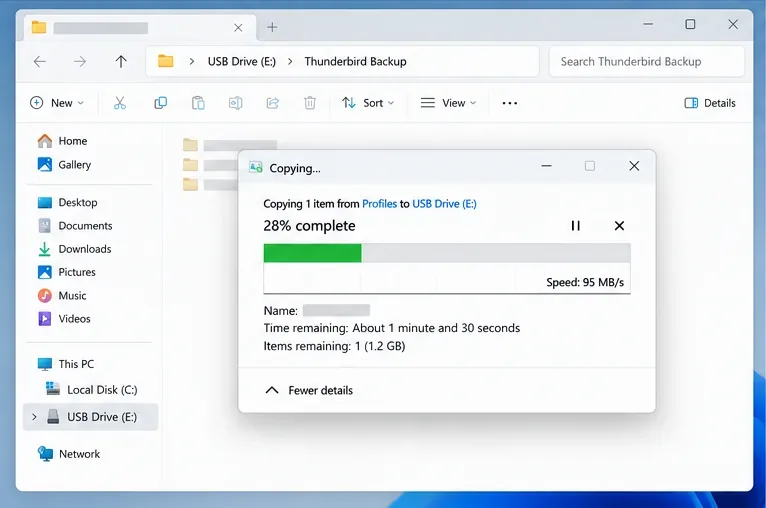
With Thunderbird completely closed, copy the entire profile folder to a separate location such as an external drive. Keep the original in place; the backup is an extra copy. Mozilla specifically recommends closing Thunderbird before copying a profile, and notes that a profile stored on the same computer is not itself a backup.
After confirming that every Thunderbird process is closed, inspect the correct profile folder for a lock file. On Windows the file is commonly named parent.lock; on macOS or Linux it may appear as .parentlock or another platform-specific lock entry. A leading dot can make a file hidden. The names and behavior can vary by operating system and installation.
Delete only the lock file if it is present and you are certain Thunderbird is not running. Do not delete prefs.js, logins.json, key4.db, mail folders, or the entire profile. If you cannot identify a lock file confidently, stop and ask for help rather than removing other files. A Mozilla Support forum answer for this exact message likewise advises closing Thunderbird first and then removing a leftover parent.lock from the profile; see the Mozilla Support troubleshooting discussion.
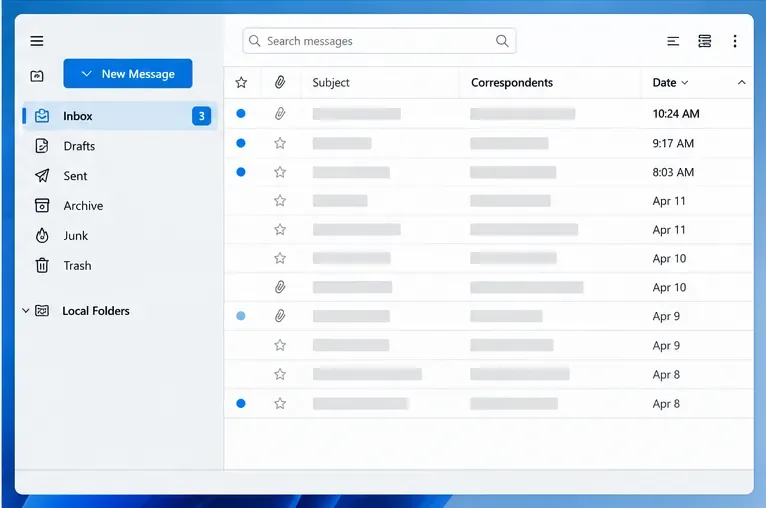
Launch Thunderbird normally. If the profile opens, verify that your expected accounts, folders, messages, and settings are present. A profile copied from another computer may need time to reconnect to mail servers, but the profile-lock warning itself should no longer prevent startup.
Do not keep one profile open on two computers, or allow two local Thunderbird instances to use the same profile at once. A cloud-synced folder does not make simultaneous use safe: Mozilla’s profile guidance explicitly says simultaneous access is unsupported. Close Thunderbird on every device that may use that profile and let file synchronization finish before starting it elsewhere.
If no lock file is present, the message may not be a stale-lock problem. Confirm that the profile folder still exists, the drive is connected, and your operating-system account can read and write to that folder. A profile on a removable, network, or synchronized drive may be unavailable, read-only, or still being copied. Do not change permissions recursively or move the profile while Thunderbird is open. If the profile is on a shared or synchronized location, copy it to a local folder and configure Thunderbird to use that local copy instead of opening the same profile from multiple places.
If the profile lock is cleared but Thunderbird still opens the wrong profile or reports that the profile cannot be loaded, use the Profile Manager to inspect available profiles. On Windows, press Windows+R and enter thunderbird.exe -P. On macOS or Linux, Mozilla documents the -ProfileManager startup switch; depending on how Thunderbird was installed, you may need the full application path. The Thunderbird Profile Manager guide explains how to select a profile and how the manager’s options work.
If you need to test whether the old profile is damaged, create a temporary new profile and leave the original untouched. A new profile may look empty because profiles keep separate accounts and data; that does not mean the old mail was erased. Do not choose Delete Files for the old profile. Mozilla warns that this option permanently removes the profile’s settings, passwords, and other files. If Thunderbird starts with a temporary profile, return to the manager and select the original profile after troubleshooting.
Usually, reinstalling is not the right first step. Thunderbird keeps the profile separate from the application files, so uninstalling and reinstalling the program typically does not resolve a stale lock or an inaccessible profile. It also does not replace a backup. Follow the process and profile checks first; consider an application repair or reinstall only if the profile is accessible and Thunderbird itself appears damaged.
As of October 7, 2026, Mozilla’s support documentation continues to emphasize profile separation, closing Thunderbird before profile operations, and avoiding simultaneous access. The recommended repair remains to end a genuinely stuck process first, then remove only a stale profile lock when no Thunderbird instance is using it. The precise lock-file name can differ by platform, so do not treat a missing parent.lock as a reason to delete other profile files.
Learn how to install MyIPTV Player on Windows 10, add an M3U playlist and EPG, refresh channels, and fix common setup or playback problems.
HP Print and Scan Doctor was retired by HP on May 27, 2025. Learn what replaced it, how to run Diagnose & Fix, and how to remove old copies safely.
Is Segurazo a virus? Learn how to remove Segurazo or SAntivirus safely, scan for leftovers, and avoid risky registry-cleanup advice.
Learn what Glarysoft Registry Repair does, how to use its scan and backup tools, and why Microsoft recommends caution with registry cleaners.
Download Wise Registry Cleaner safely from the official site, learn the safest scan settings, backup options, and whether this free Windows tool is worth using.
Download and install 7-Zip for Windows 10, then learn how to compress, extract, test, and password-protect archives safely.
Learn how to download and install Bandicam 2027, record your screen, find saved videos, adjust key settings, and understand the free version limits.
Download and install SharpKeys on Windows 10, then remap, disable, swap, or restore keyboard keys safely using the Windows Scancode Map.
Hextech Repair Tool is now Riot Repair Tool. Learn where to download it safely, collect League of Legends logs, run repairs, and contact Riot Support.
Download and install HD Tune Pro on Windows 10, choose the supported version, run benchmarks, check S.M.A.R.T. health, and scan drives for errors.








