MyIPTV Player for Windows 10: How to Set Up and Use It

Learn how to install MyIPTV Player on Windows 10, add an M3U playlist and EPG, refresh channels, and fix common setup or playback problems.
GOM Player is a free desktop media player for Windows and Mac that can open a wide range of video and audio formats, manage subtitles, adjust playback, and play 360-degree VR video. If you only want the current installer, use GOM Lab's official download page. The company currently lists GOM Player for both Windows and Mac, while the separate paid GOM Player+ edition is listed for Windows.
GOM Player is a multimedia player from GOM & Company. GOM Lab says the free player supports more than 100 video and audio formats, including common files such as MP4, AVI, MKV, MOV, FLV, MP3, AAC, FLAC, and WAV. The exact format list differs between Windows and macOS, so check the official GOM Player product page if you rely on a less common format.
On Windows, the player includes many built-in codecs and can use external codecs for additional formats. GOM Player also provides subtitle tools, playback-speed controls, A-B repeat, image capture, playlists, and video/audio adjustments. Some features differ between the Windows and Mac versions.
| Platform | Current official requirement |
|---|---|
| Windows | 64-bit Windows 10 or later; at least 2 GB RAM and 200 MB of drive space |
| Mac | macOS 10.13 High Sierra or later |
GOM Lab notes that some Windows videos may also require DirectX or Windows Media Player, depending on the file. This replaces older advice that described the free Windows edition as a 32-bit-focused application; the current specification explicitly lists 64-bit Windows 10 or later.
Open the GOM Lab download page, find GOM Player, and choose Windows or Mac. Using the official source is preferable to third-party mirror sites because it gives you the current installer directly from the publisher.
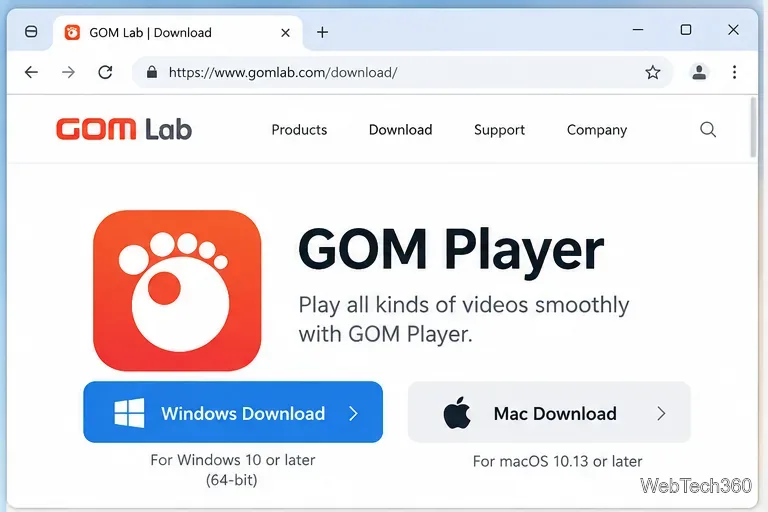
Open the downloaded installer and follow the on-screen prompts. On Windows, confirm any file associations or shortcuts you want before finishing. On a Mac, follow the macOS installation prompts for the downloaded app. Installer wording can change between releases, so read each screen instead of relying on an old step-by-step screenshot.
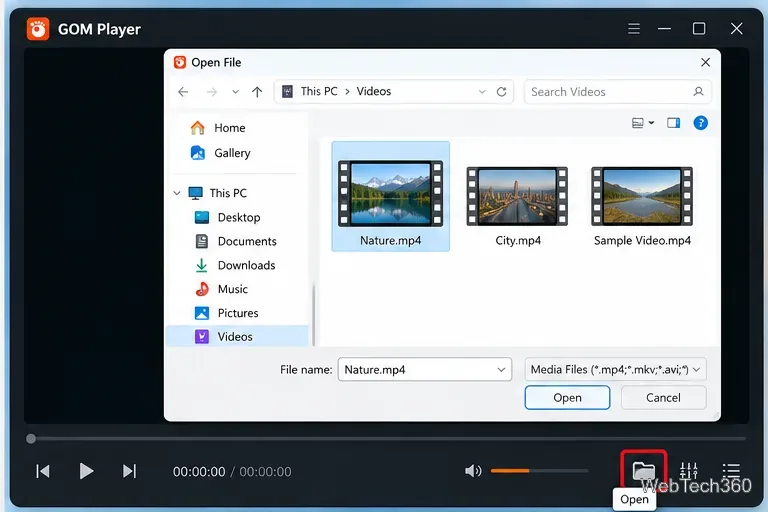
Launch GOM Player and use Open or Open File to select a video. On Windows, the current GOM guide also documents Open Folder and Open URL options. On Mac, the entry screen can show recently played files and items you can continue watching.
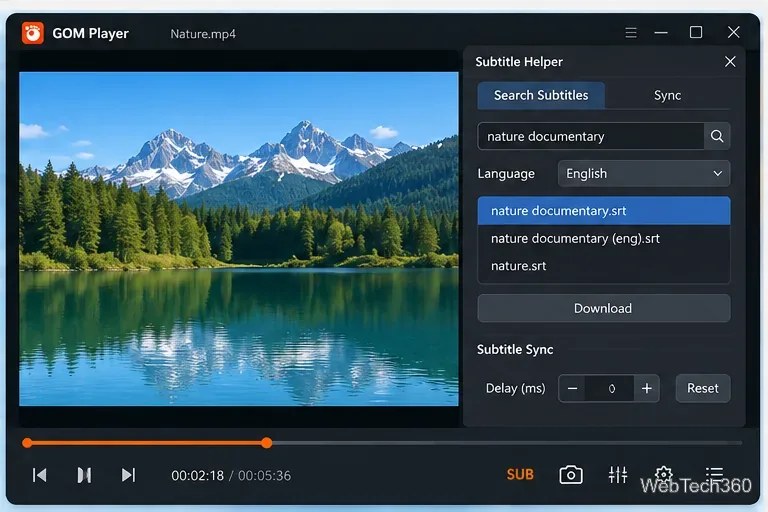
If the video has no subtitles, use the Subtitle Helper on Windows to search GOM's subtitle archive or load subtitle files you already have. The control panel can also change subtitle language, size, and sync. This is useful when captions appear slightly early or late.
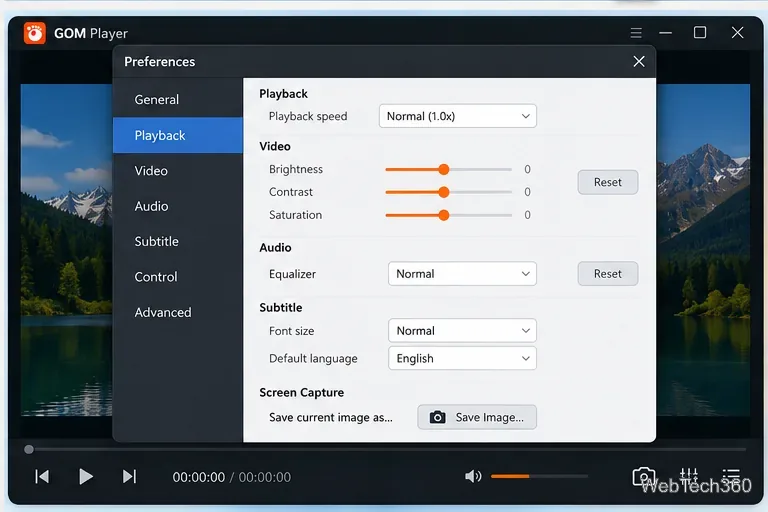
Open the Control Panel or Preferences when you need more than basic play and pause controls. Depending on the platform, GOM Player can adjust playback speed, brightness, contrast, saturation, audio settings, subtitle behavior, keyboard shortcuts, and other playback preferences. The Windows guide also documents saving the current video frame as an image.
The free GOM Player is enough for ordinary local playback, subtitles, and core controls. GOM Player+ is the premium Windows edition. GOM Lab currently advertises it as ad-free and adds premium features such as multi-playback for up to four videos, high-resolution playback features, and AI-based tools. See the official GOM Player+ page for the current feature set and licensing options.
If you are on a Mac, use the regular GOM Player download; the current GOM Lab download catalog lists GOM Player+ as a Windows product.
No software should be treated as risk-free simply because an older malware scan once came back clean. A more useful precaution is to download GOM Player only from GOM Lab, keep the player updated, and review the installer prompts before accepting them. If you want an additional check, scan the downloaded installer with your operating system's security tools before running it.
The older article also repeated years-old reports about past installer behavior. Those reports do not establish what the current installer does, so they should not be used as evidence about today's release. For current support information, use GOM Lab's GOM Player user guide and official download pages.
GOM Player remains a practical choice if you want a desktop player with broad format support, subtitle tools, playback controls, and Windows/Mac availability. Download it from the official site, choose the version for your operating system, open a media file, and use the subtitle and control panels only when you need extra adjustments. Users who want an ad-free premium Windows experience can compare the separate GOM Player+ edition before buying.
Learn how to install MyIPTV Player on Windows 10, add an M3U playlist and EPG, refresh channels, and fix common setup or playback problems.
HP Print and Scan Doctor was retired by HP on May 27, 2025. Learn what replaced it, how to run Diagnose & Fix, and how to remove old copies safely.
Is Segurazo a virus? Learn how to remove Segurazo or SAntivirus safely, scan for leftovers, and avoid risky registry-cleanup advice.
Learn what Glarysoft Registry Repair does, how to use its scan and backup tools, and why Microsoft recommends caution with registry cleaners.
Download Wise Registry Cleaner safely from the official site, learn the safest scan settings, backup options, and whether this free Windows tool is worth using.
Download and install 7-Zip for Windows 10, then learn how to compress, extract, test, and password-protect archives safely.
Learn how to download and install Bandicam 2027, record your screen, find saved videos, adjust key settings, and understand the free version limits.
Download and install SharpKeys on Windows 10, then remap, disable, swap, or restore keyboard keys safely using the Windows Scancode Map.
Hextech Repair Tool is now Riot Repair Tool. Learn where to download it safely, collect League of Legends logs, run repairs, and contact Riot Support.
Download and install HD Tune Pro on Windows 10, choose the supported version, run benchmarks, check S.M.A.R.T. health, and scan drives for errors.








