MyIPTV Player for Windows 10: How to Set Up and Use It

Learn how to install MyIPTV Player on Windows 10, add an M3U playlist and EPG, refresh channels, and fix common setup or playback problems.
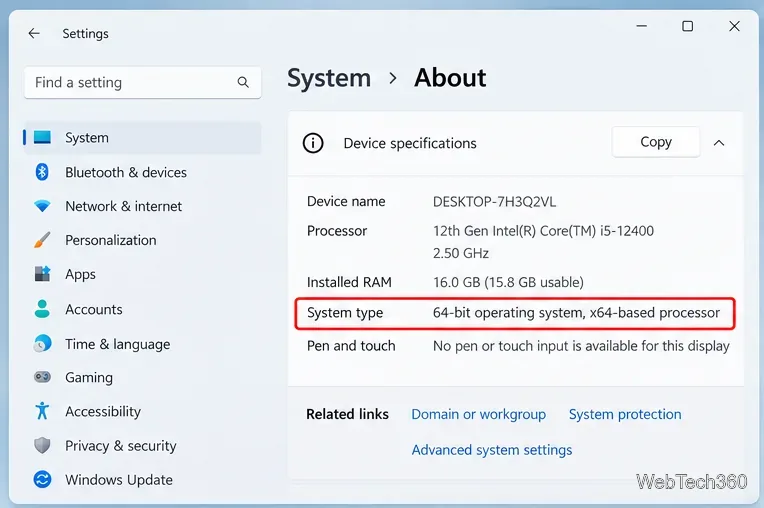
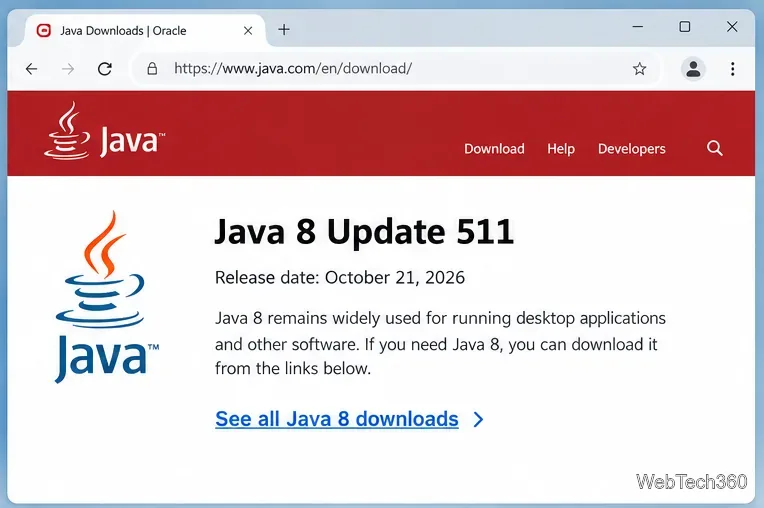
If a Windows application asks you to install the Java Runtime Environment (JRE), the current Oracle desktop runtime is Java 8 Update 511, released on October 21, 2026. Oracle still provides both 32-bit (x86) and 64-bit (x64) Windows JRE installers. For most modern 64-bit Windows PCs, use the 64-bit installer unless the application specifically requires 32-bit Java.
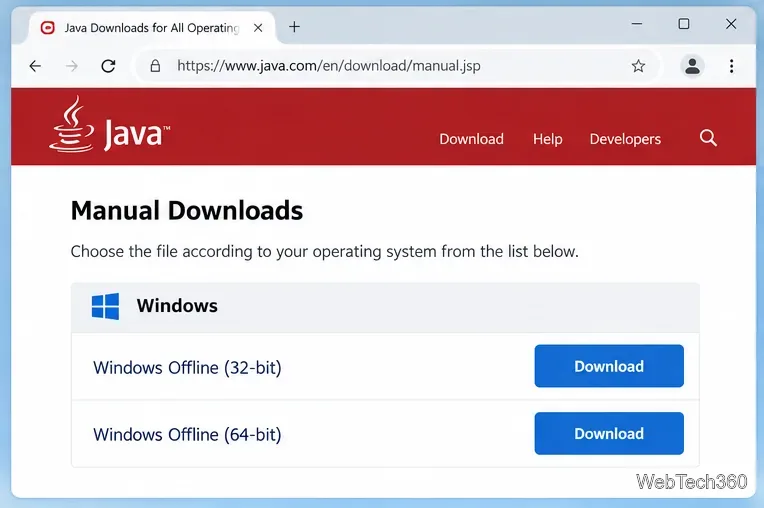
Download Java only from Oracle's official Java download page or its manual download page. Avoid third-party download sites, especially for runtime software that receives security updates.
The important distinction is your operating system and, for older software, the architecture the application expects.
Oracle's current Java 8 manual page continues to offer Windows Offline and Windows Offline (64-bit) packages. Its download-selection guide also explains the difference between the two architectures.
Open Command Prompt and run:
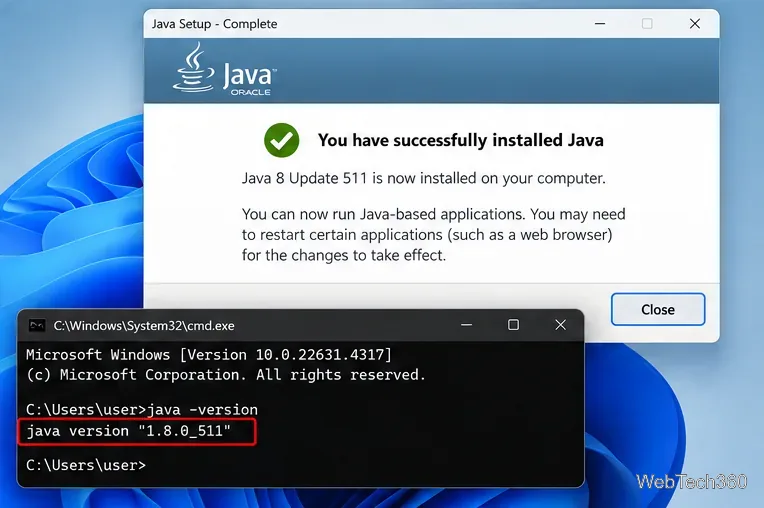
java -version
For the current Java 8 release, the output should identify version 1.8.0_511. If Windows says that java is not recognized, first reopen Command Prompt. If the error remains, the application may use its own bundled Java runtime, or Java may not be on the system PATH. Many desktop programs can still find an installed JRE without a global PATH entry.
“Latest Java” can mean two different things. The standalone Oracle desktop JRE is still Java 8, while newer Java platform releases are distributed as JDKs. Oracle's migration documentation states that JDK 11 and later no longer include a separate JRE image. As of the October 2026 update cycle, Oracle also publishes newer JDK releases, including JDK 27.
If a program specifically says it needs “Java 8,” “JRE 8,” or a 32-bit Java runtime, install Java 8 from java.com. If you are developing Java software or an application requires Java 11, 17, 21, 25, 27, or another newer release, use the appropriate JDK instead. Oracle documents this change in its JDK migration guide.
Usually, no. The old Java browser plug-in depended on NPAPI, which Chrome and modern Firefox no longer support. Installing JRE 8 today is mainly useful for desktop applications, legacy enterprise software, Java Web Start workflows that still depend on Java 8, and other programs that explicitly request it. Do not add sites to Java's exception list unless you understand why a trusted legacy application requires it.
Oracle states that Java SE 8 updates remain available at no cost for personal use, development, testing, prototyping, demonstrating, and certain other uses under the Oracle Technology Network license. Business deployments may have different licensing requirements, so organizations should review the Oracle Java licensing FAQ.
For security, keep Java 8 updated if you must have it installed, and remove obsolete Java versions that are no longer required by your applications. The Oracle October 2026 Java SE update page lists the current 8u511 JRE packages alongside supported JDK releases.
Learn how to install MyIPTV Player on Windows 10, add an M3U playlist and EPG, refresh channels, and fix common setup or playback problems.
HP Print and Scan Doctor was retired by HP on May 27, 2025. Learn what replaced it, how to run Diagnose & Fix, and how to remove old copies safely.
Is Segurazo a virus? Learn how to remove Segurazo or SAntivirus safely, scan for leftovers, and avoid risky registry-cleanup advice.
Learn what Glarysoft Registry Repair does, how to use its scan and backup tools, and why Microsoft recommends caution with registry cleaners.
Download Wise Registry Cleaner safely from the official site, learn the safest scan settings, backup options, and whether this free Windows tool is worth using.
Download and install 7-Zip for Windows 10, then learn how to compress, extract, test, and password-protect archives safely.
Learn how to download and install Bandicam 2027, record your screen, find saved videos, adjust key settings, and understand the free version limits.
Download and install SharpKeys on Windows 10, then remap, disable, swap, or restore keyboard keys safely using the Windows Scancode Map.
Hextech Repair Tool is now Riot Repair Tool. Learn where to download it safely, collect League of Legends logs, run repairs, and contact Riot Support.
Download and install HD Tune Pro on Windows 10, choose the supported version, run benchmarks, check S.M.A.R.T. health, and scan drives for errors.








