MyIPTV Player for Windows 10: How to Set Up and Use It

Learn how to install MyIPTV Player on Windows 10, add an M3U playlist and EPG, refresh channels, and fix common setup or playback problems.
IObit Driver Booster 14 is a legitimate Windows driver-updater from IObit, but it should not be treated as risk-free. The safest approach is to download it only from IObit, review every proposed driver before installing it, and keep a restore point available. For many PCs, Windows Update and the hardware maker's own support page should still be the first places to look for drivers.
Driver Booster scans Windows for outdated, missing, or faulty device drivers and lets you download and install replacements from one interface. IObit released Driver Booster 14 on September 16, 2026. The company says the current release supports Windows 11, Windows 10, Windows 8/8.1, and Windows 7, including x86, x64, and Arm64 systems. Its current official user manual lists 1 GB of free disk space as a requirement for downloads and installation.
IObit also advertises a database of more than 23 million drivers for Driver Booster 14. That number is a vendor claim rather than an independent measure of compatibility. Microsoft notes that Windows 11 already installs recommended drivers through Windows Update and offers additional drivers under Optional updates.
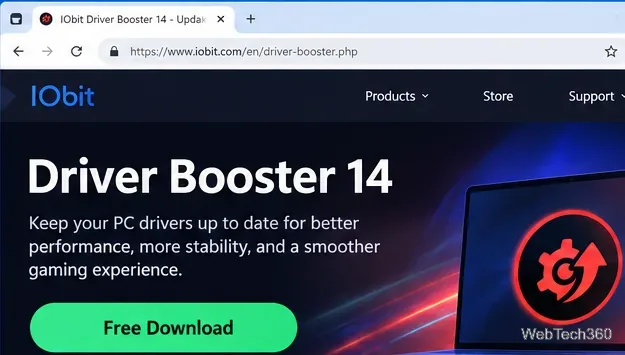
driver_booster_setup.exe and review each screen instead of clicking through automatically. If the installer presents extra products, promotions, or optional choices, decline anything you do not want.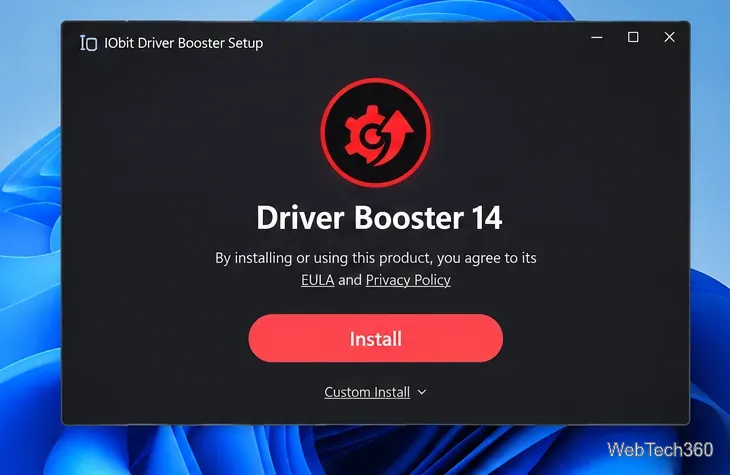
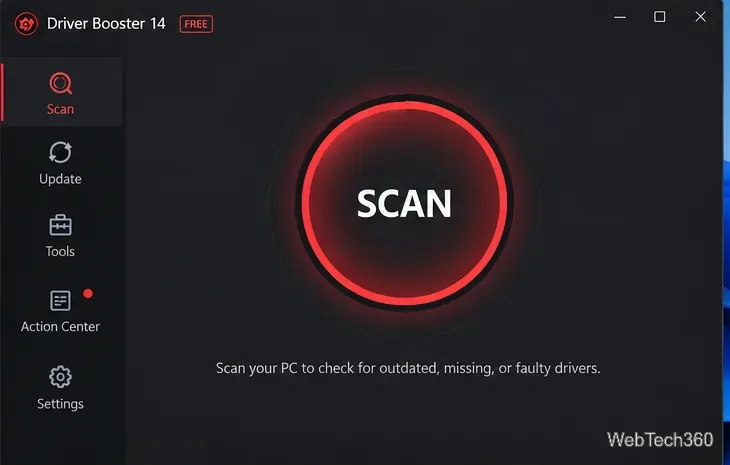
Driver Booster's current manual describes a simple scan-and-update workflow. The program may scan automatically when it opens, although that behavior can be disabled in Settings.
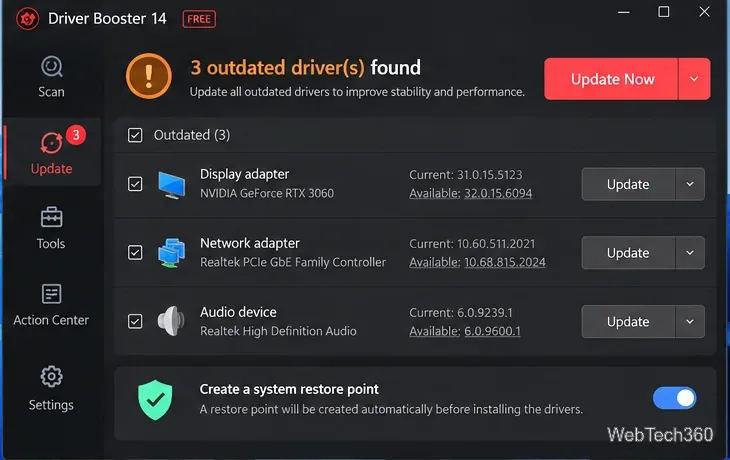
Driver Booster itself is not inherently malware when downloaded from IObit's official site, but driver installation always carries some system risk. A signed or newer driver can still introduce a bug, reduce performance, or conflict with specific hardware. Avoid the old claim that an incompatible driver can never be installed.
IObit says Driver Booster checks drivers with Microsoft WHQL verification and an IObit security scan. Microsoft explains that WHQL-signed driver packages pass Windows hardware testing and can be distributed through Windows Update. Even so, Microsoft's own guidance is a useful baseline: use Windows Update for recommended and optional drivers, and if Windows cannot find the correct driver, check the hardware manufacturer's website.
For a safer update, change one important driver category at a time, create a restore point first, and avoid updating a working storage, chipset, or network driver without a reason. If you are troubleshooting a specific GPU, printer, Wi-Fi adapter, or motherboard device, the manufacturer's driver is usually easier to verify and roll back.
IObit's privacy policy, updated July 30, 2026, says its products may collect non-personal information such as operating-system details, device identifiers, IP addresses, product usage, and feature-access data. Read the policy if telemetry is a concern and review the app's settings after installation.
Also note that Microsoft ended free support for Windows 10 on October 14, 2025. Updating drivers does not replace operating-system security updates, so a supported Windows version is still important.
The Free edition covers the core scan-and-manual-update workflow. IObit's current Pro comparison advertises automatic updating, offline network-driver support, automatic driver backups, broader driver coverage, and additional repair features. Pricing and promotions change frequently, so check IObit's current Pro page rather than relying on an old sale price.
Driver Booster is convenient when you manage many device drivers or need an easier way to identify missing hardware support. It is not essential for every PC. On a normal Windows 11 system, start with Windows Update, use manufacturer drivers for important hardware, and keep Driver Booster as an optional convenience tool rather than an automatic "update everything" button.
Learn how to install MyIPTV Player on Windows 10, add an M3U playlist and EPG, refresh channels, and fix common setup or playback problems.
HP Print and Scan Doctor was retired by HP on May 27, 2025. Learn what replaced it, how to run Diagnose & Fix, and how to remove old copies safely.
Is Segurazo a virus? Learn how to remove Segurazo or SAntivirus safely, scan for leftovers, and avoid risky registry-cleanup advice.
Learn what Glarysoft Registry Repair does, how to use its scan and backup tools, and why Microsoft recommends caution with registry cleaners.
Download Wise Registry Cleaner safely from the official site, learn the safest scan settings, backup options, and whether this free Windows tool is worth using.
Download and install 7-Zip for Windows 10, then learn how to compress, extract, test, and password-protect archives safely.
Learn how to download and install Bandicam 2027, record your screen, find saved videos, adjust key settings, and understand the free version limits.
Download and install SharpKeys on Windows 10, then remap, disable, swap, or restore keyboard keys safely using the Windows Scancode Map.
Hextech Repair Tool is now Riot Repair Tool. Learn where to download it safely, collect League of Legends logs, run repairs, and contact Riot Support.
Download and install HD Tune Pro on Windows 10, choose the supported version, run benchmarks, check S.M.A.R.T. health, and scan drives for errors.








