MyIPTV Player for Windows 10: How to Set Up and Use It

Learn how to install MyIPTV Player on Windows 10, add an M3U playlist and EPG, refresh channels, and fix common setup or playback problems.
Samsung Data Migration is now built into Samsung Magician, so you no longer need the old standalone migration app. On a supported Windows PC, the Data Migration feature can clone your Windows installation, applications, and user data from an existing HDD or SSD to a compatible Samsung SSD.
It is best treated as an upgrade tool, not a general-purpose backup program. The source drive must contain the operating system, and the destination must be a supported Samsung SSD. Keep your old drive untouched until you have confirmed that the new SSD boots correctly.
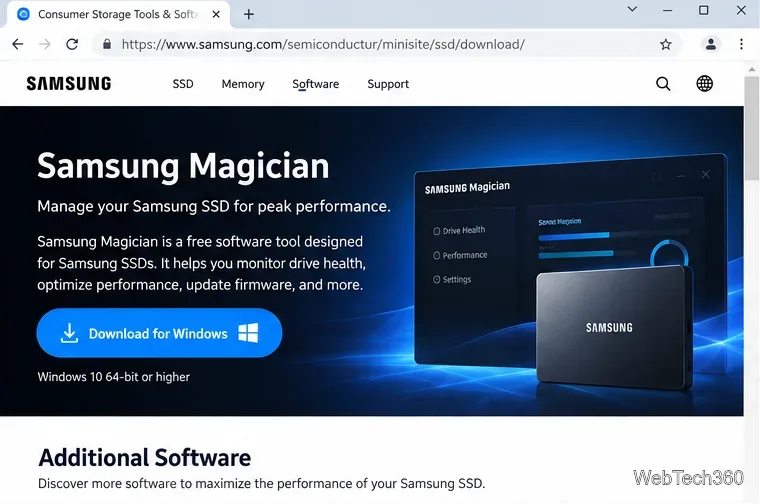
Get Magician only from Samsung's official Consumer Storage Tools & Software page. Samsung's current support page states that the former Data Migration software is integrated into Magician.
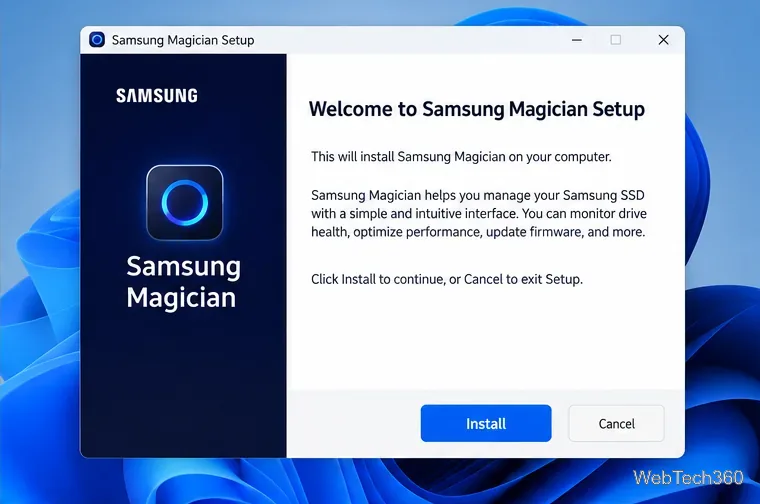
Samsung's Magician 9 installation guide lists Windows 10 or later among the supported operating systems and supports MBR and GPT partition types. Data Migration itself is a Windows feature; Magician's macOS and Android versions do not provide the same internal-SSD cloning workflow.
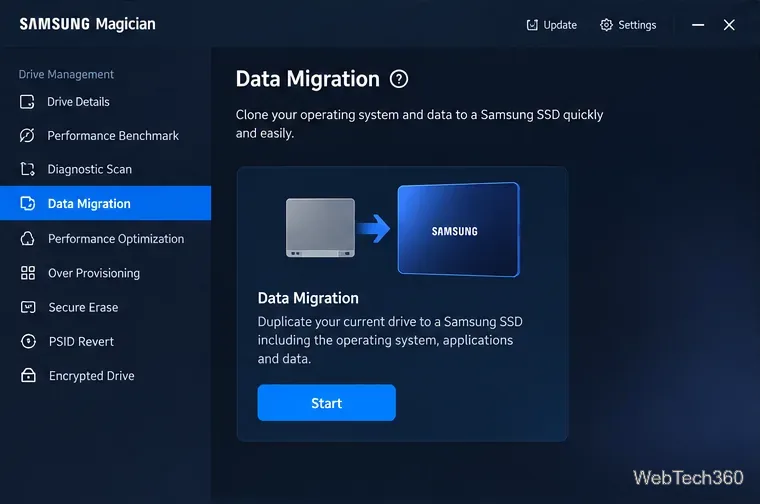
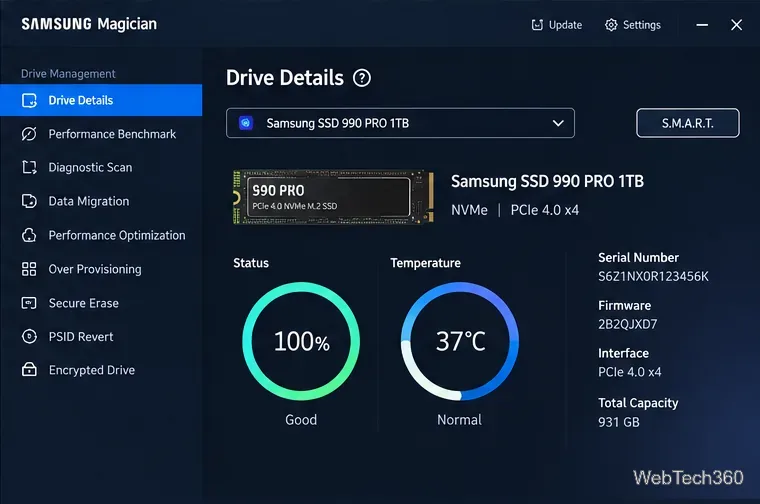
The current Samsung workflow is straightforward. Samsung's SSD upgrade guide describes the same basic order: choose the current OS device, choose the target drive, choose the source volume, then start migration.
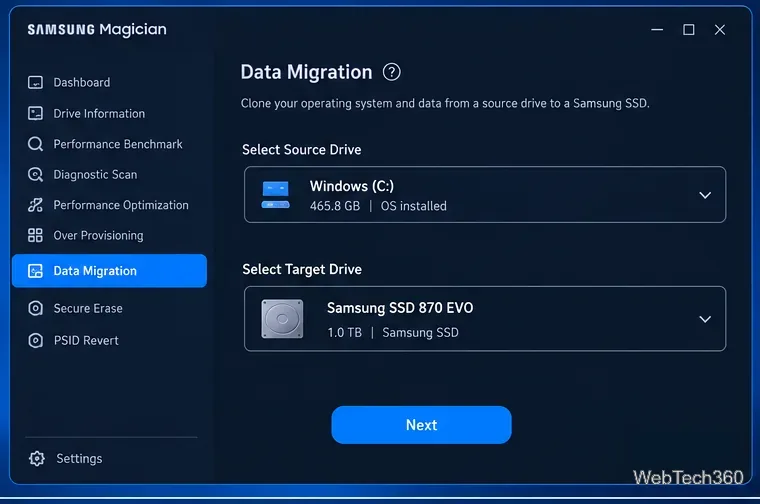
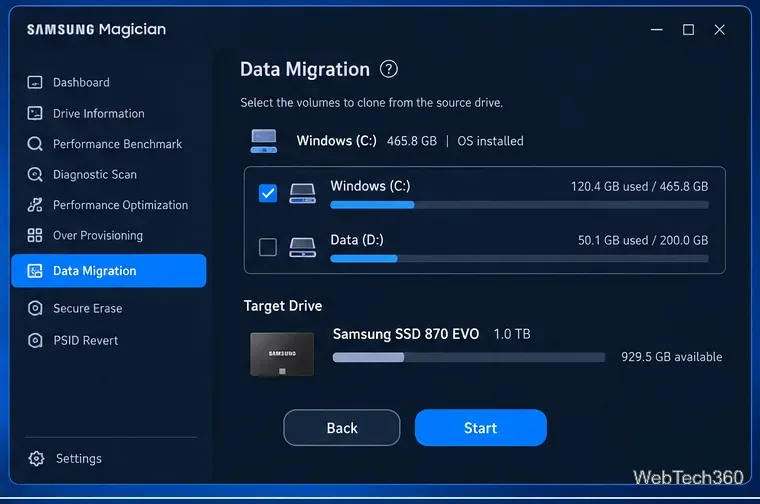
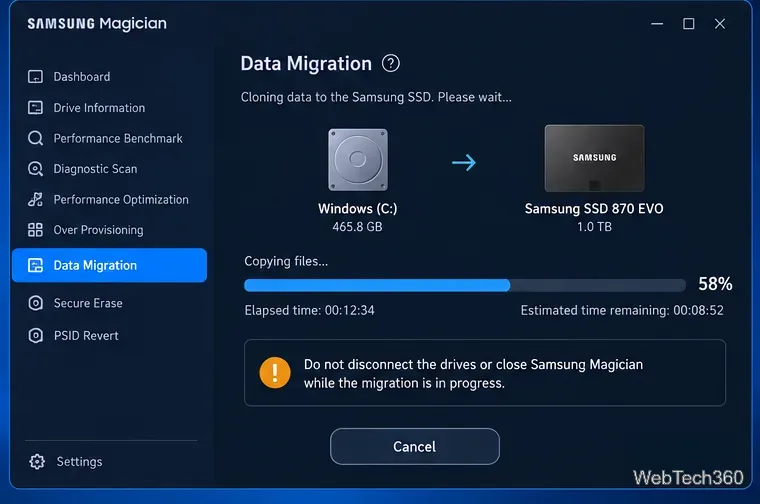
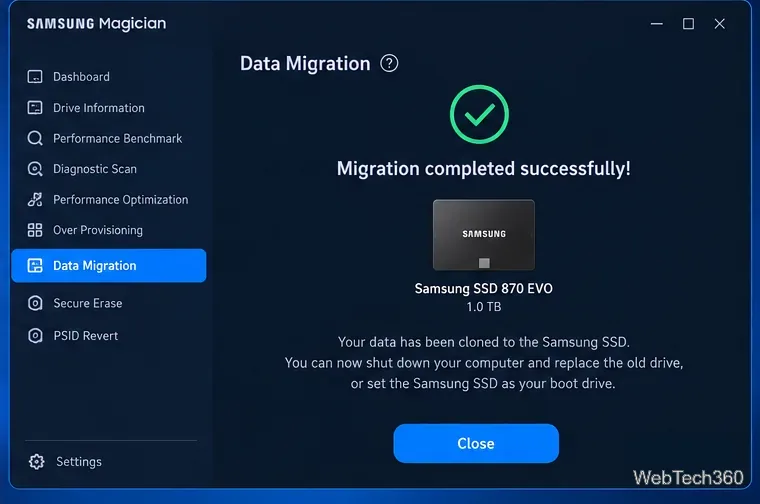
When Magician reports success, shut down the PC. If you are physically replacing the old drive, install the new Samsung SSD and boot from it. If both drives remain installed, check your firmware/UEFI boot order so the Samsung SSD is the boot device.
Data Migration is selective about system data. Samsung says page files and hibernation files are not copied, which is normal because Windows recreates them. An OEM recovery partition made by a PC manufacturer is generally not cloned, except for certain Samsung systems using supported Samsung Recovery Solution versions.
The official guide also notes that Data Migration supports NTFS and FAT file systems, may fail with dynamic disks, and may not work correctly if the source drive has bad sectors. If cloning repeatedly fails, use Windows drive-error checking, update storage drivers, connect the SSD directly where possible, and review Samsung's Magician support page for current compatibility details.
Boot from the new Samsung SSD and verify that Windows, your applications, and your important files open normally. Only after that check should you erase, repurpose, or remove the old drive. For ongoing protection, keep using a separate backup solution; Samsung Data Migration is designed for moving a Windows installation to a Samsung SSD, not for scheduled backups.
Learn how to install MyIPTV Player on Windows 10, add an M3U playlist and EPG, refresh channels, and fix common setup or playback problems.
HP Print and Scan Doctor was retired by HP on May 27, 2025. Learn what replaced it, how to run Diagnose & Fix, and how to remove old copies safely.
Is Segurazo a virus? Learn how to remove Segurazo or SAntivirus safely, scan for leftovers, and avoid risky registry-cleanup advice.
Learn what Glarysoft Registry Repair does, how to use its scan and backup tools, and why Microsoft recommends caution with registry cleaners.
Download Wise Registry Cleaner safely from the official site, learn the safest scan settings, backup options, and whether this free Windows tool is worth using.
Download and install 7-Zip for Windows 10, then learn how to compress, extract, test, and password-protect archives safely.
Learn how to download and install Bandicam 2027, record your screen, find saved videos, adjust key settings, and understand the free version limits.
Download and install SharpKeys on Windows 10, then remap, disable, swap, or restore keyboard keys safely using the Windows Scancode Map.
Hextech Repair Tool is now Riot Repair Tool. Learn where to download it safely, collect League of Legends logs, run repairs, and contact Riot Support.
Download and install HD Tune Pro on Windows 10, choose the supported version, run benchmarks, check S.M.A.R.T. health, and scan drives for errors.








