MyIPTV Player for Windows 10: How to Set Up and Use It

Learn how to install MyIPTV Player on Windows 10, add an M3U playlist and EPG, refresh channels, and fix common setup or playback problems.
SpeedFan 4.52 is a free Windows hardware-monitoring utility that can read temperatures, fan speeds, voltages, and S.M.A.R.T. information from compatible hardware. The developer’s official download page still lists 4.52 as the latest version and explicitly lists Windows 10 and 64-bit Windows support.
SpeedFan is a legacy utility. It may read sensors on a PC without being able to change fan speed because software control also depends on the motherboard exposing compatible circuitry.
The developer says the official installer and executable are digitally signed by SOKNO S.R.L. If a file claiming to be SpeedFan does not have that signature, do not use it. Prefer the original download page over third-party mirrors.
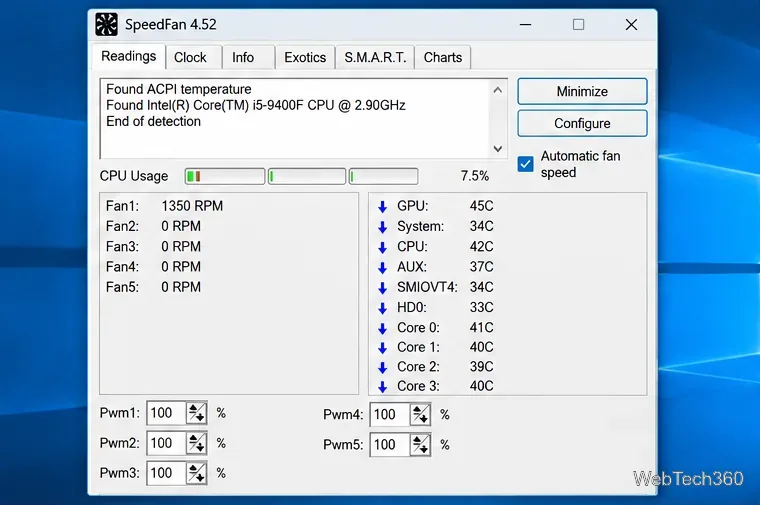
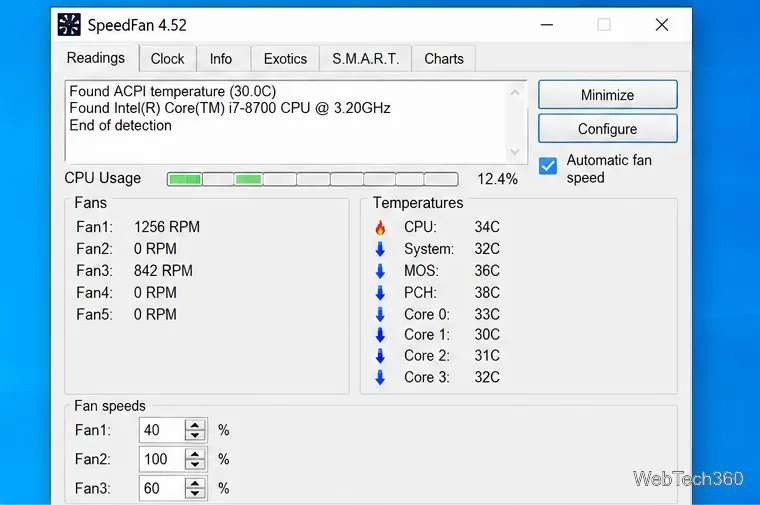
Start on the Readings tab, then open Configure to see the monitoring hardware SpeedFan found. Sensor labels are not always self-explanatory. The developer’s official FAQ recommends comparing readings with the BIOS/UEFI hardware monitor or the motherboard manufacturer’s utility because manufacturers can wire the same monitoring chip differently.
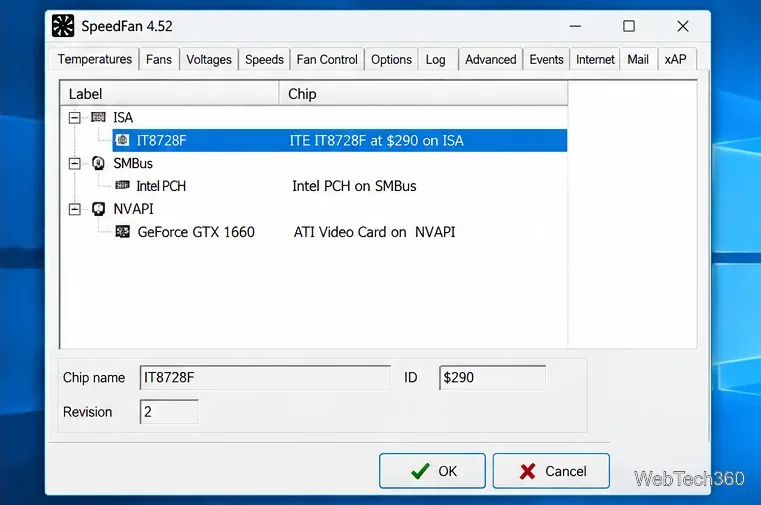
After identifying a sensor, press F2 to rename its reading for easier tracking.
To test fan control, choose Configure > Advanced, select the relevant hardware-monitor chip, and look for a PWM property such as PWM 1 mode. On compatible systems, it may offer a Software controlled value. Chip names and available PWM entries vary by motherboard.
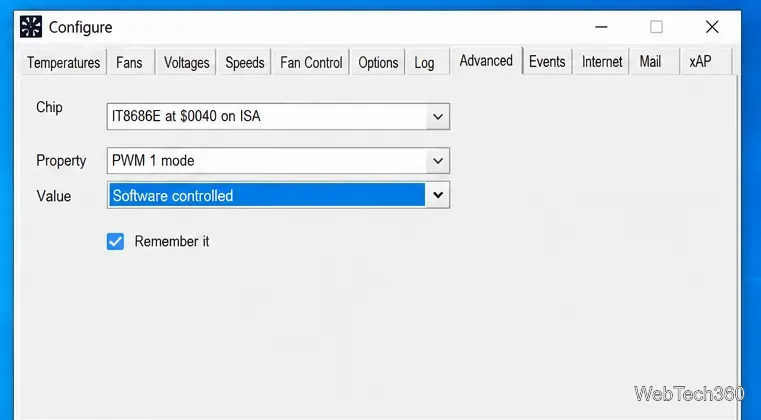
Change one control at a time and verify that the intended physical fan responds. Leave Remember it disabled until you know the setting is correct. If no suitable PWM option appears, do not force it. The developer’s supported-hardware information notes that sensor monitoring and fan-speed control are separate capabilities.
In Configure > Temperatures, select the sensor that should influence cooling and set its desired and warning temperatures. In Configure > Speeds, set the minimum and maximum range for the related PWM control. There is no universal safe value for every CPU, GPU, fan, or case, so use the component manufacturer’s thermal limits instead of copying arbitrary percentages.
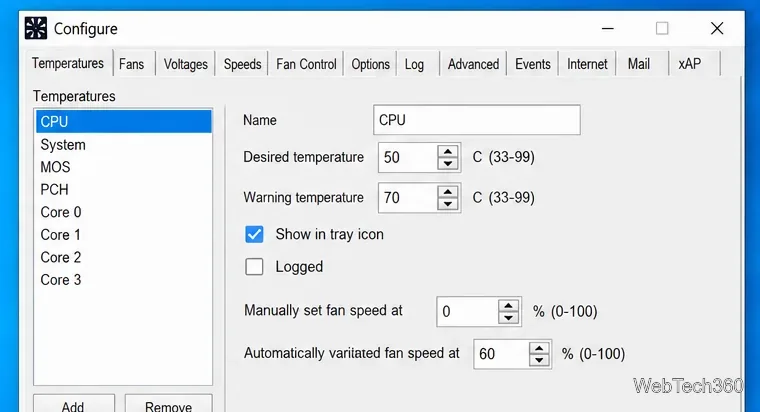
For finer control, use the Fan Control tab to associate a temperature source with a fan and define how fan speed should rise as temperature increases. The official Advanced Fan Control guide explains that the response curve also respects the minimum and maximum values set in the Speeds tab.
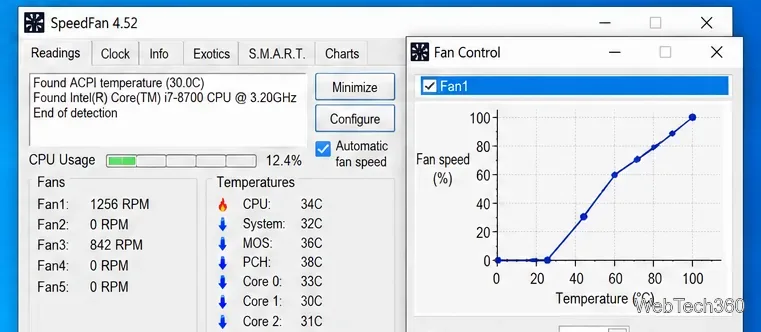
The guide also notes that a configured warning temperature can force the relevant PWM output to 100%. Test the curve carefully.
After the controls behave as expected, return to the main window and enable Automatic fan speed. Watch both fan RPM and temperature readings while the PC is idle and during a normal workload. If temperatures keep climbing or the wrong fan changes speed, disable automatic control and restore the previous settings.
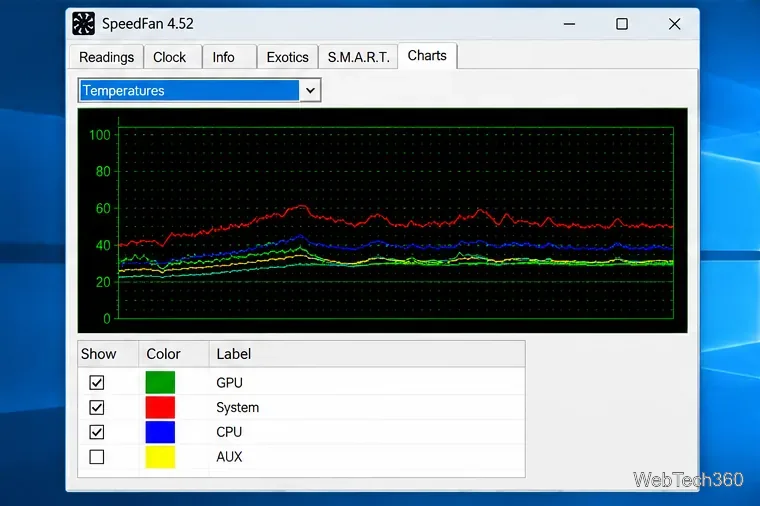
The Charts tab plots temperatures, fan speeds, or voltages over time so you can see whether cooling responds as the system warms up.
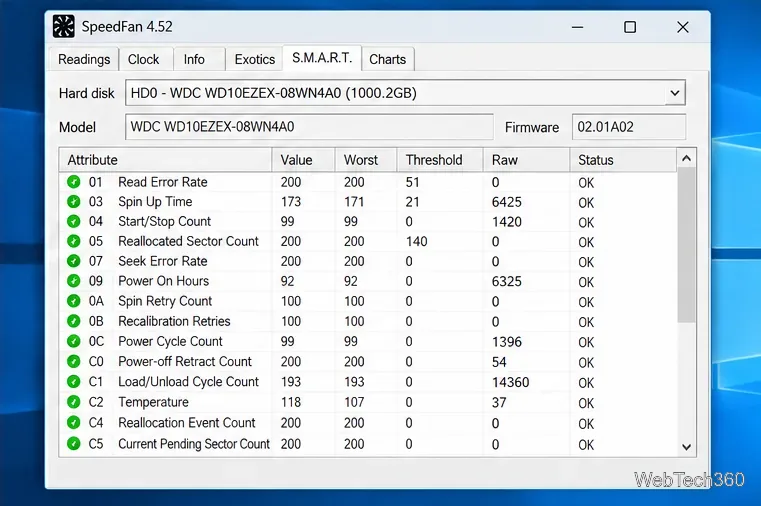
The S.M.A.R.T. tab can show drive-reported attributes such as power-on hours or reallocated sectors when available. Treat it as supporting information, not a replacement for backups or manufacturer diagnostics.
SpeedFan can detect temperatures and fan RPM without being able to change a fan. The official documentation explains that the motherboard must include and connect the circuitry required for fan control. If a percentage changes in SpeedFan but the physical fan does not respond, restore the original setting and use the motherboard’s BIOS/UEFI fan controls or its current vendor utility instead.
SpeedFan is safest when downloaded from the developer’s site and used cautiously. Reading sensors is low risk, but incorrect PWM settings can reduce cooling and cause overheating. Make small changes, verify the correct fan after every adjustment, monitor temperatures, and avoid saving automatic settings until the system behaves predictably.
Learn how to install MyIPTV Player on Windows 10, add an M3U playlist and EPG, refresh channels, and fix common setup or playback problems.
HP Print and Scan Doctor was retired by HP on May 27, 2025. Learn what replaced it, how to run Diagnose & Fix, and how to remove old copies safely.
Is Segurazo a virus? Learn how to remove Segurazo or SAntivirus safely, scan for leftovers, and avoid risky registry-cleanup advice.
Learn what Glarysoft Registry Repair does, how to use its scan and backup tools, and why Microsoft recommends caution with registry cleaners.
Download Wise Registry Cleaner safely from the official site, learn the safest scan settings, backup options, and whether this free Windows tool is worth using.
Download and install 7-Zip for Windows 10, then learn how to compress, extract, test, and password-protect archives safely.
Learn how to download and install Bandicam 2027, record your screen, find saved videos, adjust key settings, and understand the free version limits.
Download and install SharpKeys on Windows 10, then remap, disable, swap, or restore keyboard keys safely using the Windows Scancode Map.
Hextech Repair Tool is now Riot Repair Tool. Learn where to download it safely, collect League of Legends logs, run repairs, and contact Riot Support.
Download and install HD Tune Pro on Windows 10, choose the supported version, run benchmarks, check S.M.A.R.T. health, and scan drives for errors.








