Home
» WEB
»
How to Check If Someone Else Is Accessing Your Gmail Account
How to Check If Someone Else Is Accessing Your Gmail Account
To check whether someone else is accessing your Gmail account, open Gmail on a computer and click Details beside Last account activity at the bottom right. Google shows recent access types, IP addresses, approximate locations, and times. Then check your Google Account’s signed-in devices and recent security events. An unfamiliar entry deserves investigation, but a different IP address or city does not automatically mean your account was hacked.
Scroll to the bottom of the inbox. In the bottom-right corner, locate Last account activity.
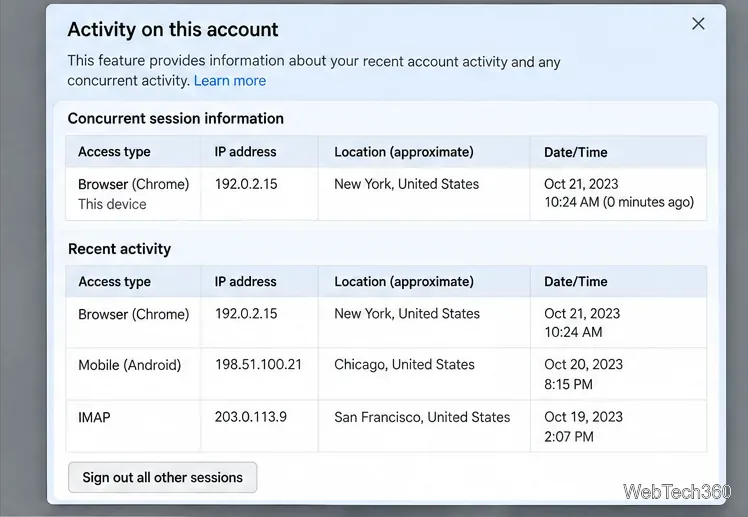
Click Details to open the Activity on this account window.
This is Gmail’s built-in access-history view. If you use the Gmail mobile app, switch to a desktop browser for these instructions. Google documents this path in its Last account activity help page.
In desktop Gmail, the Details link is beside the Last account activity indicator.
2. Check the access records for unfamiliar activity
The activity window provides several clues that are more useful together than individually:
Concurrent sessions: Whether Gmail is signed in through another browser, device, or location.
Access type: How mail was accessed, such as a browser, mobile device, or POP/IMAP mail client.
IP address and approximate location: Network information associated with recent access.
Date and time: When Gmail recorded the activity, which you can compare with your own use.
Google says this view can show the last 10 IP addresses used to access Gmail and, after certain suspicious-activity warnings, up to three additional flagged IP addresses. It is not a complete, permanent audit log.
Compare the access type, IP address, approximate location, and time in the activity records.
Is an unfamiliar IP address proof of an intruder?
No. Mobile carriers can route traffic through another city, VPNs can change your apparent location, and mail apps such as Outlook or Apple Mail can create access entries. A Google server may also appear when mail is fetched through a Google service. Look for patterns: access types you never use, devices you do not own, or activity that conflicts with your actual sign-ins.
3. Inspect devices signed in to your Google Account
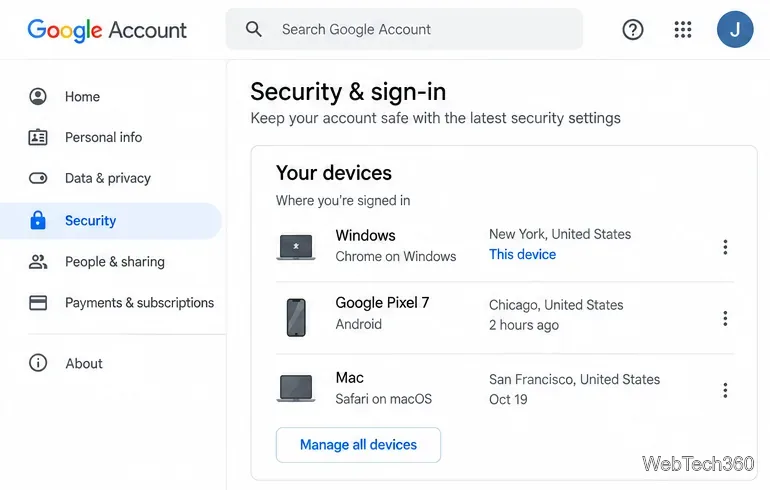
Gmail’s activity view is only one part of the picture. Open Google Account devices or go to Google Account → Security & sign-in → Your devices → Manage all devices. Review phones, computers, browsers, and sessions that are currently signed in or were signed in during the last few weeks.
Select an unfamiliar device or session to inspect it. Google may show multiple sessions for one device, and the displayed time can reflect background synchronization rather than direct use. If you cannot identify a session, use the device details to sign out and follow any prompts to secure the account. Google’s device-management instructions explain these distinctions.
The Google Account device list helps identify sessions that do not belong to you.
4. Check recent security events
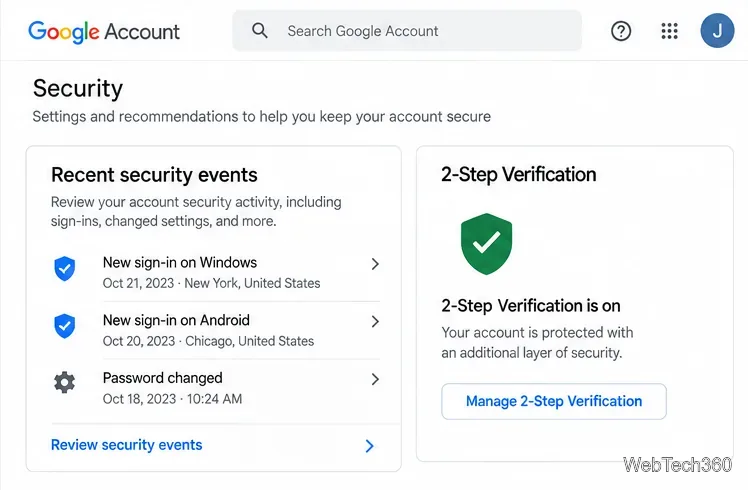
In your Google Account, open Security & sign-in and find Recent security events. Choose Review security events. Check for new sign-ins, password changes, and other security actions you did not perform.
If an event is not yours, select the option indicating No, it wasn’t me (where offered) and follow Google’s instructions. Don’t trust a sign-in alert merely because it arrived by email: open your Google Account directly instead of following a suspicious link. See Google’s security alert guidance.
Review recent security events and verify your sign-in protection settings.
5. Secure your Gmail account if access looks unauthorized
If you find convincing signs that someone is in your account, act promptly from a device you trust:
Change your Google Account password immediately. Go to Security & sign-in → How you sign in to Google → Password, and choose a strong, unique password. Password changes sign out many sessions, but Google documents exceptions, so also review devices and app access.
Sign out unfamiliar devices from the device-management page. Do not assume that closing Gmail on your current computer disconnects every other session.
Turn on 2-Step Verification under How you sign in to Google; consider a passkey or security key for stronger phishing resistance.
Check for hidden mail access. In Gmail, open Settings → See all settings. Review Forwarding and POP/IMAP (or the Forwarding tab), Filters and Blocked Addresses, and, where available, Accounts and Import for unfamiliar delegation. Remove forwarding rules or filters you did not create.
Review recovery information and third-party access in your Google Account. Remove unknown connected apps, check recovery email and phone details, and scan devices for malware if theft or phishing is possible.
Bottom line: Gmail’s Details link helps spot unexpected mail access, while the Google Account device and security-event pages help confirm what happened and secure your account.