Home
» WEB
»
Integrated Inbox for Firefox: Access Google Apps Inside Gmail
Integrated Inbox for Firefox: Access Google Apps Inside Gmail
Integrated Inbox for Firefox was designed to put Google services and selected third-party apps inside the Gmail page, so you could consult a calendar, view a map, or reach other tools without constantly switching browser tabs. The extension is still listed on Mozilla Add-ons, but its latest listed release is from April 2019. That makes it worth treating as an older tool, not a guaranteed solution for today's Gmail.
What Integrated Inbox added to Gmail
Instead of acting as another email client, Integrated Inbox modified the Gmail experience in Firefox. Its expandable integrations could display selected web services in areas of the inbox, with controls for showing, hiding, and arranging them. The developer described integrations for Google Calendar, Maps, Contacts, Drive, Keep, and services such as Feedly and Evernote, depending on the edition.
The main attraction was a single working space: read an email, check an appointment, and return to your messages without managing a separate tab for every service. This was more than a collection of bookmarks, although it was never a promise that every Google product would work inside Gmail.
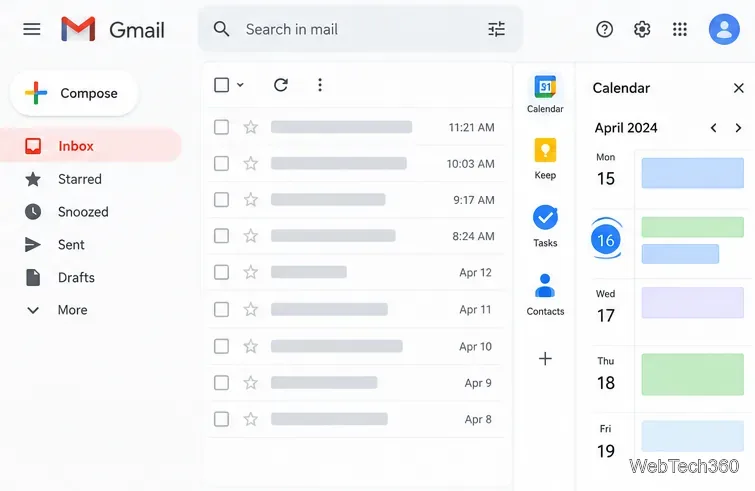
Example of the expandable app sections that defined the older Integrated Inbox concept; this is not a verified current Gmail screen.
Is Integrated Inbox still available for Firefox?
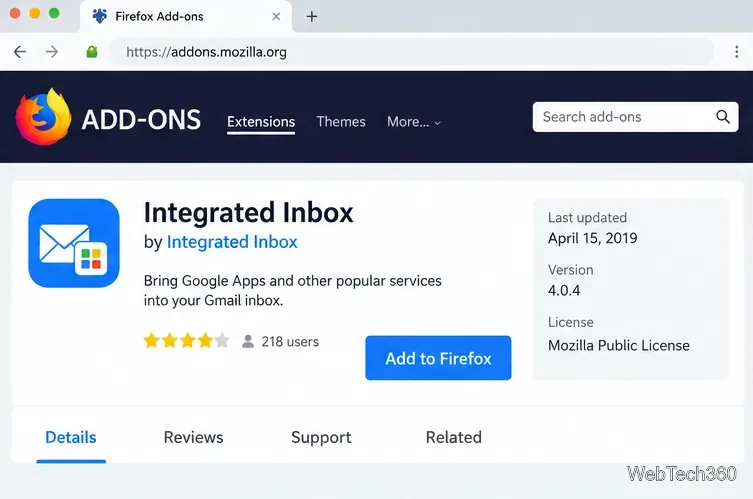
Yes, the Integrated Inbox listing on Mozilla Add-ons remains accessible. Mozilla identifies version 4.0.4 as the latest release and lists April 15, 2019 as its update date. The developer website also remains online, but its pages still discuss discontinued services such as Google Reader, Google+, and Google Play Music. Those references are historical, not features to expect today.
Current compatibility has not been verified here. A download page alone does not establish that an extension continues to operate correctly after years of changes to Firefox, Gmail, and third-party websites. For the same reason, the site's Free, Plus, and Pro offers should not be treated as confirmed current purchasing options.
Where to check the extension name, release history, and permissions before installing; the visual is an example layout rather than a live listing.
How to try Integrated Inbox in Firefox
If you specifically want to explore the original extension, use this cautious workflow. Your browser's actual buttons and the add-on's behavior may differ from the older screenshots in the developer documentation.
Open the official add-on listing in Firefox. Review the version history, available install control, and the permissions it requests. Mozilla's Firefox extension installation guide explains how installations are handled.
Install only if you accept the permissions. Then open Gmail in Firefox, or refresh an already-open Gmail tab. Look for Integrated Inbox's controls rather than assuming they will appear in the same place as in an older tutorial.
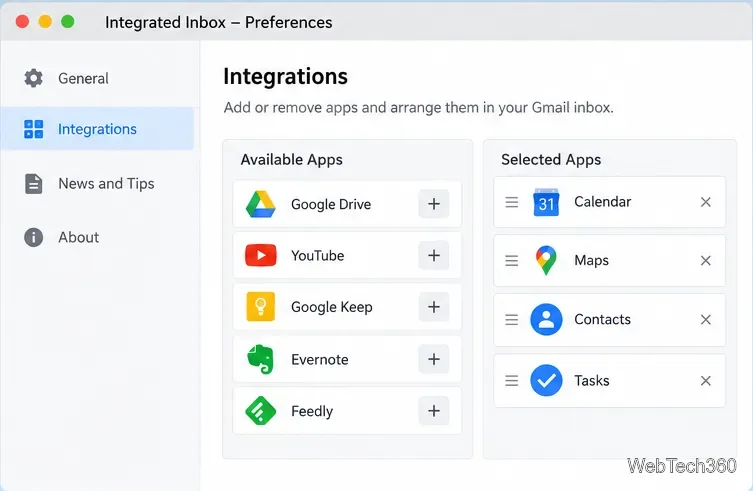
Choose the integrations you want. In the legacy interface, the extension's settings included an Integrations area for adding, removing, and reordering supported app sections. Start with one familiar service, such as Calendar, and verify that it loads correctly.
Check that your inbox still behaves normally. Open a message and switch between an integration and the mail list. If a section fails, disappears, or interferes with Gmail, disable the extension rather than granting additional permissions blindly.
The former customization idea: choose app sections and arrange their order. Available integrations and controls may no longer match this layout.
What about the Free, Plus, and Pro plans?
The developer's published plan comparison describes a Free tier with two chosen integrations, Plus with five, and Pro with unlimited integrations. It also places some services behind paid tiers. These figures explain how Integrated Inbox was organized; they are not verified as current entitlements or prices. Do not rely on an older trial offer, subscription amount, or payment link without obtaining current confirmation from the provider.
Likewise, older references to Google Reader or Google+ should not be interpreted as working integrations. A service that has been retired cannot be restored simply by adding it to the Firefox extension.
A built-in way to use Google apps alongside Gmail
For most users who just want Calendar, Keep, or Tasks next to their email, Gmail now offers an official side panel without a separate browser extension. Google's side-by-side app instructions describe this approach:
Open Gmail on a computer.
If the right-hand panel is hidden, select Show side panel at the bottom right.
Choose Calendar, Keep, Tasks, or another available app from the right side.
Work with the app while keeping Gmail visible, then close its panel when finished.
This is a narrower, officially supported form of integration. It does not reproduce all of Integrated Inbox's former third-party app sections or make every Google product editable inside the email view. You can still open other Google services separately using their own web apps.
Gmail’s built-in side panel lets users access selected Google tools while keeping their inbox on screen.
Privacy and troubleshooting
The Integrated Inbox Mozilla listing requests access to browser tabs and navigation activity, plus data for all websites. That is a broad permission scope. Before using an older extension with a personal or work account, review Mozilla's guidance on checking extension permissions and decide whether the convenience justifies that access. The developer's own privacy statement does not replace an independent assessment of present-day security or compatibility.
If the extension fails to display its controls, first reload Gmail and check whether Firefox reports it as enabled. To stop using it, open Firefox's menu, choose Add-ons and themes, and select Extensions. Disable the extension with its toggle, or use the three-dot menu to remove it, as described in Mozilla’s removal instructions.
Bottom line: Integrated Inbox is an interesting Firefox add-on for bringing chosen services into Gmail, but its last documented update is old. If your goal is simply to keep Google Calendar, notes, or tasks visible while reading email, Gmail's built-in side panel is the more dependable starting point.