Home
» WEB
»
How to Combine Multiple Links Into One Short Link With Shrink2One
How to Combine Multiple Links Into One Short Link With Shrink2One
Shrink2One was a link-collection service designed to put several web addresses behind one shorter URL. Instead of sending separate links to a photo album, a video, and an article, you could create a single link that opened a page listing all three destinations. The process was simple: paste your URLs, name the collection, optionally add a password, and select Shrink Now.
Availability note (October 28, 2026): The original Shrink2One website did not respond during verification. The steps below document its original published workflow; they are not confirmation that its interface or link-creation service is operational today. If the site will not load, see the alternative near the end.
What Shrink2One did differently from a regular URL shortener
A typical shortener points one short address to one destination. Shrink2One was intended to do something else: use one address as the entrance to a small list of links. A recipient could open that collection and choose the individual site to visit. Descriptions of the original service also showed website thumbnails, which made the list easier to browse.
This distinction matters. Shrink2One did not merge multiple websites into one page, copy their contents, or turn several URLs into a single direct redirect. It created a separate page that organized the original links. The destination sites still had to be available for those links to work.
How to combine multiple links with Shrink2One
These four steps describe the service's historical workflow. The screens below show the sequence using example addresses, not a verified current version of Shrink2One.
1. Collect the links you want to share
Copy the full addresses of the pages you want to include. For example, gather a public photo gallery, a video, and an article. Check that each URL begins with https:// where available, opens the intended page, and does not require recipients to sign in unexpectedly. A collection link cannot override the permissions of its destinations.
Collect the full destination URLs before building the link collection.
2. Paste the URLs and name the collection
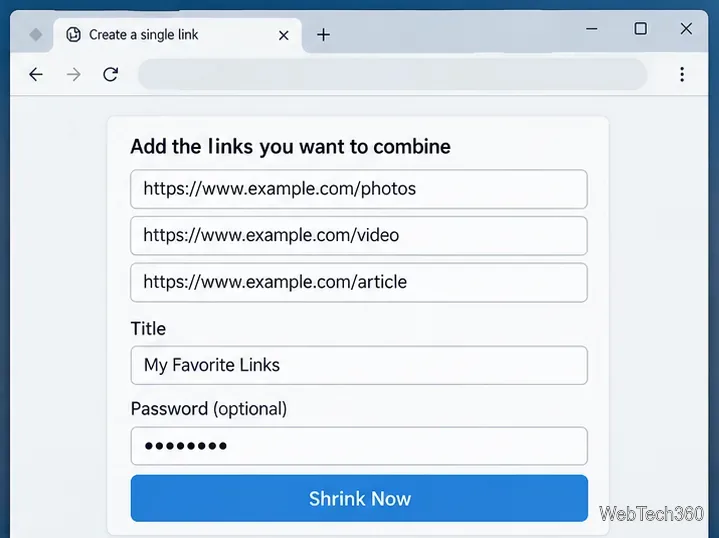
In the original Shrink2One interface, you entered the destination URLs in the link field or list, then supplied a descriptive Title. A title such as “Weekend Photos and Videos” helped recipients understand what they would find. The service also offered an optional password for the collection. Because that behavior has not been reverified, do not assume password protection is available or suitable for confidential materials today.
The original workflow used a list of URLs, a title, an optional password, and the Shrink Now action.
3. Select Shrink Now and save the resulting link
The original form had a Shrink Now button. Selecting it produced a shorter link associated with the list of destinations. Copy that new address and keep it somewhere you can retrieve it later. If the page displays an error, does not create an address, or redirects somewhere unfamiliar, stop rather than submitting private URLs repeatedly.
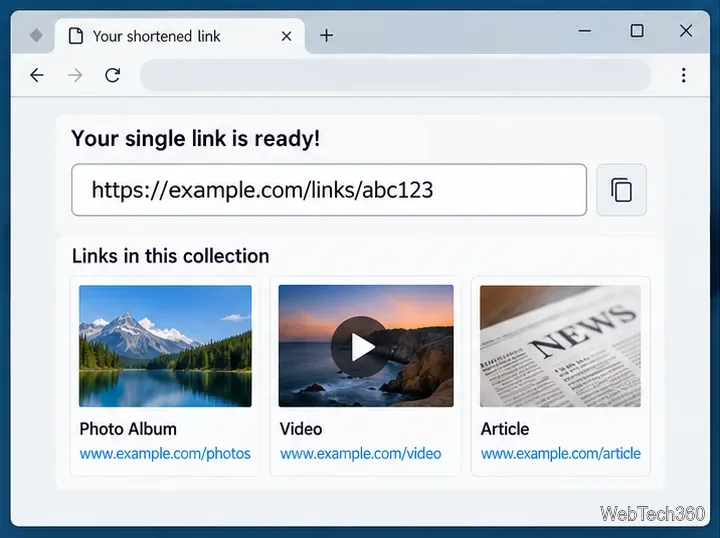
When the service worked, the result was a collection page featuring the links and, according to the original description, thumbnail previews of the destinations. The thumbnails were navigation aids, not copies of the underlying websites.
A combined link leads to a collection page where recipients can choose their destination.
4. Share the short link and check the recipient experience
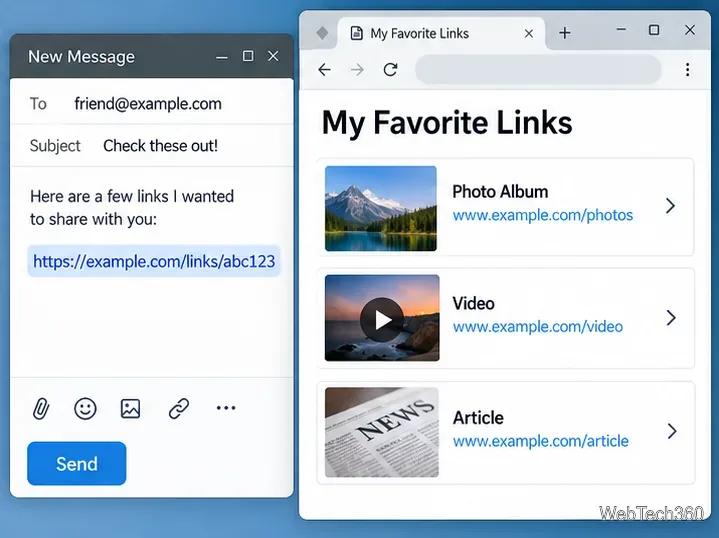
Paste the generated link into your email, chat, or other message. A recipient would open the collection and click the link or thumbnail for the site they wanted. For important shares, open the collection yourself in a separate browser session and check each destination. This confirms that the addresses and access permissions are correct, rather than assuming a successful short-link creation means all destinations work.
Send one collection link while keeping each destination available to the recipient.
Important limitations before you share
Passwords are not a substitute for file permissions. Even if a collection requires a password, each destination has its own access settings. Do not include private invitation URLs, access tokens, or sensitive query parameters.
The third-party service may see the URLs. Any collection provider must process the addresses you submit. Use a service you trust, particularly for internal documents.
Short links rely on the provider. If the collection service shuts down or its domain changes ownership, previously created links may stop working or become unsafe to follow.
Hidden destinations deserve caution. Recipients should know what they are opening. Google explains why browsers warn about suspicious and phishing sites in its Chrome Safe Browsing guidance.
What to do if Shrink2One no longer works
If the original site does not load, you can achieve the same one link to a list of links outcome with a simple published page. Google Sites is one documented option: create a site, add a heading and a button or text link for each destination, preview the page, and select Publish. Then share the published site's address. Google's instructions explain how to add link buttons and publish and share a site.
That replacement does not automatically provide Shrink2One's compact URL or historical password feature. Review the site's published visibility before sharing; a public link page is appropriate only for destinations you intend your audience to discover. If URL length matters, you can separately shorten the published page's address through a trusted service, but confirm the resulting link still reaches your link list.
The useful idea behind Shrink2One remains straightforward: make one organized landing page for several related destinations. The exact original service is uncertain today, so preserve copies of the underlying URLs and choose an approach whose sharing settings you can verify.