Home
» WEB
»
WebFonter: Preview FontShop Fonts on Any Website—What Works Now
WebFonter: Preview FontShop Fonts on Any Website—What Works Now
WebFonter was a browser tool for trying FontShop typefaces directly on a website before buying a font. It let designers change headings and body copy in place instead of judging a font from a static specimen. That original workflow is now historical: FontShop’s online store closed in 2023, and the former WebFonter address redirects to a FontShop information page rather than an installation tool. You can still preview typefaces through MyFonts and experiment with your site’s typography in browser developer tools.
Can you still install WebFonter?
Do not rely on old WebFonter installation instructions. According to Monotype’s official platform-closure FAQ, the FontShop.com commerce platform was retired on December 15, 2023. The original WebFonter web address now leads to the FontShop information page, which points customers to MyFonts. A currently supported WebFonter extension or bookmarklet could not be verified. The old Chrome extension and bookmarklet instructions should therefore be treated as a record of how the product worked, not as a working installation guide.
What WebFonter originally did
The tool’s main advantage was seeing a typeface in context. Rather than opening a separate font specimen, a designer could view a real page and change its typography while keeping the layout visible.
Open a website. The original tool was offered as a Chrome extension and as a bookmarklet for other browsers. It was described as usable on live and locally hosted sites, provided its font service was reachable.
Choose a font family. The Change Family control offered font browsing and searching within the FontShop catalog. Choosing a family updated the page preview.
Assign and adjust styles. The original interface started with heading and body text, could add other targets, and offered a Tweak control for size, line height, and spacing.
A website-level font picker illustrates the kind of in-context comparison WebFonter was designed for.
These are historical feature descriptions, not confirmed current menus. Some old reviews also mentioned a Ctrl+H shortcut for hiding WebFonter controls. Avoid following that advice in a modern browser: Ctrl+H normally opens browsing history if the page or tool does not intercept it.
How to test FontShop typefaces on a website today
FontShop’s FontFont collection is now offered through the official FontShop information page and MyFonts. The following approach separates font discovery from on-page testing; unlike the old WebFonter, it is not a one-click FontShop-to-website preview.
1. Preview the font using your own words
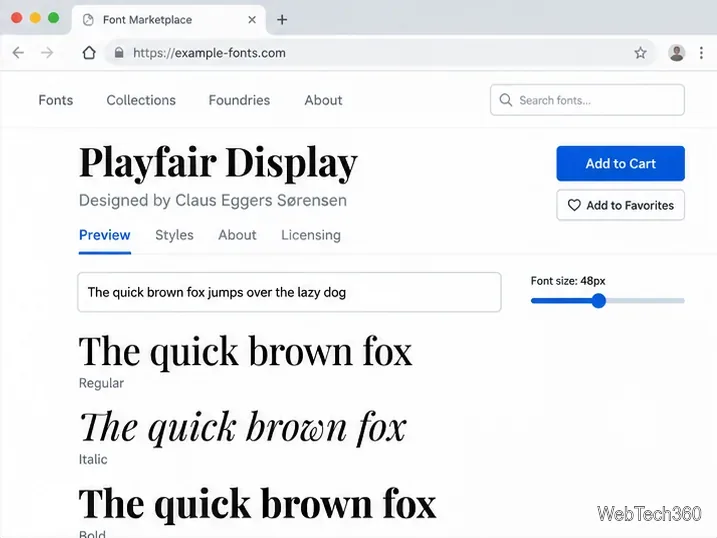
Find a candidate family on MyFonts. In its font-family or individual-style preview, enter an actual heading, navigation label, or paragraph from your project. According to the MyFonts FAQ, you can adjust preview size and colors and inspect supported OpenType features. Its Albums feature also helps collect fonts for side-by-side consideration. Check several weights: an attractive display face may not be comfortable for long paragraphs.
Compare a candidate typeface across styles and sizes before committing it to a page layout.
2. Inspect the text you want to change
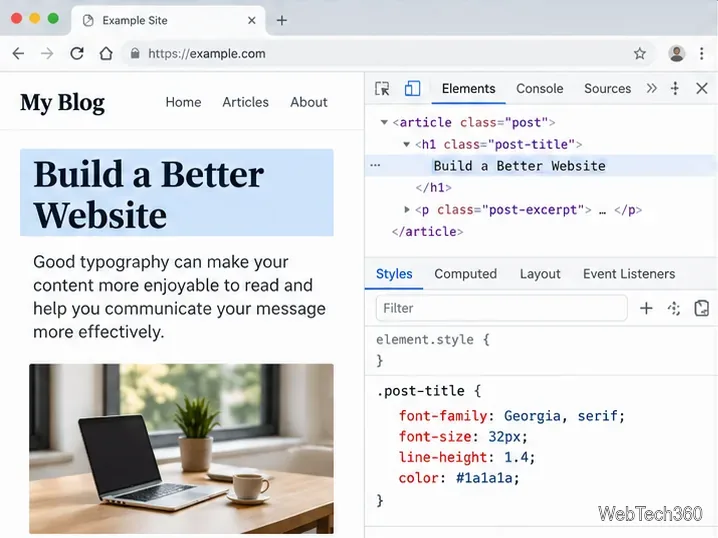
Open your website in Chrome, right-click a heading or paragraph, and choose Inspect. The Elements panel identifies the selected HTML node; the Styles pane lists the CSS affecting it. You can also use the element picker to select text on the page. See Google’s Inspect Mode guide for the documented controls.
Inspect a heading and locate its font-family, font-size, and line-height declarations in the Styles pane.
3. Experiment with the typography temporarily
In Elements → Styles, edit an existing font-family declaration or add one to the selected element. For example, test Georgia, serif as a locally available stand-in for a serif direction, then experiment with font-size, line-height, or letter-spacing. Changes are usually visible immediately, but they are not a permanent edit to your published site. Google explains these controls in its DevTools CSS reference.
Important: Typing a commercial font’s name into CSS does not automatically download or load that font. To see the actual commercial face on your page, it must already be available through a properly licensed and loaded font resource or a permitted local installation. Otherwise the browser displays a fallback. Do not mistake a fallback preview for the font you intend to buy.
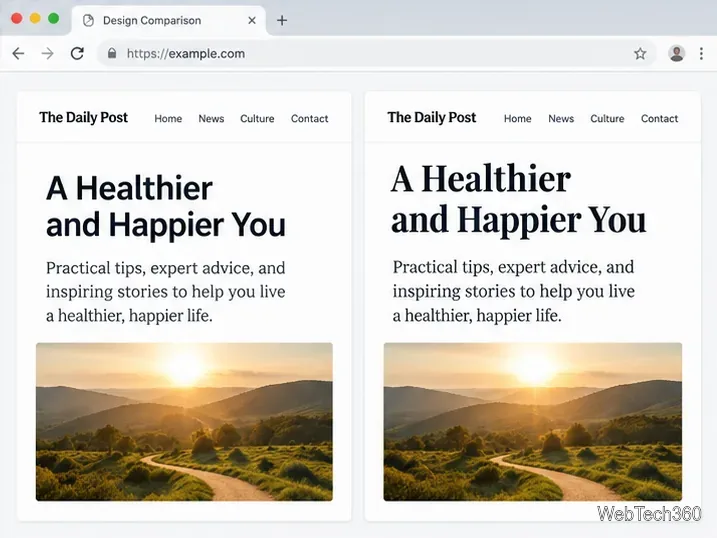
Compare the same headline and paragraph in two typography treatments, checking text wraps and hierarchy.
4. Check the license before deploying
A free storefront preview is not a license to host the font files on a public website. MyFonts explains that webfonts are embedded through @font-face and require an appropriate webfont license; allowed domains and pageview terms depend on the license offered for that product. Review the family’s Licensing information and your purchase terms before adding files to production. A desktop license alone should not be assumed to cover web embedding.
What to check before choosing a final font
Headline fit: Does the title wrap naturally at desktop and mobile widths?
Body readability: Are small sizes, line height, and paragraph density comfortable?
Weights and characters: Are the bold, italic, punctuation, and language glyphs you need available?
Real loading: Is the actual face displayed, or just a browser fallback?
Licensing: Does the purchased plan cover your website’s use?
If a change appears to do nothing, check whether a more specific CSS rule overrides your edit, whether the font is actually loaded, and whether you selected the correct page element. Test more than one viewport width. WebFonter’s original appeal was immediate context; today, combining a MyFonts specimen with temporary DevTools edits offers a practical way to make an informed typography choice without claiming the discontinued tool is still available.