Home
» WEB
»
Toggle Firefox Privacy Settings From the Toolbar Without About:Config
Toggle Firefox Privacy Settings From the Toolbar Without About:Config
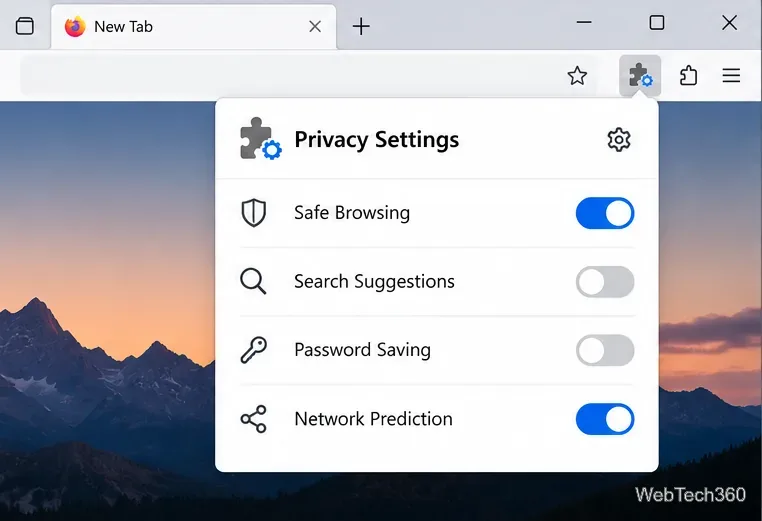
Want to switch Firefox privacy preferences without repeatedly opening about:config? The Privacy Settings extension puts a selection of browser privacy controls in a toolbar popup. You can adjust supported options such as search suggestions, Safe Browsing, password saving, and network prediction from one place. It does not expose every Firefox preference or replace the browser’s built-in tracking protection.
The add-on is still listed on Mozilla Add-ons. Its version 0.4.1 was released August 29, 2026, with a Manifest V3 update; check the version history for current compatibility before installing. The old instructions for Firefox Hello, Adobe DRM, and individual telemetry keys describe a much earlier Firefox era and should not be used as a checklist for this extension today.
Install Privacy Settings and open it from the toolbar
Open the official listing. In Firefox for desktop, visit Privacy Settings on Mozilla Add-ons. Review the developer, current version, and permissions, then select Add to Firefox if the browser offers that button.Find the extension on Mozilla Add-ons rather than downloading an old add-on file.
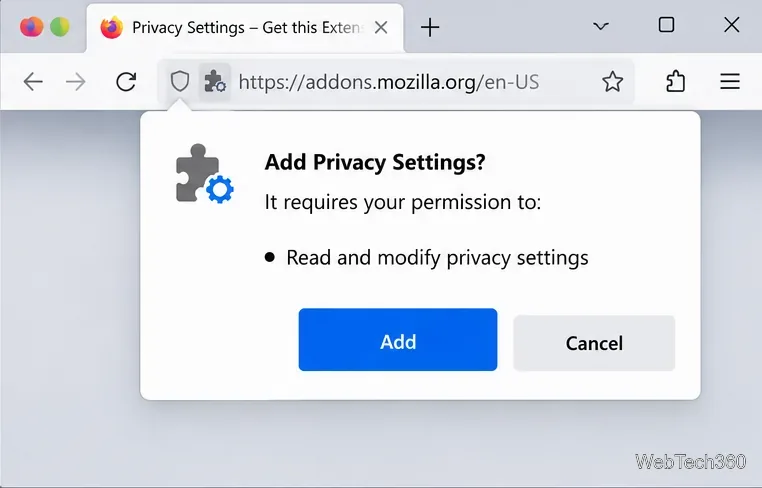
Review the permission request. The listing identifies its required permission as Read and modify privacy settings. Choose Add only if you are comfortable allowing an extension to change those browser controls.Read the extension permission before approving installation.
Make the control easy to reach. Open Firefox’s puzzle-piece Extensions menu. Use the extension’s menu and Pin to Toolbar when available, or open it directly from the Extensions panel. The exact icon position can differ by browser version; see Mozilla’s guide to the Extensions button.
Open the popup and change one setting at a time. Select the Privacy Settings icon, read a setting’s description, then use its available control. Recheck the setting and test any site feature affected by the change. Do not assume that every listed control is available in every Firefox release.The toolbar popup groups several privacy-related options, although availability may vary.
Which Firefox preferences can the extension change?
The current add-on listing documents settings exposed through Firefox’s WebExtensions privacy API, rather than presenting the old article’s browser.safebrowsing.*, loop.enabled, and other legacy about:config switches as its control list. Examples include:
Search and browsing services:privacy.services.searchSuggestEnabled, privacy.services.safeBrowsingEnabled, and privacy.services.safeBrowsingExtendedReportingEnabled.
Saved passwords and autofill:privacy.services.passwordSavingEnabled and privacy.services.autofillEnabled.
Network behavior:privacy.network.networkPredictionEnabled and privacy.network.webRTCIPHandlingPolicy.
Website behavior:privacy.websites.thirdPartyCookiesAllowed, privacy.websites.referrersEnabled, and privacy.websites.hyperlinkAuditingEnabled.
That is a sample, not a promise that all entries are editable. The developer notes that unsupported settings can appear disabled. The Mozilla’s privacy API documentation explains why an extension needs a special permission to access this category of browser settings. Avoid randomly switching everything off: disabling Safe Browsing may reduce protection against deceptive or dangerous sites, while changing cookies, referrers, or WebRTC handling can affect sign-ins, calls, and website functionality.
Use Firefox’s built-in privacy controls when possible
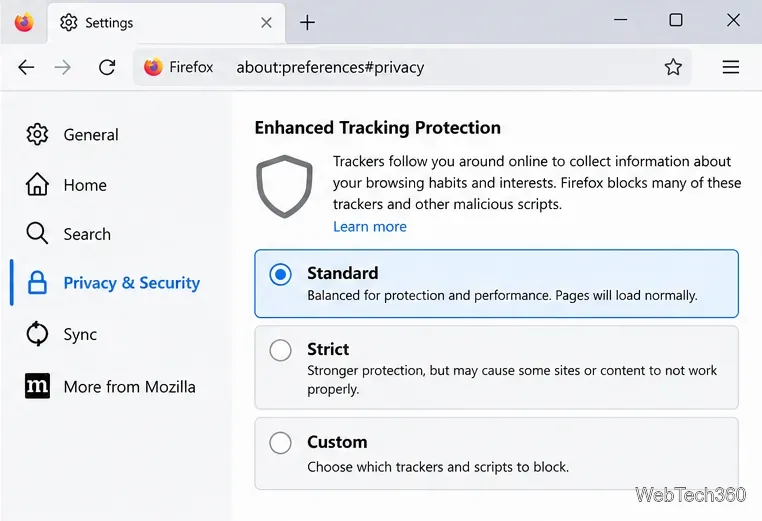
You may not need an extension at all. For general tracking protection, open Firefox’s menu, choose Settings, then Privacy & Security. Under Enhanced Tracking Protection, Firefox offers Standard, Strict, and Custom modes. Standard is a sensible starting point; Strict blocks more tracking but may interfere with some sites. Mozilla documents the differences in its Enhanced Tracking Protection instructions.
The native Privacy & Security page is the better place to manage site-tracking protection across Firefox.
For a problem limited to one website, click the shield icon beside the address bar. Its panel lets you inspect tracking protection and, if necessary, disable that protection for just that site. That is more targeted than weakening privacy settings globally. Preferences about sending Firefox technical or usage data to Mozilla are managed in Firefox Settings; consult Firefox data collection settings rather than assuming the Privacy Settings extension controls every data-collection option.
When should you still use about:config?
Use about:config only when a specific advanced preference is not exposed in the add-on or regular Settings, and when you understand the effect. Enter about:config in the address bar, accept the warning if shown, search for the exact preference name, and change or reset it deliberately. Mozilla warns that these settings can affect security, performance, and stability; the Mozilla’s Configuration Editor guide describes how to toggle boolean entries and restore defaults.
If the extension button is missing: check the Extensions panel first. If the popup opens but a control is grayed out, it may be unsupported rather than broken. If a change causes trouble, restore the previous value or use Firefox Settings to reverse it. You can disable or remove Privacy Settings through about:addons at any time.
Bottom line: Privacy Settings is useful for people who often switch the handful of privacy-related options it supports. For day-to-day tracker blocking, Firefox already provides better-targeted native controls. Neither approach should be treated as a one-click guarantee of anonymous browsing.