Home
» WEB
»
How to Fix ERR_TUNNEL_CONNECTION_FAILED in Chrome: 8 Steps
How to Fix ERR_TUNNEL_CONNECTION_FAILED in Chrome: 8 Steps
ERR_TUNNEL_CONNECTION_FAILED in Google Chrome usually means the browser could not establish a connection through a configured proxy. Start by checking your proxy and VPN, then investigate extensions, browsing data, and DNS. You rarely need to reinstall Chrome.
Chrome displays the tunnel error when a connection cannot be established.
What causes ERR_TUNNEL_CONNECTION_FAILED?
A proxy can relay HTTPS requests using an HTTP CONNECT tunnel. If the proxy is unreachable, incorrectly configured, or refuses the connection, Chrome may show this error. VPN routing, browser extensions, security software, and network policies can also interfere. The error does not automatically mean the website is down or that every Internet connection is broken.
Before changing settings, try another website and another browser. If everything fails on one Wi-Fi network but works on a trusted mobile hotspot, investigate that network. If only a work or school connection fails, ask the administrator about required proxy settings.
1. Check your proxy settings first
Windows 11 and Windows 10
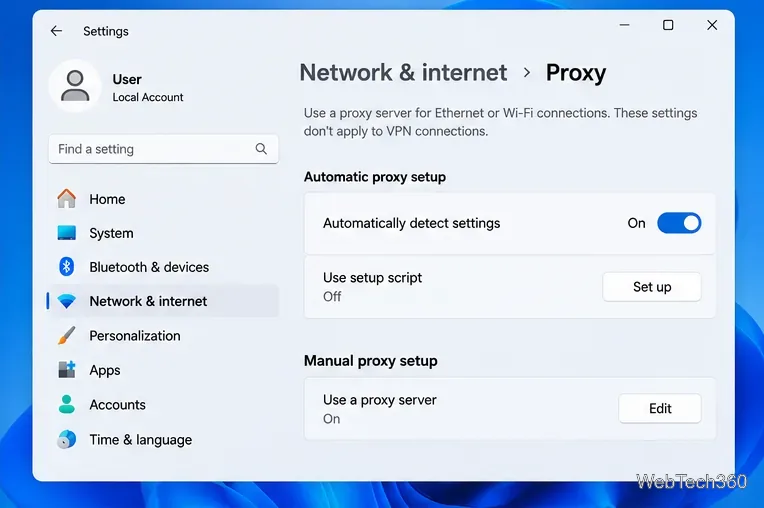
Open Settings > Network & internet > Proxy.
Under Automatic proxy setup, check whether your network requires automatic detection or a setup script.
Under Manual proxy setup, select Set up and verify the server address and port.
If you use a personal network and do not need a proxy, disable an unwanted manual proxy, save, and retry Chrome.
Review automatic and manual proxy settings before changing them.
Do not remove an employer-required proxy or PAC script. Microsoft explains these options in its Windows proxy setup guide.
macOS
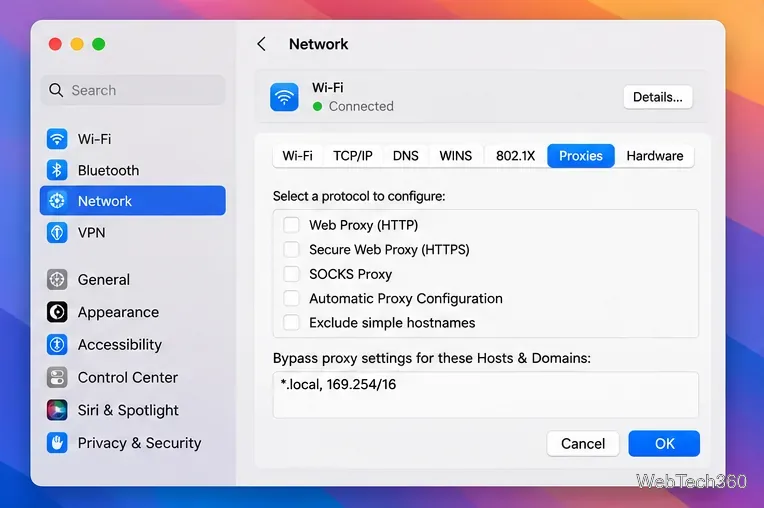
Go to Apple menu > System Settings > Network, choose the active connection, then open Details > Proxies. Check the Web Proxy (HTTP), Secure Web Proxy (HTTPS), SOCKS, and automatic configuration options. Correct an outdated address or disable an unnecessary proxy only if your network allows it. See Apple’s proxy settings reference.
On a Mac, inspect the proxy types associated with the active network service.
2. Disconnect your VPN temporarily
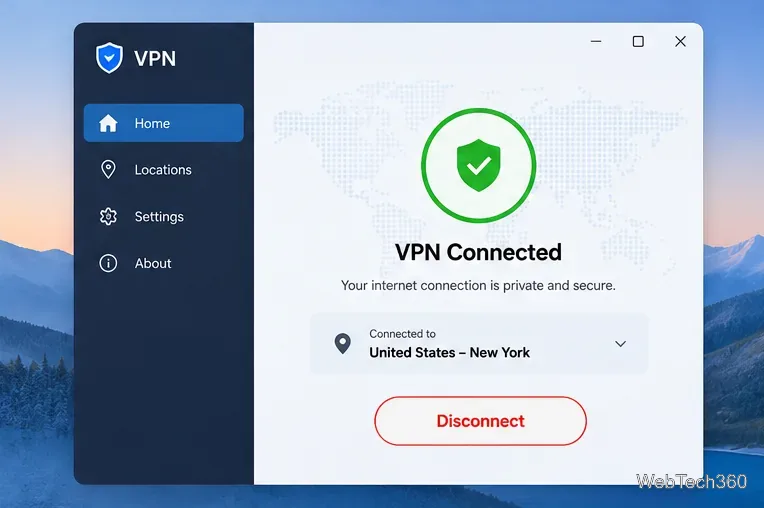
If you use a VPN, disconnect it briefly and reload the page. If Chrome works, reconnect using a different server or protocol, and update the VPN app. Also check for a separate proxy configured inside the VPN. Re-enable the VPN after the test if you need it for privacy or access to work resources.
A temporary VPN disconnect helps determine whether its routing is involved.
3. Disable proxy-related Chrome extensions
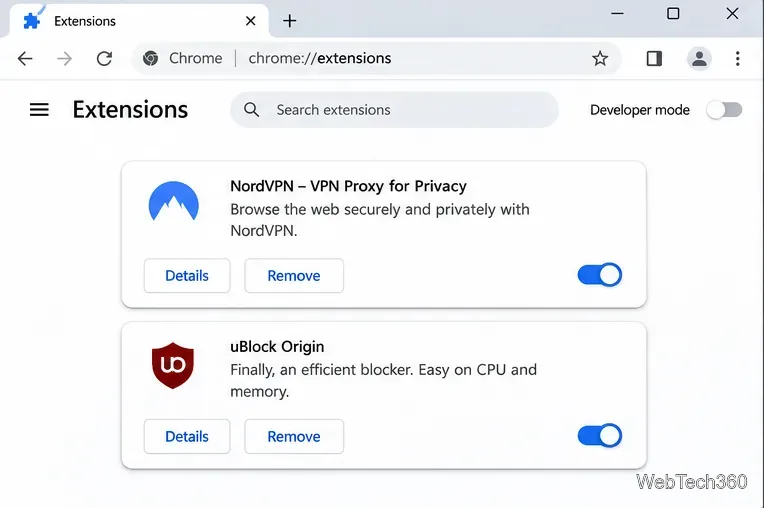
Enter chrome://extensions in Chrome’s address bar. Turn off VPN, proxy-switching, traffic-filtering, and other networking extensions, then test the site. Re-enable them one by one to identify a conflict. Avoid removing extensions before you know which one is responsible. Google documents the controls in Chrome extension management.
Toggle suspect extensions off, then restore them individually after testing.
4. Clear Chrome site data and cache
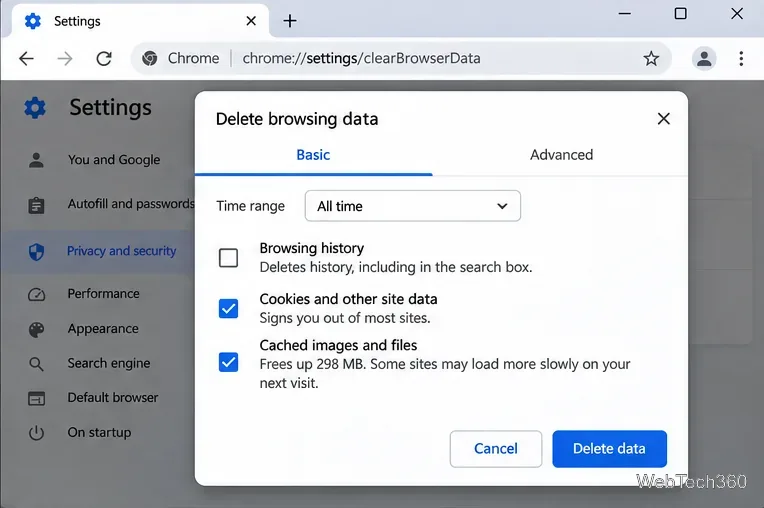
This is a secondary fix, not a substitute for correcting a broken proxy. Open Chrome’s three-dot menu and choose Delete browsing data (or press Ctrl+Shift+Delete on Windows). Select a suitable time range, Cookies and other site data, and Cached images and files; then select Delete data. Clearing cookies can sign you out of websites. For a single affected site, consider deleting only its site data.
Choose the smallest useful time range and expect some sites to require a new sign-in.
5. Check DNS only if name resolution is failing
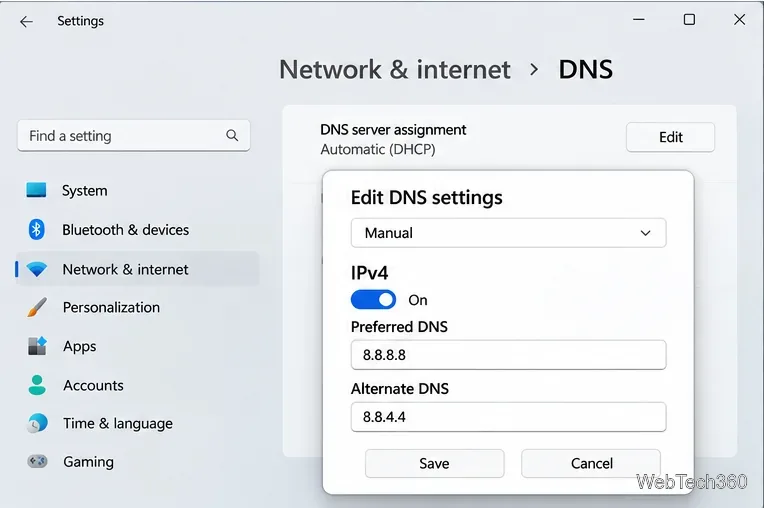
DNS problems can affect access to a proxy or website, but switching DNS will not repair a proxy that rejects connections. If other DNS-related errors occur, record your existing DNS settings before testing an alternative. Google Public DNS uses 8.8.8.8 and 8.8.4.4; Cloudflare uses 1.1.1.1 and 1.0.0.1.
On Windows, open your active Wi-Fi or Ethernet connection settings and find DNS server assignment > Edit. On a Mac, use System Settings > Network > [connection] > Details > DNS. Follow Google’s DNS configuration guide or Apple’s Mac DNS guide for details.
DNS changes are optional and should be reversible.
6. Flush the Windows DNS cache
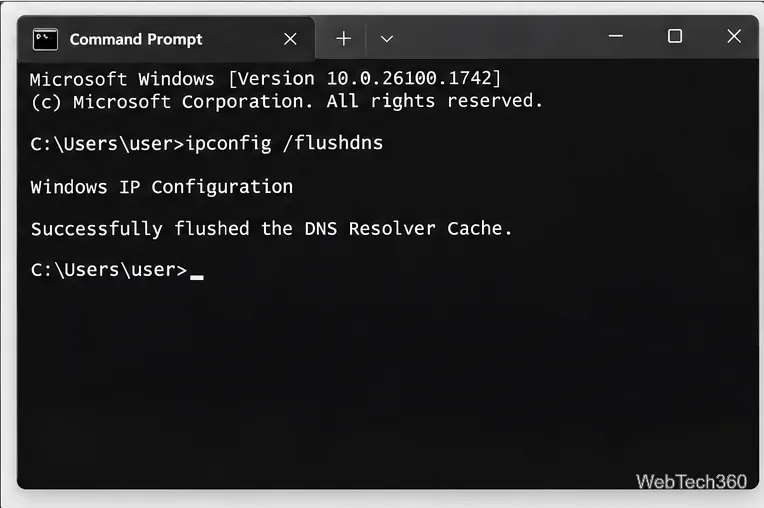
Open Command Prompt and run ipconfig /flushdns. This removes cached DNS resolver entries; it does not reset proxy settings. If your computer also has a broader DHCP connectivity problem, ipconfig /release and ipconfig /renew may help, but these commands briefly interrupt networking and should not be used indiscriminately on managed systems. Refer to Microsoft’s ipconfig reference.
The flushdns command clears locally cached resolver records.
7. Inspect firewall or security software
Check whether an antivirus product, firewall policy, or web-filtering tool is blocking your proxy, VPN, or browser. Update the software and review its connection logs. Do not disable your firewall across all networks as a routine fix. If a trusted app is demonstrably blocked, use an appropriately scoped rule or request help from IT. Microsoft recommends allowing necessary apps rather than opening broad ports in its firewall exception guidance.
8. Reset Chrome settings as a last resort
If the issue began after a Chrome configuration change, open Settings > Reset settings > Restore settings to their original defaults > Reset settings. Bookmarks and saved passwords remain, but several preferences and extension states change. Read Google’s reset instructions before proceeding.
What if the error happens only at work?
Managed networks often require specific proxy scripts, authentication, certificate policies, or VPN routes. Collect the affected URL, approximate time, network name, and the exact error code for your IT team. Avoid bypassing corporate security controls or installing an unapproved proxy. For most home users, restoring the correct proxy configuration is the best first fix.