Home
» WEB
»
How to Undo an Embarrassing Facebook Post: The Five-Second Trick and What Works Now
How to Undo an Embarrassing Facebook Post: The Five-Second Trick and What Works Now
Can you take back an embarrassing Facebook post within five seconds? Not with a built-in Facebook delay that we could verify. An older Chrome extension called Facebook Undo once promised a five-second window after you clicked Post, but its current availability and compatibility could not be confirmed. If something has already gone live, your practical options are to edit it, move it to Trash, or archive it when that option is available.
What happened to Facebook Undo's five-second timer?
The original Facebook Undo extension was designed to intercept a status update in Chrome. After you pressed Post, it reportedly changed the button to Undo, counted down from five seconds, and canceled the submission if you clicked in time. It had no setting to lengthen that interval. Those instructions describe an older version of Facebook and an older browser extension—not a feature currently provided by Facebook.
We could not verify a functioning current Chrome Web Store listing for that specific extension. Do not install a similarly named extension or an old download file on the assumption that it is the same product or that it still works. Even if a third-party tool offers a delay, test it carefully with a harmless, restricted-audience post before relying on it; changes to Facebook's website may affect how browser add-ons work.
How to take back a Facebook post after publishing
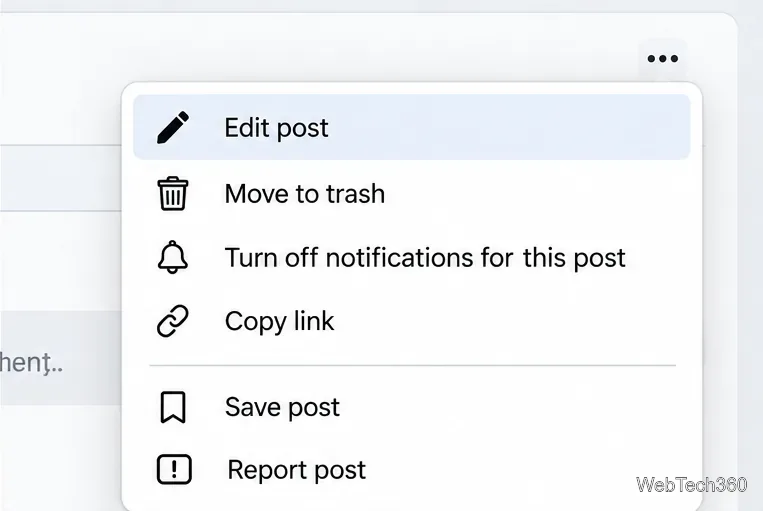
If you have just shared something you regret, open your own post immediately. Use the three-dot menu near the upper-right corner. The exact wording and available actions may vary by app, device, account, and post type.
Find the post on your profile or Feed, then open its three-dot options menu.
1. Open the post options
Open Facebook on your phone or computer and navigate to the post you published.
Select the three-dot menu on that post.
Choose Edit post if you want to correct the content, or Move to trash or Delete post if you want to remove it. Only choose actions actually shown for your post.
The options menu can offer different actions depending on the post and the version of Facebook.
2. Edit the post when a correction is enough
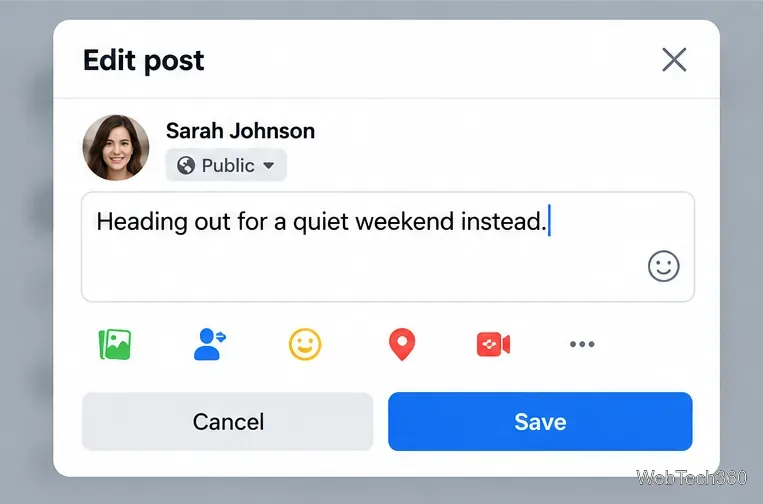
Choose Edit post, change the wording, and select Save. This can be useful for an accidental typo or a statement you want to clarify. Some post types or previously promoted Page posts may have editing restrictions. Editing is not a privacy reset: someone may have seen the first version, and a post's edit history may be available to viewers in some contexts.
Make the correction in the post editor and save it only after checking the final wording.
3. Move the post to Trash when it should disappear
If the post should not remain visible, choose Move to trash when available and confirm. Meta says items placed in Trash through Manage Activity remain there for 30 days before deletion unless you restore or delete them earlier. Certain content may have different controls; some posts instead show a direct Delete option. Avoid assuming that every type of Facebook activity supports Trash.
Trash is a recovery period, not a five-second unsend. Removing a post from Facebook cannot guarantee that people who already saw it will forget it, nor can it erase copies, screenshots, or notifications already delivered.
How to restore a Facebook post you moved to Trash
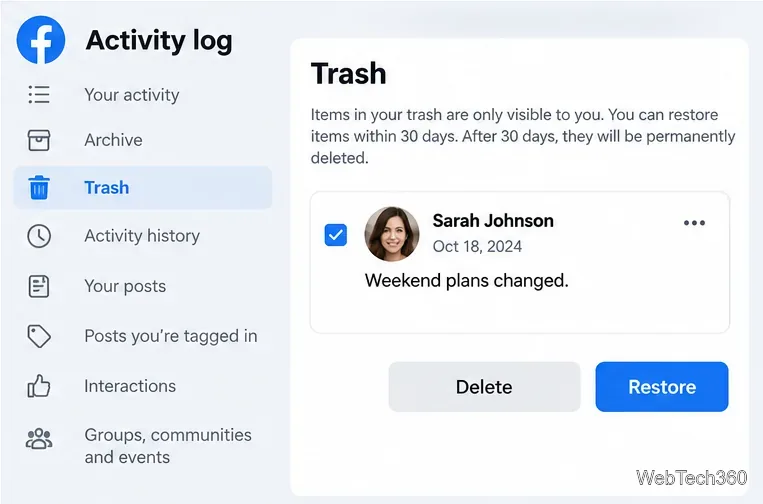
Open your Facebook profile or account menu and find Activity log. Depending on your device, it may be inside Settings & privacy or the profile options.
Open Trash (sometimes labeled Recycle bin).
Find the post, select it, and choose Restore if available. Confirm the restoration.
Eligible trashed posts can be restored before their 30-day recovery period ends.
For a post you only want to keep out of public view, the Archive option may be preferable where supported. Meta describes archived items as visible to you but hidden from other people. Restoring an archived or trashed post can make it visible again to its prior audience, so review the audience setting before restoring or resharing.
What if Edit post or Move to trash is missing?
First, make sure you are viewing a post that you published. Content posted by another person, tagged posts, Page posts, group posts, and boosted content can have different controls. Try opening the post from your profile instead of a notification or shared copy, and check Activity log for your own posts.
If you are using Chrome and still have an old Facebook Undo extension installed, open Chrome's Extensions → Manage extensions page. Disable or remove an unsupported extension rather than repeatedly reloading Facebook to force it to work. Google's extension management instructions explain how to remove add-ons and limit their site access. Google's permissions guidance also explains why access to social-network pages deserves care.
How to avoid posting something you'll regret
There is no need to depend on a five-second emergency button. Write the post in a notes app first if the topic is emotional, check the audience selector before publishing, and reread any names, photos, links, and personal information. If you are unsure, save the text as a private draft outside Facebook and come back to it later.
Meta's Facebook sharing update describes more prominent audience controls in the post composer. Meta's original Manage Activity announcement explains Archive, Trash, and the 30-day recovery window. Those are safer starting points than assuming a discontinued extension can stop a post after you click Publish.