Home
» WEB
»
How to Mass Delete Facebook Posts Using Activity Log
How to Mass Delete Facebook Posts Using Activity Log
To mass delete Facebook posts, open the Facebook app, go to your profile's Activity Log, find Manage Activity or Your Posts, select multiple posts, and choose Trash (sometimes called Move to trash). You can filter older posts before selecting them, so you do not need to delete every post individually. Posts moved to Trash can generally be restored within 30 days.
This guide covers posts on your personal Facebook profile, not Facebook Pages or groups. Facebook changes menu names and layouts periodically, so look for the closest equivalent if a label is different in your app.
How to mass delete Facebook posts on iPhone or Android
1. Open your Activity Log
Open the Facebook app and sign in. Go to your profile, tap the three-dot menu near your profile controls, and choose Activity Log. If you cannot find it there, open Menu > Settings & privacy > Settings and look for Activity Log under your activity settings. The precise route depends on your app version.
Open Activity Log from your Facebook profile menu; control placement can vary by app version.
2. Find your posts and apply filters
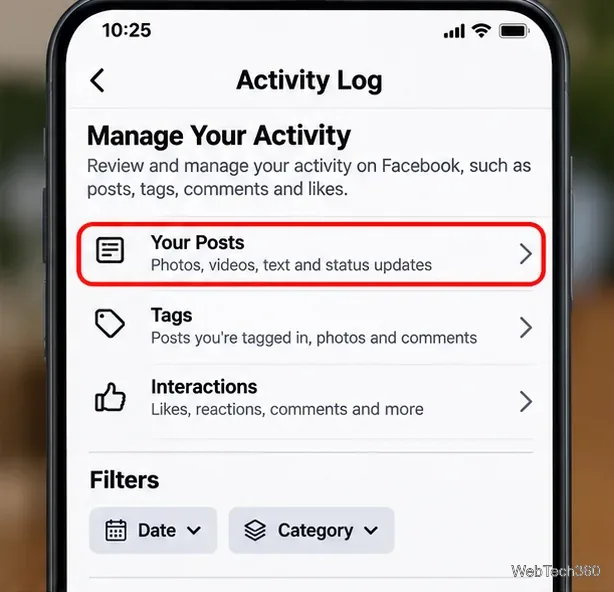
Look for Manage Activity, Manage Your Posts, or a Your Posts category. Open the section for posts, photos, and videos you have shared. Use Filters, when available, to focus on a year, date range, or content type. This is especially helpful when you want to remove posts from an old job, school year, or trip without affecting newer updates.
Review the results carefully: your Activity Log may also contain likes, comments, tags, and other actions that are not your own posts.
Find Your Posts in Activity Log, then narrow the list using available filters.
3. Select the posts to remove
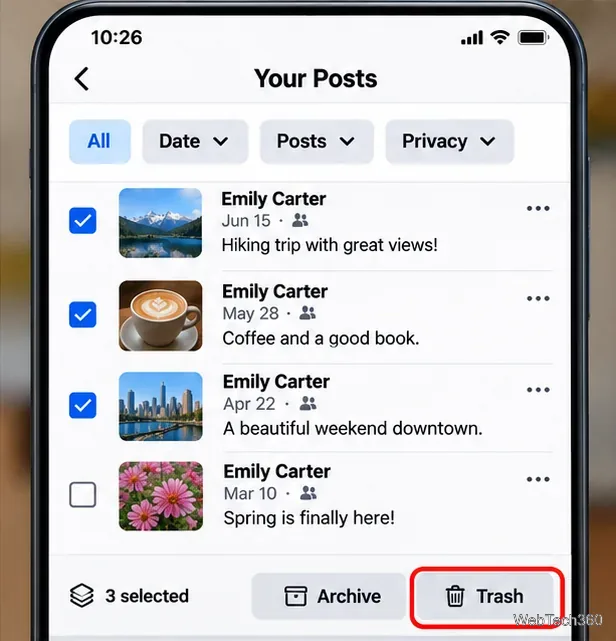
Tap the selection circles or checkboxes beside the posts you want to delete. Check the dates and previews before continuing. Then tap Trash or Move to trash and confirm if Facebook asks.
Some content types may not support bulk selection or the same removal options. If you do not see Trash for a particular item, open that item's menu and check the available action. Facebook does not provide a reliable universal Delete all posts button for every account and content type.
Select only the posts you want to remove and choose the Trash action.
4. Check Trash and restore anything selected by mistake
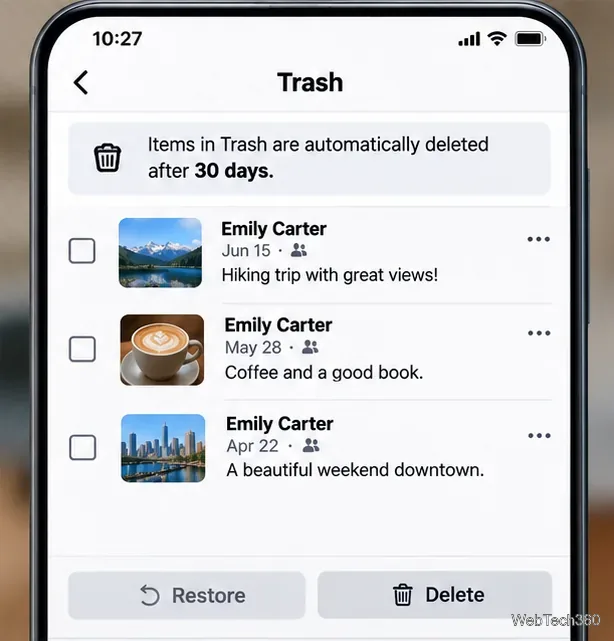
Return to Activity Log and open Trash. Select an eligible post and choose Restore if you want it back. You can also choose Delete there to remove it permanently before the recovery period ends.
Important: Meta says posts moved to Trash remain there for 30 days before automatic deletion, unless you restore or permanently delete them sooner. Content deleted permanently cannot be recovered through Trash. A post removed using another deletion option may not receive the same recovery window.
Review Trash before the 30-day recovery window expires.
Can you bulk delete Facebook posts on a computer?
On facebook.com, click your profile picture and open Settings & privacy > Activity Log. Navigate to the section for your posts and filter by date or activity type. You can use the menu beside an individual post to delete, move to Trash, or archive it if those actions are available.
Bulk-selection controls are not consistently available in the desktop interface. If your browser only lets you manage one post at a time, use the Facebook app on an iPhone or Android phone rather than following older desktop instructions that refer to a fixed 50-post selection limit or an outdated Manage Posts button.
Archive, hide, or delete: which option is right?
Option
What it does
Best for
Move to Trash
Removes eligible posts from view and starts a 30-day window before automatic deletion.
Posts you no longer want to keep.
Archive
Keeps a post in your account while hiding it from other people.
Memories you want to save privately.
Hide from profile
Removes an item from your profile display but may leave it visible elsewhere to its original audience.
Cleaning up your profile without deleting the underlying content.
These actions are not interchangeable. For example, removing a tag from someone else's post does not delete the original post. If somebody else uploaded the content, you usually cannot delete their post from their account.
Save your photos and posts before deleting
If you might want the content later, save any important photos or videos first. Facebook's Download Your Information feature is under Settings > Accounts Center > Your information and permissions (the wording may vary). Request the Facebook information and date range you need, then verify the download contains the files you care about before deleting the originals.
No Manage Activity option: Update the Facebook app, try the Activity Log route from your profile, and look for Your Posts or Manage Your Posts.
Trash is unavailable for a selected post: Deselect the other items and inspect that post's menu. Some activities are not eligible for bulk removal.
You cannot find an old post: Change or clear the date and category filters, and check whether it is already in Archive or Trash.
You want to remove a tagged post: Use tag-management controls; deleting content created by someone else is not the same as removing your tag.
For the underlying behavior of bulk post management, archiving, and the 30-day Trash period, see Meta's introduction to Manage Activity. The safest approach is to filter first, select posts in manageable batches, and verify the results in Trash.