Home
» WINDOWS
»
10 Skype Features and Tools Worth Knowing—and What to Use Now
10 Skype Features and Tools Worth Knowing—and What to Use Now
Skype was once a go-to app for video calls, messaging, screen sharing, and online collaboration. But Skype retired on May 5, 2025. If you are looking for ways to improve your old Skype setup, the practical approach now is to use its still-relevant ideas in Microsoft Teams Free, while understanding which Skype services and add-ons are gone. Microsoft explains the change in its Skype retirement guidance.
10 Skype features and tools, with useful alternatives today
1. Share your screen instead of describing every step
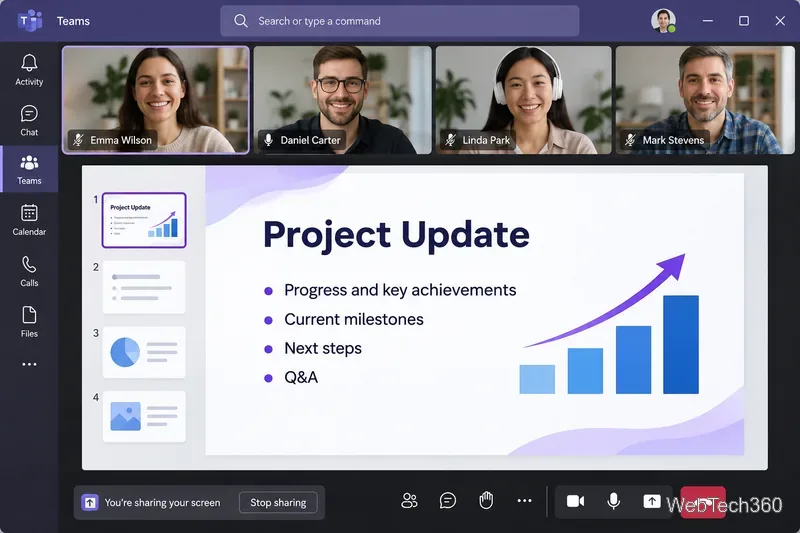
Screen sharing was one of Skype's best troubleshooting tools. In Teams Free, open a chat or meeting and use the screen-sharing control to show your display or a particular window. Choose a window when a private document or notification might be visible elsewhere. Stop sharing as soon as the walkthrough is finished. See Microsoft's Teams Free chat guide for the available chat controls.
2. Check your microphone, speakers, and camera
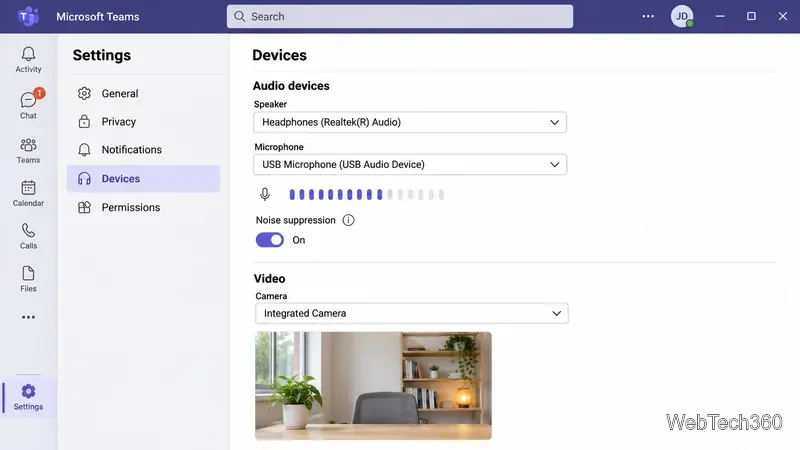
A poor call often starts with the wrong input device, not a bad connection. On Teams Free desktop, open Settings > Devices to choose your speaker, microphone, and camera. Review the camera preview and noise-suppression options before an important call. During a meeting, look under More for audio and video settings. Microsoft details these controls in its Teams Free device settings.
3. Start group calls and schedule meetings
Skype made small-group calling convenient. Teams Free supports personal and group conversations, plus meeting links you can share with guests. Open Meet to create a link, schedule a meeting, or join with a meeting ID and passcode. This is more reliable than relying on an old Skype meeting invitation. See the Teams Free getting-started guide.
4. Send files and photos inside a conversation
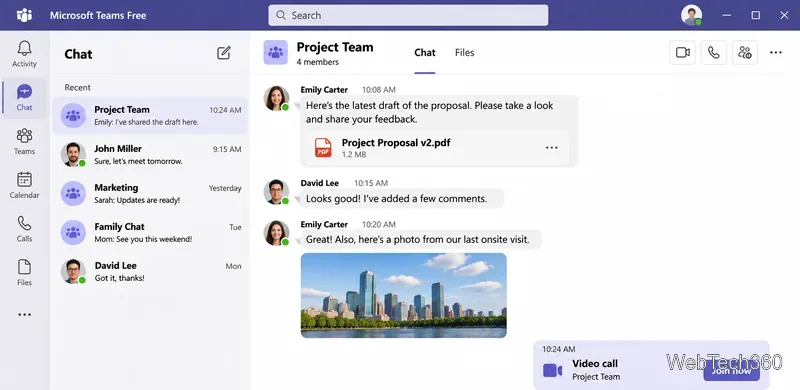
File transfer remains especially useful for sending a draft, screenshot, or vacation photo without switching apps. In Teams Free, open a chat, choose Actions and apps, then attach a file or select media. Remember that files shared in Teams Free can remain accessible through OneDrive permissions after you leave the chat; review access to sensitive files. Follow Microsoft's file-sharing instructions.
5. Replace Skype mood messages with a status message
Skype's mood text helped contacts know whether you were available. In Teams Free, select your profile picture, choose Set status message, and write a short update such as “Back after 3 PM.” You can also change your presence to Busy, Do not disturb, Away, or Appear offline. Older video mood integrations with sites such as Dailymotion and Metacafe are not current Teams Free features. See the status-message instructions.
6. Control alerts instead of using contact-tracking add-ons
Legacy tools such as Maxa Notifier tracked Skype presence changes. For everyday use, start with Teams Free's notification controls and mute noisy conversations individually. Use Do not disturb when you need uninterrupted time. Avoid installing an unmaintained Skype notifier just to reproduce a feature from an app that has retired.
7. Find contacts and conversations from your Skype account
Microsoft offered Skype users a transition to Teams Free using their existing Skype sign-in, with contacts and qualifying chat history brought over. The availability of older history depends on account activity and when the move happened; it should not be assumed that every old conversation remains recoverable. If contacts look missing, first confirm you signed in with the same Microsoft account. Check the Skype retirement guidance for eligibility details.
8. Record calls when your plan permits it
Skype users once depended on third-party recorders such as Vodburner and CallGraph. For personal Teams accounts, native meeting recording is available to qualifying Microsoft 365 Personal, Family, or Premium subscribers, not everyone using Teams Free. Participants are notified when recording begins. Recordings expire after 30 days unless downloaded. Check consent rules for everyone on the call and read Microsoft's personal Teams recording policy.
9. Know the limits of the remaining Skype Dial Pad
Teams Free is not a replacement service for buying new Skype Credit, Skype Numbers, or consumer calling subscriptions. Microsoft still documents a Skype Dial Pad for certain existing paid accounts with eligible credit or subscriptions, but all Skype Number subscriptions ended in May 2026 and number port-out is no longer available. If you already have an eligible balance, consult Skype Dial Pad documentation rather than purchasing unofficial calling tools.
10. Handle old Skype data carefully
Microsoft extended the Skype data export-request window through June 2026. That deadline has passed, so do not assume you can initiate a fresh export now. If you previously submitted a request, consult the official Skype data export instructions and your Microsoft account for any remaining options. Keep any downloaded chat archives private; they may contain contact details, conversations, and media.
Which old Skype add-ons should you skip?
The classic Skype ecosystem included Facebook-feed integration, in-app social games, Skype Auto Answer, CalimSkypeLauncher, VoiceGear Contact Alerter, and a variety of status trackers. Those recommendations belonged to a much older version of Skype. Do not install unknown executables or enter a Microsoft password into an obsolete launcher in hopes of reviving them. There is no reason to treat those third-party utilities as supported Teams Free extensions.
Bottom line: For the same goals that made Skype useful—clear calls, convenient screen sharing, group chats, file transfer, and availability updates—start with the supported controls in Teams Free. Check account requirements before assuming that recording or paid phone calling is included.