Home
» WINDOWS
»
192.168.0.1: Default Router IP Address and How to Log In
192.168.0.1: Default Router IP Address and How to Log In
192.168.0.1 is a private IPv4 address that some home routers use as their local gateway and administration address. If your router uses it, open http://192.168.0.1 in a browser while connected to your home network to reach its settings page. It is not a public website, and it is not the default address for every router.
What Is 192.168.0.1?
Your router usually has a LAN (local network) IP address, while your laptop or phone receives another address on that network. For example, a laptop might use 192.168.0.23.
The 192.168.0.1 address belongs to the private block 192.168.0.0–192.168.255.255. According to the Internet Assigned Numbers Authority (IANA), the three private IPv4 ranges are:
10.0.0.0–10.255.255.255
172.16.0.0–172.31.255.255
192.168.0.0–192.168.255.255
Private addresses can be reused across networks and are not routed publicly. Your internet connection also has a public-facing IP address, often shared by multiple devices through network address translation (NAT). Some providers use carrier-grade NAT, so the address shown on your router's internet-facing side may not itself be public.
How to Open the 192.168.0.1 Router Login Page
You need to connect to the router, but not necessarily to the internet.
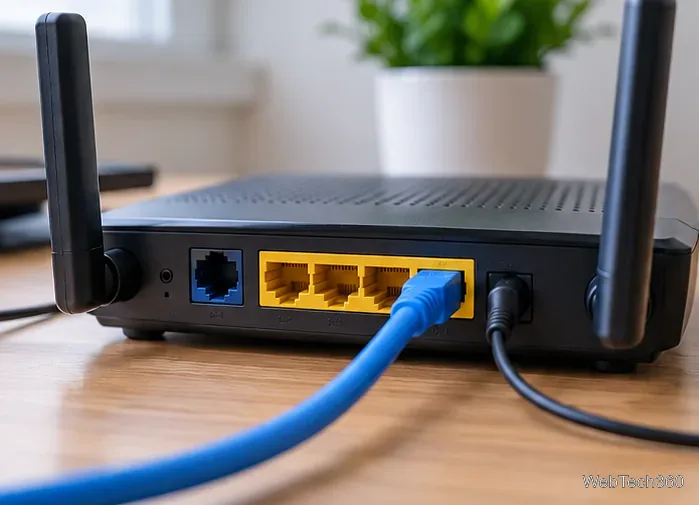
Connect your computer or phone to the router's Wi-Fi network, or connect a computer to one of its LAN ports with an Ethernet cable.
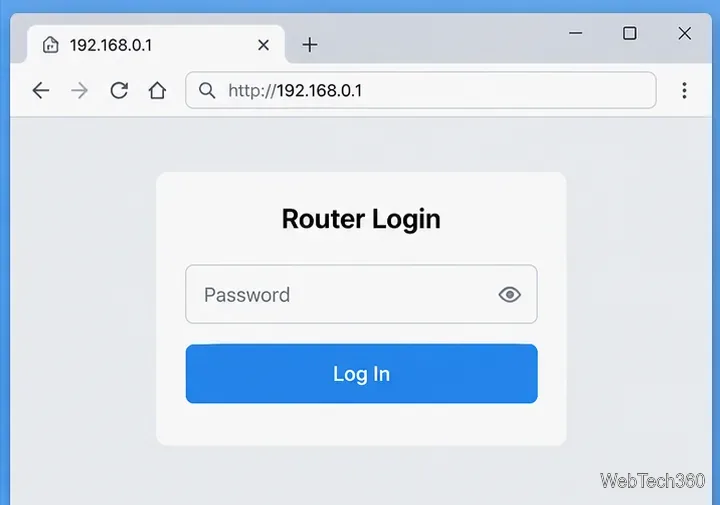
Open a browser and type http://192.168.0.1 directly into the address bar, not a search-engine box. Some routers automatically switch to HTTPS.
Enter the router's administrator password or complete first-time setup. This is not necessarily your Wi-Fi password.
Once signed in, look for the setting you need, such as wireless network name, guest Wi-Fi, connected devices, or firmware updates. Menu names depend on your model.
Use the router’s Wi-Fi or a LAN connection to access its local settings.
For example, TP-Link's router login instructions document 192.168.0.1 and tplinkwifi.net for supported models. Other routers may use 192.168.1.1 or 192.168.50.1 instead. Use the model's label or official manual rather than assuming one address works universally.
A router login page may ask for an administrator password; its appearance varies by model.
Find Your Router's Actual IP Address
If 192.168.0.1 does not load, check the default gateway shown on your connected device. On most straightforward home networks, that is the router address you should try. In networks with multiple routers or mesh equipment, the gateway may identify another device.
On Windows 11 or Windows 10
Connect to the Wi-Fi or Ethernet network you want to manage.
Press Windows + R, type cmd, and press Enter.
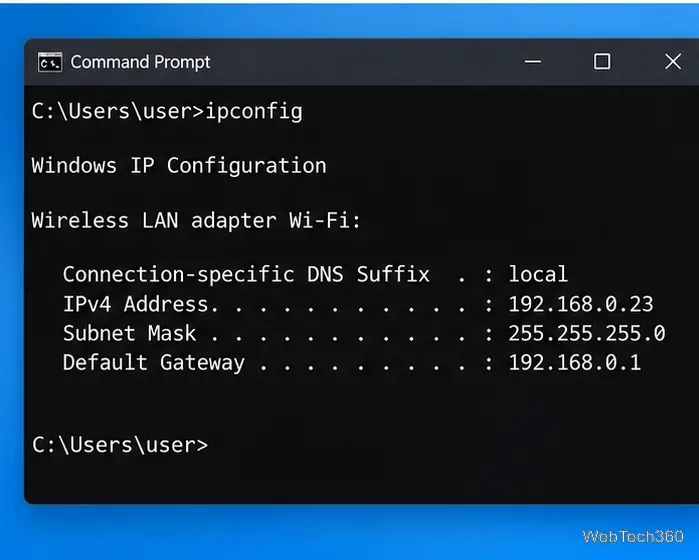
Type ipconfig and press Enter.
Find your active Wi-Fi or Ethernet adapter. The Default Gateway entry is the address to try in your browser. The IPv4 Address entry is your computer's own local address.
In the example below, enter 192.168.0.1 (Default Gateway), not 192.168.0.23 (IPv4 Address). Microsoft's ipconfig documentation explains the fields reported by this command.
In ipconfig output, Default Gateway identifies the usual route to your home router.
On iPhone or iPad
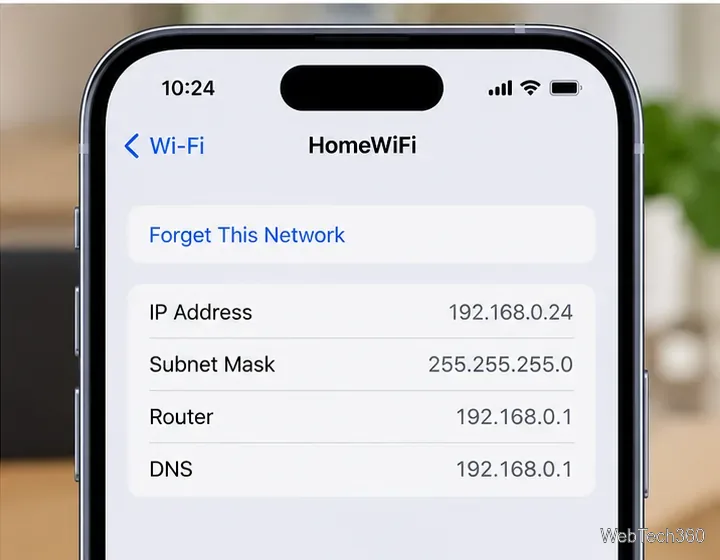
Open Settings > Wi-Fi.
Tap the information (i) button beside your connected network.
Scroll to the IPv4 address details and find Router. Enter that address in your browser.
Apple's Wi-Fi settings guide describes where to open settings for a connected network.
The Router field is the gateway to check, not the phone’s own IP Address field.
Why 192.168.0.1 Might Not Work
Wrong network: Make sure you are connected to your router rather than a guest network, phone hotspot, or another nearby Wi-Fi network.
Different gateway: Check the address shown by ipconfig or your phone's Router field. ASUS, for example, documents 192.168.1.1 and 192.168.50.1 as common defaults for its routers.
Browser or VPN interference: Enter the full address, try another browser, and temporarily disconnect a VPN or proxy if it prevents access to local devices. Reconnect your VPN afterward.
Connection problem: Try a direct Ethernet connection and confirm the router is powered on. If the gateway field is blank, verify your network connection before attempting to log in.
Login page opens but credentials fail: The administrator password may have been changed. Check the manufacturer's supported recovery procedure rather than guessing passwords repeatedly.
For unexpected HTTPS certificate warnings, verify the router and address before proceeding. Avoid factory resetting the router as an initial troubleshooting step, because a reset can erase internet and Wi-Fi configuration.
Keep Your Router Settings Secure
After logging in, use a unique administrator password, install manufacturer-supported firmware updates, and disable remote administration unless you specifically need it. Changing the router's LAN IP or Wi-Fi credentials may disconnect devices.
In short: 192.168.0.1 is a common private router address, not a universal one. If it fails to open, find your connected device's default gateway first—that is the most reliable way to locate the correct local login address.